Digital Scholar Lab - Cleaning
Return to the main Gale Digital Scholar Lab tutorial
This tutorial demonstrates how to use and customize the Digital Scholar Lab’s cleaning configurations.
Please note that Gale is periodically adding new documents to their collections, so your document counts and results may look slightly different from our screenshots and examples below.
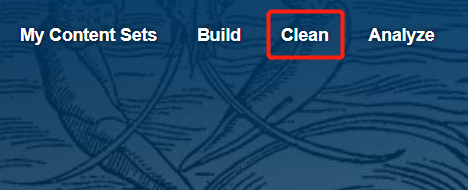
- Click on the Clean tab in the toolbar.
- This is the Cleaning Configuration page, specifically the default configuration.
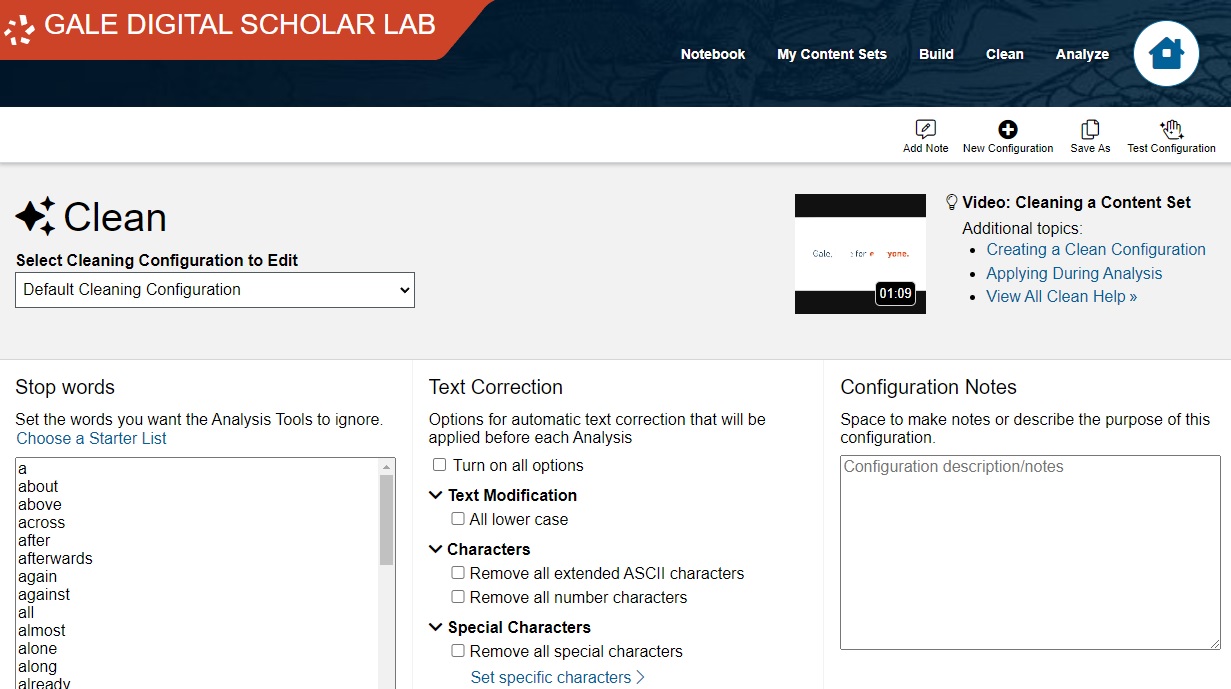
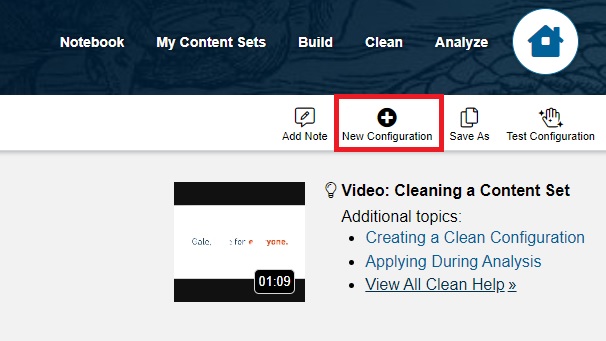
- Cleaning configurations produce higher quality analysis and visualizations by removing errors and extraneous data. The default cleaning configuration is a good start for most projects, but based on previous testing, it leaves in a lot of junk data with our current collection. For better results, let’s make our own cleaning configuration.Under the top-right tool bar, click on “+ New Configuration.”
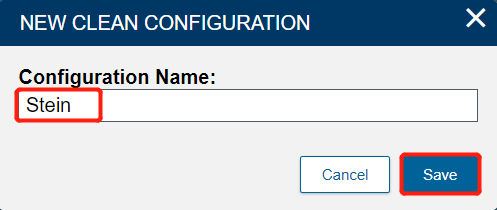
- Name it Stein and click Submit.
To make our corpus a little more useful, under Cleaning Configuration, check “Remove all extended ASCII characters”, “Remove all number characters”, “Remove all special characters”, “Remove all punctuation”, and “Remove all non-body content”. Leave the other settings at their defaults.
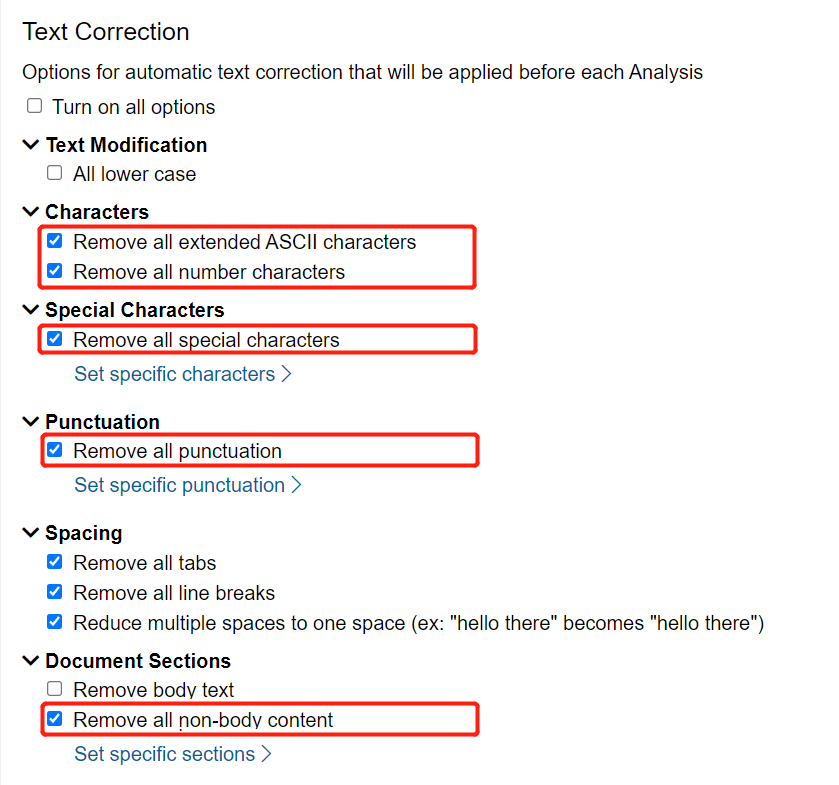
Note: Extended ASCII characters are characters used in languages other than English (e.g. accented letters like é), as well as for some typesetting and mathematical uses. Since we’re exclusively working with modern English sources in this collection, extended ASCII characters will only appear as errors of the OCR process, and therefore excluding them will give us more meaningful results. Similarly, by excluding punctuation, numbers, and special characters, we will prevent the DSL from treating individual numbers or punctuation as words.
If we leave punctuation in, the Ngram tool reveals that the most popular “word” is the period/full stop, which is not very useful:
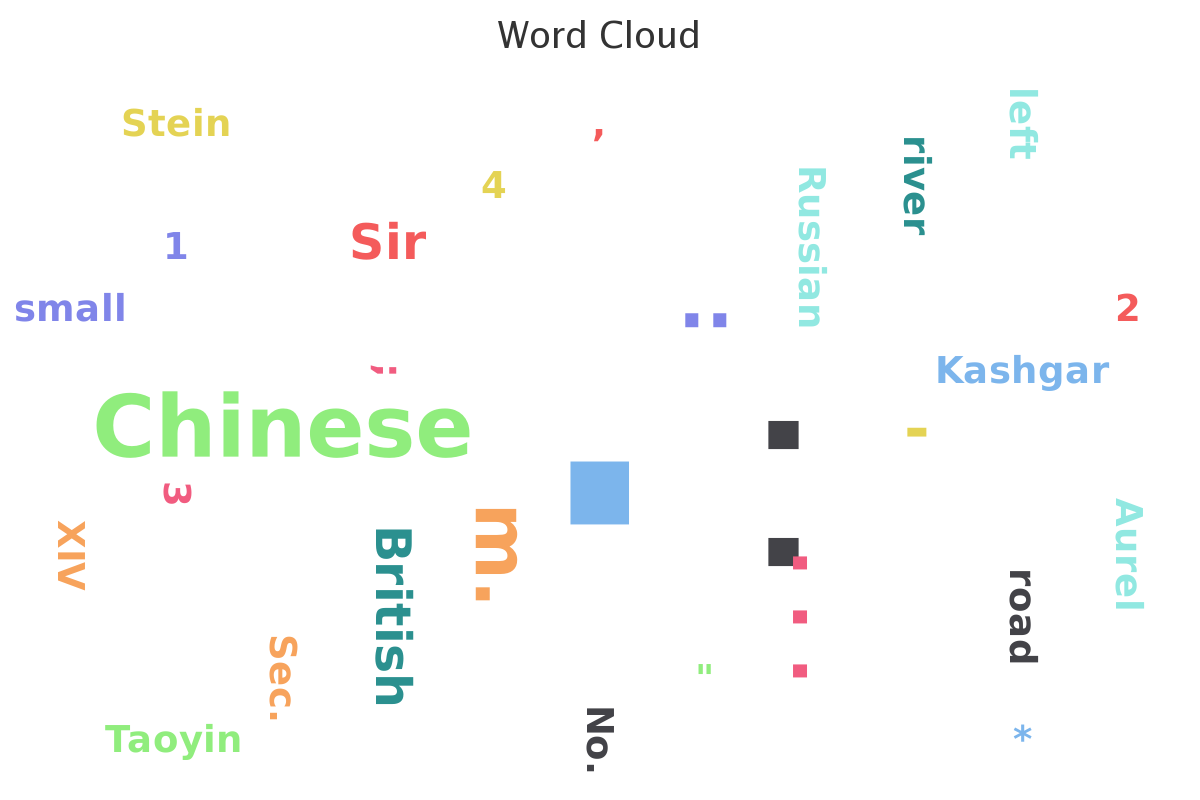
Don’t be like this; be sure to exclude punctuation, numbers, and special characters!
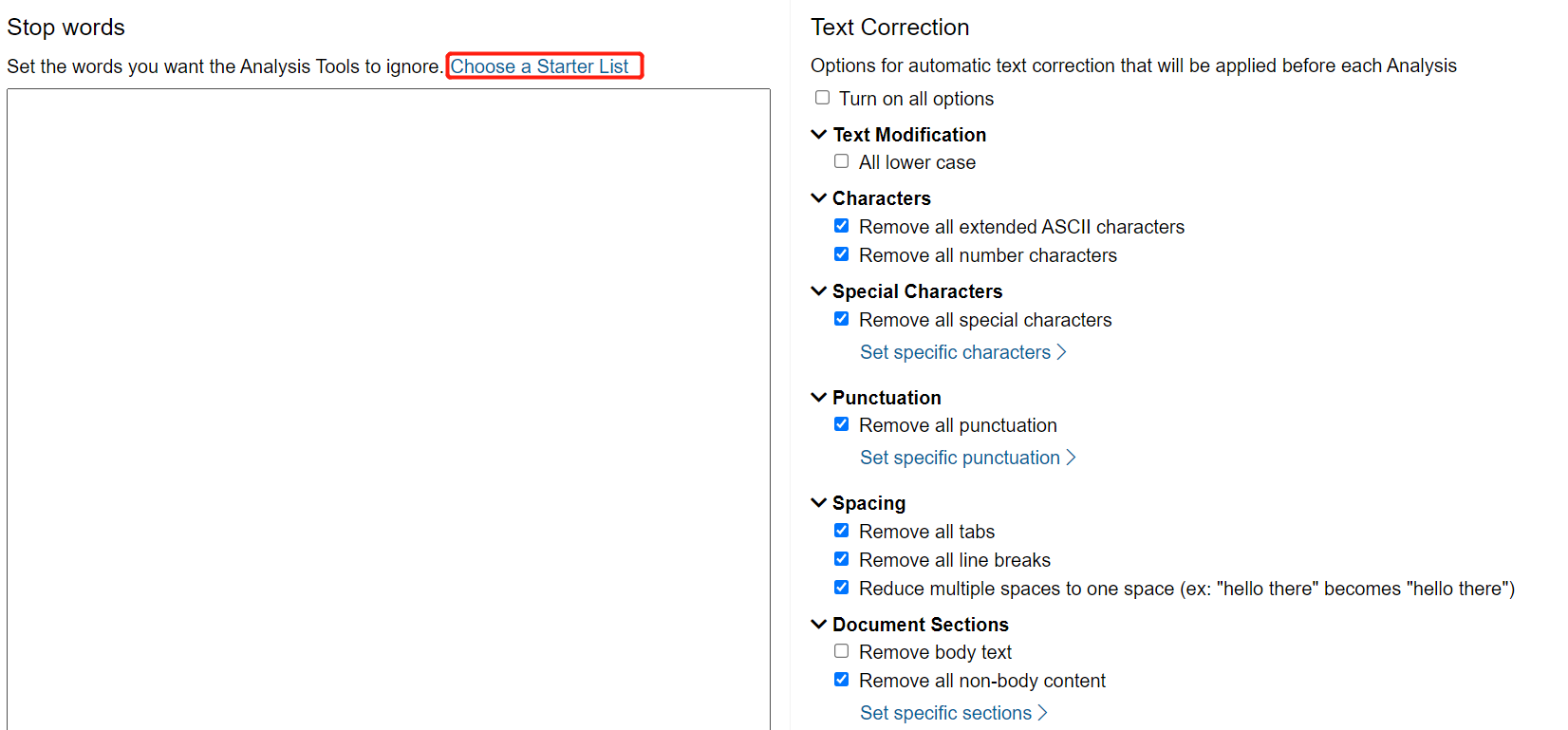
- Also, when you create a new configuration, you need to set a list of stop words. Stop words are common words, like “a” and “you,” that we filter out before running analyses on our corpus. If we don’t exclude them, then it turns out that the most common word in almost every English corpus is “the.”Under Stop Words, click Choose a Starter List.
Select English, then click Select starter lists.
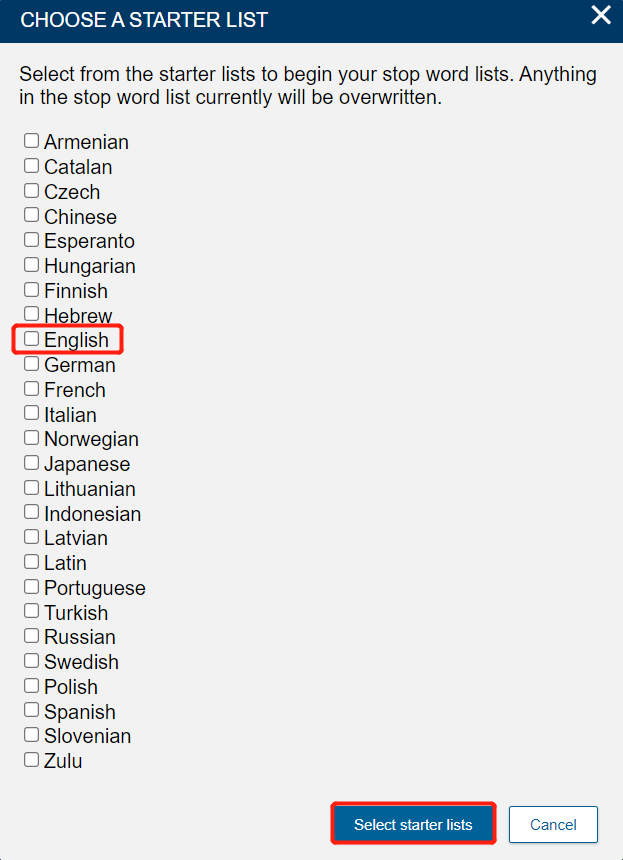
Note: you can select multiple languages, if you are working with a corpus that includes texts in multiple languages. We’ll stick with just English for this collection.
- Your Stop Words list is now populated with the most common English words.
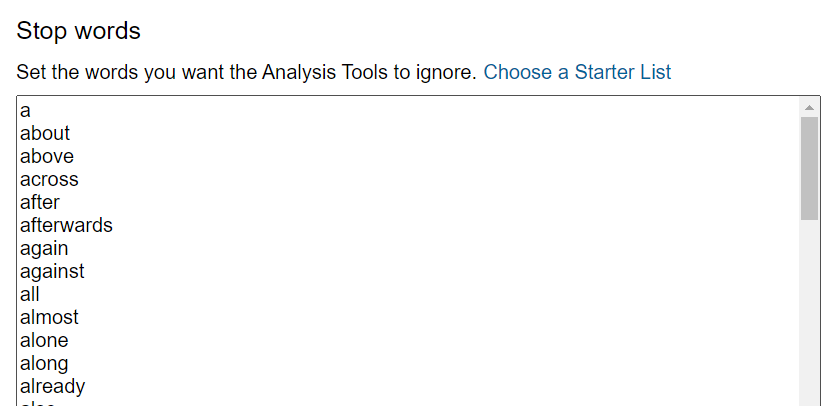
You can add words to your stop word list by typing them in. You must separate each word with paragraph returns (i.e. by hitting the Enter key).Add the following words to the stop word list by copying and pasting them into the list above the first word in the English stop word list (“a”):
b
c
d
e
f
g
h
j
k
l
m
n
o
p
q
r
s
t
u
v
w
x
y
z
th
pp
Sec
ii
iii
iv
vi
vii
vii
ix
xi
xii
xiii
xiv
xv
xvi
xvii
xviii
xix
xx
xxi
xxii
xxiii
xxiv
xxv
xxvi
xxvii
xxviii
xxix
xxx
no.
sec.
said
tho
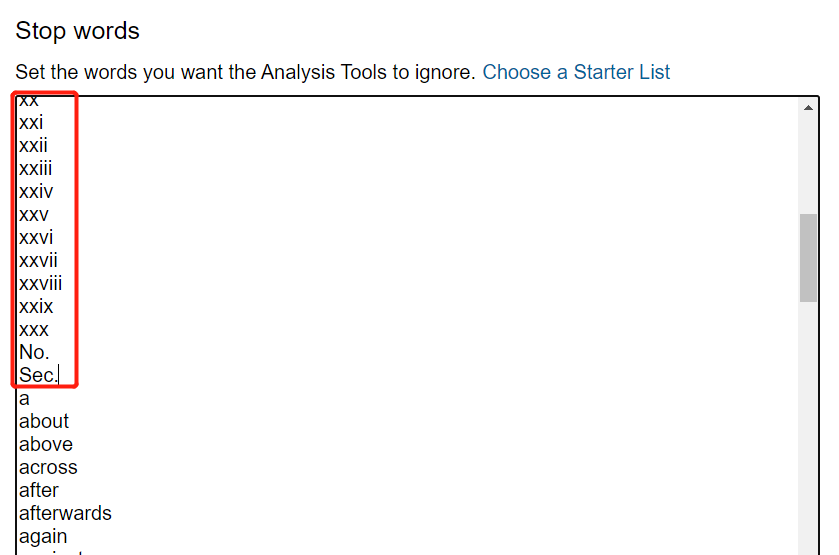
Be sure to avoid erasing the English stop word list.
Note: by adding these “words” to the list, which are a mix of abbreviations (like “Sec.” for “section”), Roman numerals, and individual letters, we do two things: (1) we remove commonly used words that are related to the structure rather than the contents of the text, like “Sec.” or the Roman numerals; and (2) we account for some OCR errors. Since the OCR process sometimes misreads a word, inserting a space where there should be none (e.g. misreading “apple” as “a pple”), single or paired letters appear as common “words” in some text collections. This isn’t true for every collection, but it is true for this particular collection.
- Cleaning configurations can also replace words. One use is to treat variations of a key word or phrase as a single word. To prevent the various tools from treating “Stein,” “Aurel Stein,” “Sir Aurel Stein,” etc. as different words,scroll down to the Replacements section.
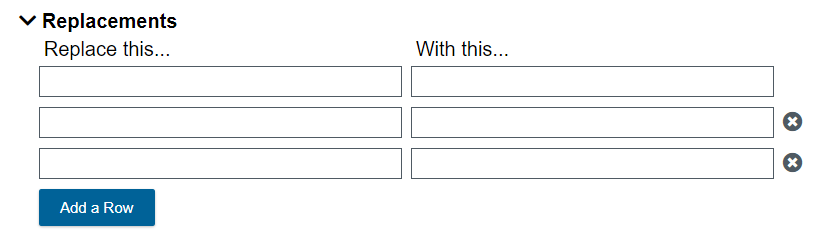
- In the first row, under “Replace this…”, typeSir Aurel Stein. On the same row, under “With this…”, typeAurel Stein.
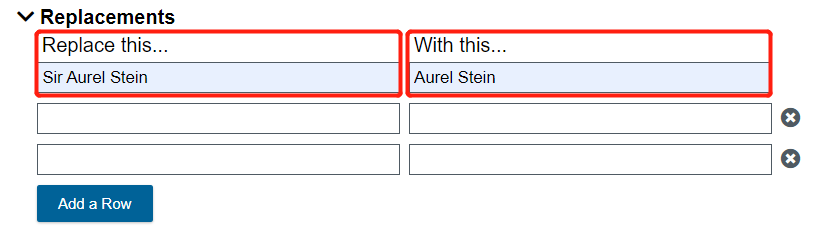
On the next row, replaceAurelwithAurel Stein. Repeat this process on the next row, replacingSir SteinwithAurel Stein.
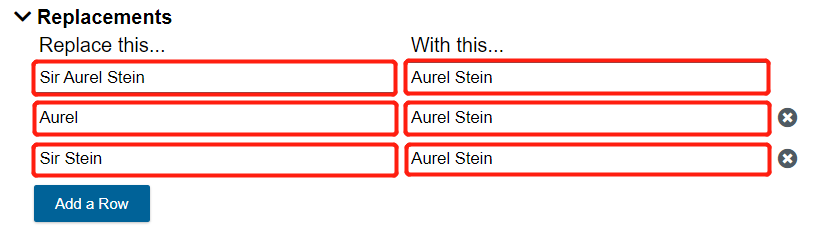
Now all of these variations on his name will show up as the same version, “Aurel Stein,” in our future analysis and visualizations.
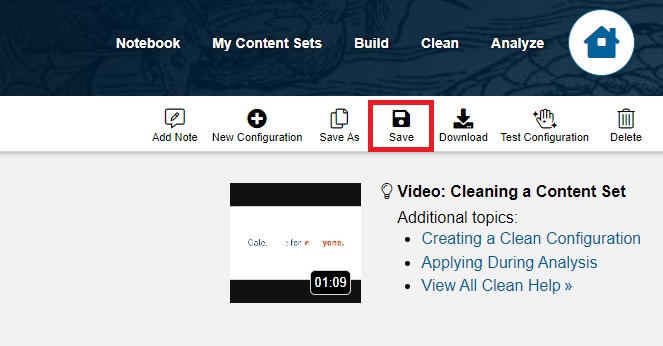
Finally, click Save.
Note: when you work with your own projects, you might need to adjust your cleaning configuration several times in order to remove errors specific to your texts.
That’s it! You’ve now cleaned your texts using a variety of tools.
Continue on to Analysis
Return to the main Gale Digital Scholar Lab tutorial
Technique: Cleaning data | Tools: Digital Scholar LabDate Created: 2022-03-10Updated: 2025-04-23