Create Codes
Next let’s move to one of the main tasks MAXQDA is used for: coding. MAXQDA’s bottom left panel is where the code system is displayed. Codes act like containers to hold all the references or segments to that code. As you create codes, they will display in that panel, and you can use that area to create new codes and reorganize your codes.
If you have already decided upon codes ahead of time (following a deductive approach to coding), you can add these codes to MAXQDA and then start using them. Other times, you will be reading your materials in MAXQDA and creating codes as you go (an inductive approach to coding). And sometimes you will do a combination of this, where you have a rough idea of some codes you expect to see, but then new codes might emerge for you as you read through the materials. For this example, let’s try this combo method. First, we will create a few codes that we will use to code our materials, and then I will show you how to create codes on the fly as you are reading.
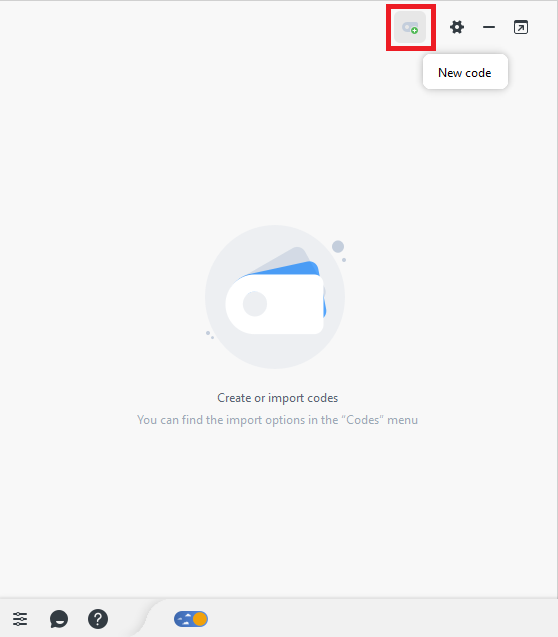
From the Coding System panel on the bottom left, click on the create new code icon to the left of the gear icon at the top of the panel.
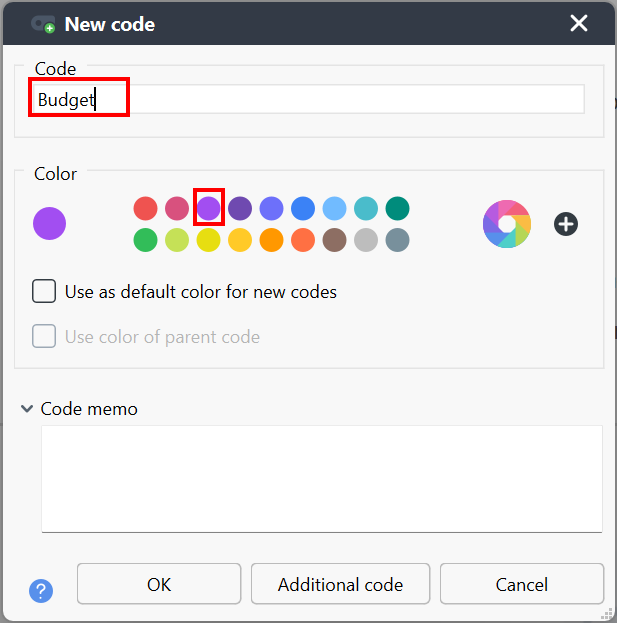
For the code name, call it “Budget”. You can assign it a colour if you like, otherwise the default colour is blue. In our case, let’s pick purple.
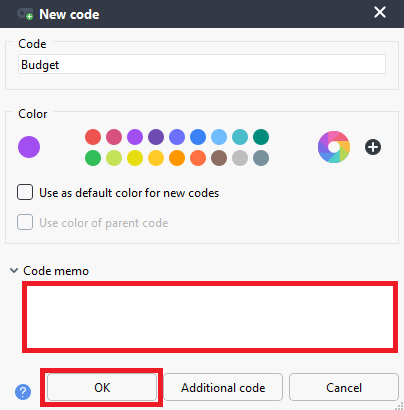
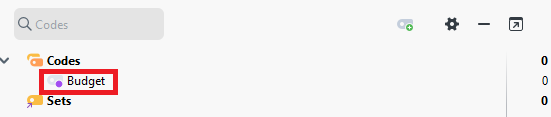
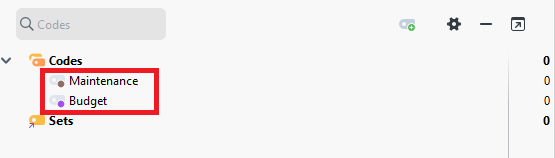
The code memo section is where you can add a description for your codes, if you like. You can describe them in more detail and give examples of where it would be applied to understand how to use it in coding. We will just leave it blank for now, but it is generally best practice to fill this out. It will help you and your teammates be more consistent in coding, and documenting your thought processes is often a key component of qualitative research. You can always revisit the code memo and add it to it later as well. So, for now let’s select OK. You should now see our new Budget code listed.
Repeat these steps to also create a code called “Maintenance” and make it the colour brown. (Make sure to highlight the Codes folder when creating a new code going forward, otherwise, you’ll create a code nested under whatever code you had highlighted. We’ll talk about nesting codes later.) If you make a mistake, you can always hover over a code and select the red x icon to remove it (be careful with this option if you have started coding!). You can do two slow clicks on it to rename it.
Technique: Qualitative Data Analysis | Tools: MAXQDA