Create Memos
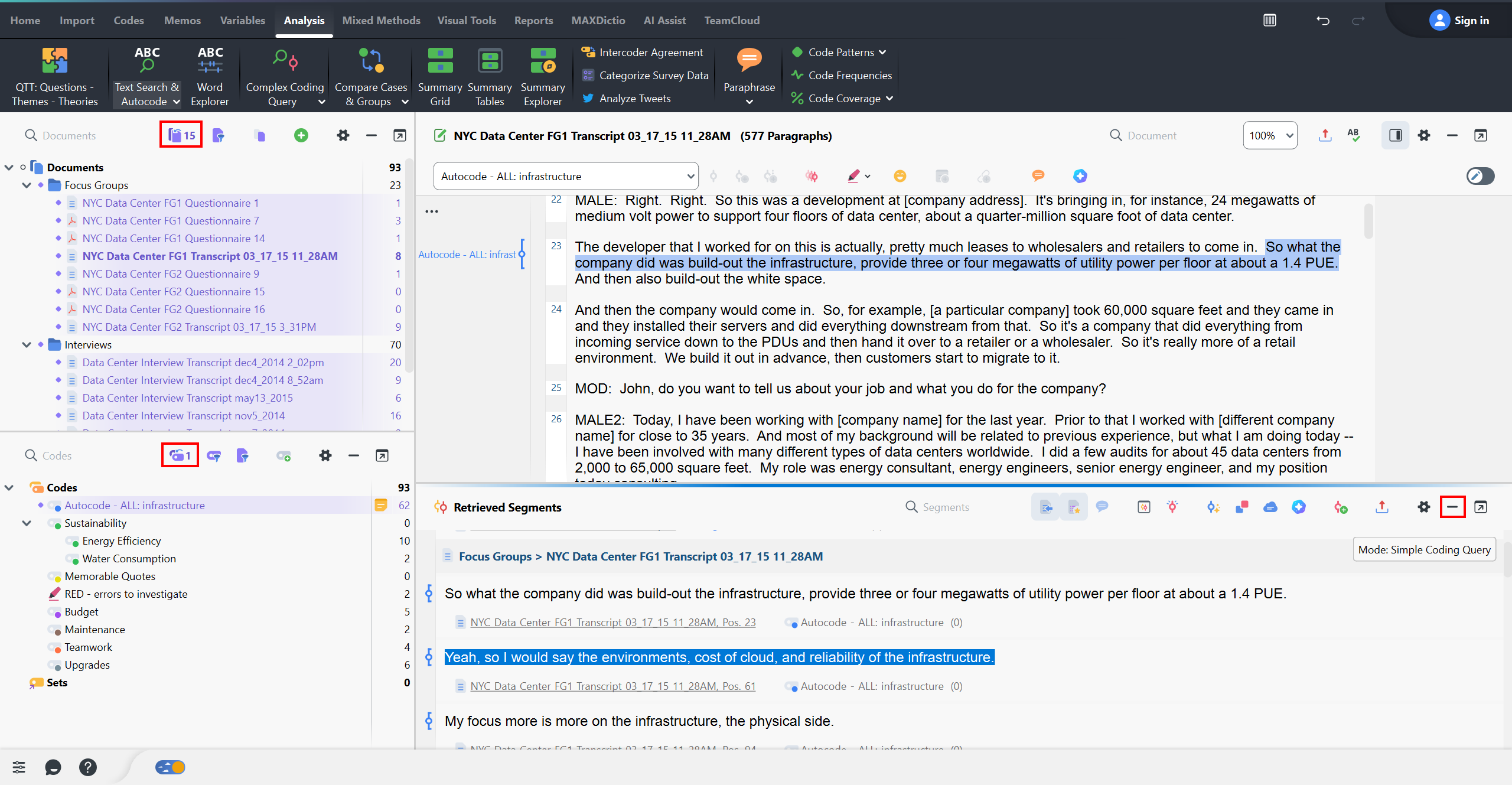
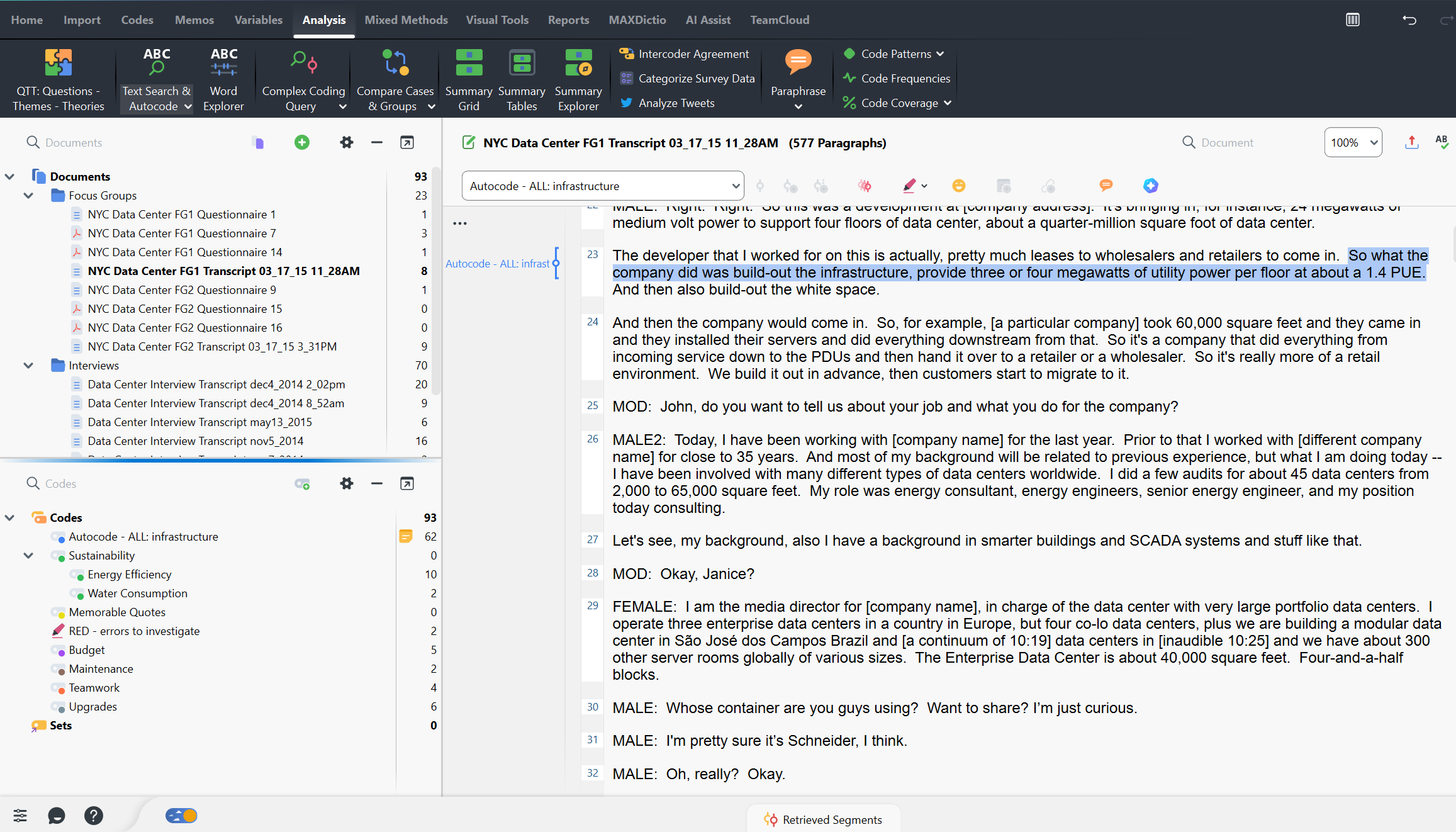
Okay, if you have anything activated, deactivate everything for now, and let’s minimize the Retrieved Segments panel for now. Let’s move on to another use of MAXQDA. You can create different types of comments and memos to capture your thoughts on some text in a file, a file itself, a code, or the project as a whole. Let’s make a note about something that has come up in the text.
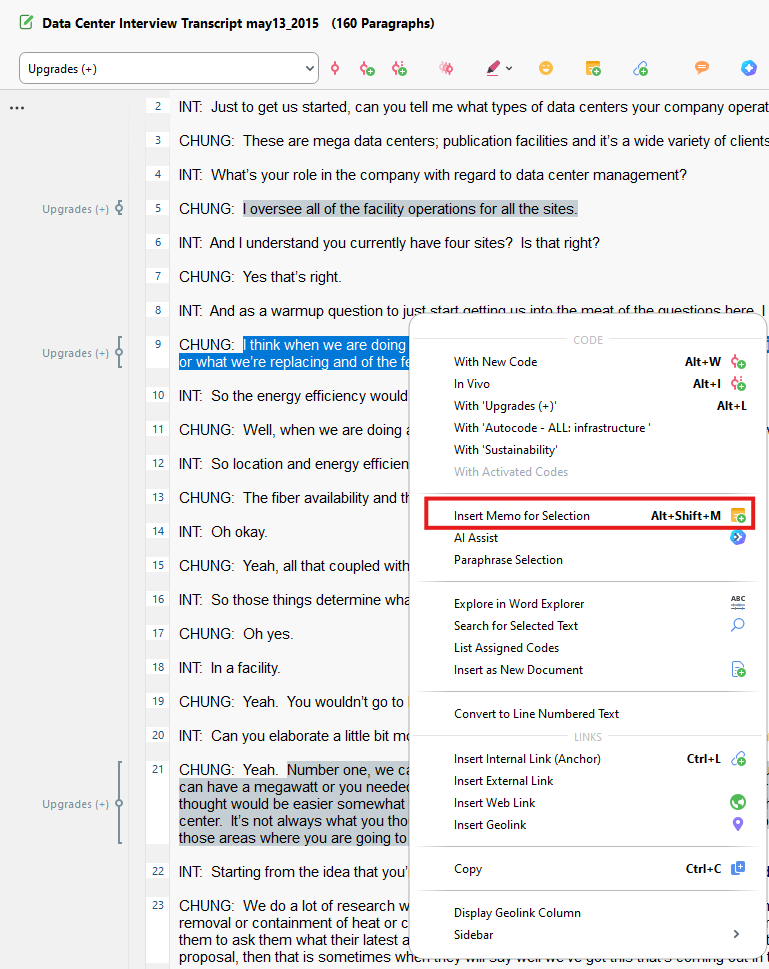
- Open up one of the interview files, highlight some text, right click, and select Insert Memo for Selection.
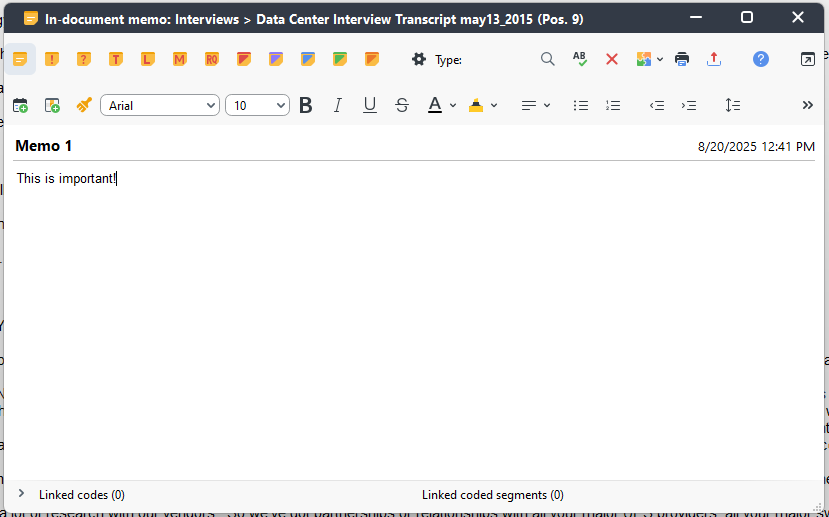
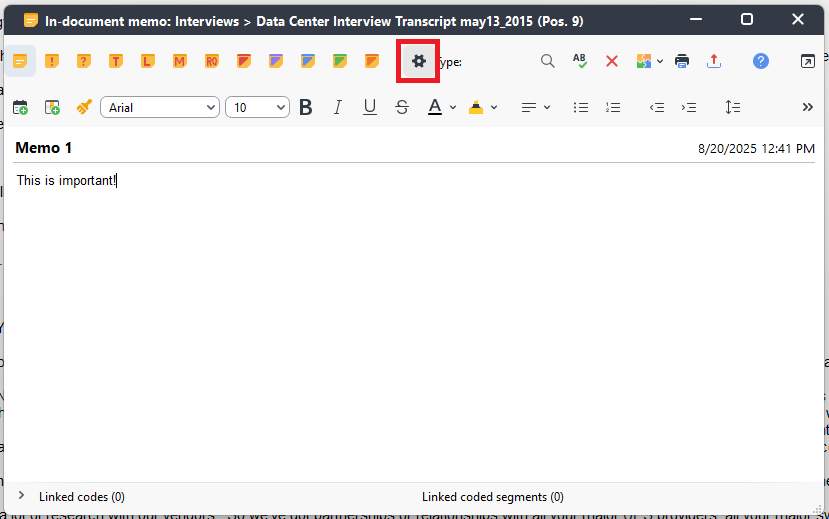
- A window should pop up where you can add your thoughts. Type out a note, such as “This is important!” You can also adjust the title of the memo (currently in bold) to whatever you want. We can leave it for now.
- You can also select from various memo icons at the top to categorize your memos.
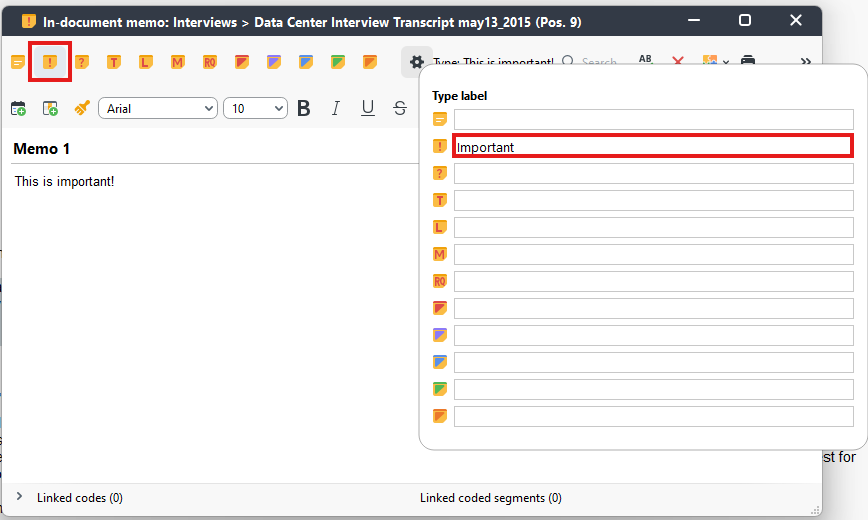
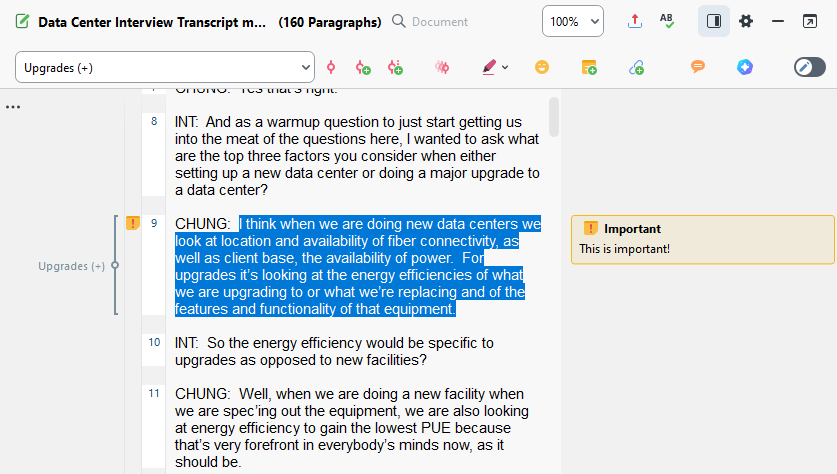
- Let’s pick the Interesting icon. When you’re done typing your note and selecting the memo icon, just close the memo to save it. You will see the memo icon next to the text and the memo itself in the margin. If you hover over the icon, you’ll see the note. If you double click on the memo icon, it’ll reopen it so you can edit or add to it.
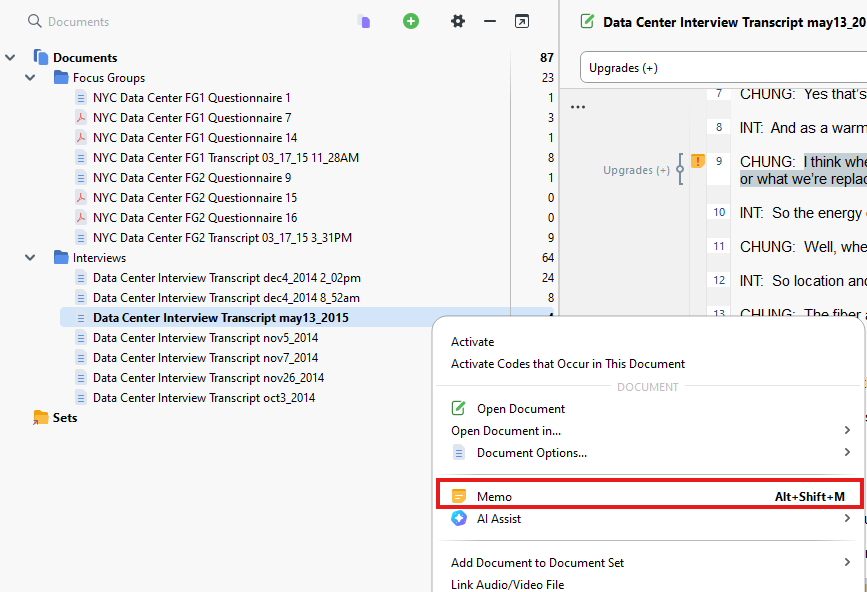
- Let’s say instead that you want to make a note about this whole interview file that you had open. Go to the Interviews folder and right click on an interview file. Select Memo.
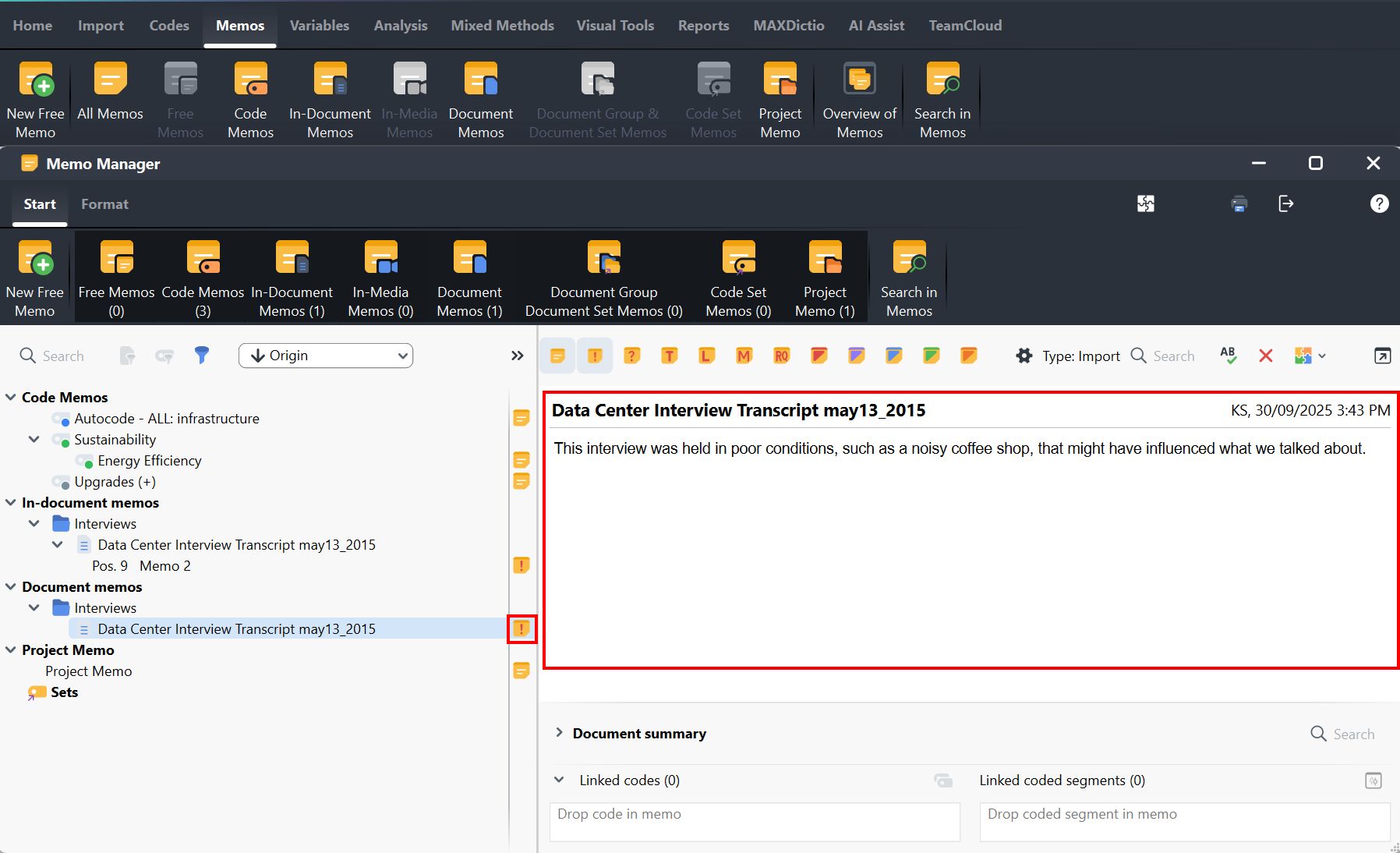
- Adjust the title if you wish to say “Interview Memo” and then you can write a detailed memo about that file. Perhaps, for example, this interview was held in poor conditions, such as a noisy coffee shop, that might have affected the accuracy of the transcript. You could note that here. Let’s add an icon to this memo, this time a Red icon to indicate “Important.” You can also summarize the document, if you wanted in the text box on the right, if you’d like, but for now we’ll keep it blank.
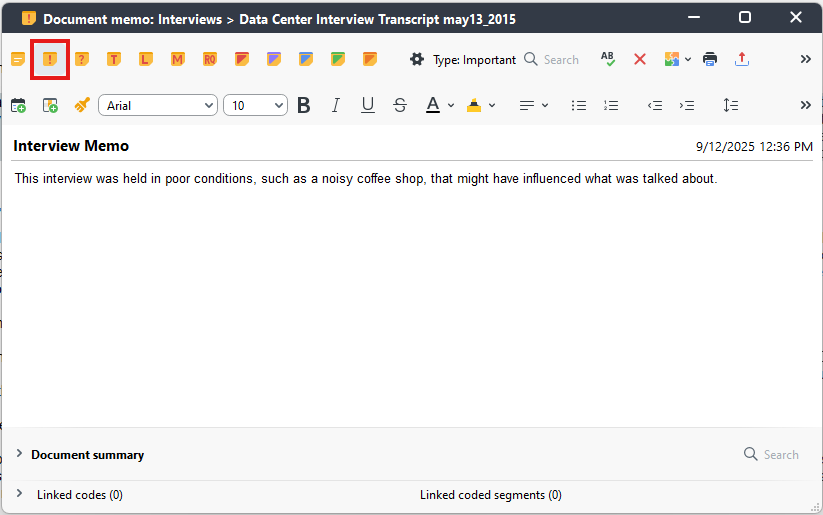
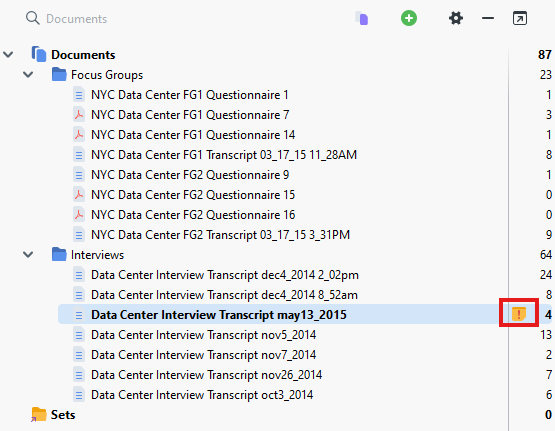
- Once you close the window, the memo is saved and linked to this file. You should see a small memo icon next to the interview in the list. To view the memo, again you can just hover over the icon. Or double click it to edit it.
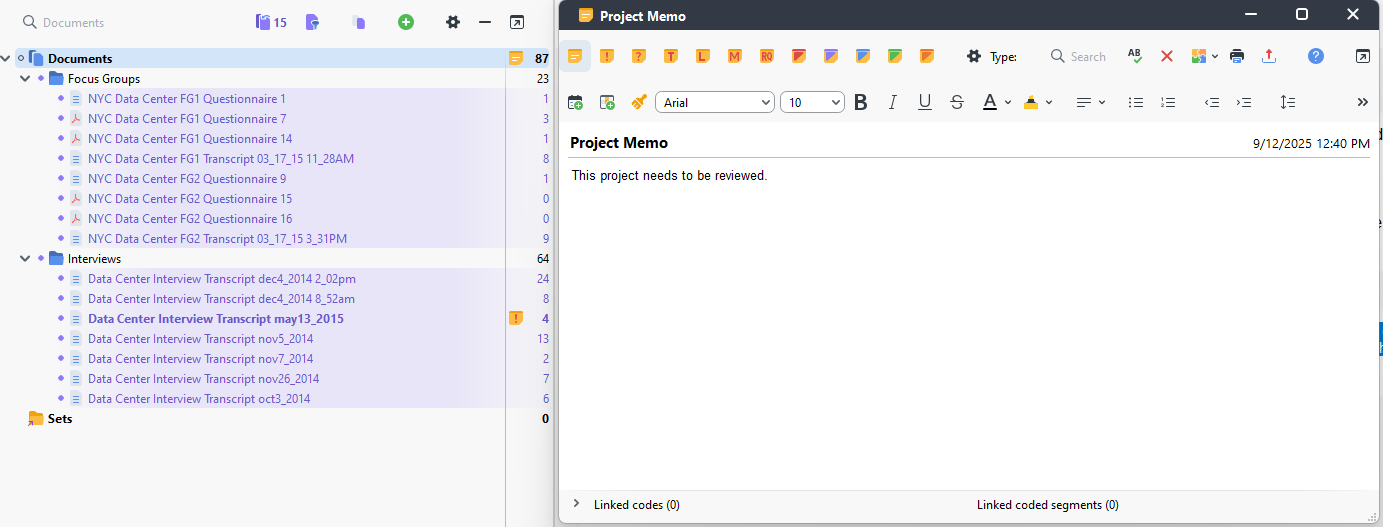
- To create a memo about the whole project you can right click on the Documents document group in the Document System panel and select Memo, and write your memo. Perhaps you want to write notes, such as “The project needs to be reviewed”. Once you’re done, you can close it to save. You can view or edit it similar to a Document memo.
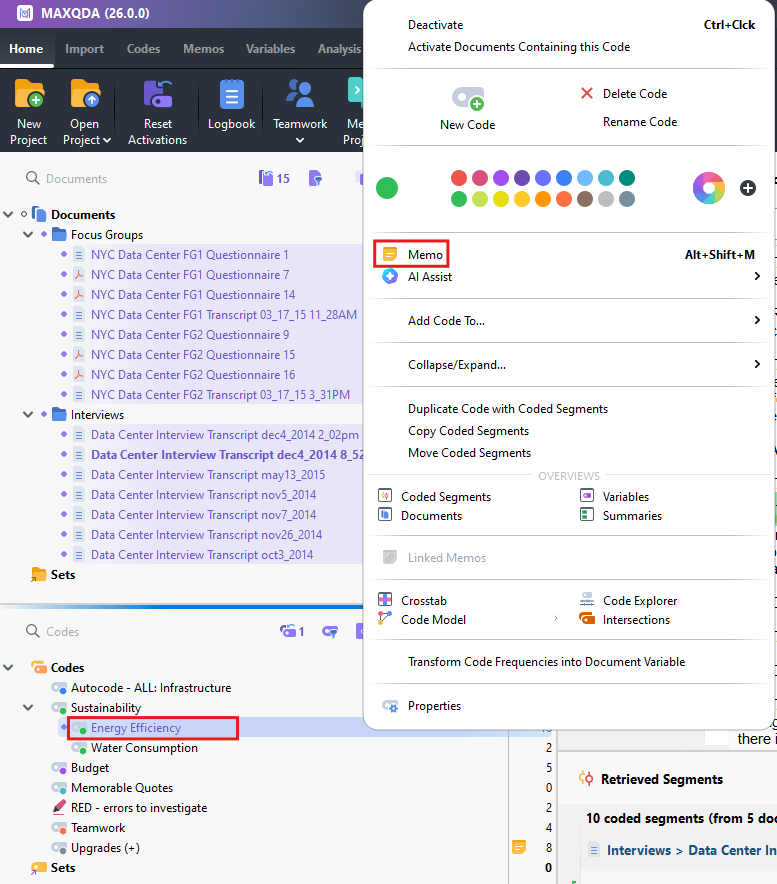
You can also use memos to describe your codes. You could’ve created a code memo when creating a new code, or you can add a memo to an existing code now. You can also add segments to your code memo to provide representative examples. For example, activate all your documents and the Energy Efficiency code, and then maximize the Retrieved Segments panel to see related segments. Find one that looks like a good example.
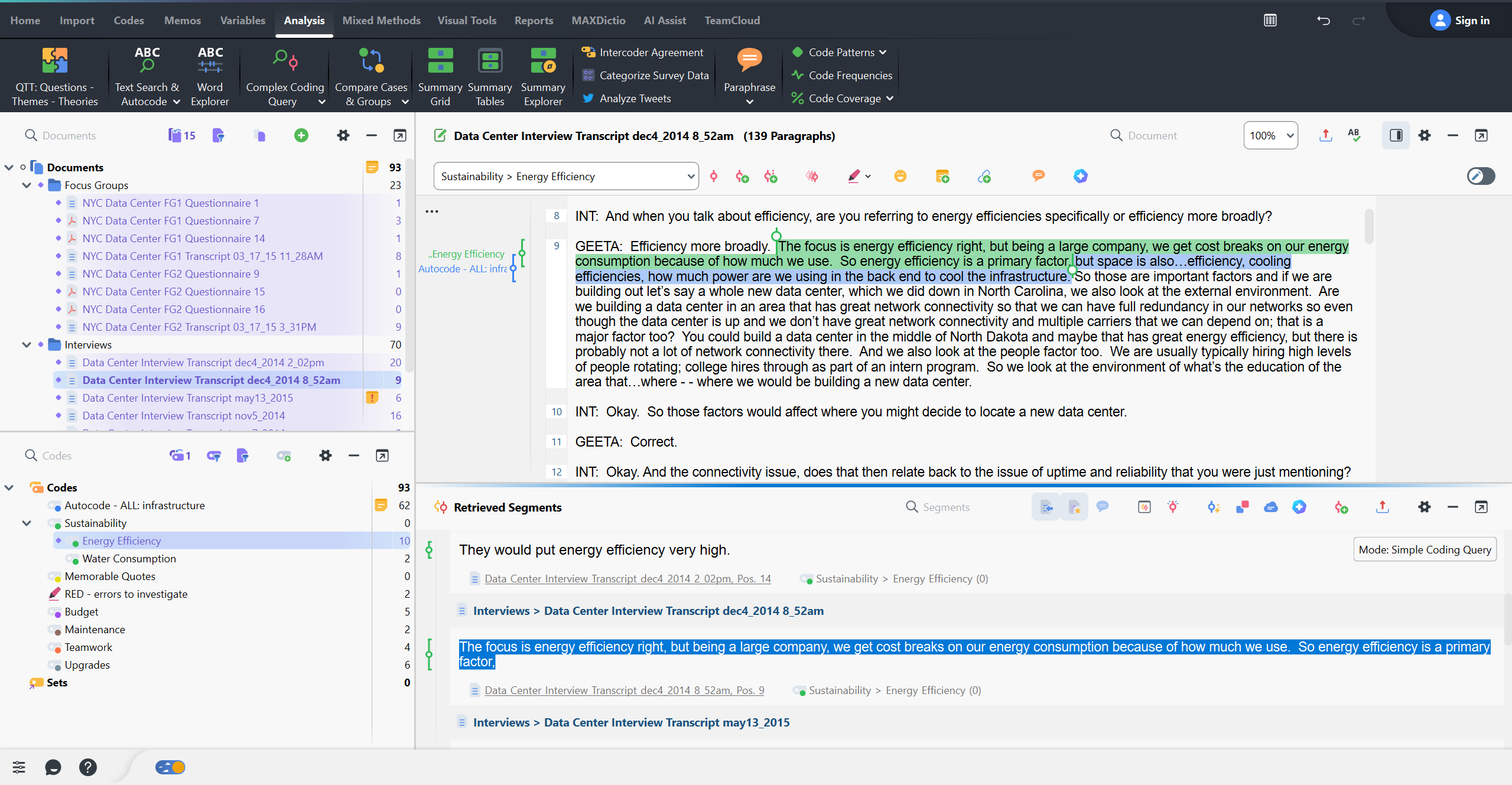
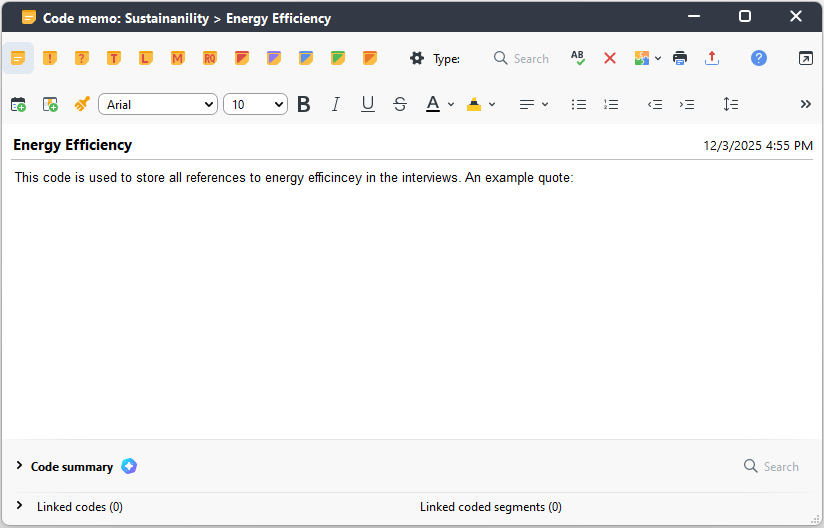
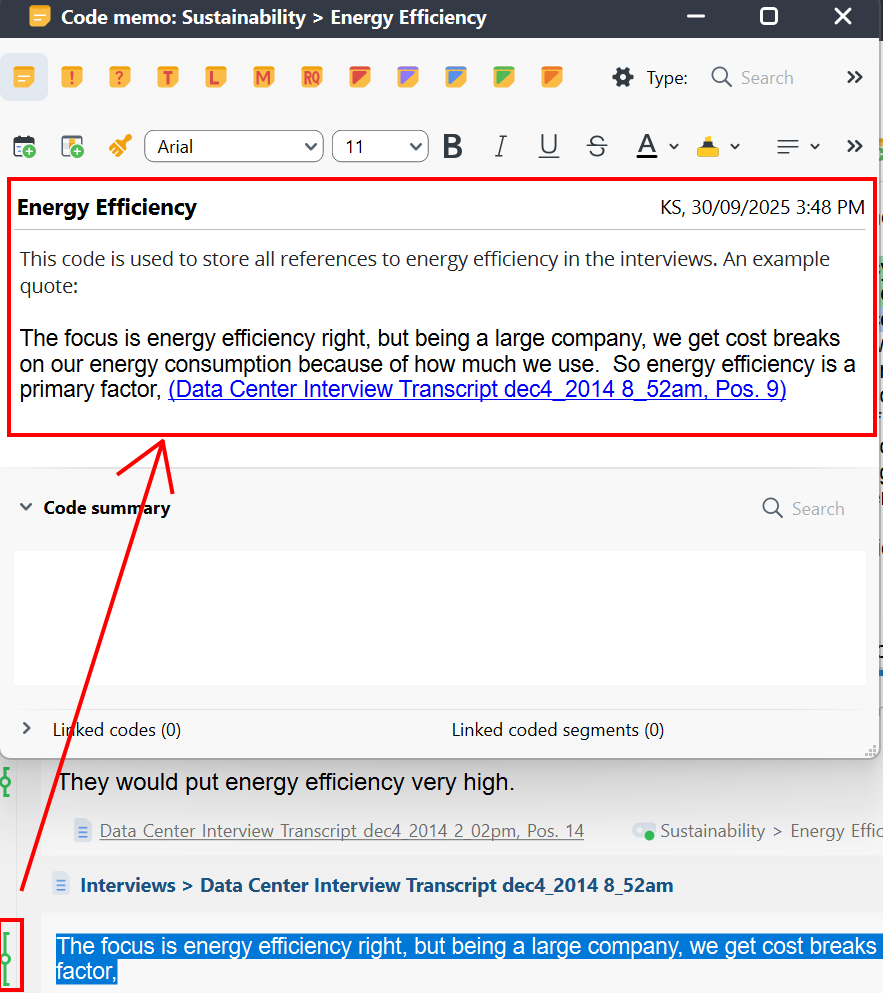
Next, right click on the Energy Efficiency code and select Memo. Write your memo first to say something like “This code is used to store all references to energy efficiency in the interviews. An example quote: “ Then drag in one of the segments from the Retrieved Segments panel (by dragging its coding stripe) to add it to the memo. It copies the quote and provides the document name and position in the document where it is found. Then save it by closing the window.
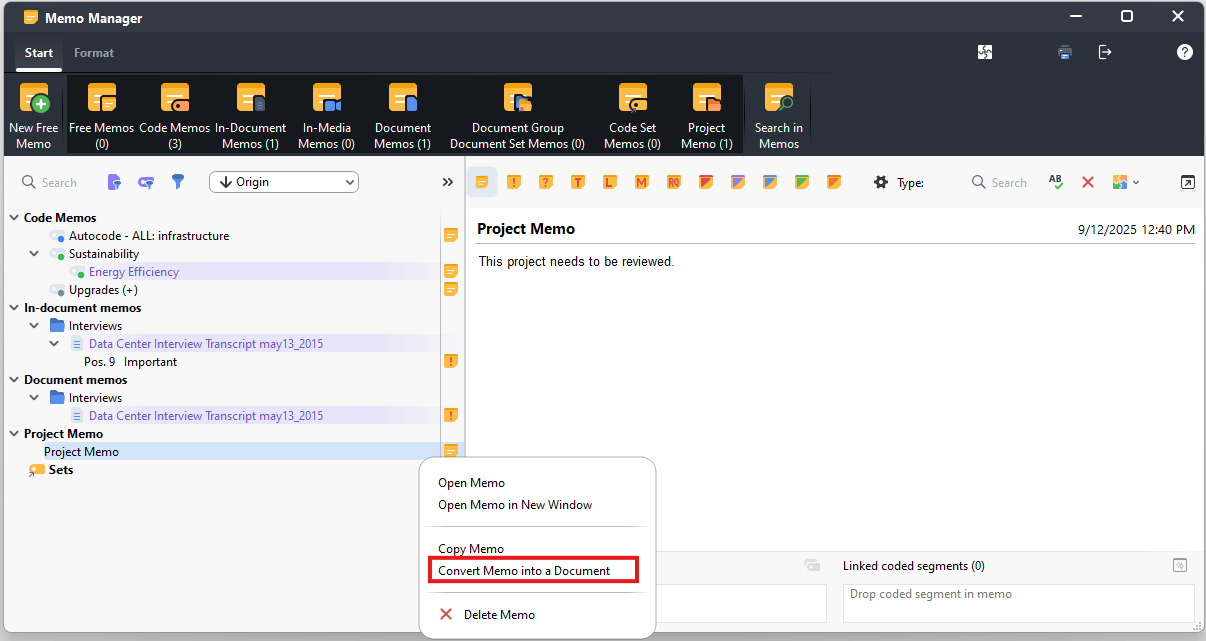
Finally, to view all the memos you’ve created, you can go to the Memos menu. You can click on All Memos to see a list of all the different types of memos you have in your project on the left. You can click on one to see the contents of the memo on the right. You can use the options at the top to toggle the view on or off displaying that type of memo in the list.
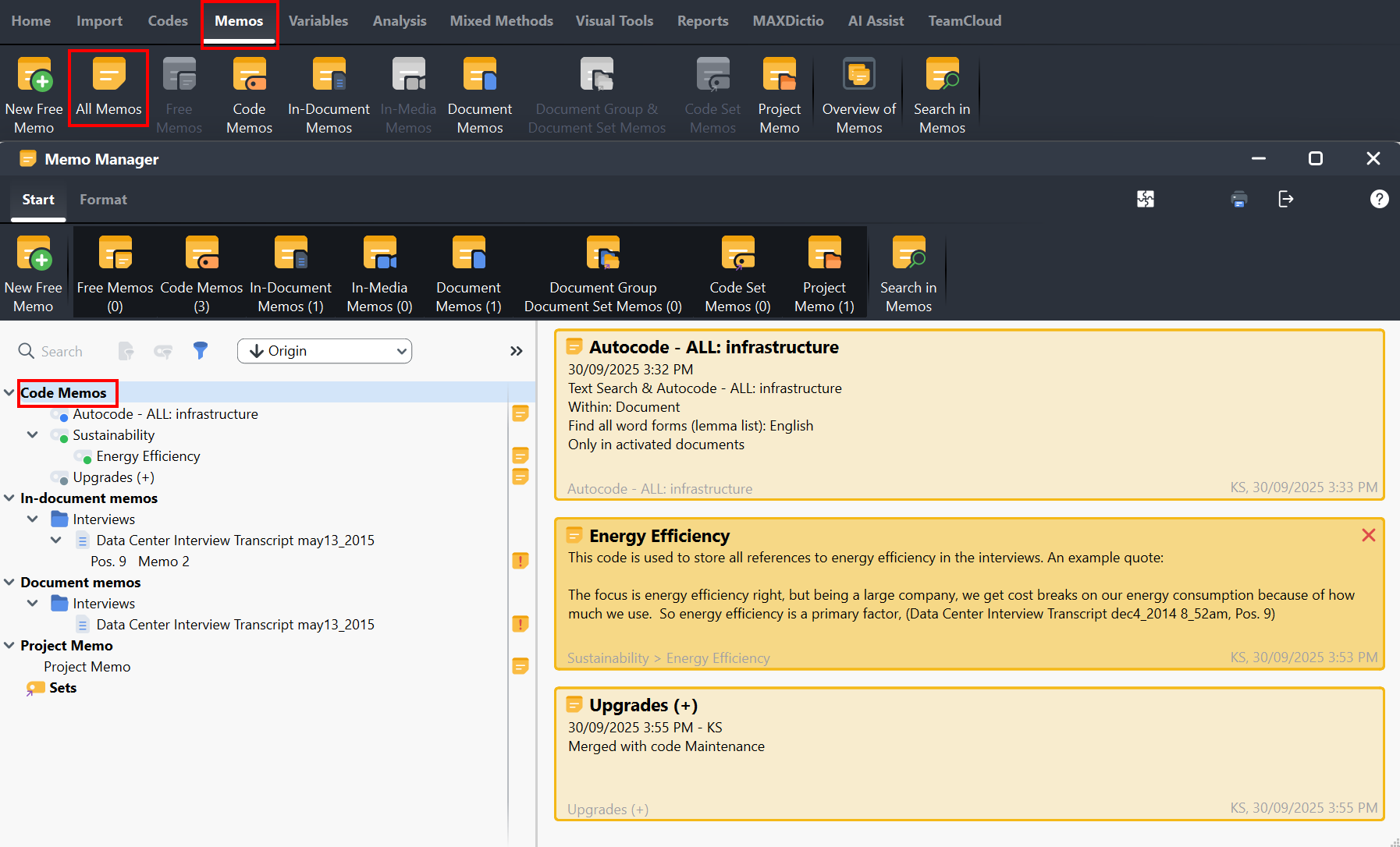
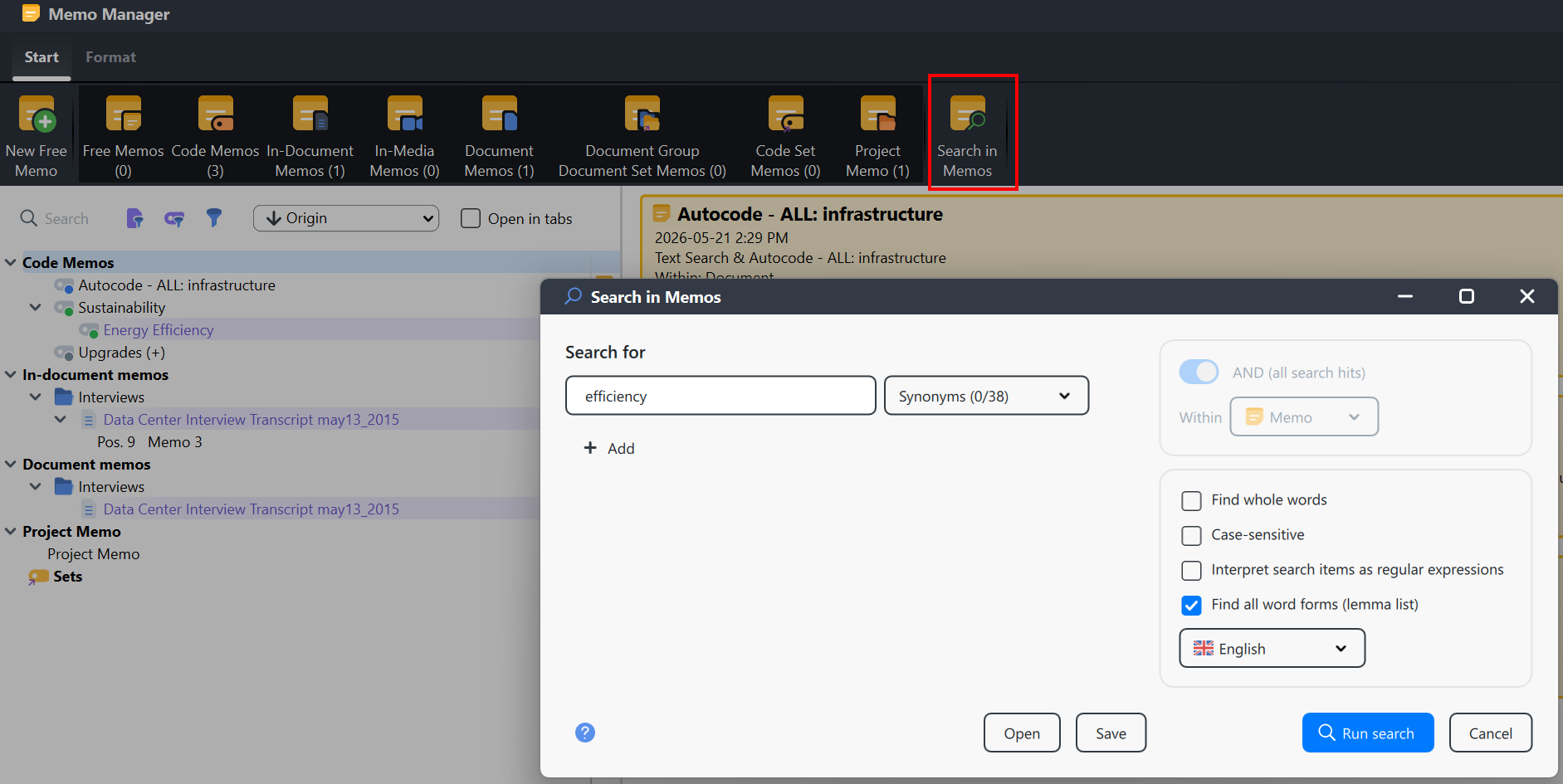
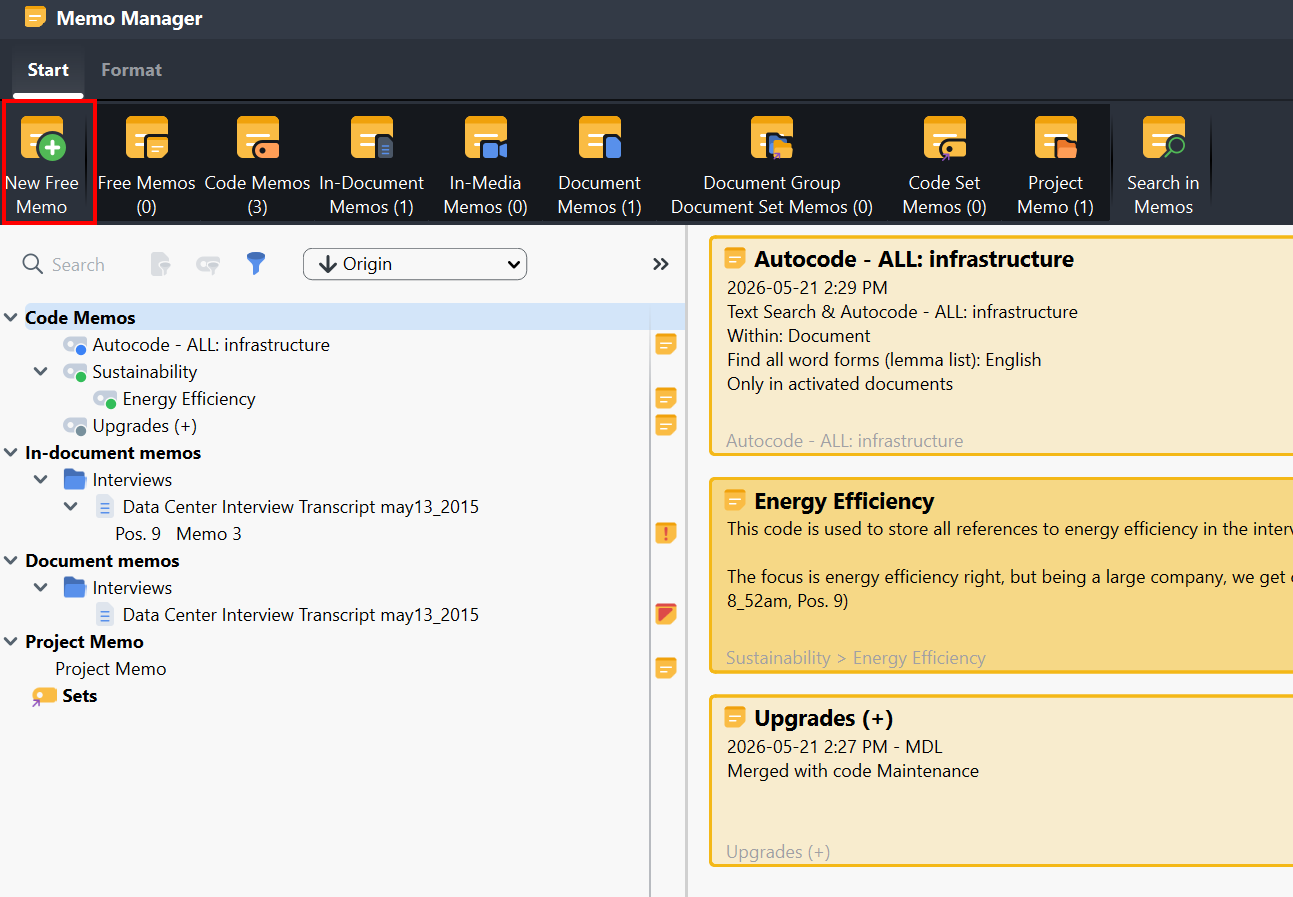
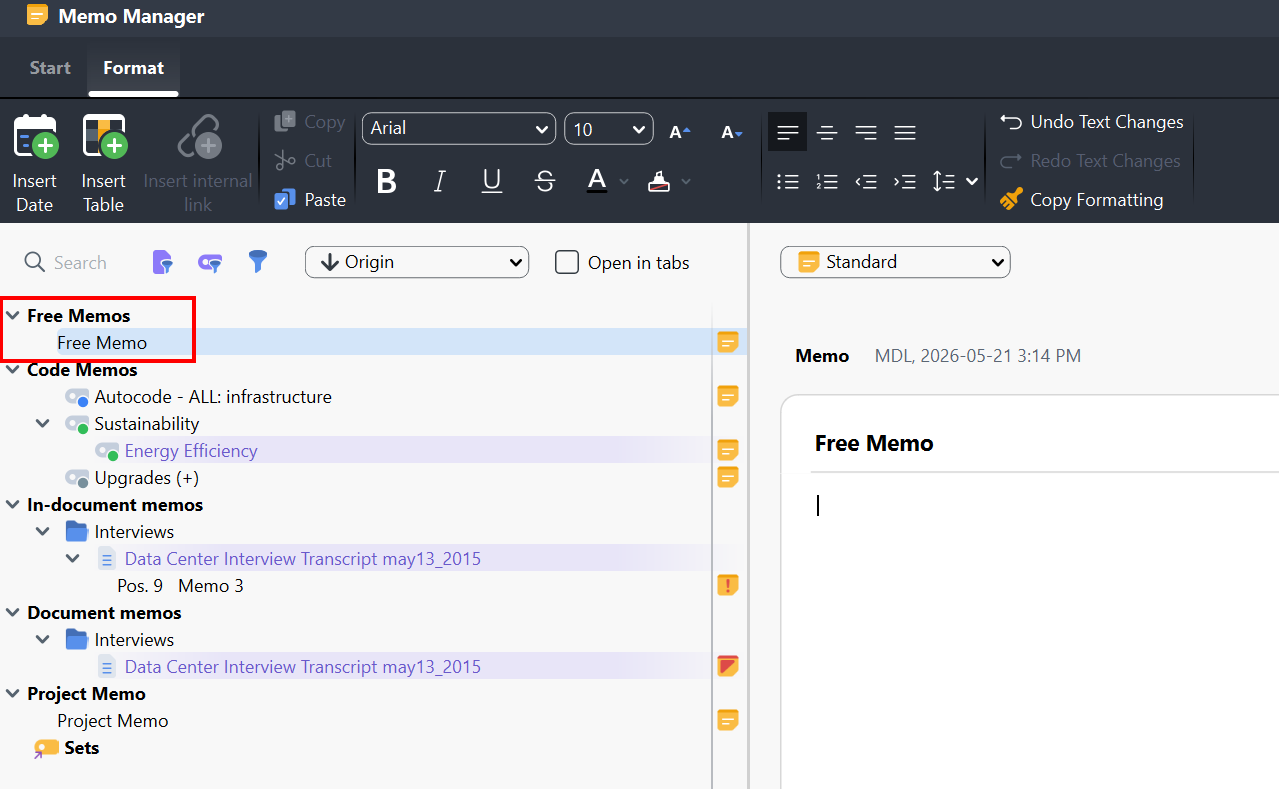
- You can also select Search in Memos to search for a word or phrase in your memos. You can also create a New Free Memo (not linked to anything in the project) if you want a more free-form document. You can’t code your memos, but if a memo becomes so extensive that you’d like to do that, you can convert it to a document by right clicking on it in the memo list and selecting Convert Memo into a Document.
Technique: Qualitative Data Analysis | Tools: MAXQDA