Work with Codes and Activation
Let’s talk more about Codes.
First, you can see now there are useful counts associated with our codes to see how many segments have been coded into that code.
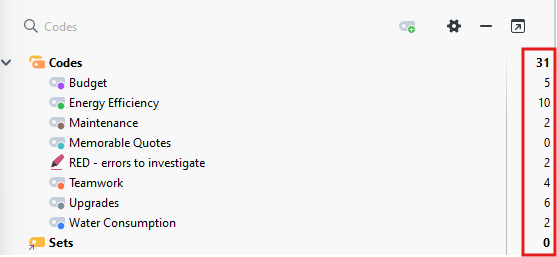
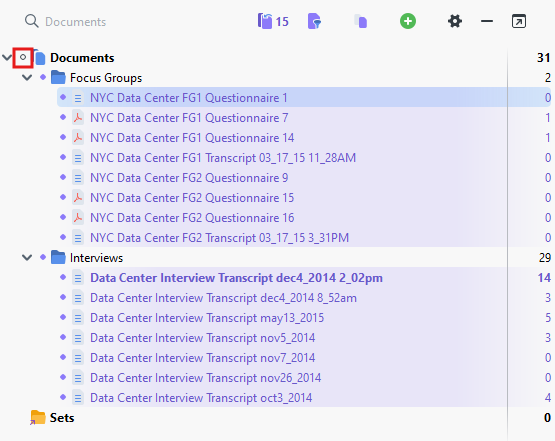
- If you want to see all the segments that you’ve coded with a particular code, this is where the Retrieved Segments panel comes into play. Before we retrieve segments, we need to talk about a powerful feature of MAXQDA called activation. To pull up all the segments in the Retrieved Segments panel that we’ve coded in this project to a particular code, let’s say Energy Efficiency, we need to first activate all of our documents in the project. There are a number of ways to activate a document, but the easiest way is, in the Document System panel, click on a small circle to the left of the name of a document. That should highlight the document in purple.
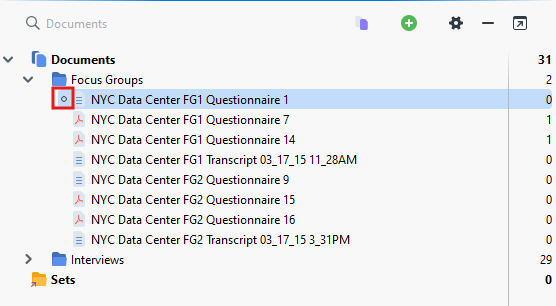
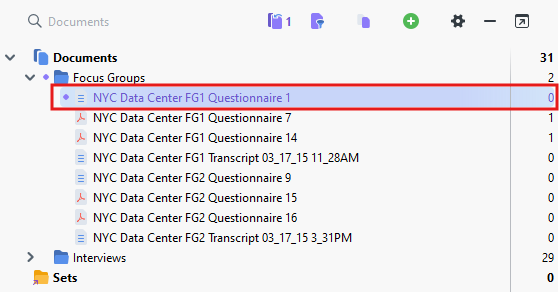
Click on the circle again to deactivate it. If we want to activate all the documents in a document group, we could click on the small circle to the left of the document group name. And to activate all the documents in a project, we could click on the small circle to the left of the Documents folder.
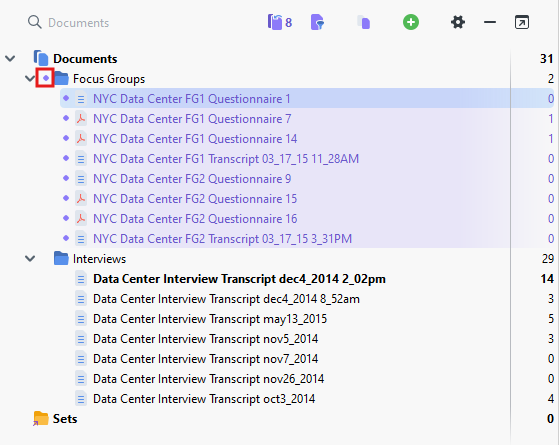
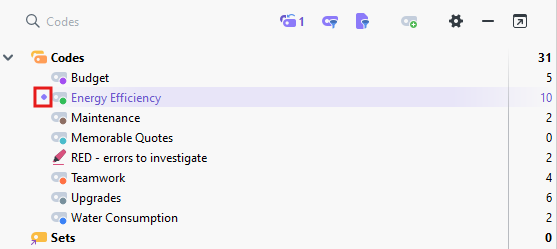
So, make sure you have all the documents activated, then go to the Code System panel and activate a code that you want to see all the segments for. In our case, let’s activate Energy Efficiency. Again, click on the small circle to the left of the name of the code.
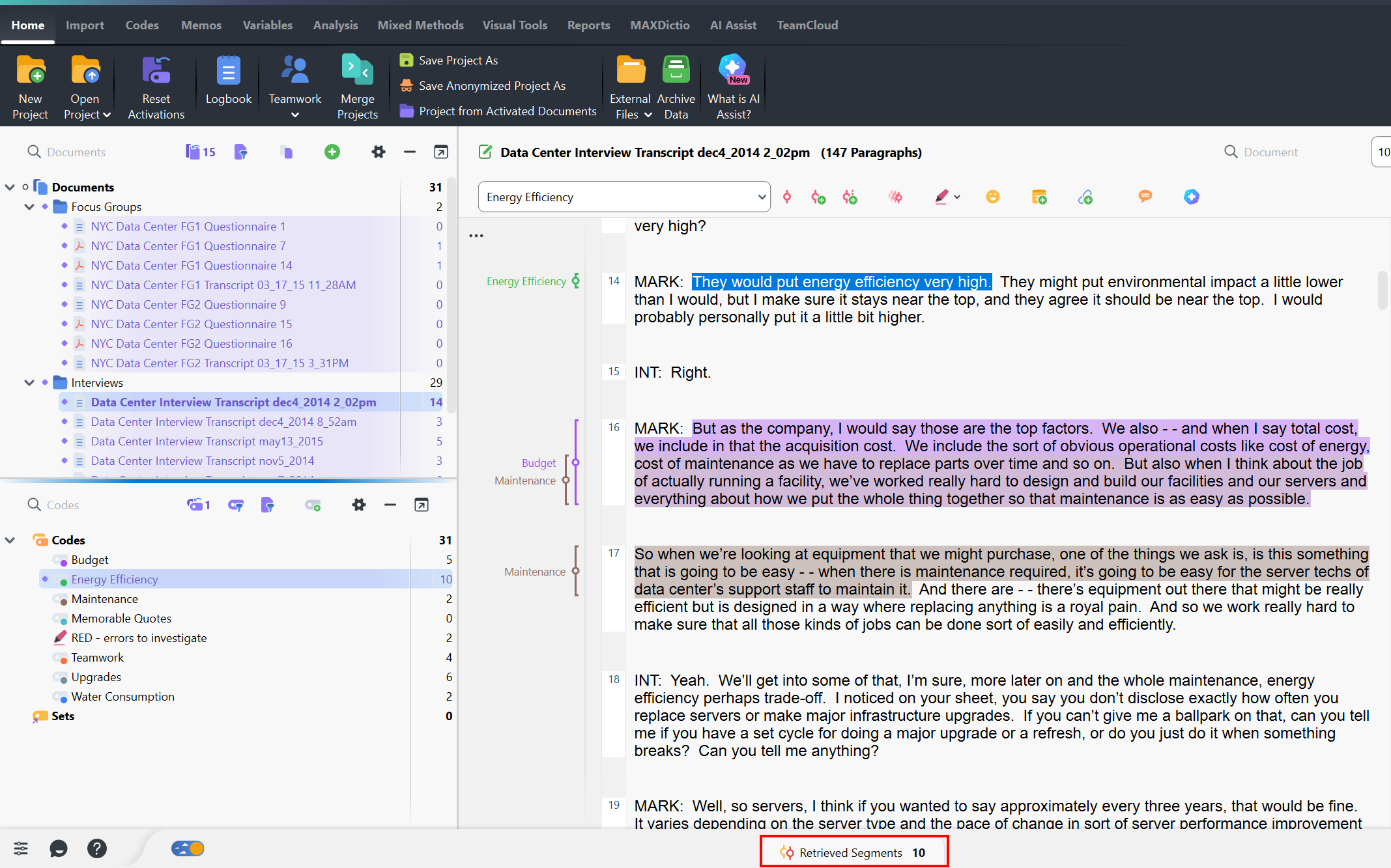
Finally click on the Retrieved Segments tab at the bottom to maximize the panel again so we can see the results. Here you will see all the snippets of text that were coded to this code from all documents in the project, listing what document it is from below it. It’ll even show you the part of the image you drew a box around, if it corresponds to this code. If you click on a coding stripe of a segment, it’ll show you the document with that segment highlighted, so you can see it in context.
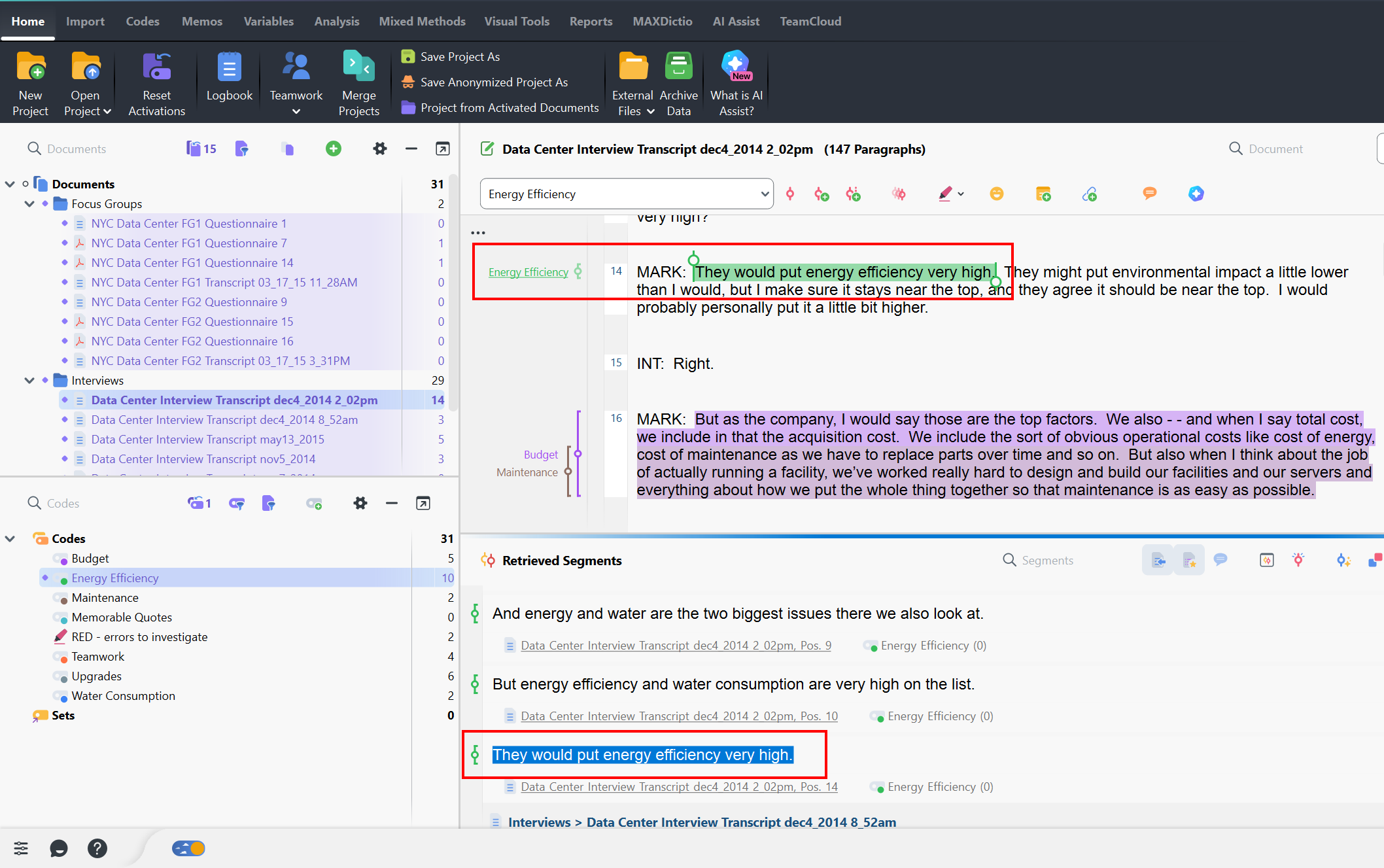
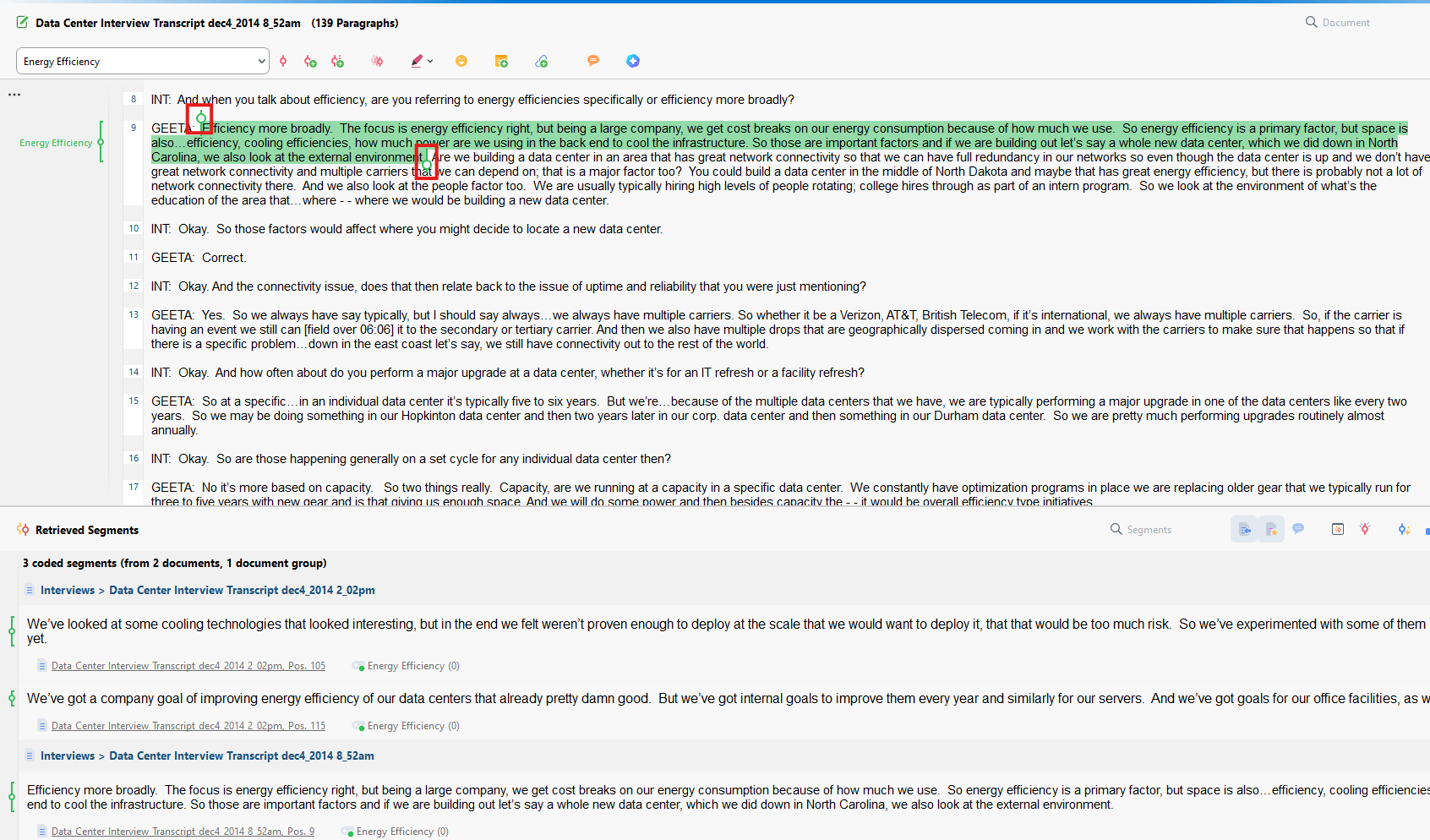
- You can see that there are circular handles at each end of the quote displayed in the Document Browser panel. You can adjust what is highlighted by dragging those handles. It’ll ask you if you want to adjust the coding, and when you say yes, it will now also be updated in the Retrieved Segments panel.
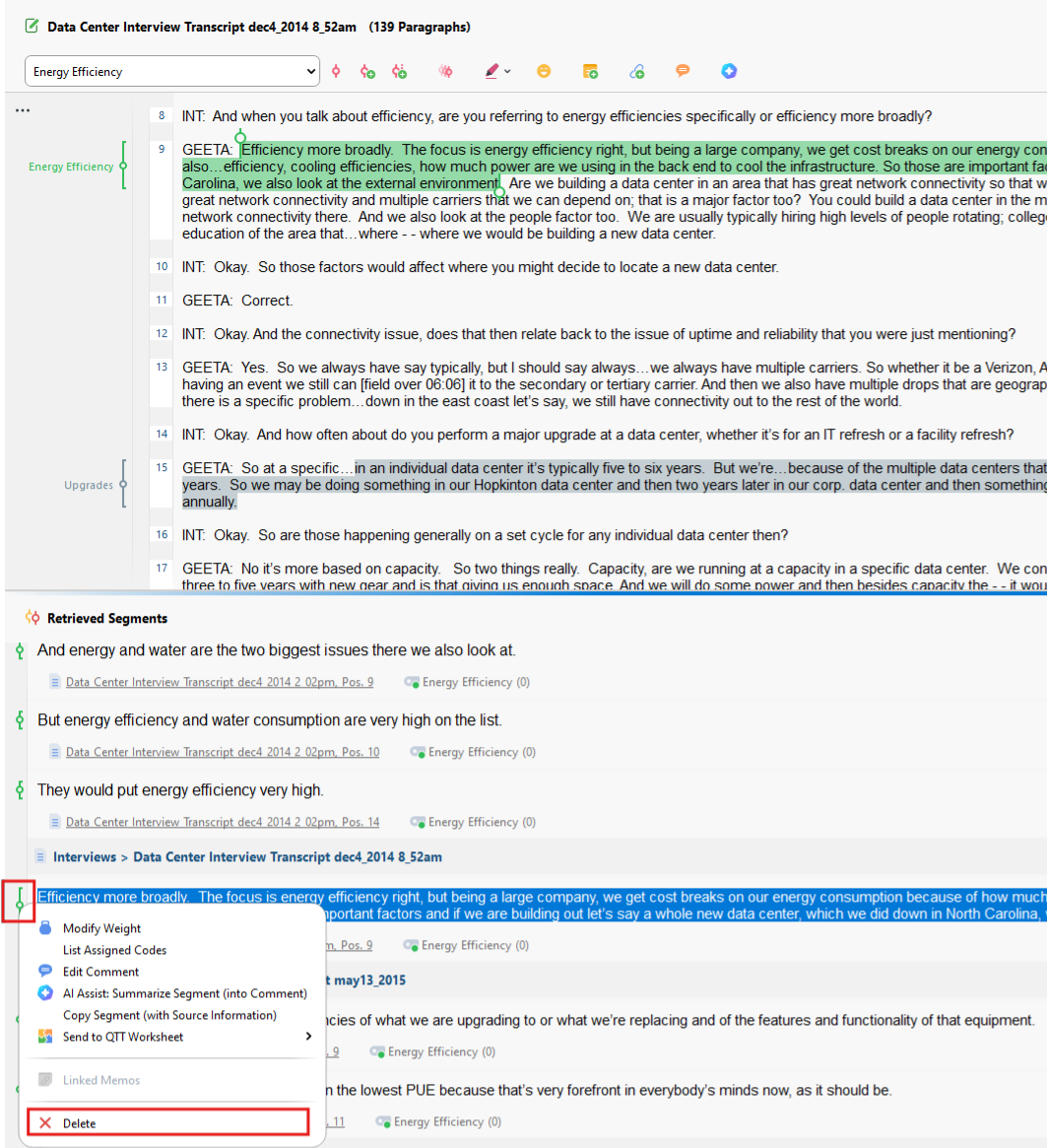
- If you later realize that you mistakenly coded something you didn’t mean to code, you can uncode it. Right click on one of the retrieved segments’ coding stripe, and then select Delete.
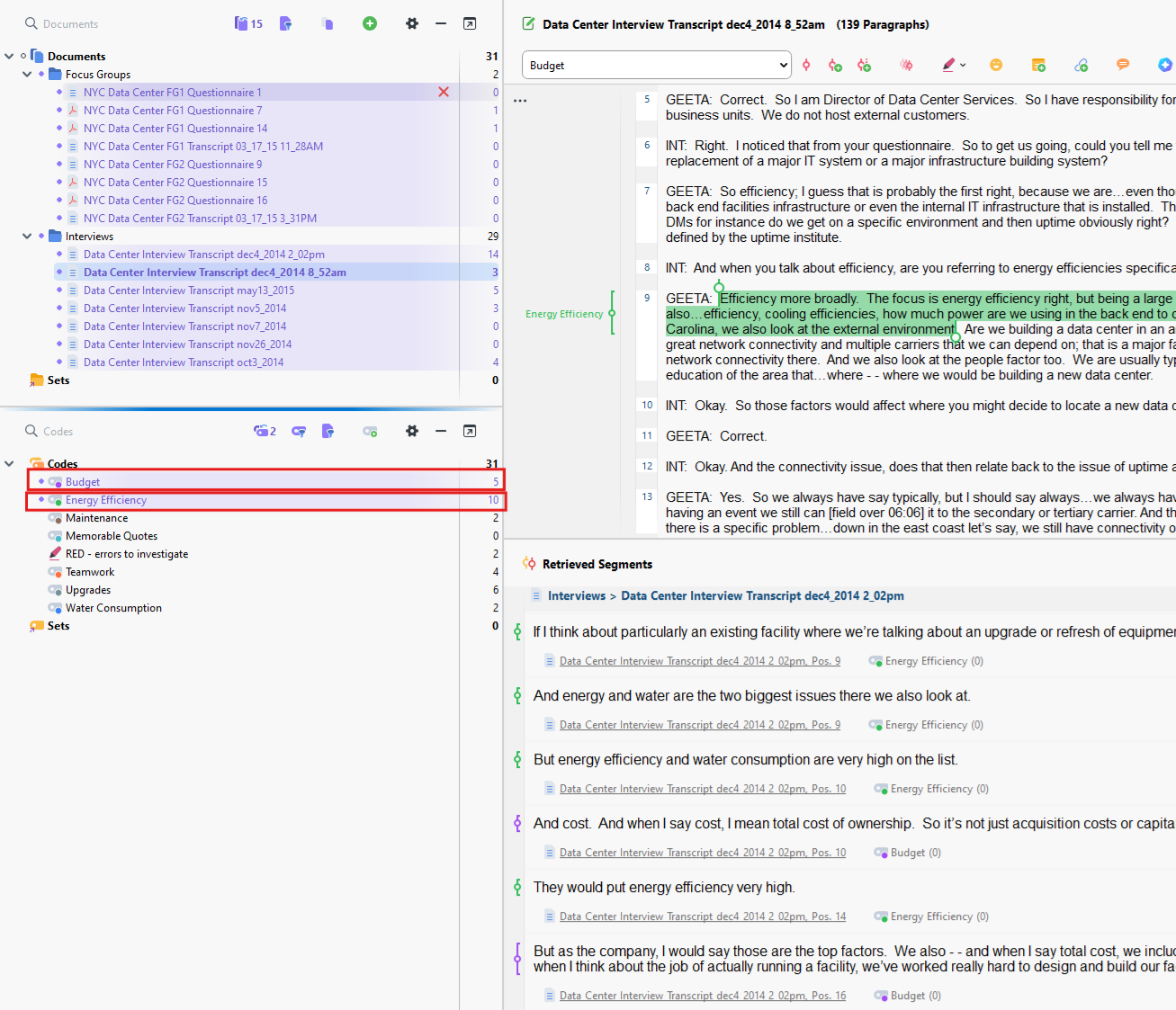
- If we think a bit more about what we did to get these retrieved segments and how we activated documents and codes, you can start to see how powerful this can be. You can use activation to customize and filter what you see in the Retrieved Segments panel by what documents and codes you have active. Try also activating Budget to also get those segments. Now it is showing retrieved segments for both codes that are activated. Activation comes up in a lot of places in MAXQDA, so it is important to understand the basics of how it works.
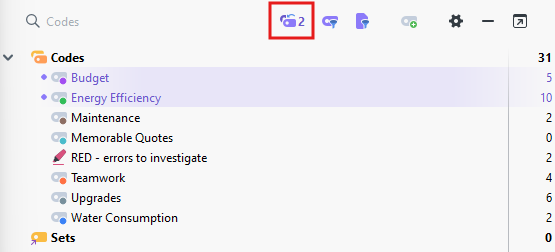
Now if we want to quickly deactivate all the codes we have activated, we can click on the Reset activations icon next to the Code search box. There’s a similar icon for documents, but for now, let’s just deactivate our codes. That icon also tells you how many documents or codes were activated.
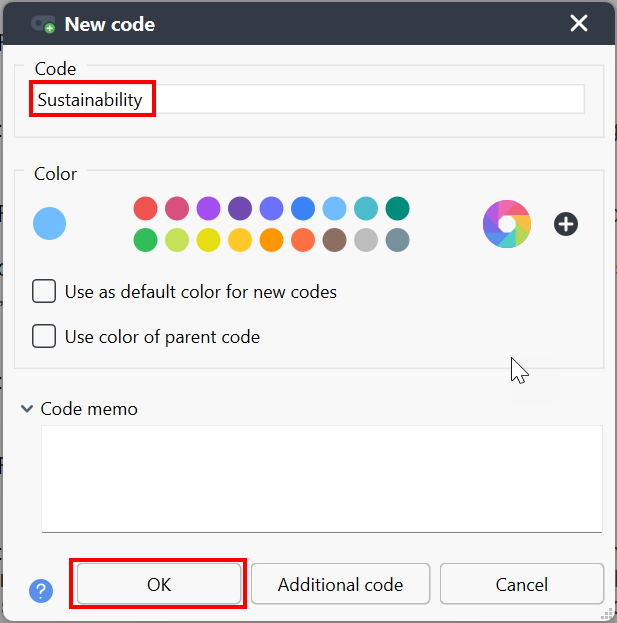
Next, let’s look a bit more at our Code System panel. You will notice that all of our codes are top-level or parent codes, meaning we haven’t established a hierarchy, none of our codes are nested under other codes; however, MAXQDA can help you organize your codes in a hierarchical structure. You are often in the end trying to create a hierarchical codes list to group common codes together into broader categories and themes to help make sense of your coding. For example, create a new code and call it Sustainability.
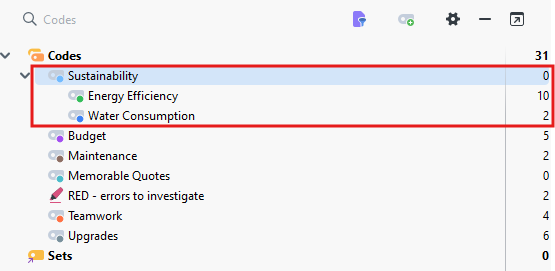
You could use this code to group some of your existing codes. For example, drag Energy Efficiency and Water Consumption onto the Sustainability code. Now you can see that they are grouped beneath. Codes beneath another code are called Child Codes or Subcodes.
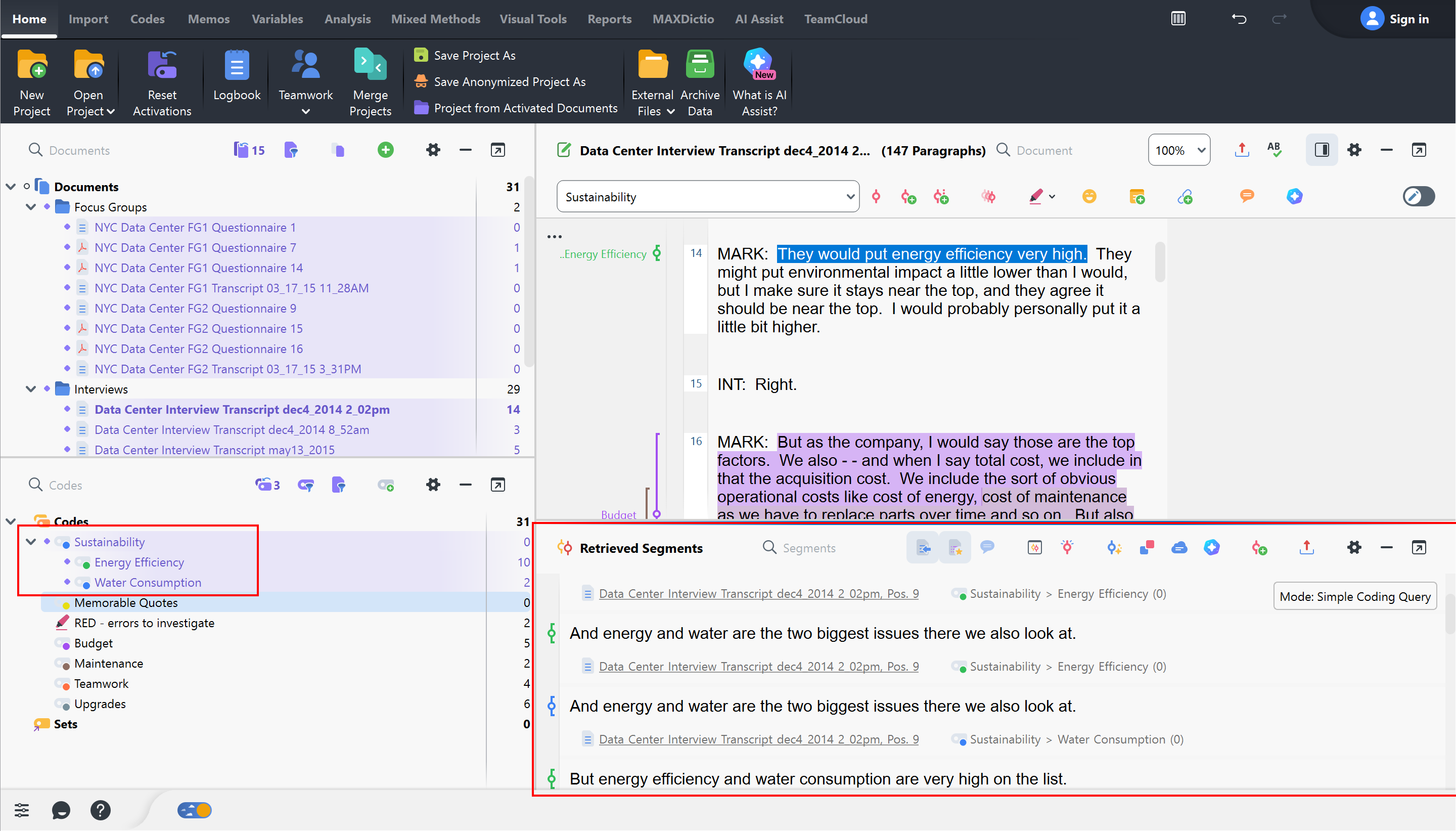
You can use Sustainability as its own broader code now in coding or just keep it as a heading in the hierarchy. Activate Sustainability. You will notice that the child codes are also activated and all the related segments for parent and child codes will show in the Retrieved Segments panel.
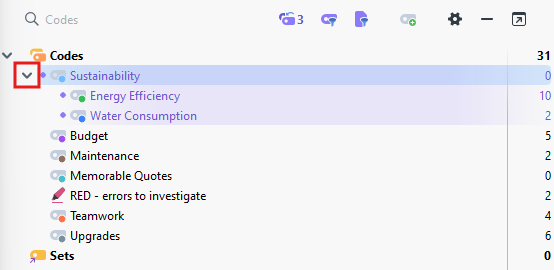
You might notice that the count of segments for Sustainability still says 0, even though its child codes are associated with segments. Try clicking on the arrow next to Sustainability to collapse the code group. Now you should see the counts aggregated from the child codes.
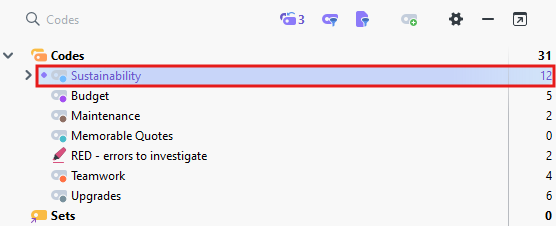
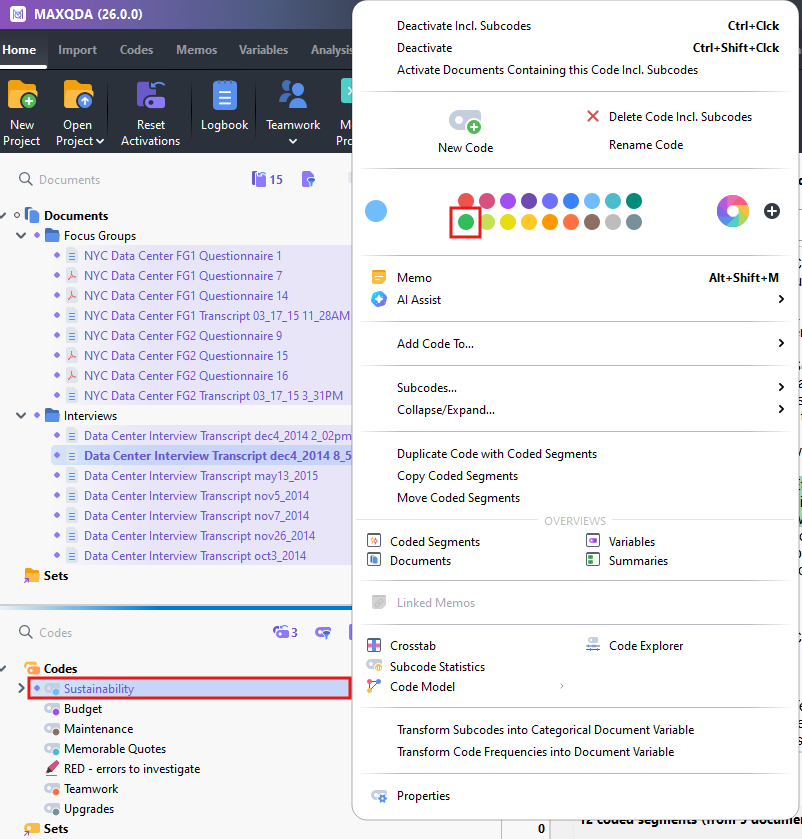
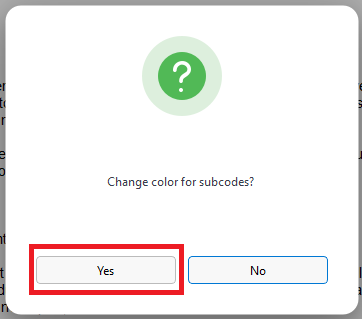
Right click on Sustainability and change its colour to green. You should see a pop-up asking if you want to colour the child codes with the same colour, which can be helpful to see what codes are related, at a glance. Click on Yes to make the change.
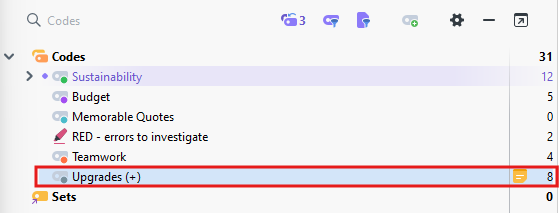
Finally, sometimes after you’ve done some coding, you may want to merge two or more codes together into one, as they are very similar. Let’s try this with Maintenance and Upgrades. You can do this in MAXQDA by dragging one code on top of another code but keep holding the mouse click down until you see the word Merge appear to the right of the highlighted code and then hover over there to select Merge instead. Let’s do this by dragging Maintenance over to Upgrades, and selecting Merge.
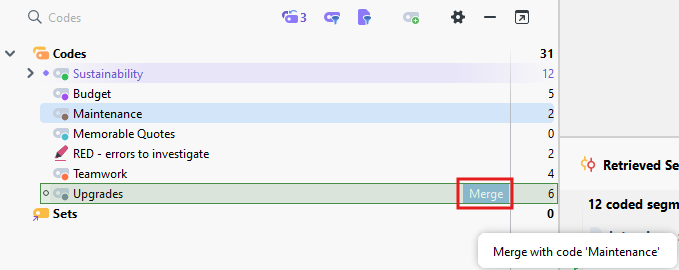
- This will merge the segments from the code you dragged (Maintenance), into the code you dragged into (Upgrades). It shows that the code is the result of a merge by adding a + sign to the name. If you regret this, you can always undo!
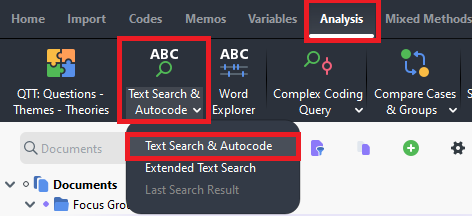
So far, we’ve been manually selecting segments to code, but you can use a text search to do some simple autocoding. For example, go to the Analysis menu and select Text Search & Autocode. Choose the first option from the drop-down menu, Text Search & Autocode.
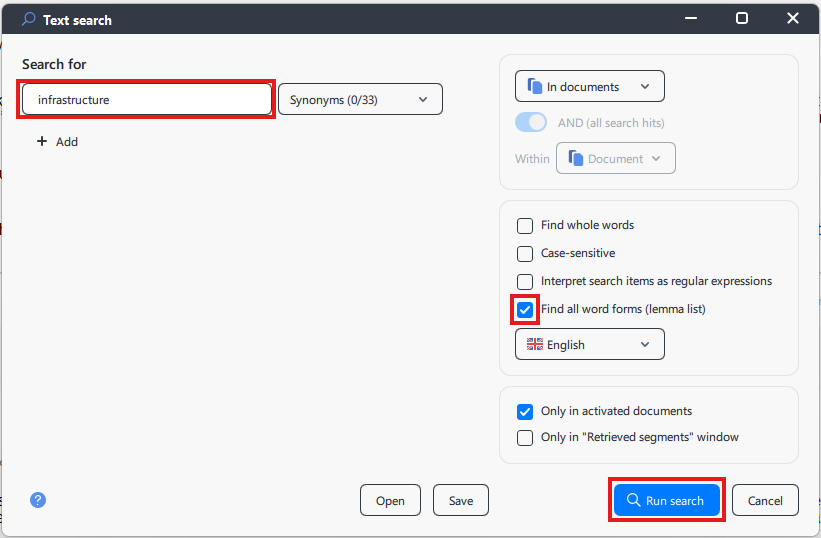
- You can use this feature to search for words or phrases and then code matching segments. For example, let’s search for the word “infrastructure” and select Find all word forms (lemma list) to find not just infrastructure, but also its plural form, then click on Run search.
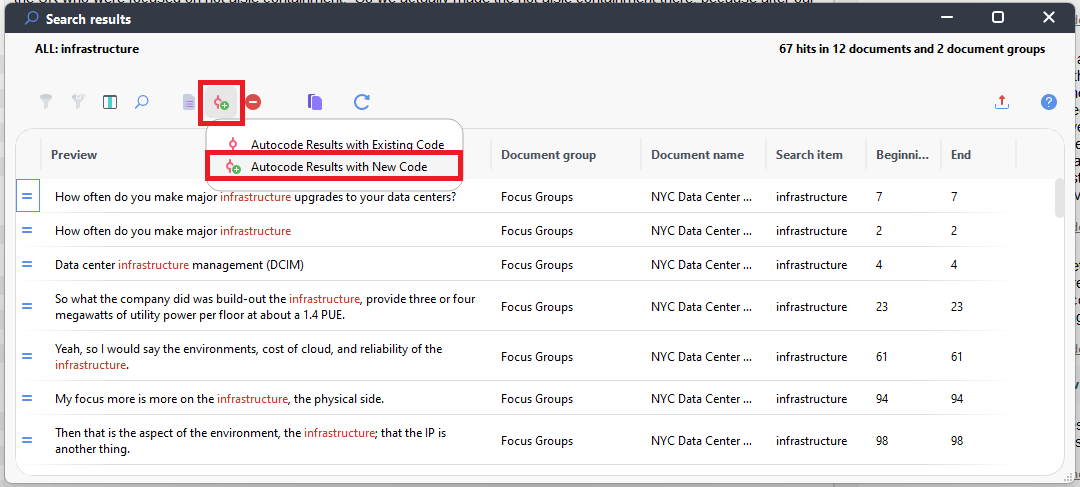
- Here we see a list of results in the Preview column. If we’d like to code these results to a new code called Infrastructure, we can click on the new code icon at the top (looks like a red circle with a green plus sign). We have the option here to code to an existing code or create a new code. Let’s create a new code by selecting Autocode Results with New Code.
It will give you a default name that makes it clear this code was created from autocoding. This can be a good reminder. It also auto populates the code memo with details of the text search. In terms of what we code, we can select how much text will be a part of the segment around the word infrastructure. For this example, let’s select sentence to code sentences with the word infrastructure. This option even allows you to specify how many sentences before and after, but in this case, if we keep it at 0 for both, it’ll just code the one sentence with the word. Click on OK.
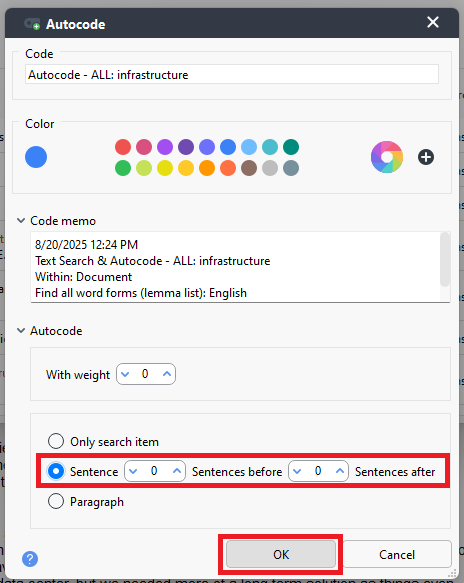
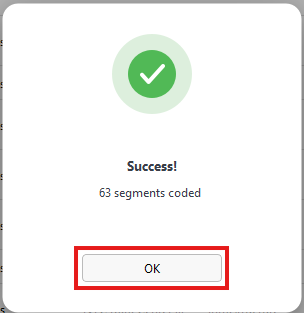
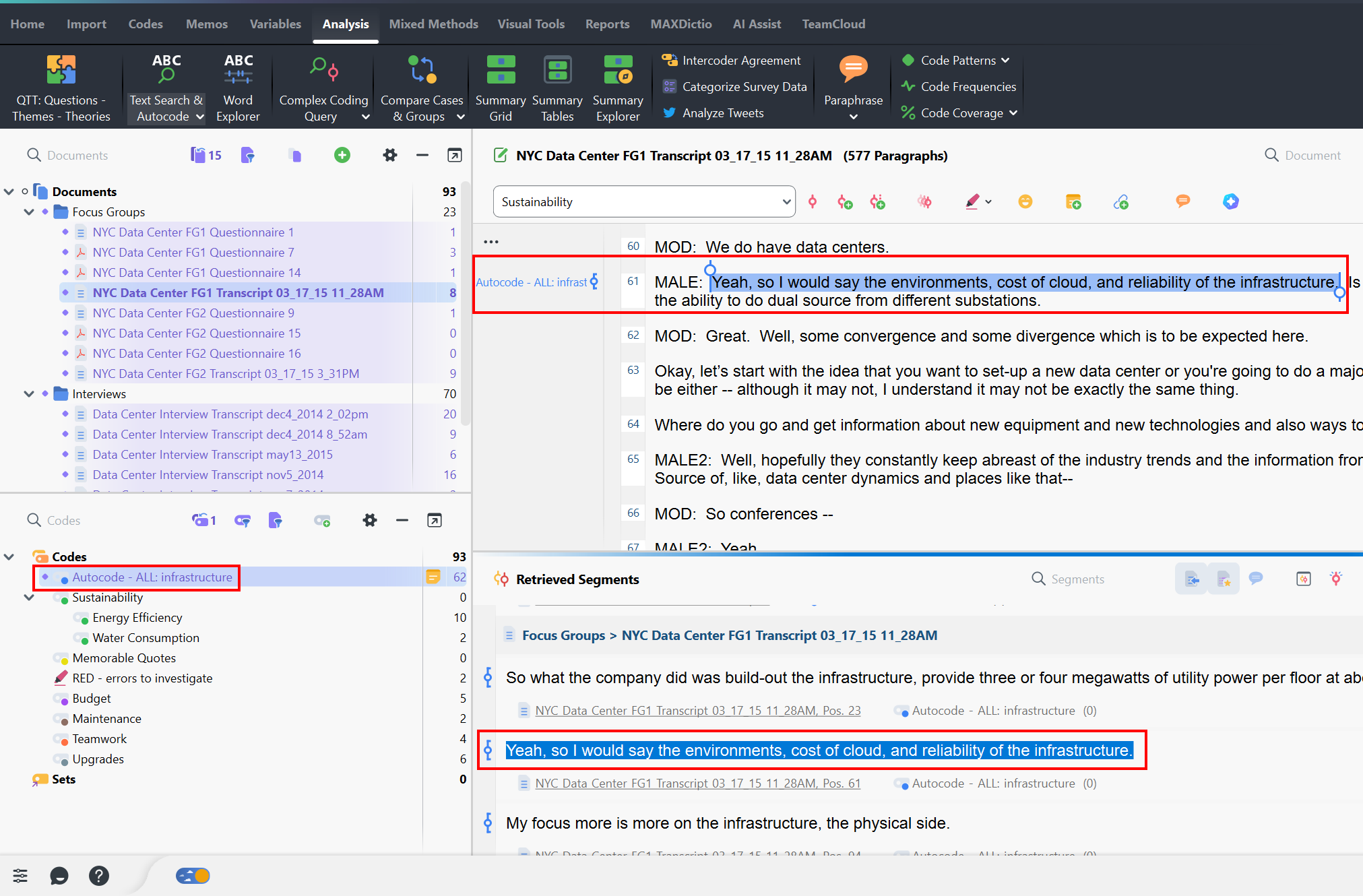
This will automatically create this new code and apply it to the results and tell you how many segments were coded. Click on OK to close the window. Also, close the search results window. Now we have autocoded some of our text to a new code using a text search.
Technique: Qualitative Data Analysis | Tools: MAXQDA