Code Relations Browser
- One more visual that is similar to the code matrix browser, is the code relations browser.
- The difference is that the columns and rows are both a selection of codes to see where segments have been coded with more than one code and what are the most common intersections.
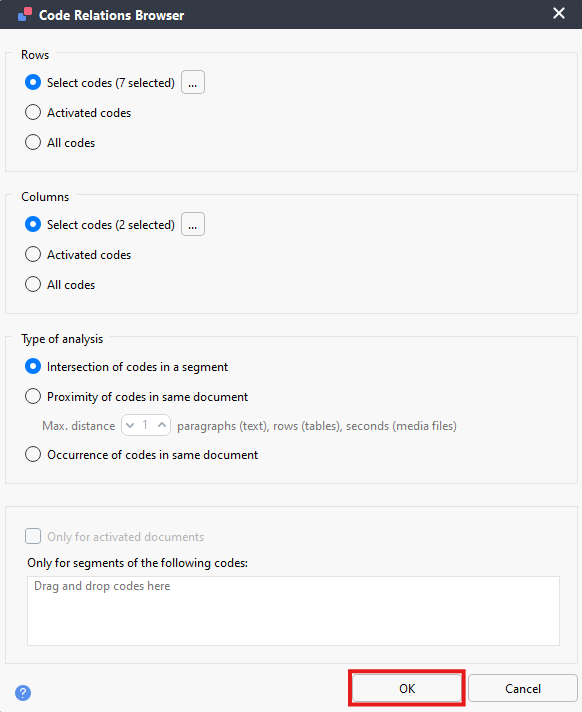
- Go to the Visual Tools menu and select Code Relations Browser.

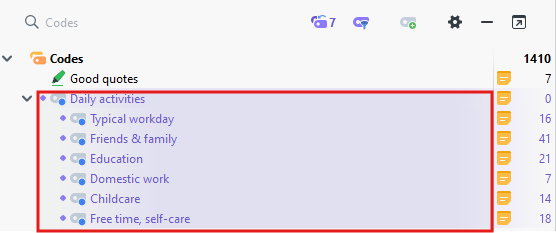
We want to examine the Daily activities code and all its child codes. So, make sure they are activated, then select Activated codes, under Rows.
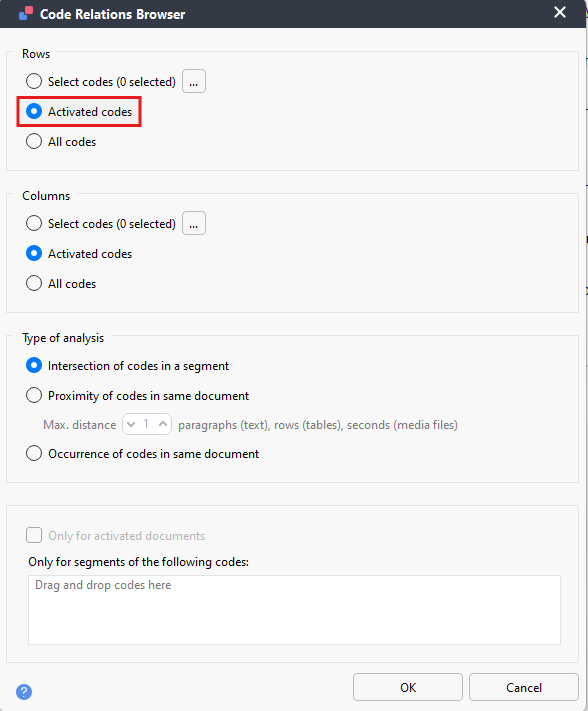
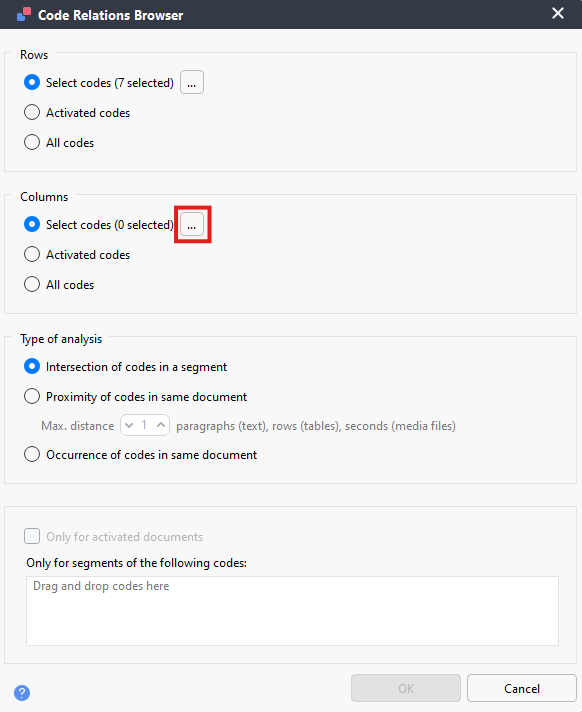
Under Columns, next to Select codes, click on the … button. Let’s select the child codes negative and positive under Satisfaction. Click on OK.
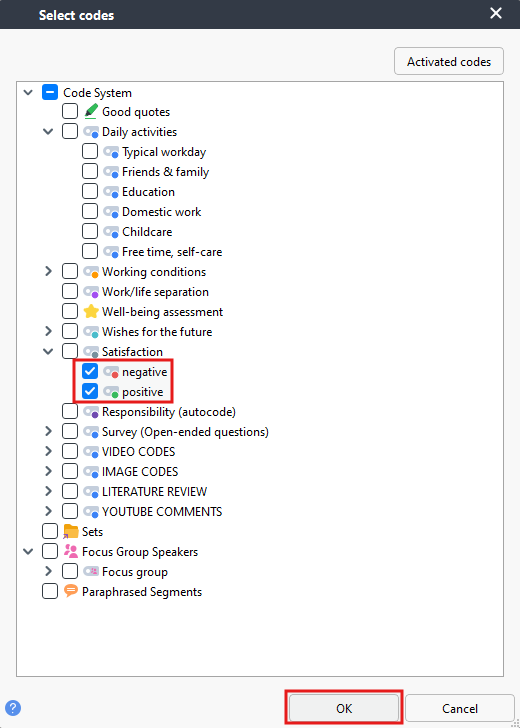
- Keep the rest of the defaults for now and click on OK.
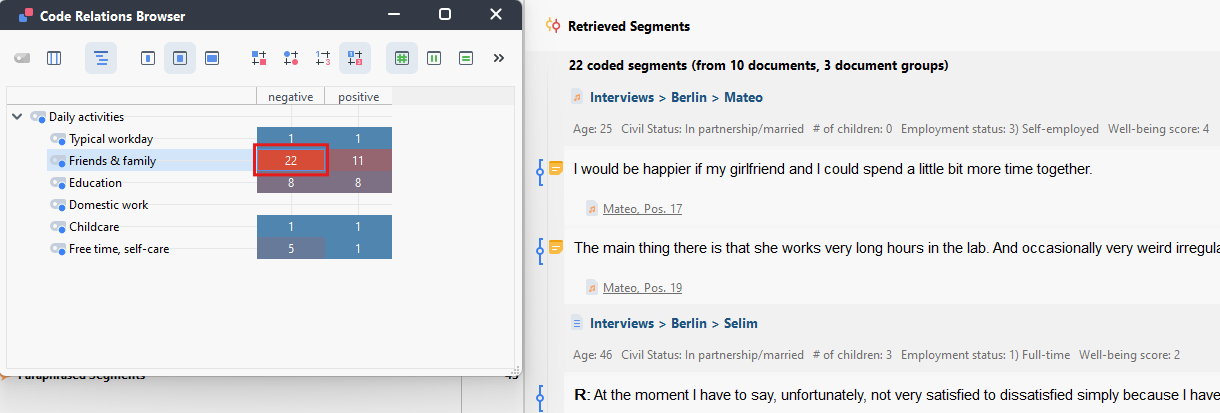
- Now we get a similar grid to the Code Matrix Browser, but showing code intersections. Again, you can change the settings using the drop-down menus at the top. We can see for example that there were a number of negative segments referring to Friends & Family. We can double click on that cell/square to see the examples in the Retrieved Segments panel to explore this further.
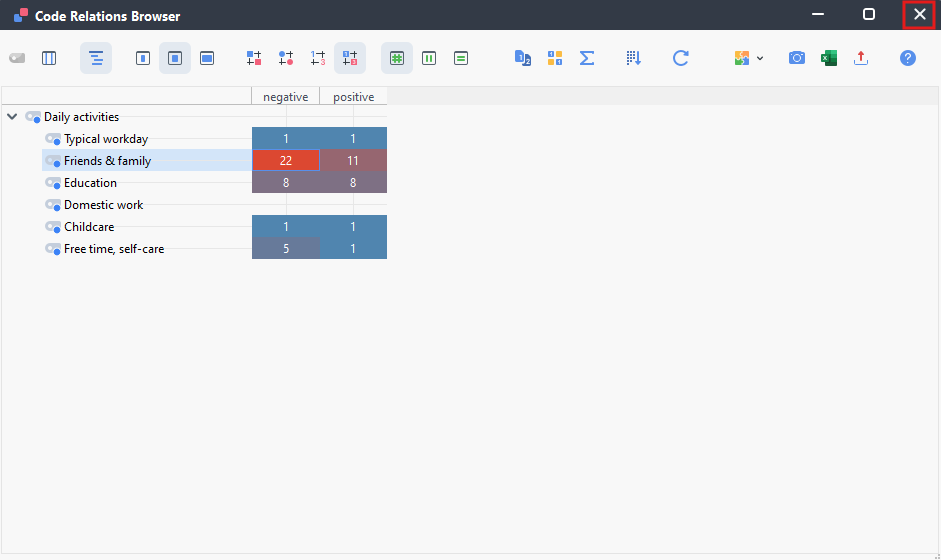
- And finally, again, we can export this, if we wanted. For now, let’s close the window.
Technique: Qualitative Data Analysis | Tools: MAXQDA