Downloading, Installing, and Licensing ArcGIS CityEngine
Downloading CityEngine
- Download the CityEngine installer (requires UTORid login).
- Unzip the .zip file and run ArcGIS_CityEngine_2024_0_190011.exe
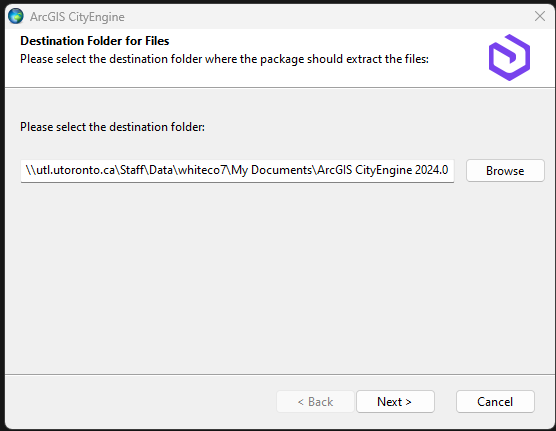
Choose a location to extract the files
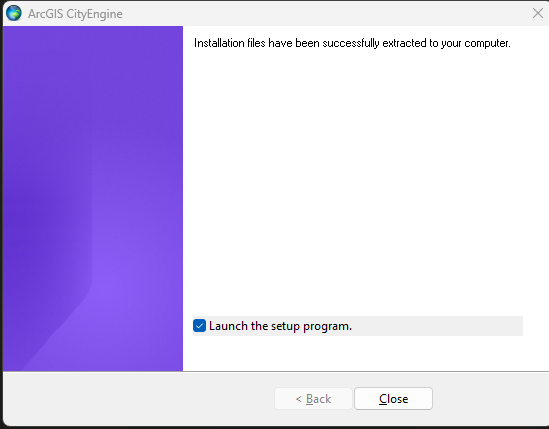
With the ‘Launch the setup program’ option toggled on, click Close.
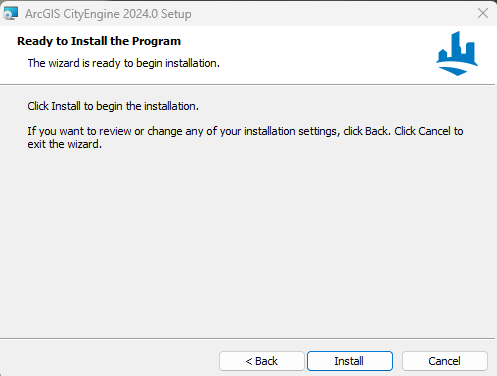
Go through the installer steps and click Install.
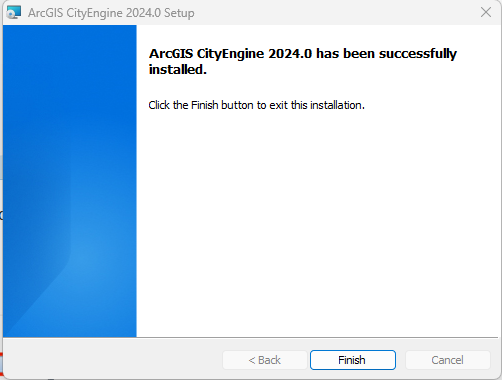
Click Finish.
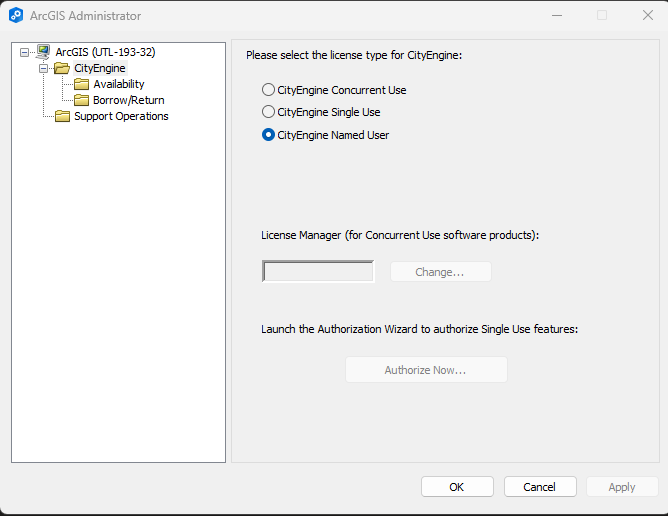
ArcGIS Administrator should launch. If it doesn’t, launch it from the Windows Start Menu. Make sure the license type is set to CityEngine Named User. Click OK.
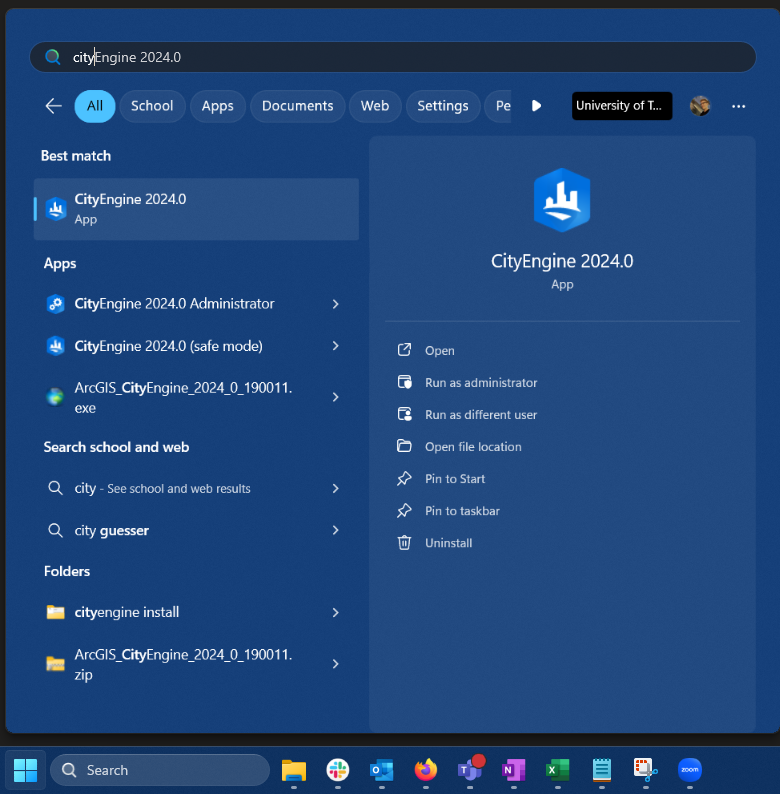
Launch CityEngine from the Start Menu.
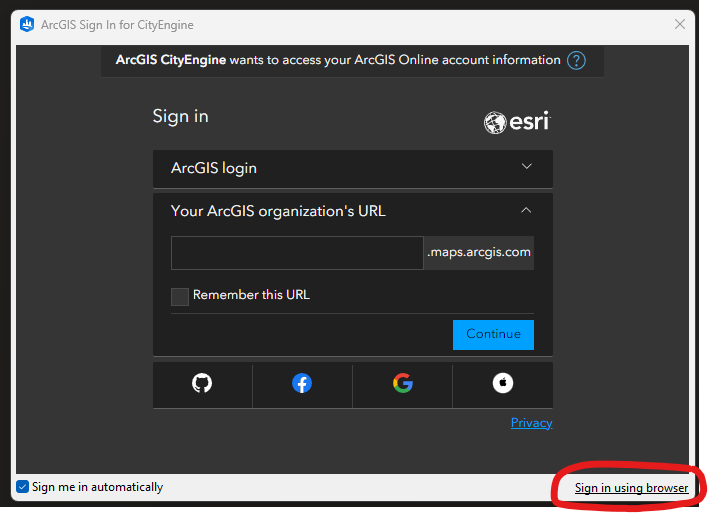
Click Sign in using browser (note: at the time of writing, there’s a glitch in the software requiring users to log in this way rather than using the main sign-in form.)
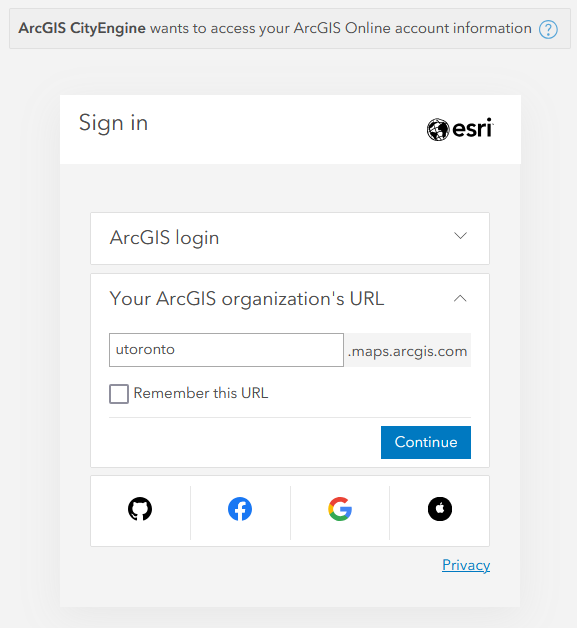
Your web browser will open and display a login form. Choose Your ArcGIS organization’s URL.
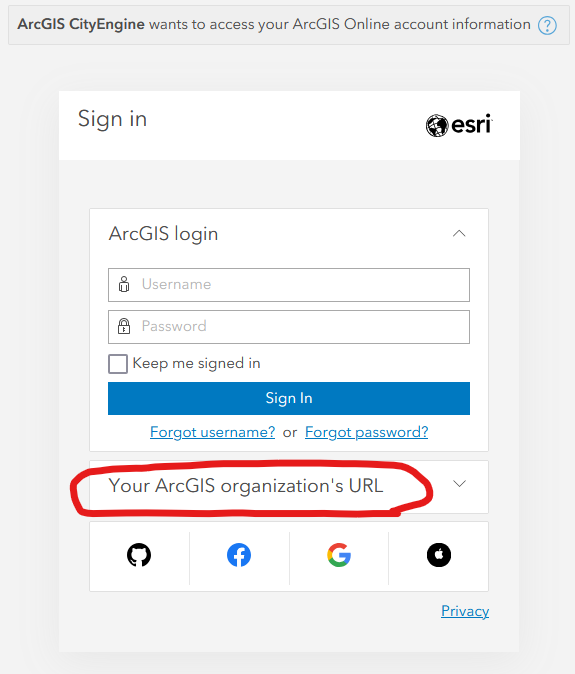
Input utoronto. Click continue.
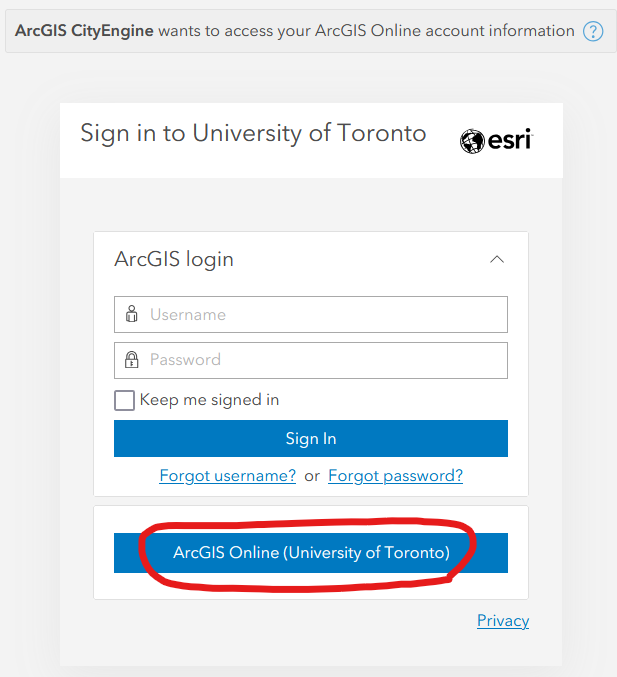
Click ArcGIS Online (University of Toronto)
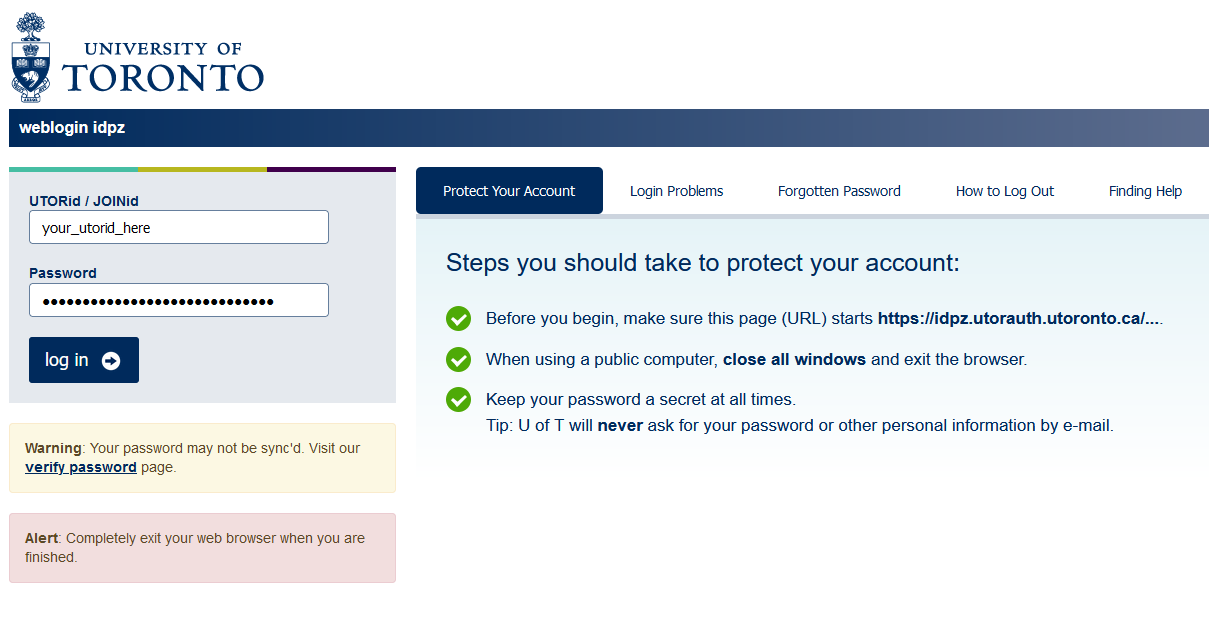
Sign in with your UTORid.
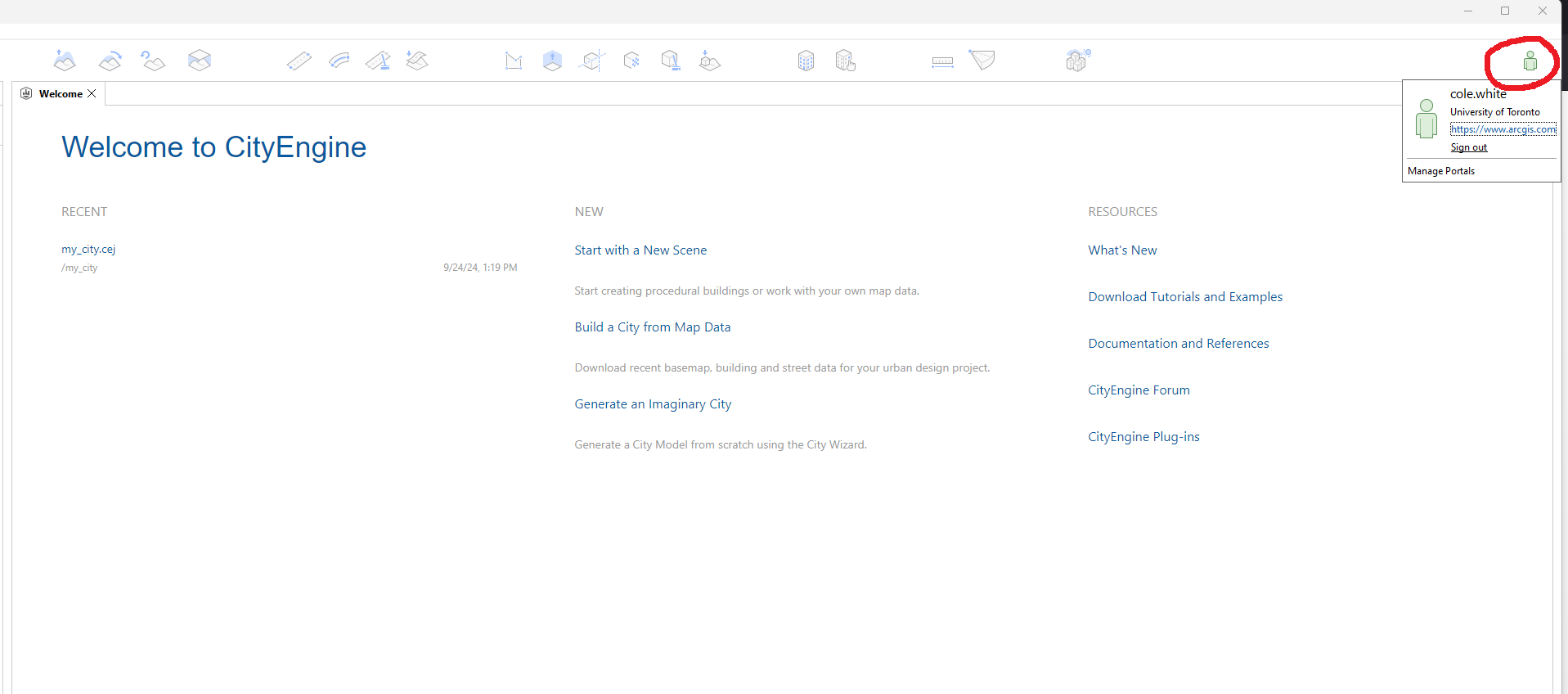
Return to CityEngine. You should now be signed in.
Technique: Mapping, Spatial Analysis, Installation | Tools: CityEngine