Clipping Rasters in ArcGIS Pro
This tutorial covers two methods for clipping raster datasets from ArcGIS Pro.
Table of Contents
- Introduction
- Setting up working environment
- Clipping Rasters - Two ways
Introduction
Clipping rasters allows you to only work on or display a certain area of interest. It could be defined by a boundary from a vector shapefile, or it could be defined by the extent of the window.
Setting up working environment
In this tutorial, we will be working with the Digital Elevation Model (DEM) from Government of Canada’s Geospatial Data, as well as the City of Toronto Former Municipality Boundaries file from City of Toronto Open Data Catalogue. Digital Elevation Model is a raster dataset that represents the surface of elevations. You can find a more detailed explanation of a DEM on the Esri documentation page.
Step 1 - Download the DEM dataset
First, download the Digital Elevation Model. There are multiple sources where you can retrieve Digital Elevation Models. This tutorial will lead you to download the raster dataset from Government of Canada’s Geospatial Data Extraction website.
Alternative sources to download DEMs are provided at the end of this tutorial.
In the “Find a location” tab, search for “Toronto”. Choose the “Toronto, York, Ontario - City” option and zoom to this selection on the map.
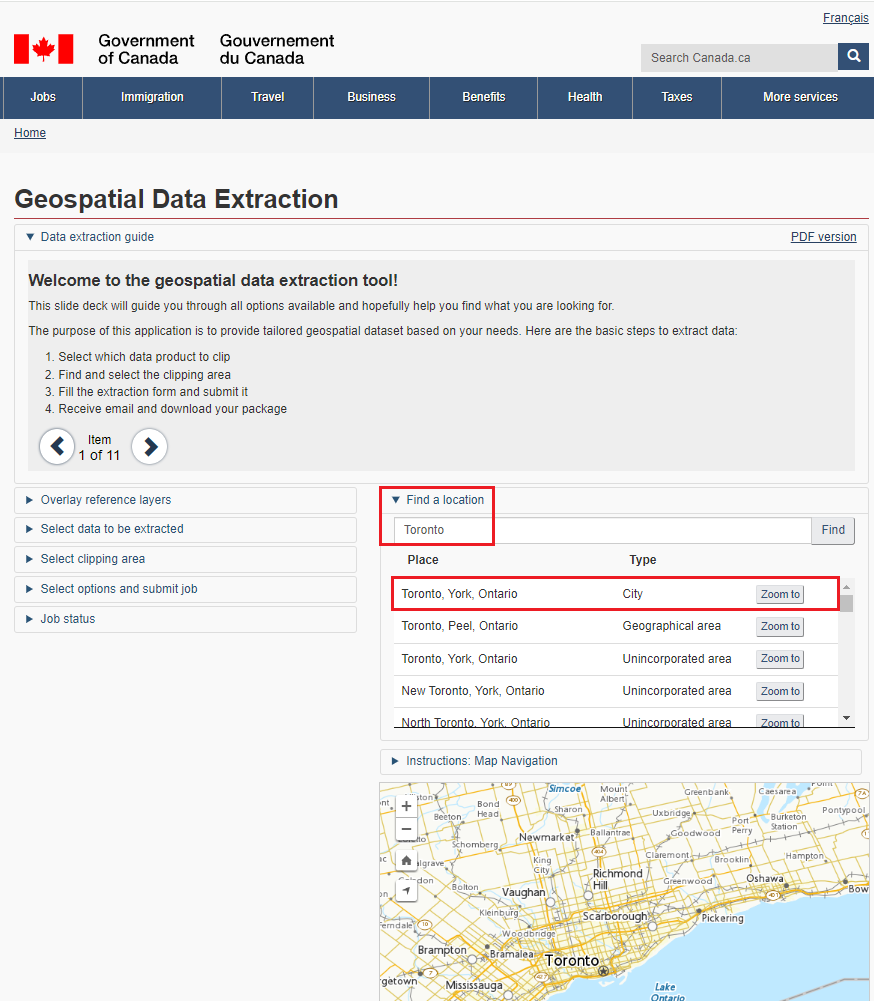
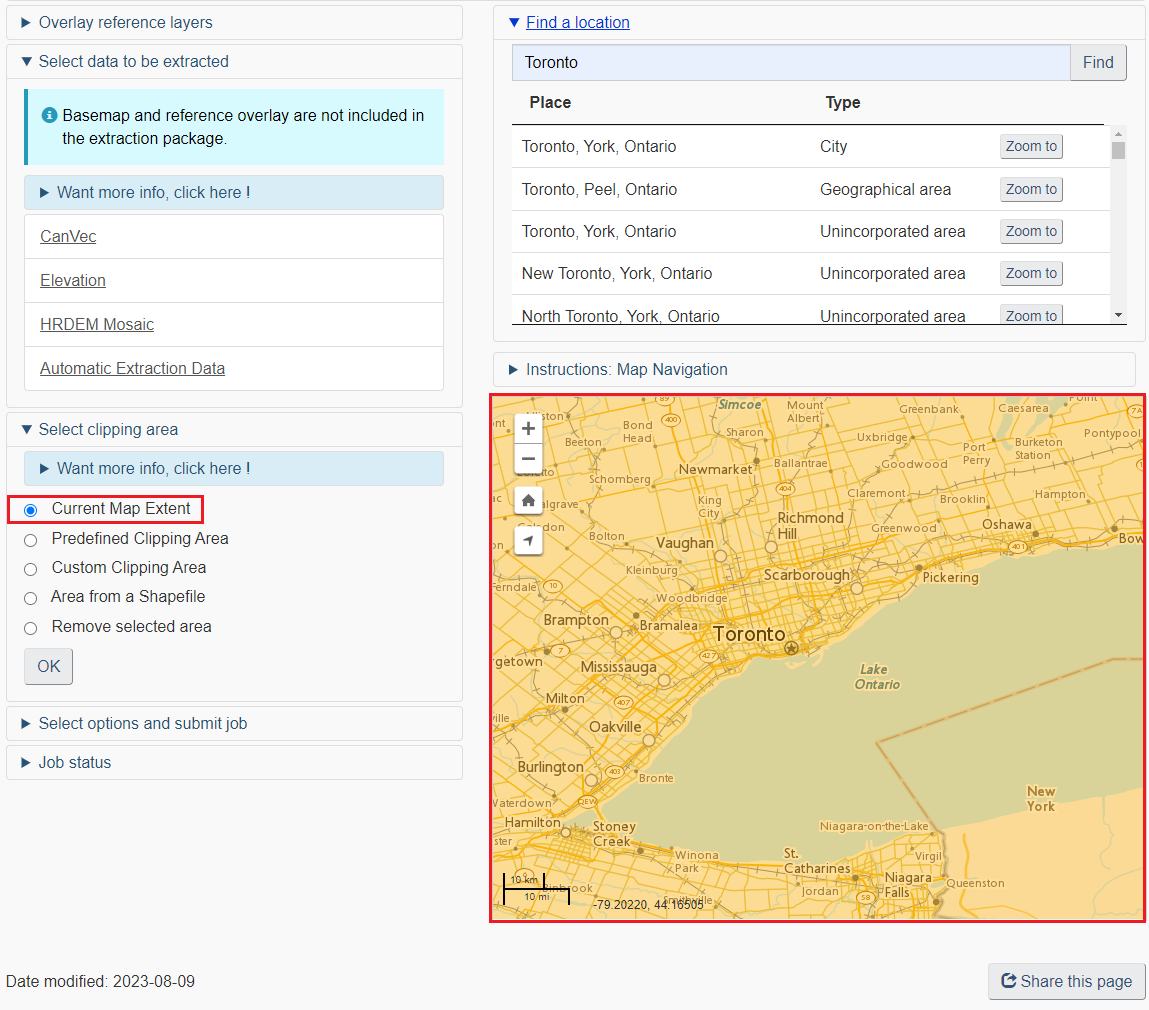
Then, make sure you set the clipping area to the “Current Map Extent”. After you check this box, the Map Navigation should highlight the selected area in yellow.
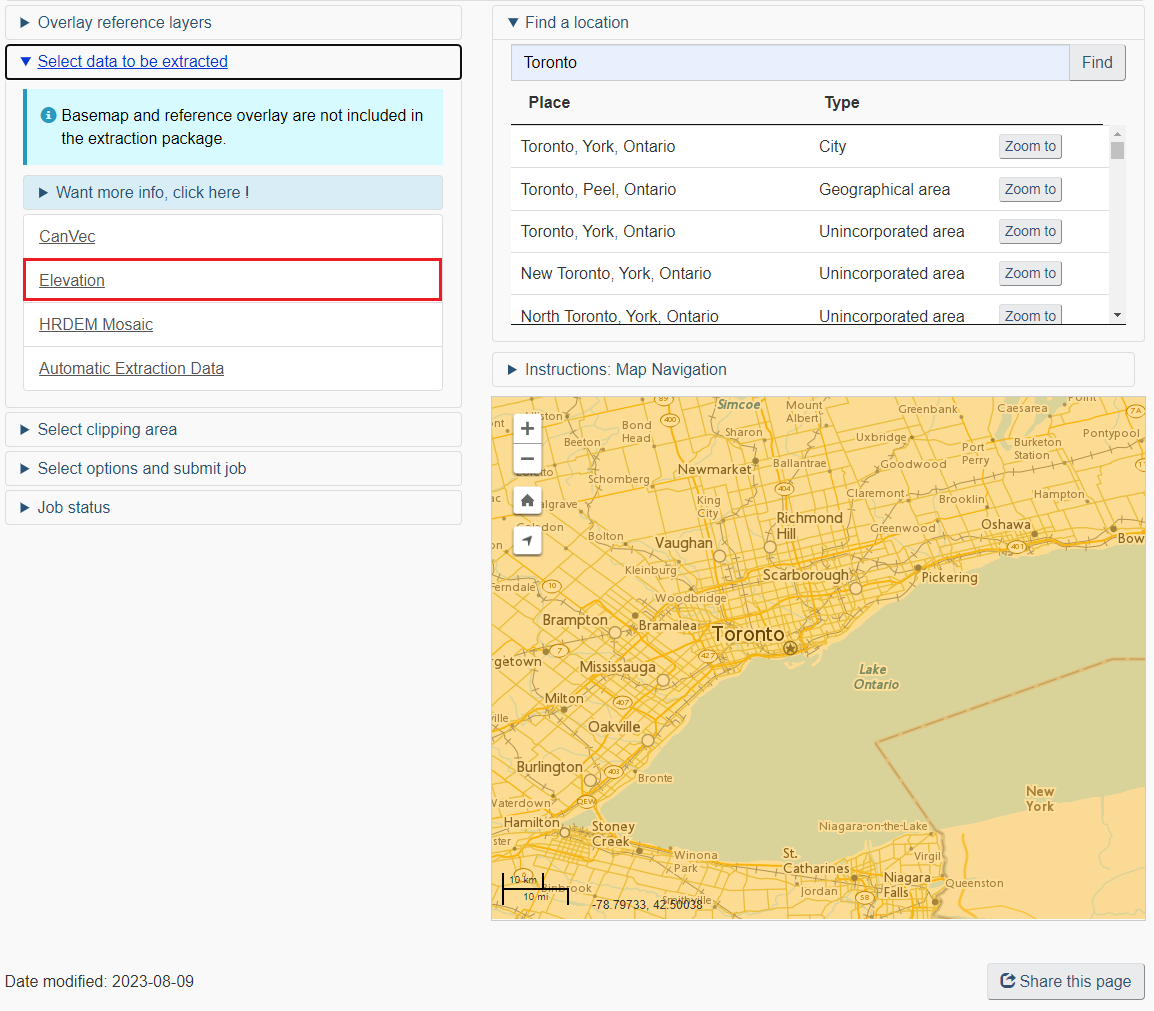
In the “Select data to be extracted” tab, select “Elevation”.
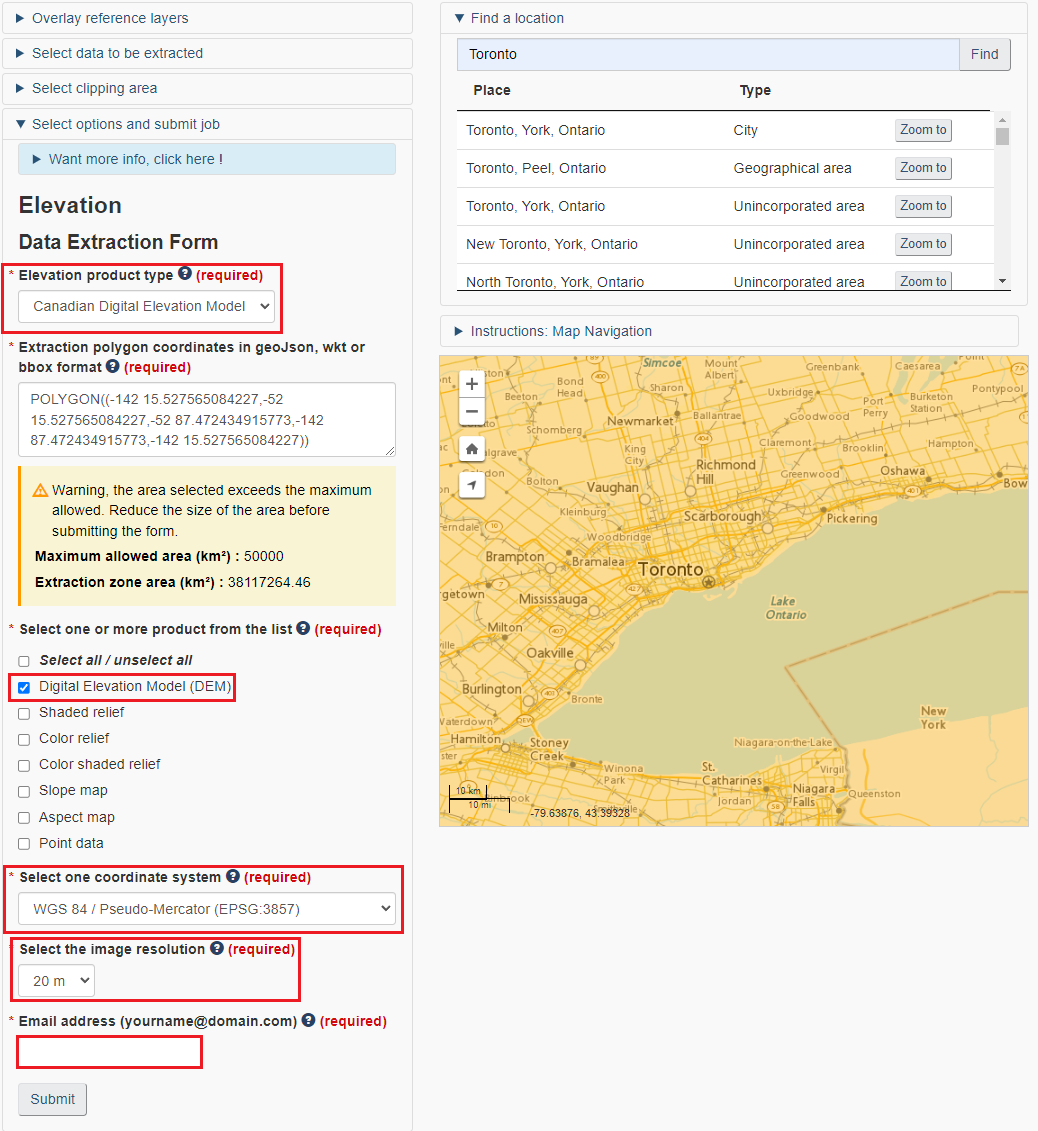
In the “Select options and submit job” tab, select “Canadian Digital Elevation Model”. Leave the polygon extent as it has already set to the Toronto boundary. For product, select only the “Digital Elevation Model (DEM)”. Choose the WGS84 coordinate system for this tutorial. Leave the image resolution as default (20m), and input your email address to download the raster dataset.
You will be able to see the job status on the website. Usually the request is processed immediately but sometimes it might take a few hours if the volume for requests are very high. Check your email for the download link. In the email you received, copy the link ending with “.zip” in a new tab in the browser. Click “Enter” and the file will start to download.
Step 2 - Download City of Toronto boundary file
City of Toronto’s open data catalogue is a great source to access the a variety of data from the municipal government. You can search from the City of Toronto’s Open Data Catalogue portal
For the first task, search for the “Former Municipality Boundaries”.
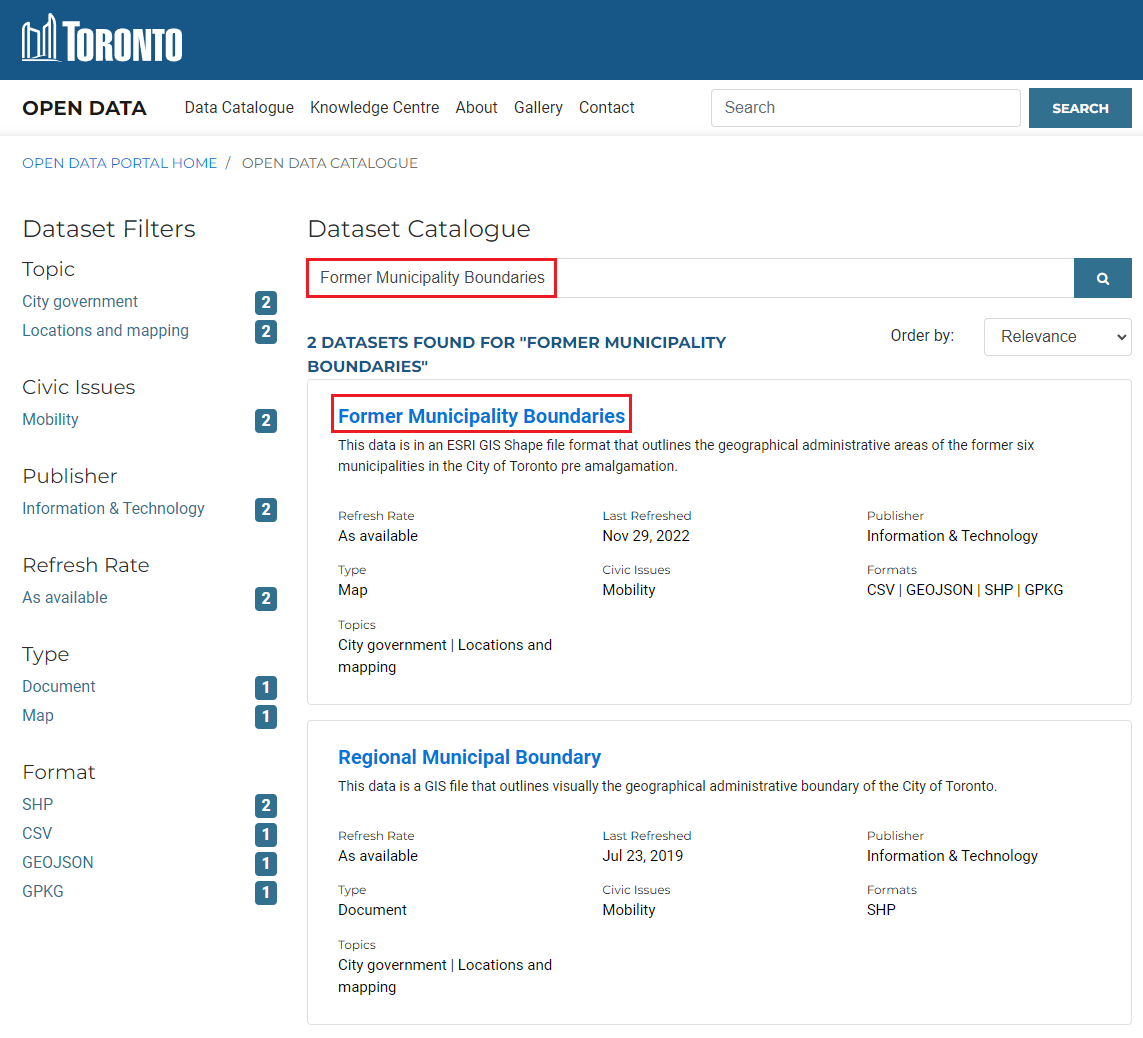
Also, download the dataset with the WGS84 coordinate system for this dataset to be consistent with the DEM we downloaded.
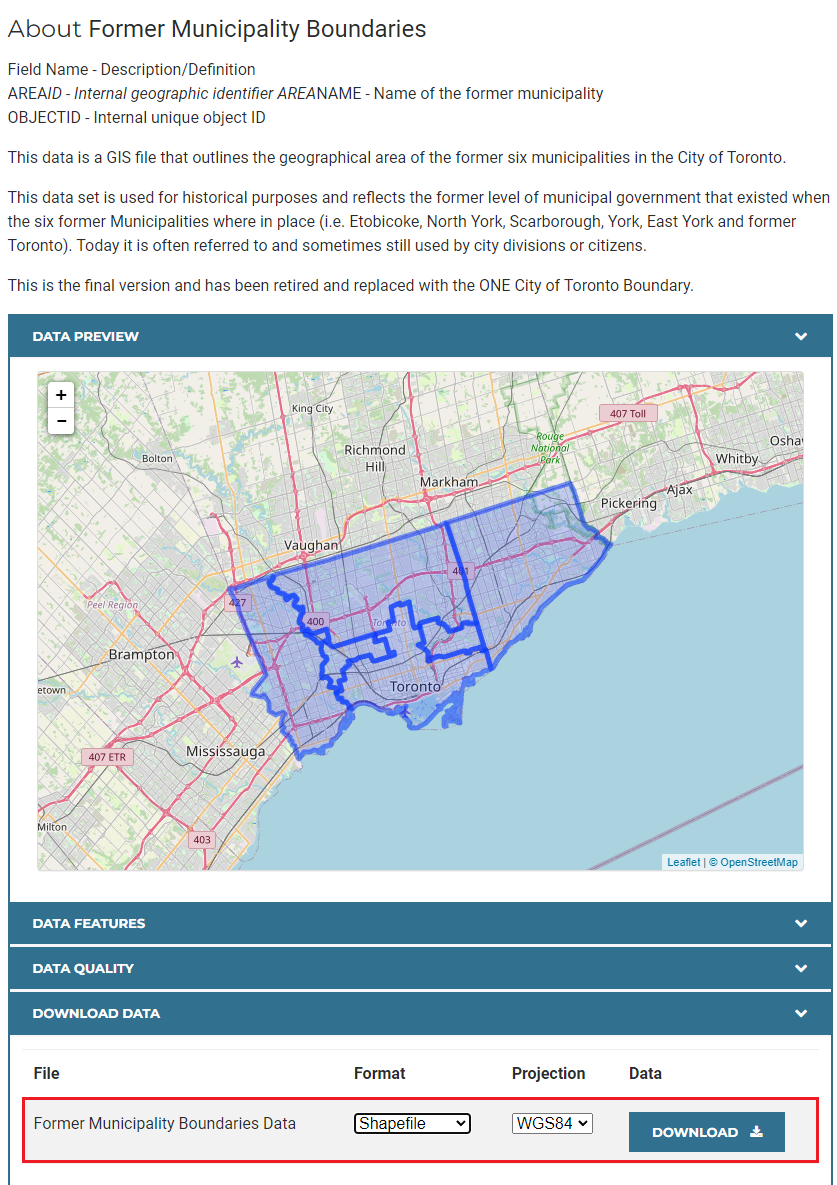
Step 3 - Setting up a working directory and establish folder connection
To ensure that all of your data are saved properly, create a folder to save all your data and maps in. Make sure you are not including spaces in all the folder names in the directory, because folders with spaces might result in unexpected errors when running analysis in ArcGIS Pro.
After creating folders, extract the data you just downloaded to your working folder. Repeat the same steps for other zipped datasets.
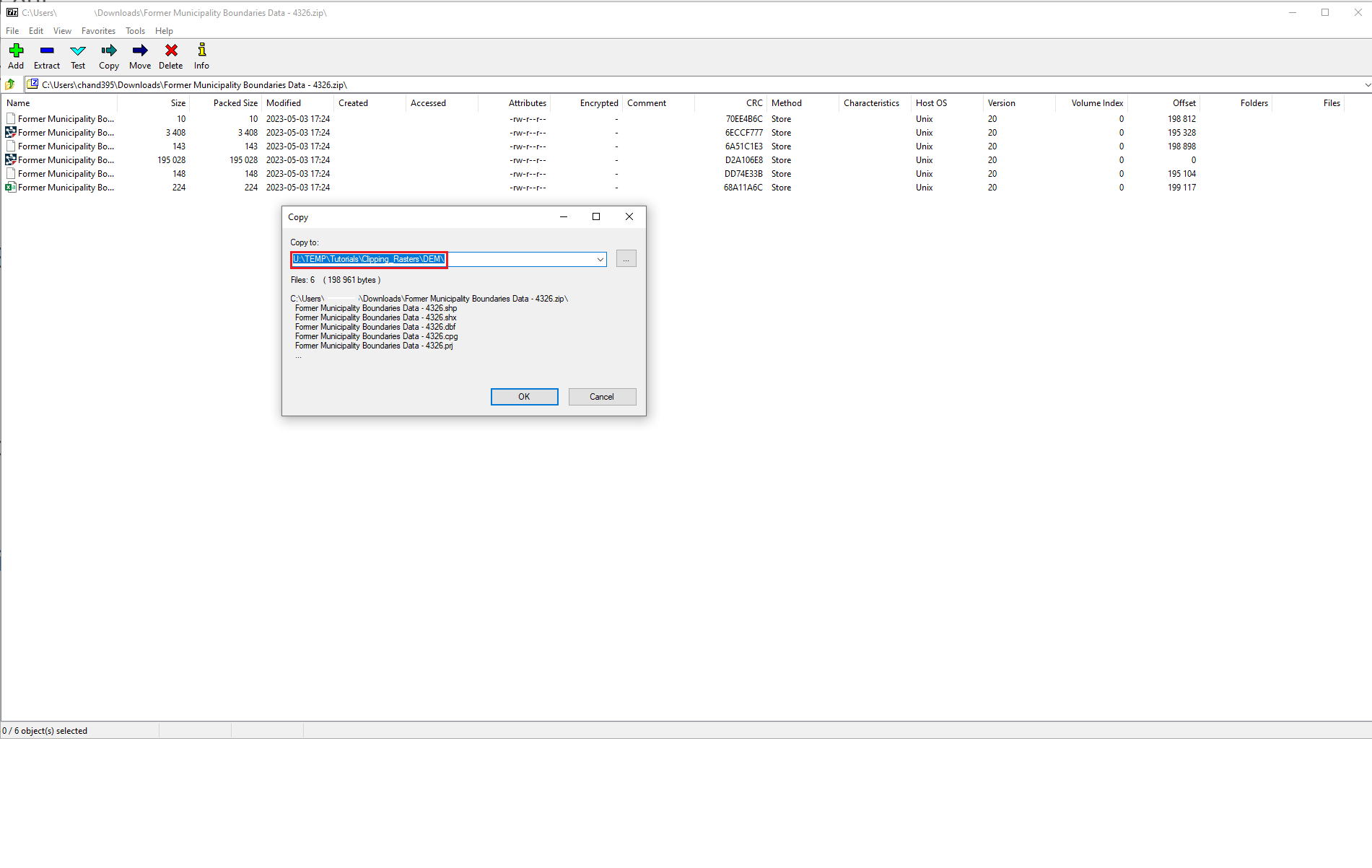
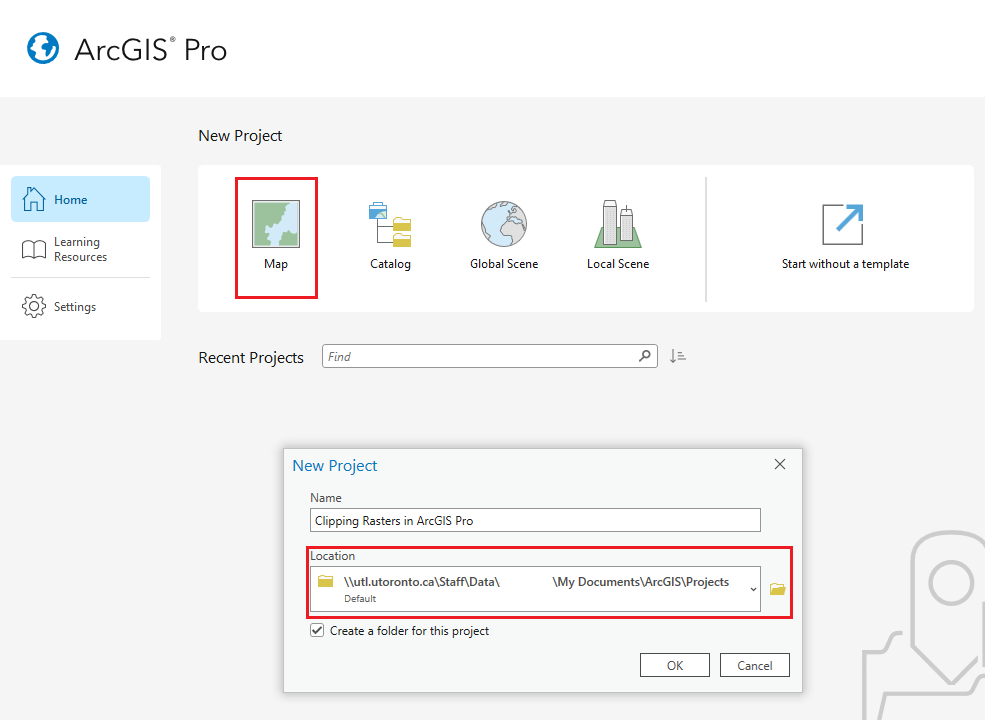
Open ArcGIS Pro, select Map and choose a file directory where your project will be stored.
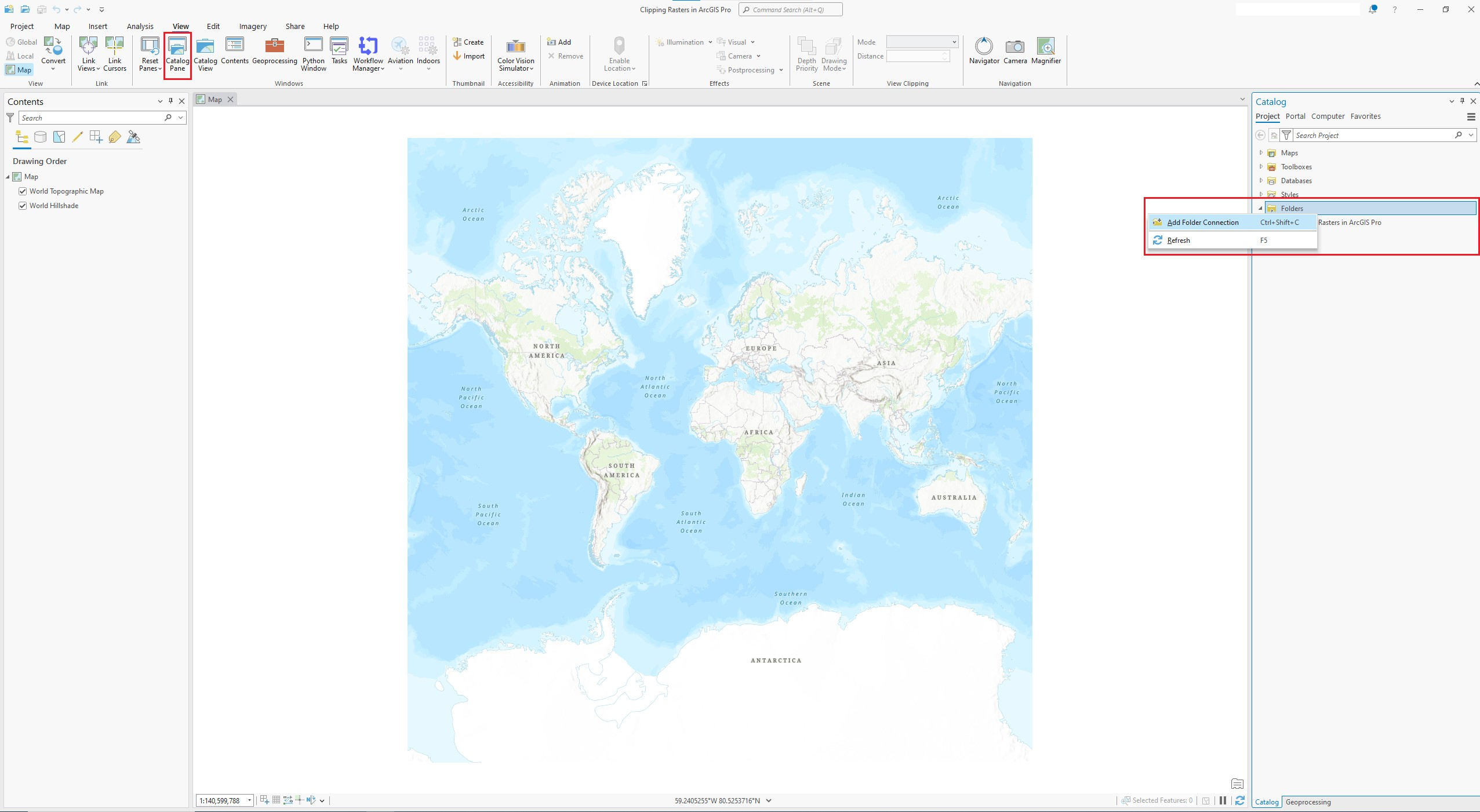
In the Catalog pane, right click on the Folder button. Click on “Add Folder Connection”. You can also click on the button on the top of the panel to establish folder connection (highlighted in the screenshot below).
If your Catalog pane is missing, you can always click on Catalog Pane button located in the View tab at the top of your screen to open it.
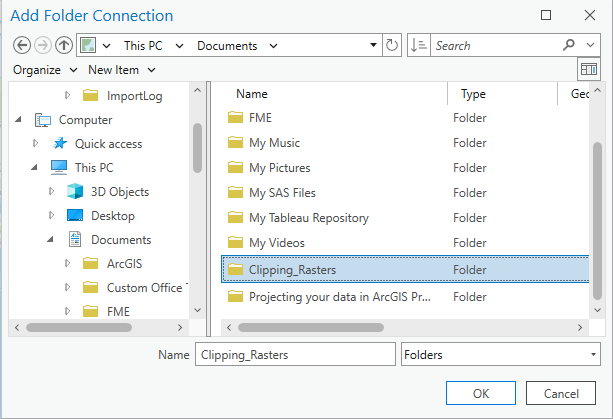
Choose your working folder.
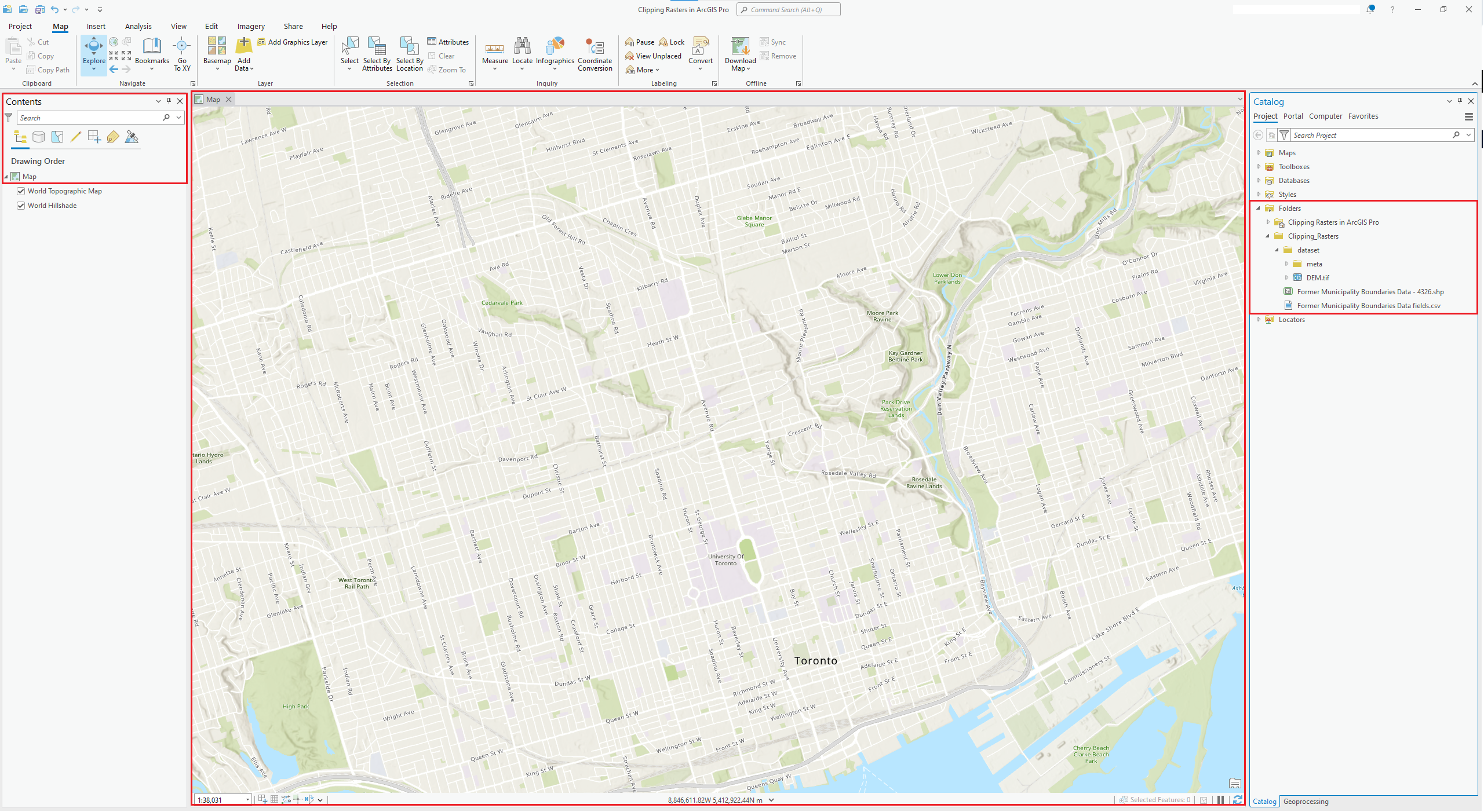
After connecting to folder, your Catalog Pane should display the folder you’ve created. Now you can start adding your downloaded and extracted data to your map by dragging them to the map area or the Table Of Contents pane.
For the raster image, drag in the DEM.tif file (this raster image format is TIFF). And for the City of Toronto boundaries, drag in the cityprj_former_municpality.shp. This is the shapefile for the boundaries. Dragging in the .xml file and the .txt would not show any layers in the map.
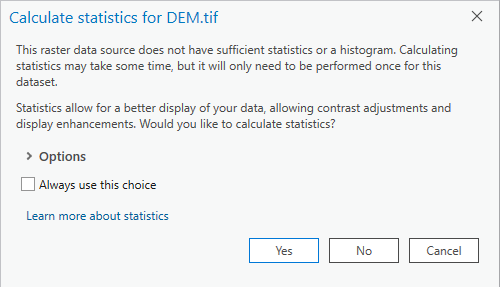
When adding in the raster dataset, you might get a pop-up window asking if you would like to calculate statistics. You can proceed by clicking either “Yes” or “No”, it won’t affect this exercise. Clicking “Yes” could help you to improve the display performance of the raster dataset.
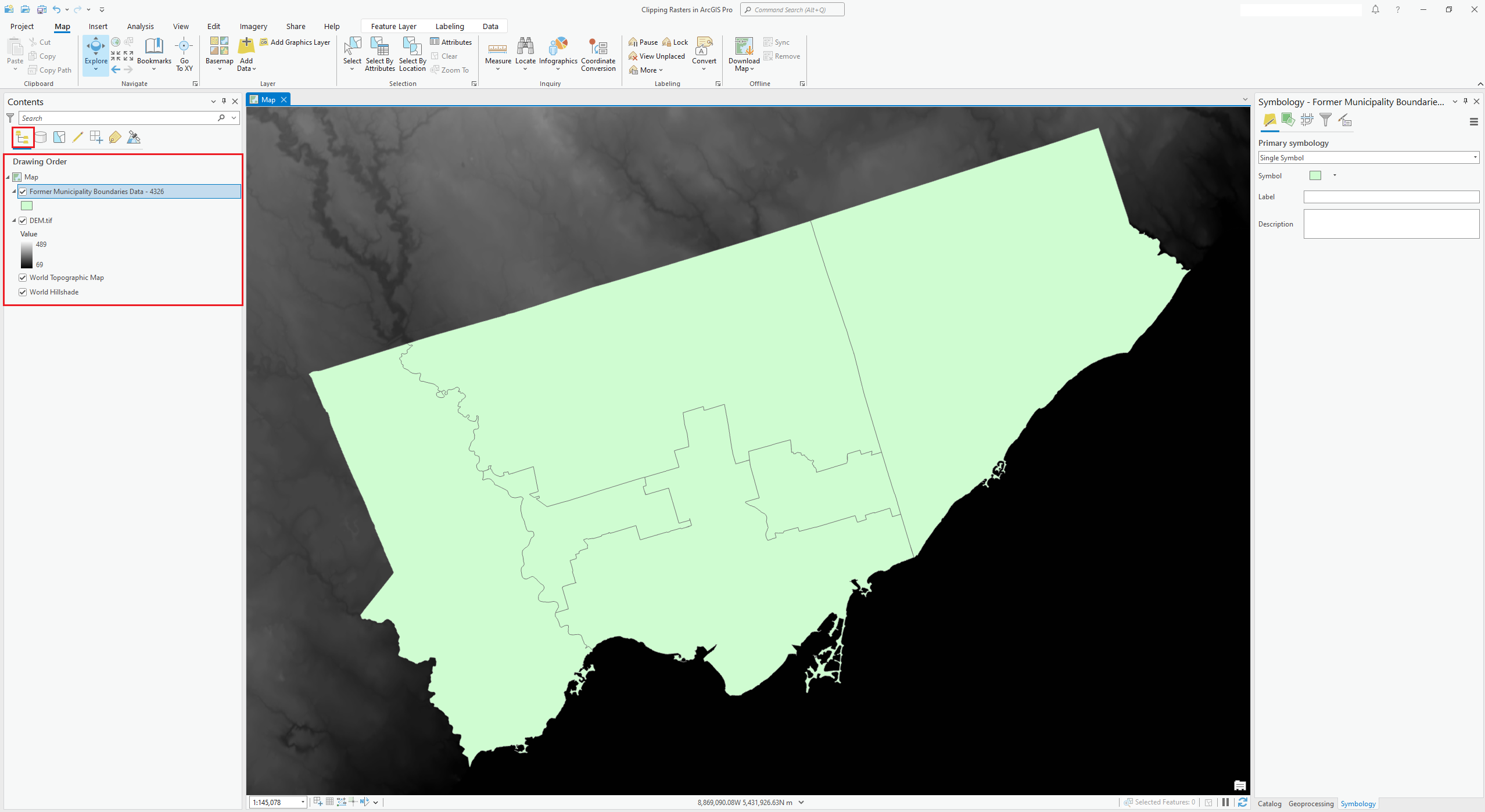
On the Table of Contents pane on the left, you can adjust the drawing order (display order) of the two dataset if you want to have the boundaries layer on top of the DEM. Simply drag the layers up and down in the list would change the order to display them. Make sure you have the “List By Drawing Order” tab checked (highlighted in red).
Clipping Rasters - Two ways
Clipping Rasters - Using toolboxes
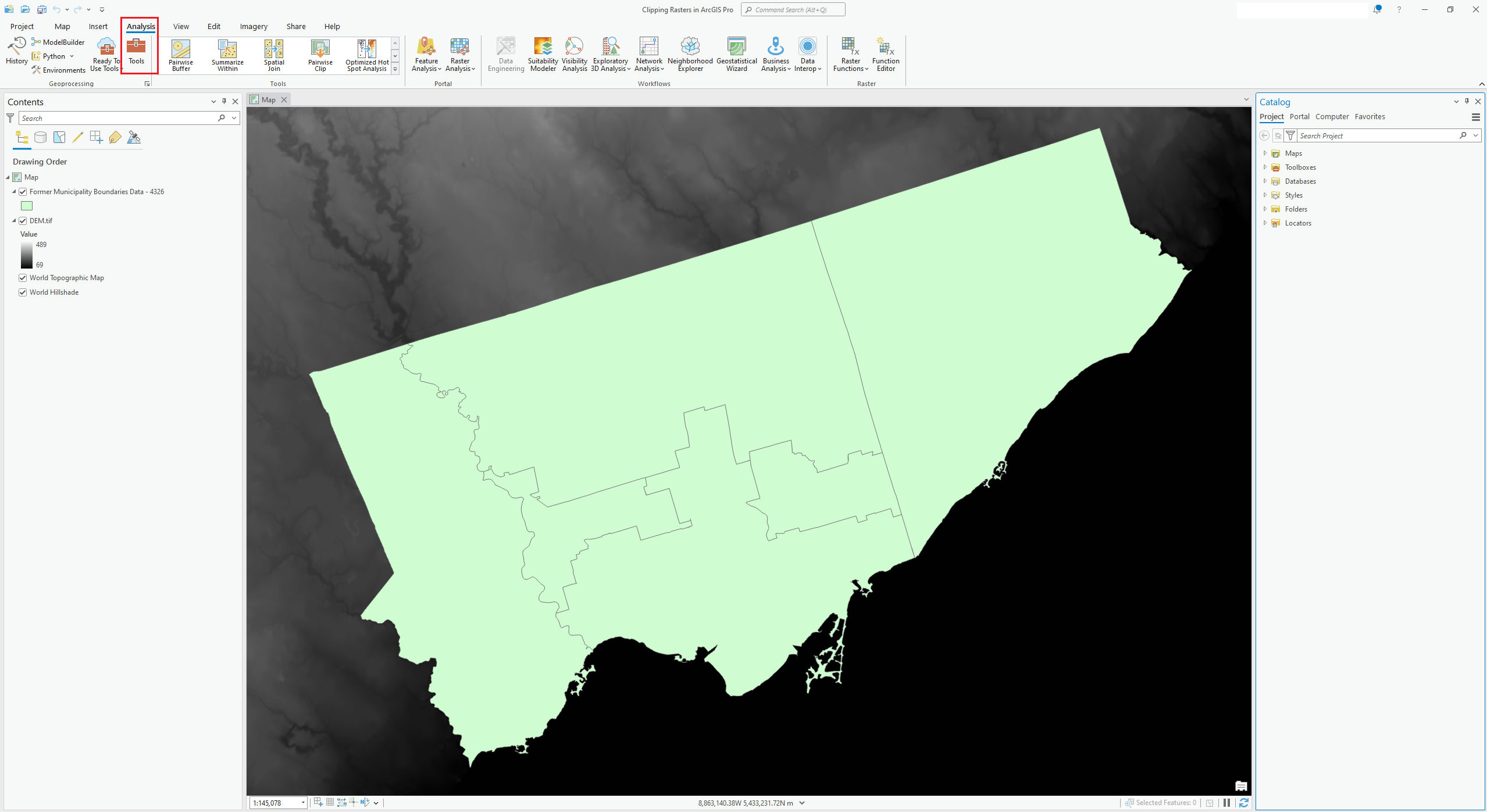
The first method to clip a raster is by using the Data Management toolbox in ArcGIS Pro. Click on Tools in the Analysis tab found in the ribbon at the top of your screen. This should open up the Geoprocessing pane.
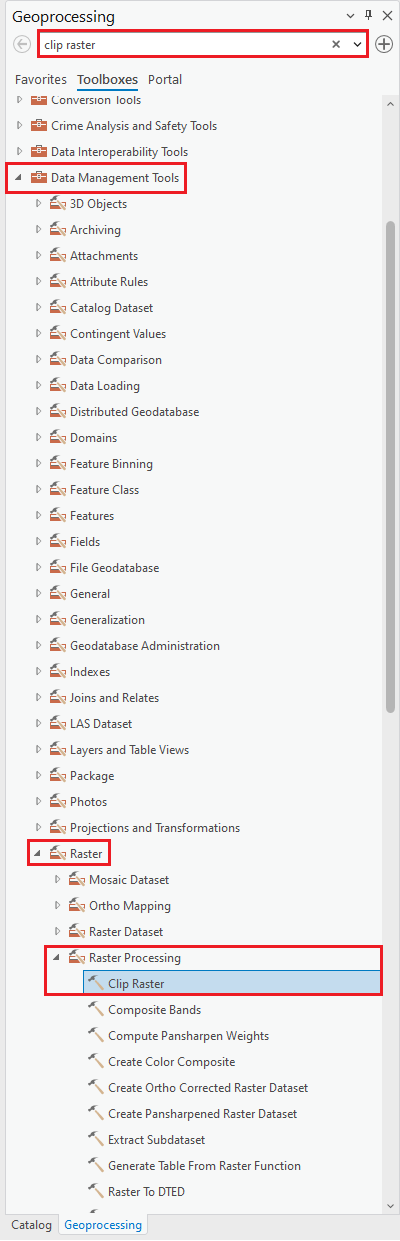
In ArcGIS Pro, there are two different clipping tools for vector and raster datasets. To find the Clip tool that’s specifically designed for raster dataset, follow this directory: Toolboxes → Data Management Tools → Raster → Raster Processing → Clip Raster. Alternatively, you can use the Find Tools search bar at the top of the geoprocessing pane and type out “Clip Raster”.
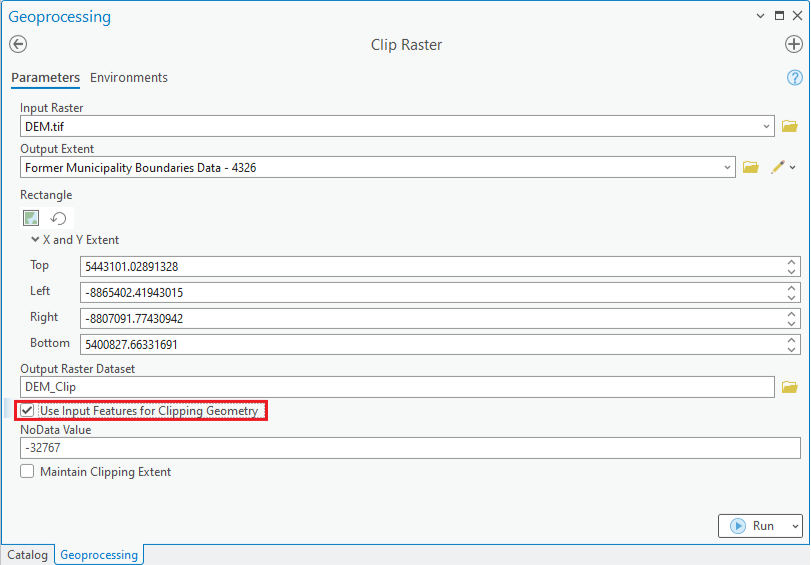
Open the Clip Raster tool. The Input Raster should be the Digital Elevation Model we downloaded. Set up the City of Toronto Former Municipality Boundaries file as the Output Extent. You can also manually adjust the extent of the rectangle by changing the X Max/Min and Y Max/Min numbers.
The Clipping tool will clip your raster dataset to a rectangle that covers your extent. If you want your clipped raster data to be exact same shape as the clipping layer (the City boundaries, in this case), make sure you check the “Use Input Features for Clipping Geometry (optional)” box.
In the Output Raster Dataset, save your output dataset to your preferred directory.
Click OK after all settings are properly changed.
Note: every time you click on one of the settings, the Tool Help panel on the right will show you a detailed explanation of this option. You can read through if you are needs clarification with some of the options.
After the clipping process is completed, the clipped layer should be added to display automatically. If not, find your clipped dataset under the folder you chose to export the data in the ArcCatalog panel, and add it to the map.
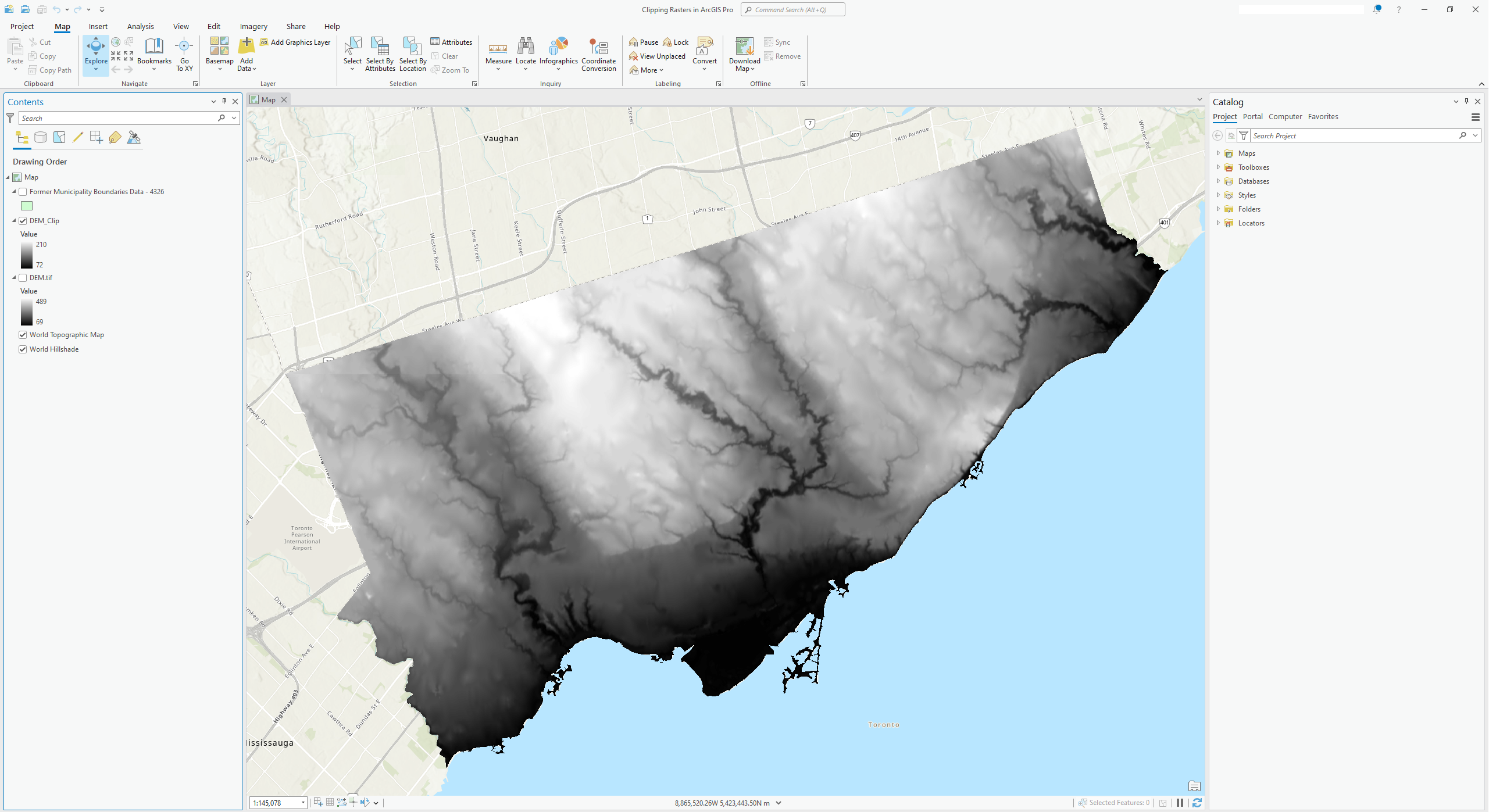
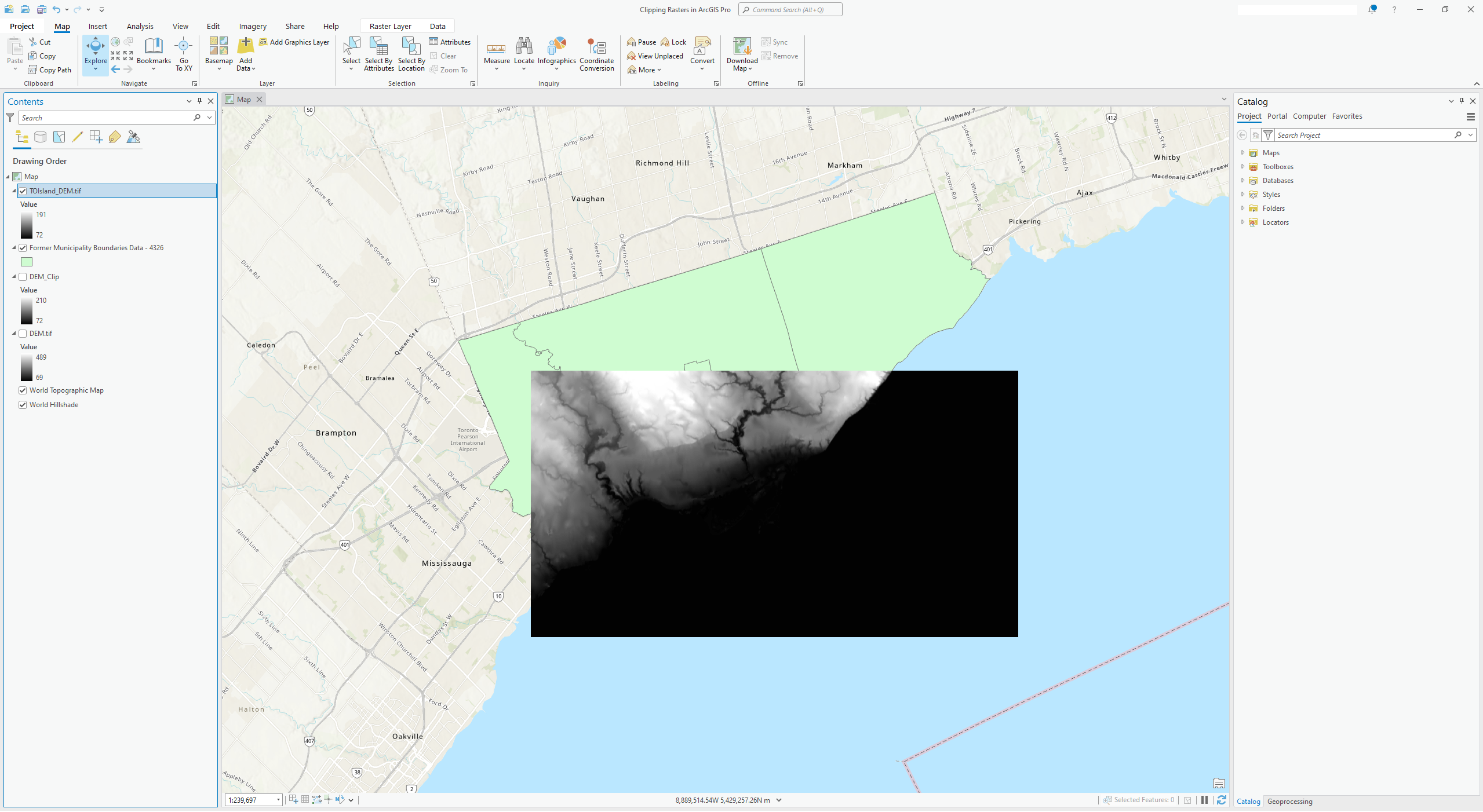
The clipped raster dataset should look similar to the following image.
Clipping Rasters - Export Data
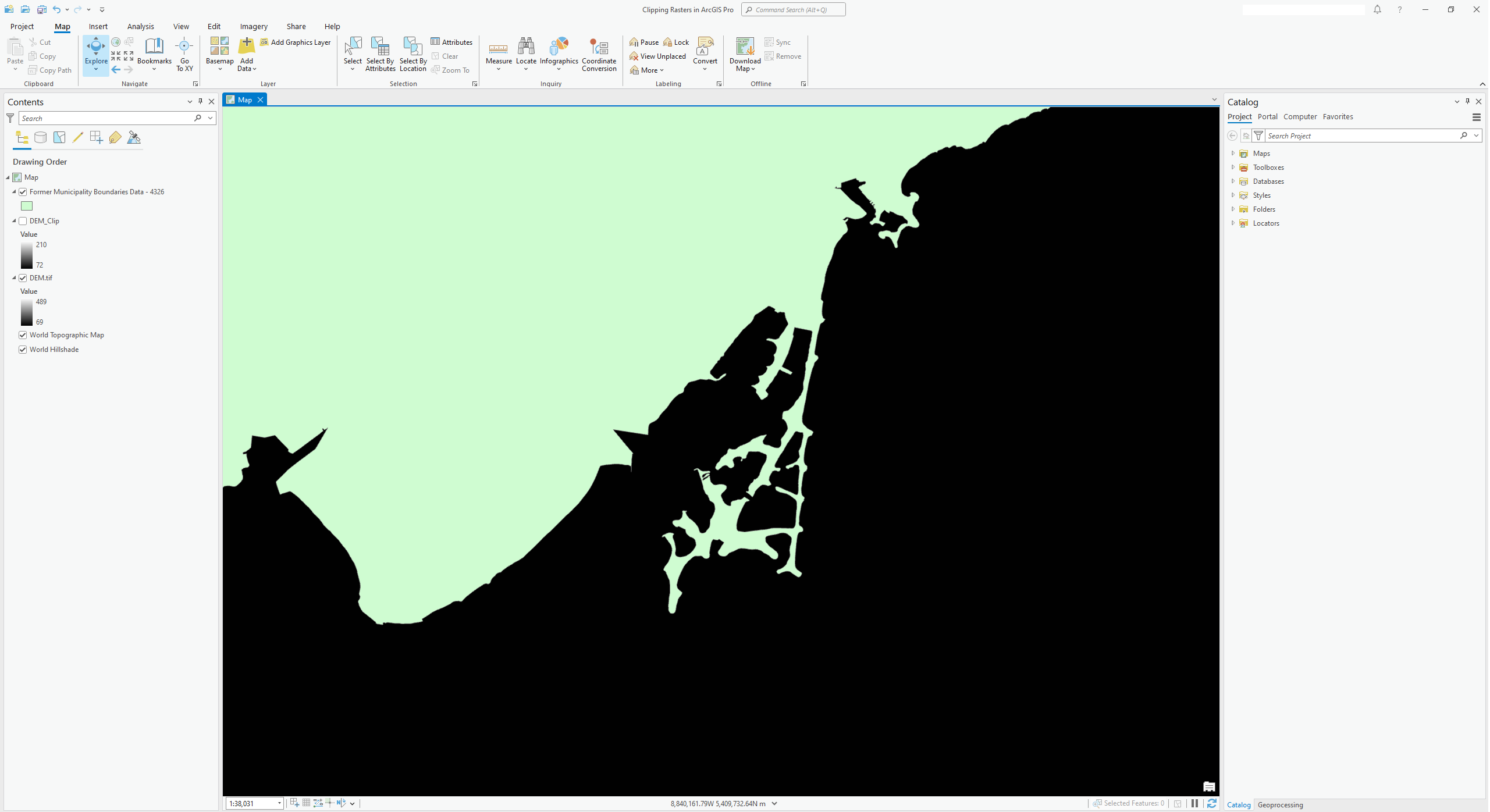
You can also zoom to the extent you wish to be working on and clip your dataset based on your zoomed extent. Let’s say you are specifically interested in Toronto’s islands and port lands.
First, zoom to the islands and port lands.
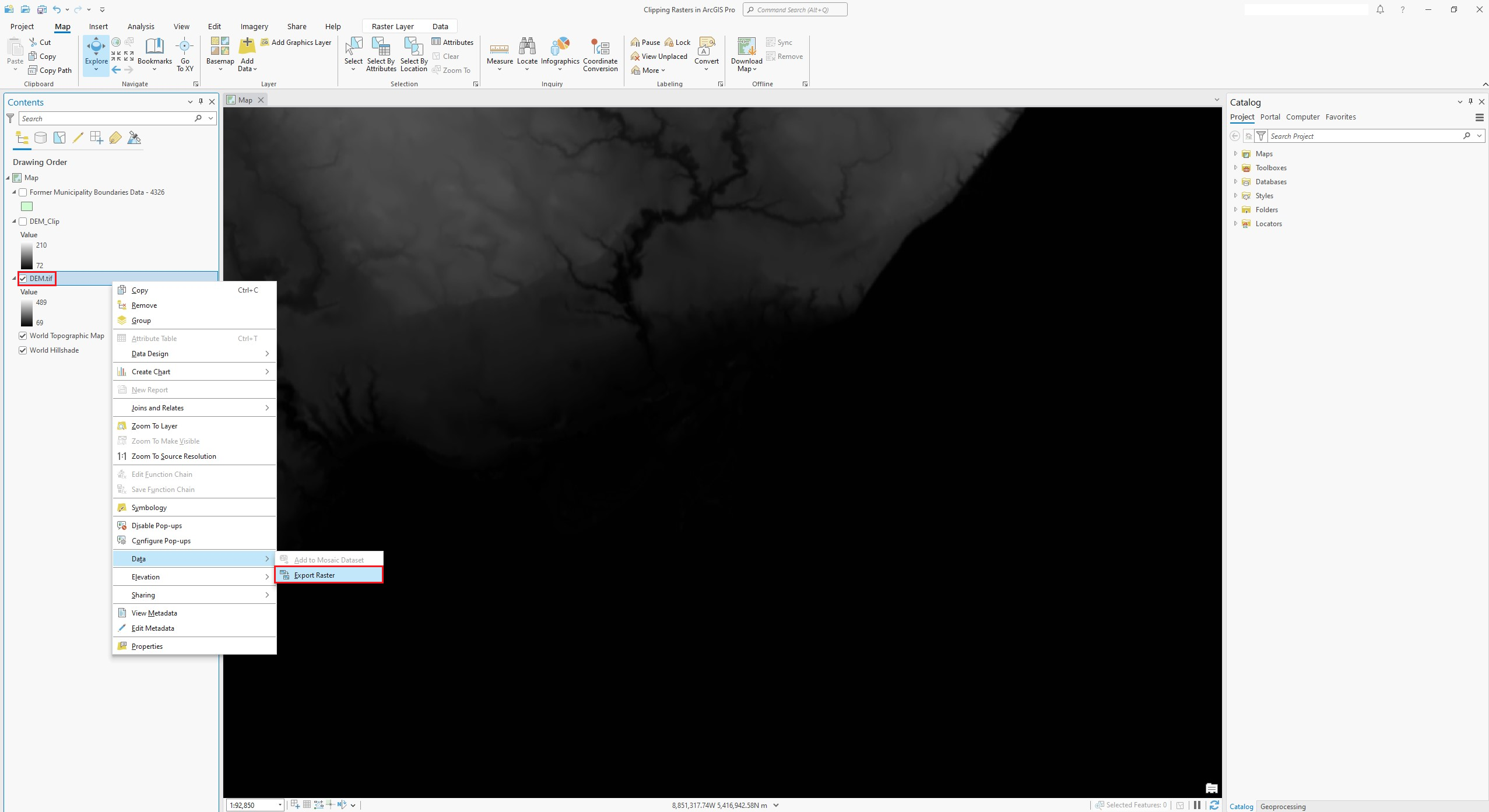
Then, right-click on the raster layer you wish to clip from. Choose Data → Export Data…
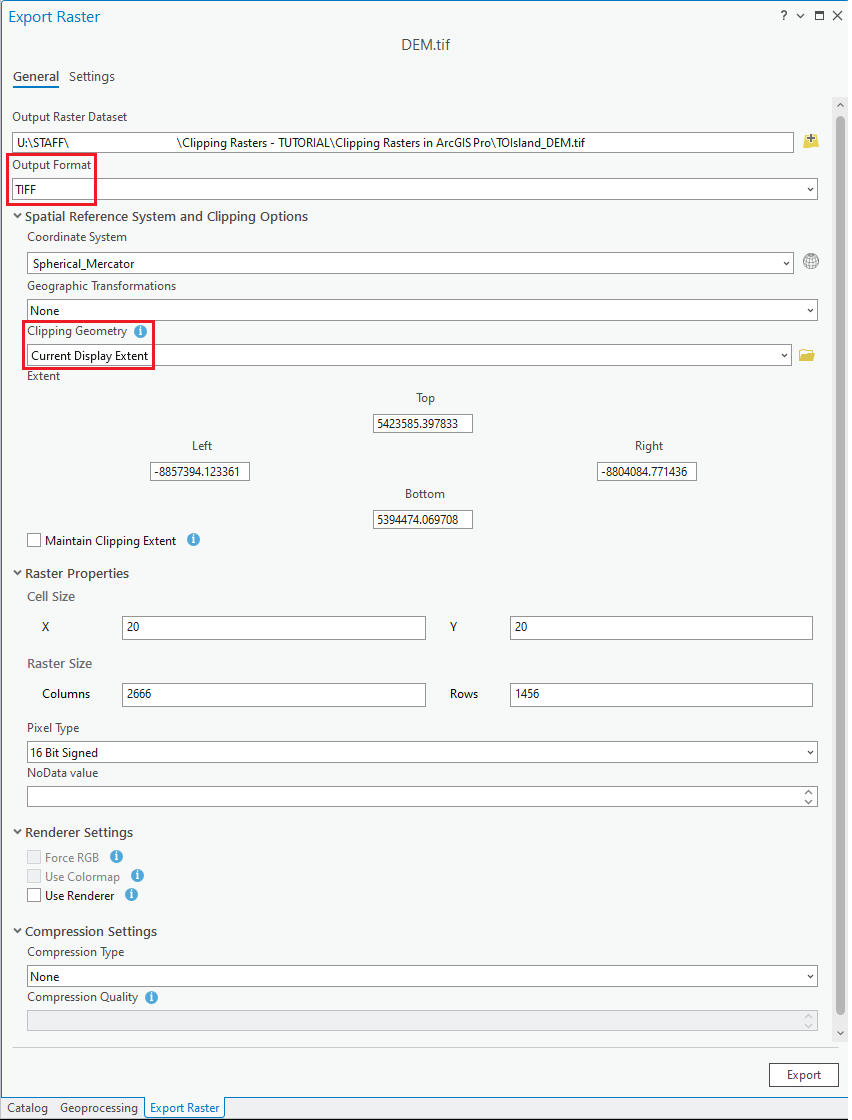
In the Export Raster Data setup window underneath the header “Clipping Geometry”, make sure you select “Current Display Extent” to only export the data within your zoomed dataframe. You can keep the Spatial Reference same as the original one.
You can also choose to export the raster file as the same format as the original dataset (TIFF). Saving the raster file as a TIFF could also avoid compressing the dataset.
Make sure you save the exported file to your working directory.
Add your exported layer the map area. Your clipped layer should look similar to this.
Some alternative sources to download Digital Elevations Models:
Province Digital Elevation Model - Ontario Open Data (In “Elevation”, choose “Provincial Digital Elevation Model”)
Swift Current LiDAR Project 2009 - DEM - Federal Open Data (In the list of “Resources”, choose “Pre-packaged GeoTIF files (No linguistic component))”
USGS Earth Explorer (“Search Criteria” - identify your area of interests; “Data Sets” - choose “Digital Elevation”)
Technique: Extracting data | Tools: ArcGIS Pro | Data Format: DEM, Raster