Clipping data in QGIS
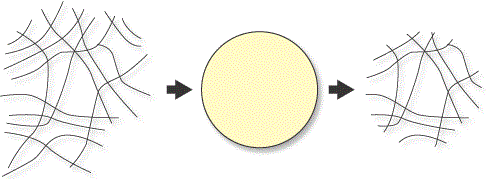
You may be working with a vector layer that is much more geographically expansive than your study area. In this case, you can clip the layer to your area of interest in QGIS.
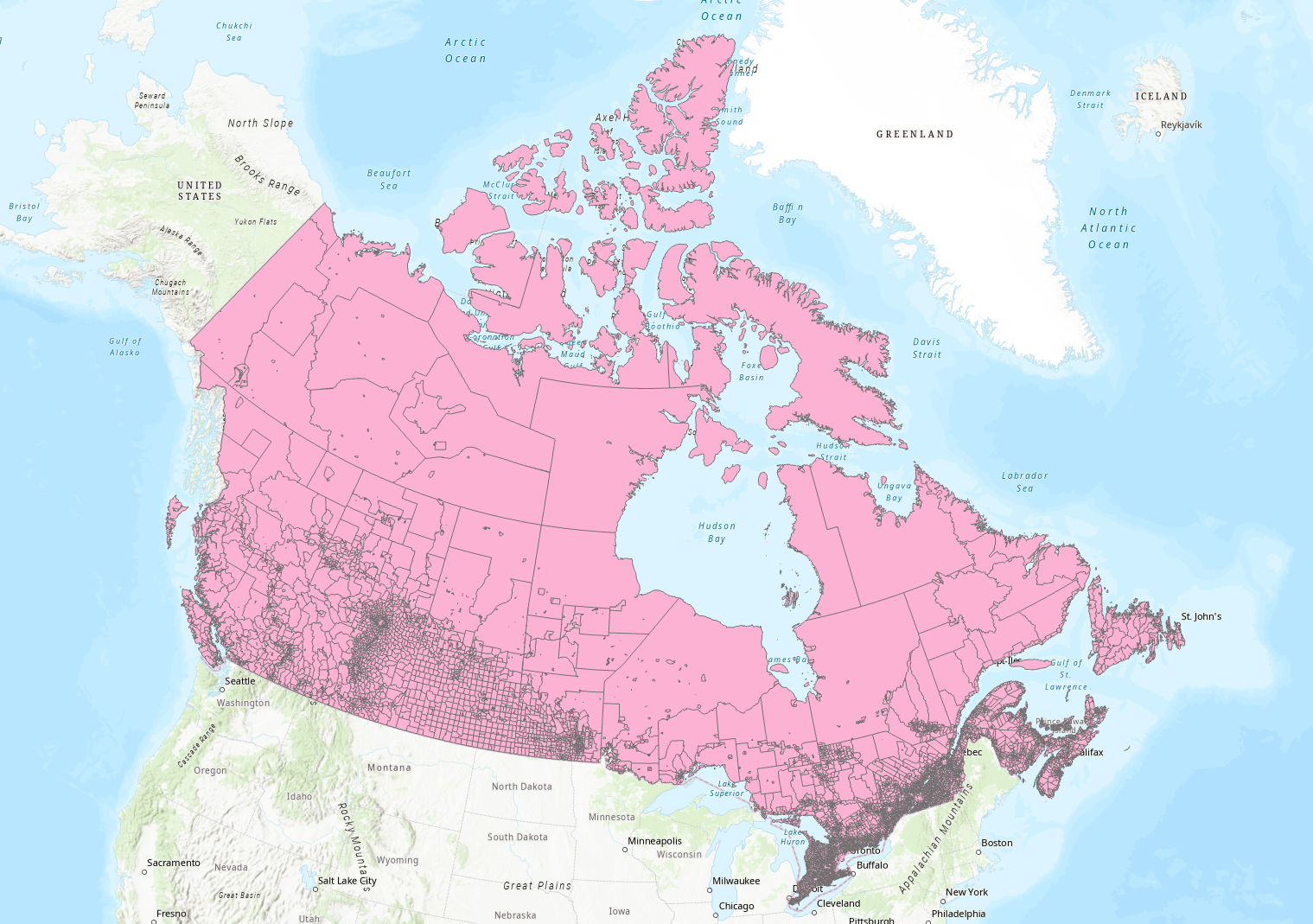
Example: This Statistics Canada layer (downloaded from this page), displays all census dissemination areas within Canada. If your study area is in Eastern Canada, you may wish to clip out a smaller portion of this layer to work with.
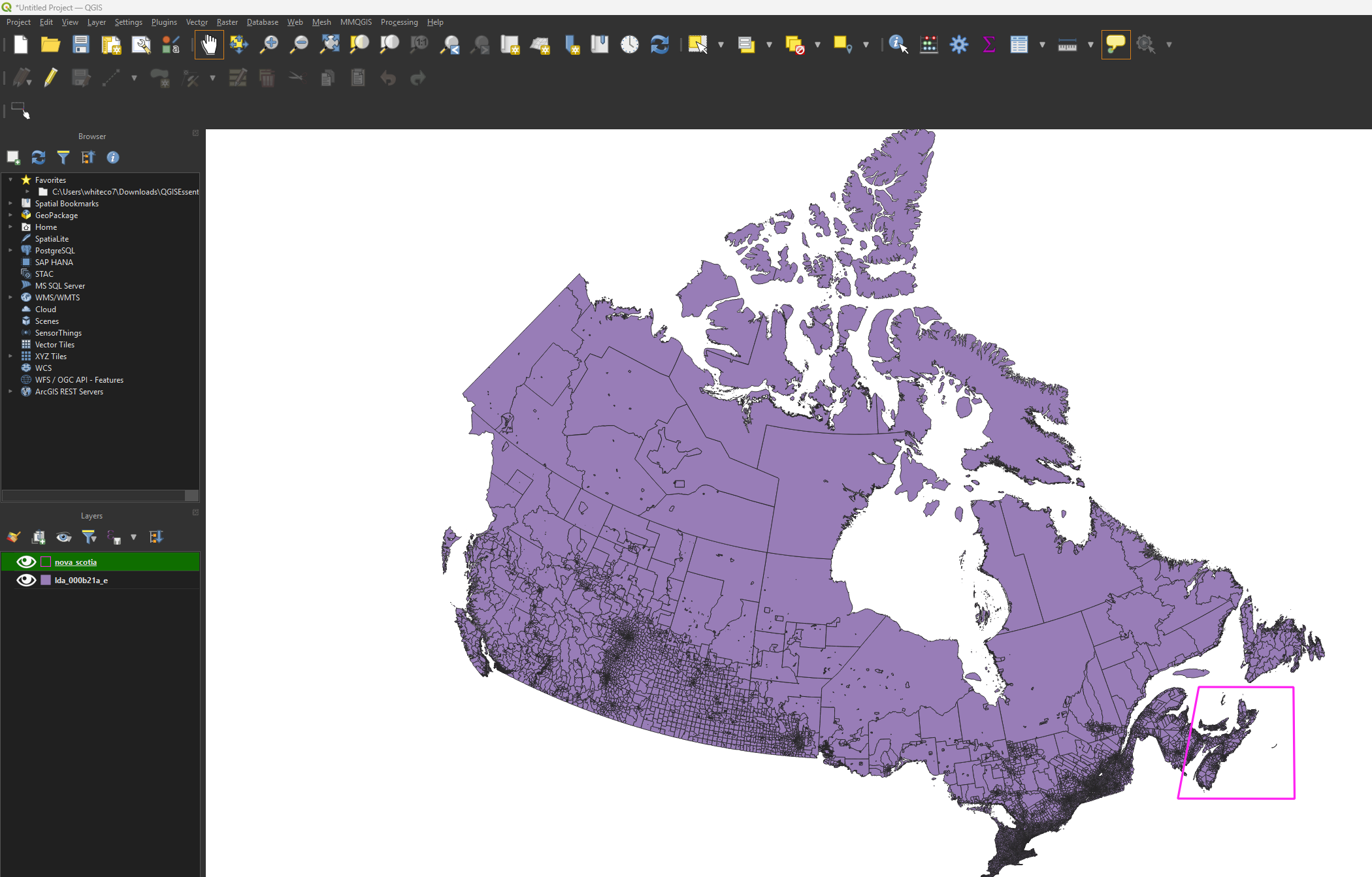
• Load your large data layer into QGIS. You’ll also need a layer defining your clip area.
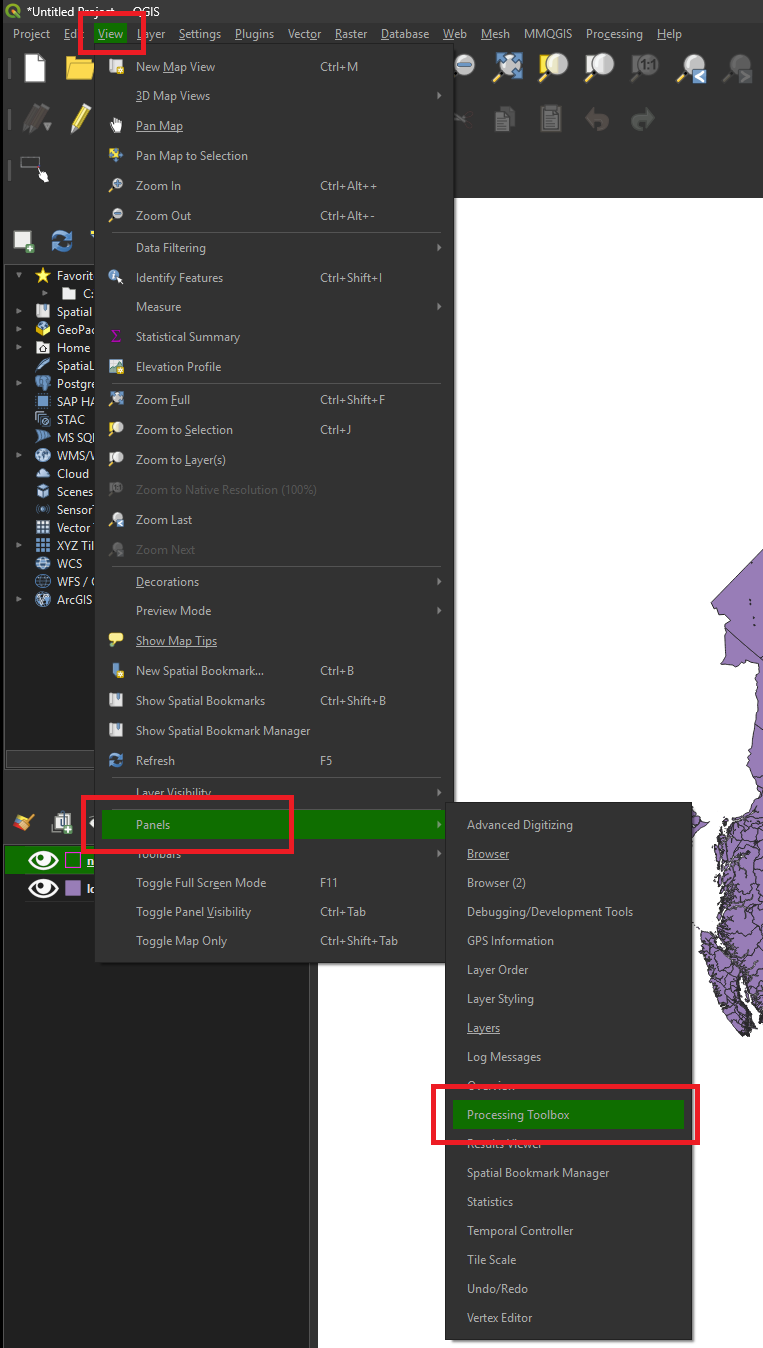
• Open the Processing Toolbox by clicking the View -> Panels -> Processing Toolbox menu item.
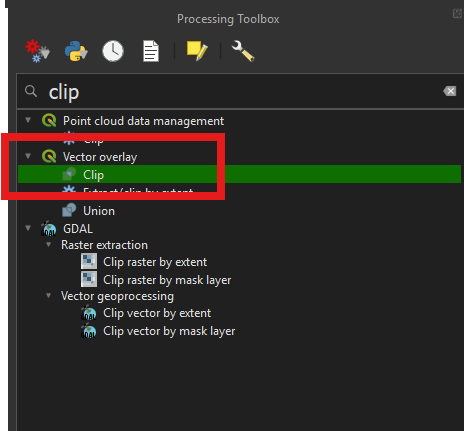
• Open the Vector overlay -> Clip tool.
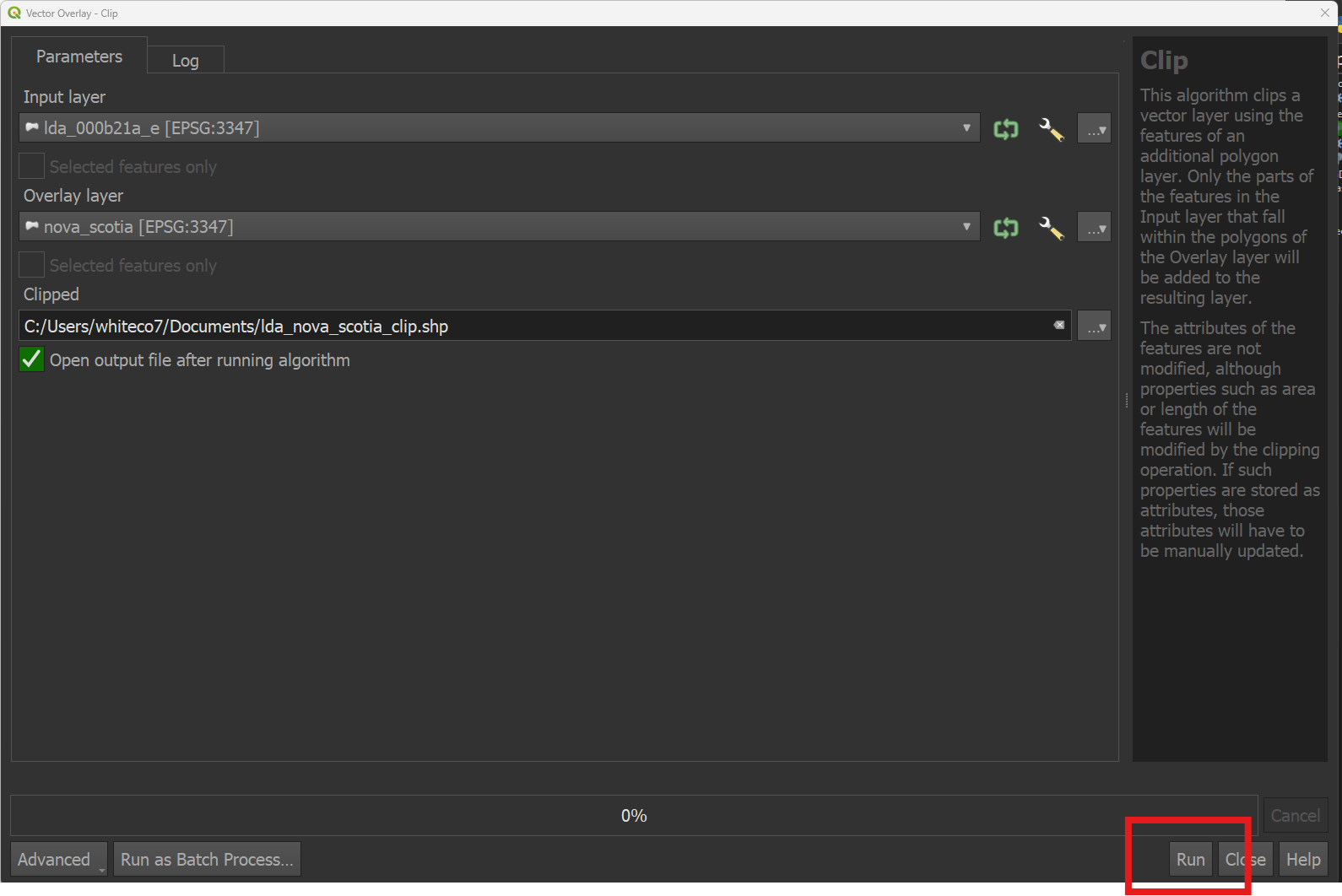
• Select your large layer as the Input layer and the clip (‘cookie cutter’) layer as the Overlay layer. Save the output as a shapefile to your computer. Click Run.
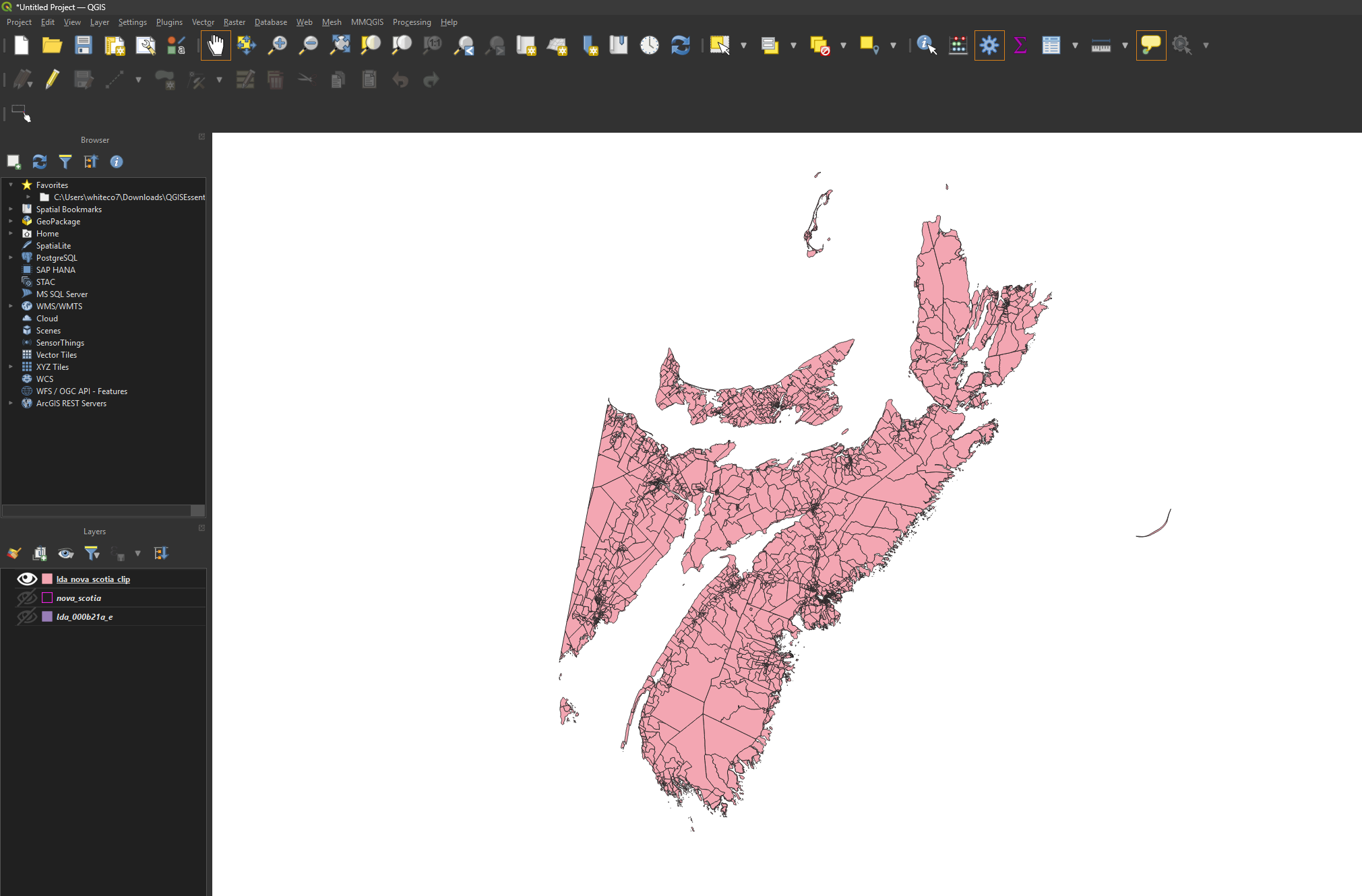
• The tool should output a new layer cropped to your area of interest.
See also:
• Extracting the geographic features you need from a larger dataset in QGIS
Technique: Extracting data | Tools: QGIS | Data Format: Vector