Digital Scholar Lab - Export
Return to the main Gale Digital Scholar Lab tutorial
This tutorial demonstrates how to export documents and metadata from the Digital Scholar Lab.
Please note that Gale is periodically adding new documents to their collections, so your document counts and results may look slightly different from our screenshots and examples below.
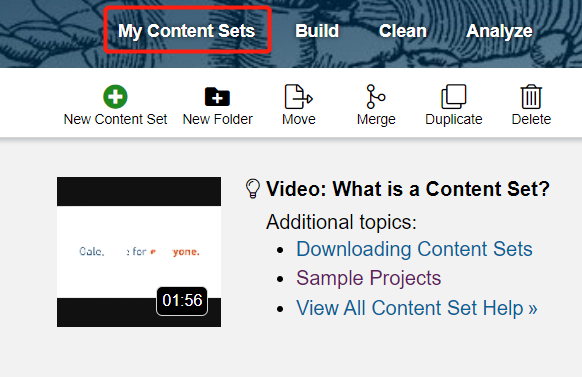
Let’s conclude by exporting texts from Gale Digital Scholar Lab. You can use these texts for your own research and if you have downloaded any of the tools used above (e.g. MALLET for topic modeling or perhaps you are trying spaCy in Python), you can use these texts in those tools. Begin by clicking on My Content Sets on the top toolbar.
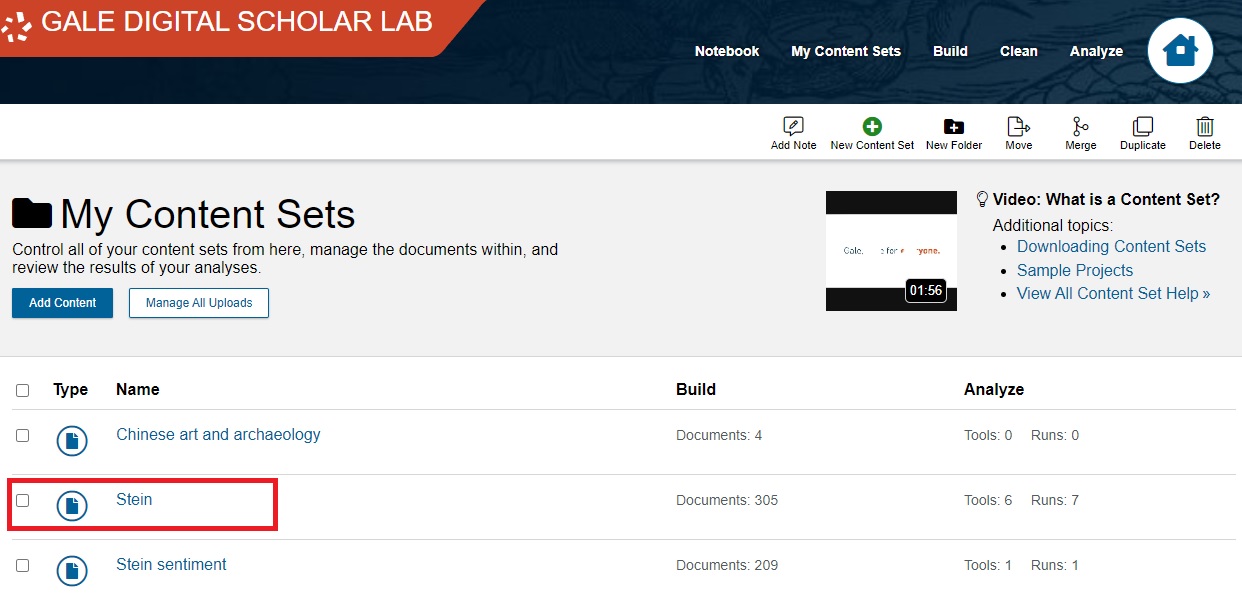
Then, from the list of Content Sets, click on Stein.
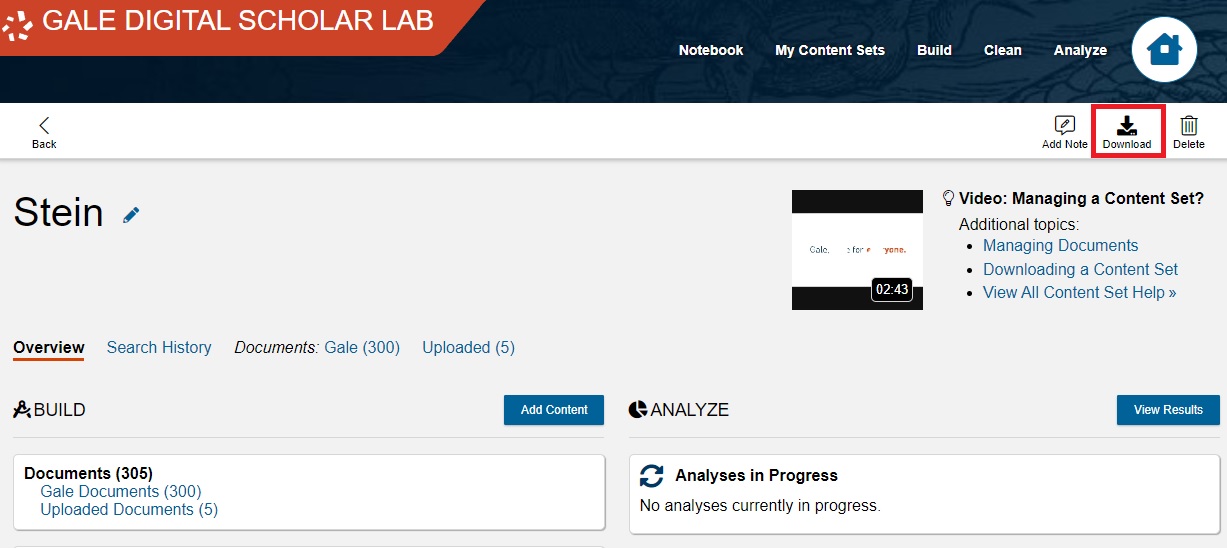
Under the top-right tool bar, click on Download button.
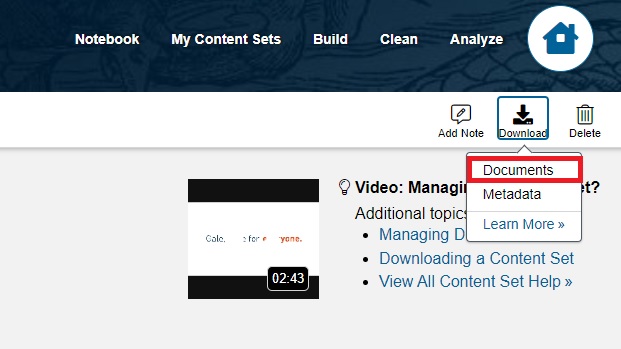
From the Drop-down menu, click on Documents
In the popup that appears, leave Cleaning Configuration at its default, None, and click Generate Download.
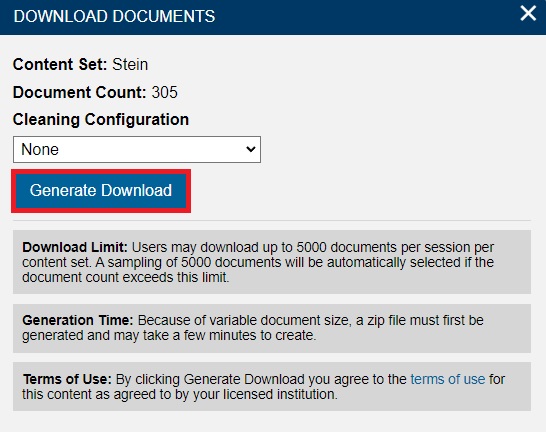
Note: you can download a maximum of 5000 documents at one time. The maximum size of a content set is 10 000 documents.
- Back on the Stein Content Set overview, the Download Content Set button has changed to Generating Download. This is because Gale’s servers are preparing the texts for you. Wait a minute or two, then refresh the page.
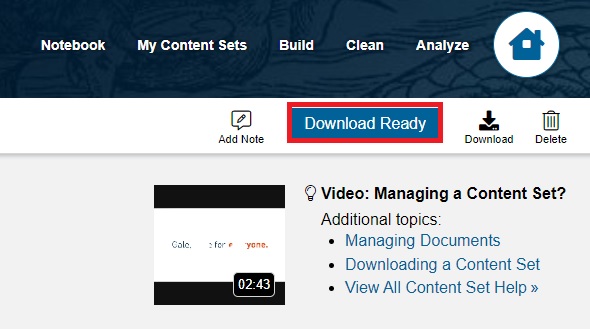
Once the Generating button has changed to Download Ready, click it.
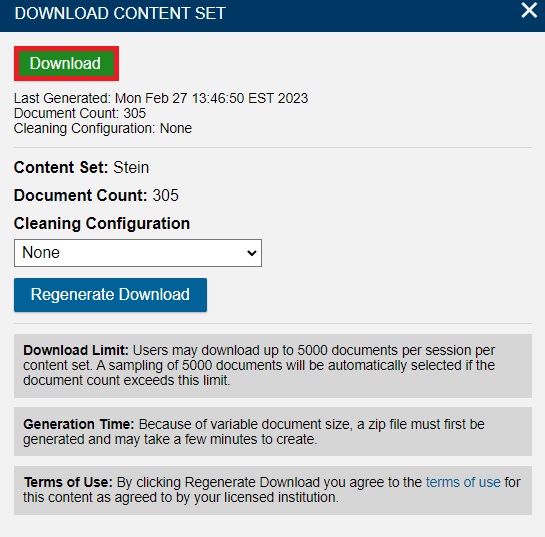
Then, on the Download Content Set popup, click Download.
- Your texts will be bundled together in a file called download.zip.
If you are using a Windows computer, use an unzipping program like 7-zip (download here) to access the files. Right click on download.zip and select “Extract here”.
If you are using a Mac, double click on download.zip.
When the folder has been unzipped, open it. You will now have a folder with a README.txt file and a folder called “original.”Open the “original” folder.
<img src=’/dsl-export/assets/images/DSL_Export_008.1.png’ alt=’Open the ‘original’ folder.’ title=’’ width=’800’ height=’’ />Inside there is one file per text in your collection.
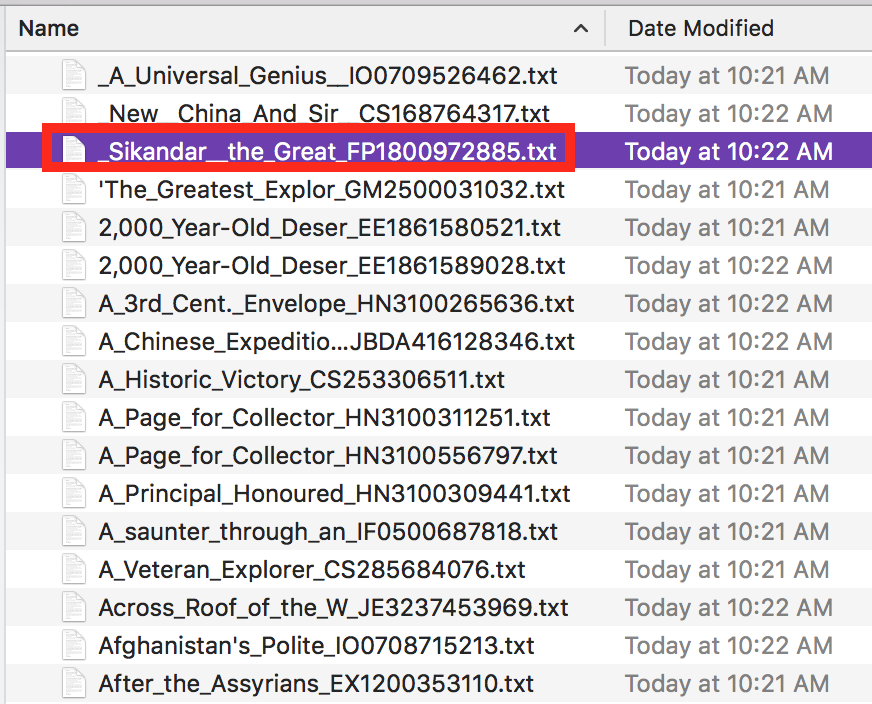
Open the text file titled _Sikandar__the_Great_FP1800972885.txt (with the underscore at the beginning; it should be the third text, alphabetically).
<img src=’/dsl-export/assets/images/DSL_Export_008.3.png’ alt=’Sample document “Sikandar the Great” about Alexander the Great’s travels.’ title=’’ width=’800’ height=’’ />
This text has some OCR errors throughout but is mostly legible.
You now have access to OCRed copies of all of the texts in your corpus.Now that you have access to the original texts, let’s also download texts that have been cleaned using our cleaning configuration. Click on Content set download ready again, but this time, click on the dropdown menu under Cleaning Configuration.
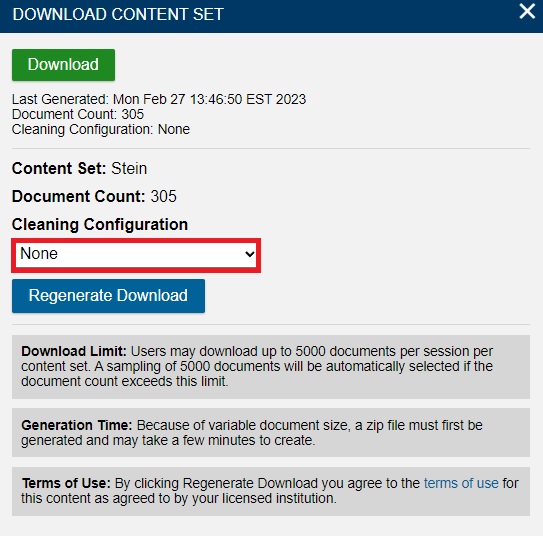
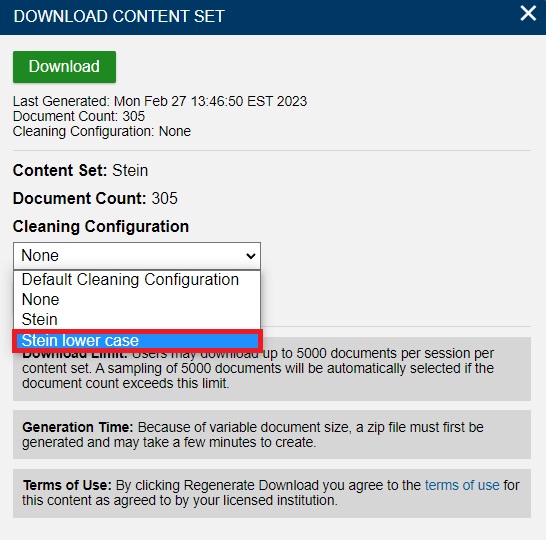
From the list, choose Stein lower case.
Then, at the bottom of the window, click on Regenerate Download.
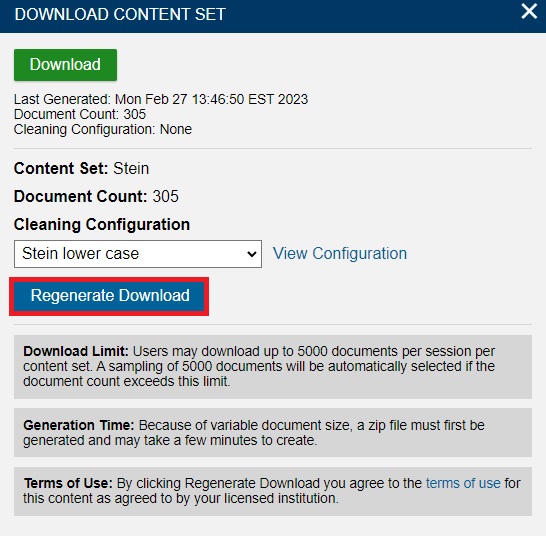
Wait a minute or two again, refresh, and download the new set.
Unzip the folder, open the folder called Clean, and then open the text titled XX again.
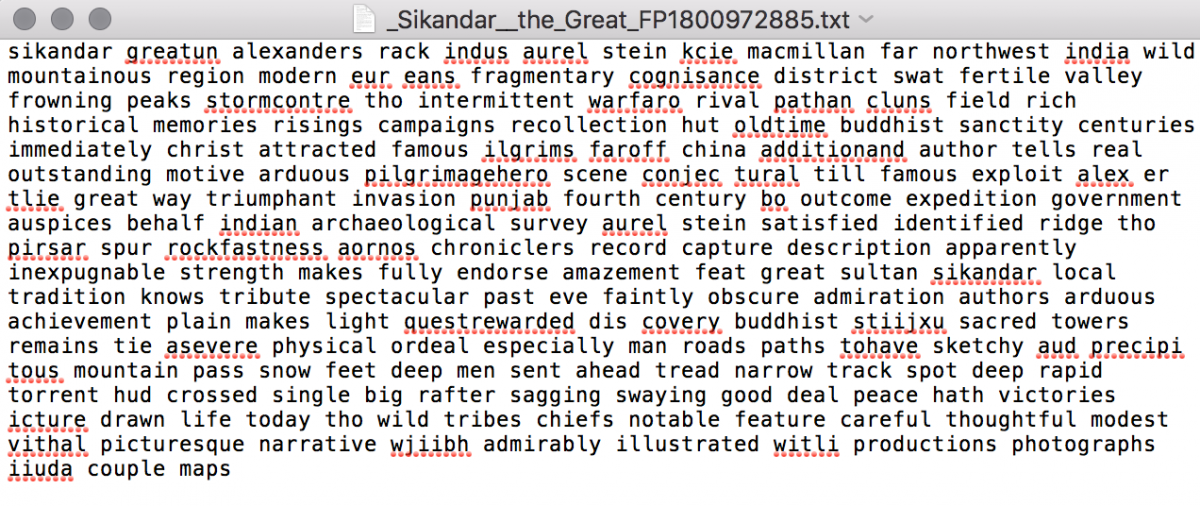
This is the same text, after being cleaned through the cleaning configuration. All stop words (e.g. “the”) have been removed, as have punctuation, numbers, and special characters, and all words are in lower case. It is no longer a readable text for humans but it helps immensely when running tools like Ngrams or Topic Modeling (via MALLET) on your own computer.- You can also download the metadata for your records. Click the Download button and click on the Metadata.
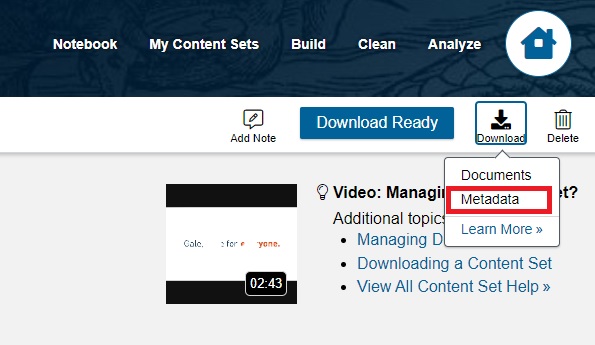
Then, click on the Download button.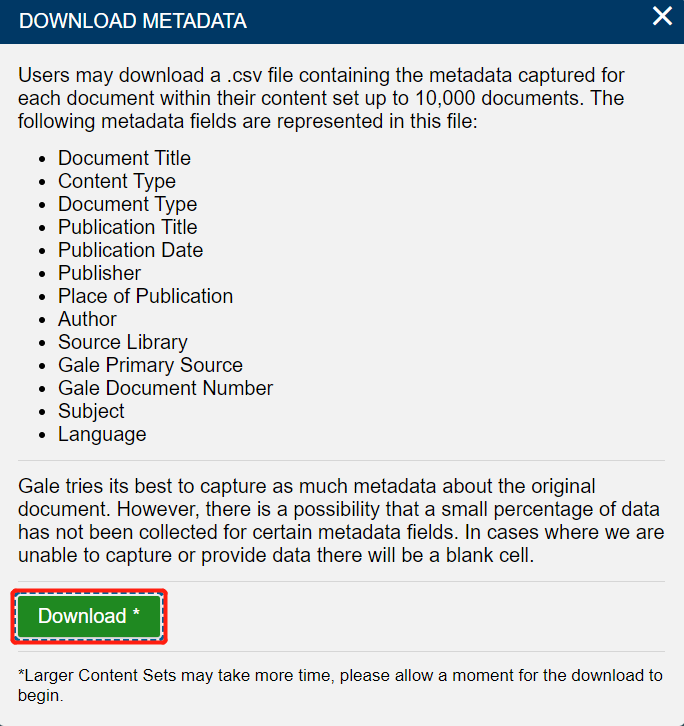
You can download the metadata for up to 10 000 documents in your collection. You will receive the data as a .CSV file (which can be opened as a spreadsheet, e.g. in Excel).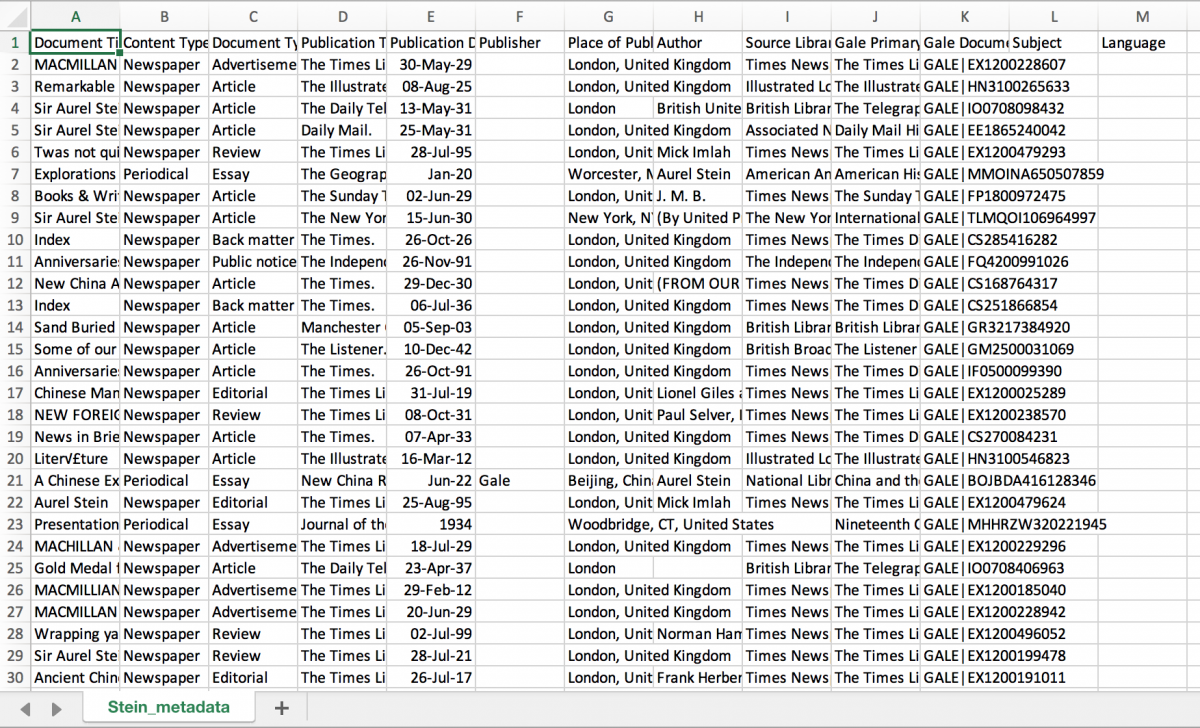
That’s it! You can now export data, visualizations, and both raw and cleaned text files from theDigital Scholar Lab.
Return to the main Gale Digital Scholar Lab tutorial
| Technique: Extracting data | Tools: Digital Scholar Lab |