This guide will walk you through the steps to create a new guide with MDLutoronto’s Just-the-docs template.
The MDLutoronto/jtd-template repository is a template repository that contains the necessary structure and files to create a new Just-the-docs site.
Creating a new repository
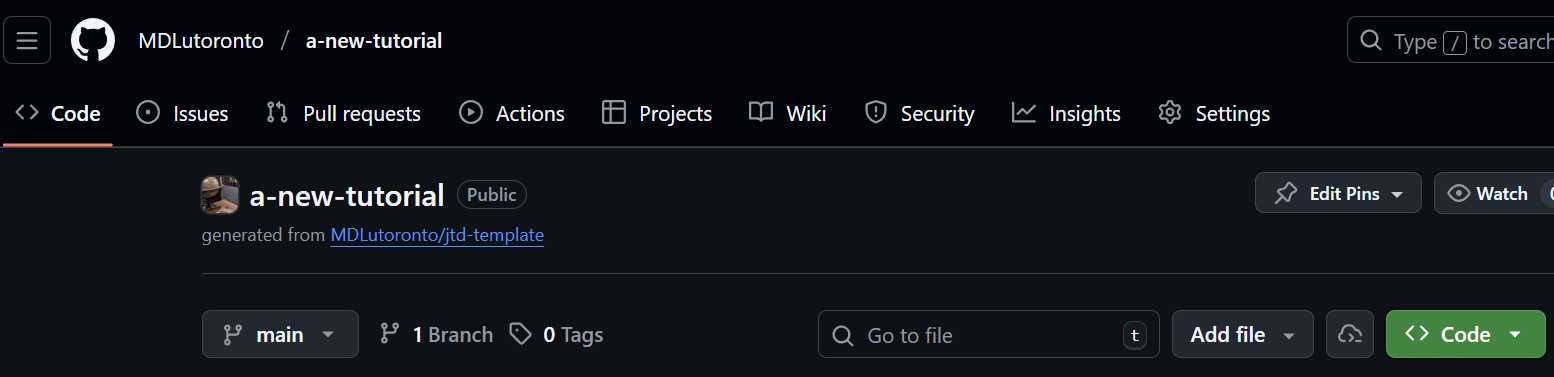
Click on the
Use this templatebutton at the top right of this repository page. Then, click on theCreate a new repositorybutton.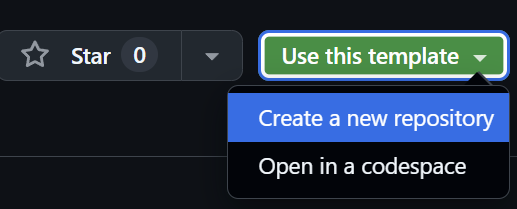
- You will be prompted to enter a repository name, description, and other settings.
- For the owner, choose
MDLutoronto. - Enter the name (also act as the slug) for your new Just-the-docs site.
- Enter a description for your new repository.
- Choose the repository visibility (public or private).
Note that to make the site visible to everyone, you need to choose
publicas the repository visibility eventually.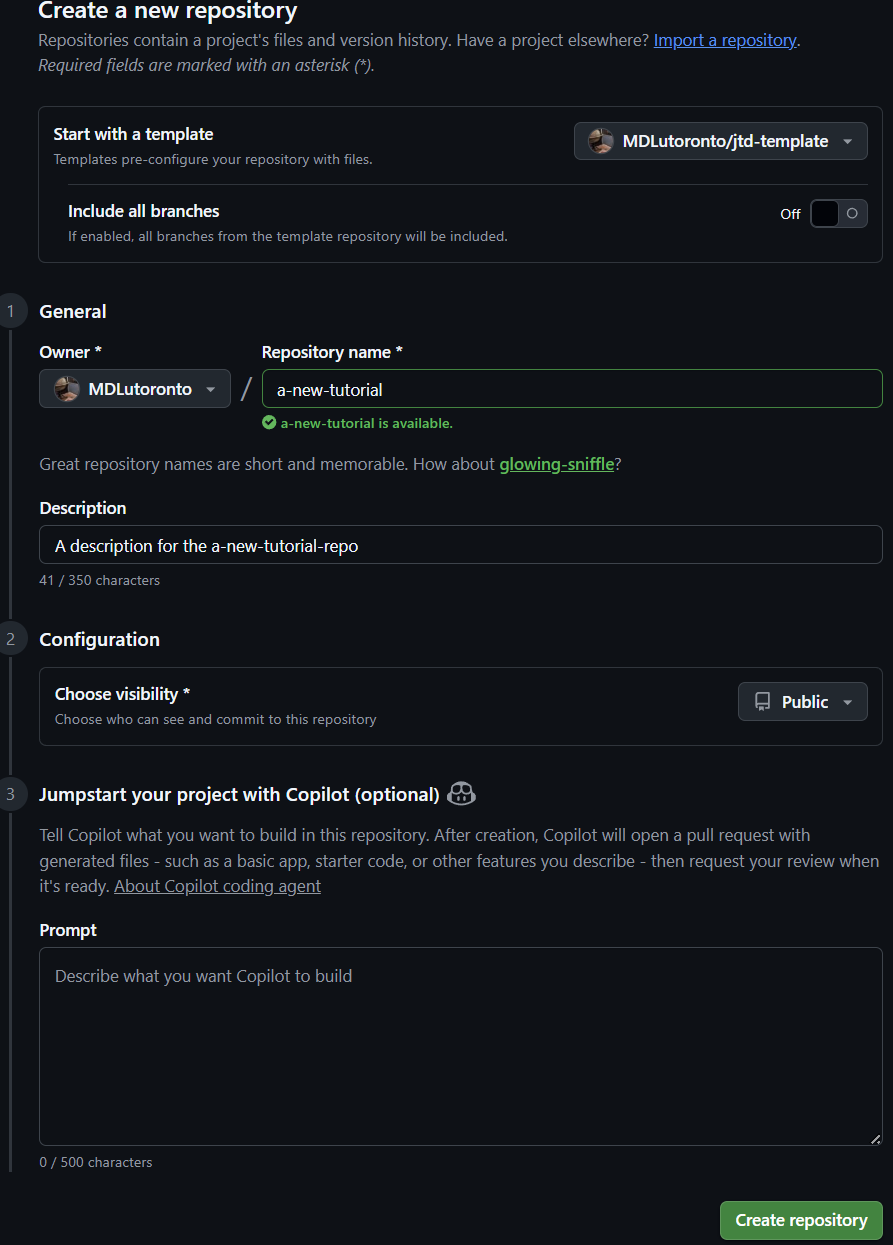
- For the owner, choose
Click on the
Create repositorybutton on the bottom right to create your new repository.
You will be prompted to the new repository page in a few seconds.
Enabling GitHub Pages
You will first need to enable GitHub Pages. Go to the
Settingstab of your new repository. Then, click on thePagesoption in the left sidebar. Lastly, underSource, select ‘GitHub Actions’ from the dropdown menu.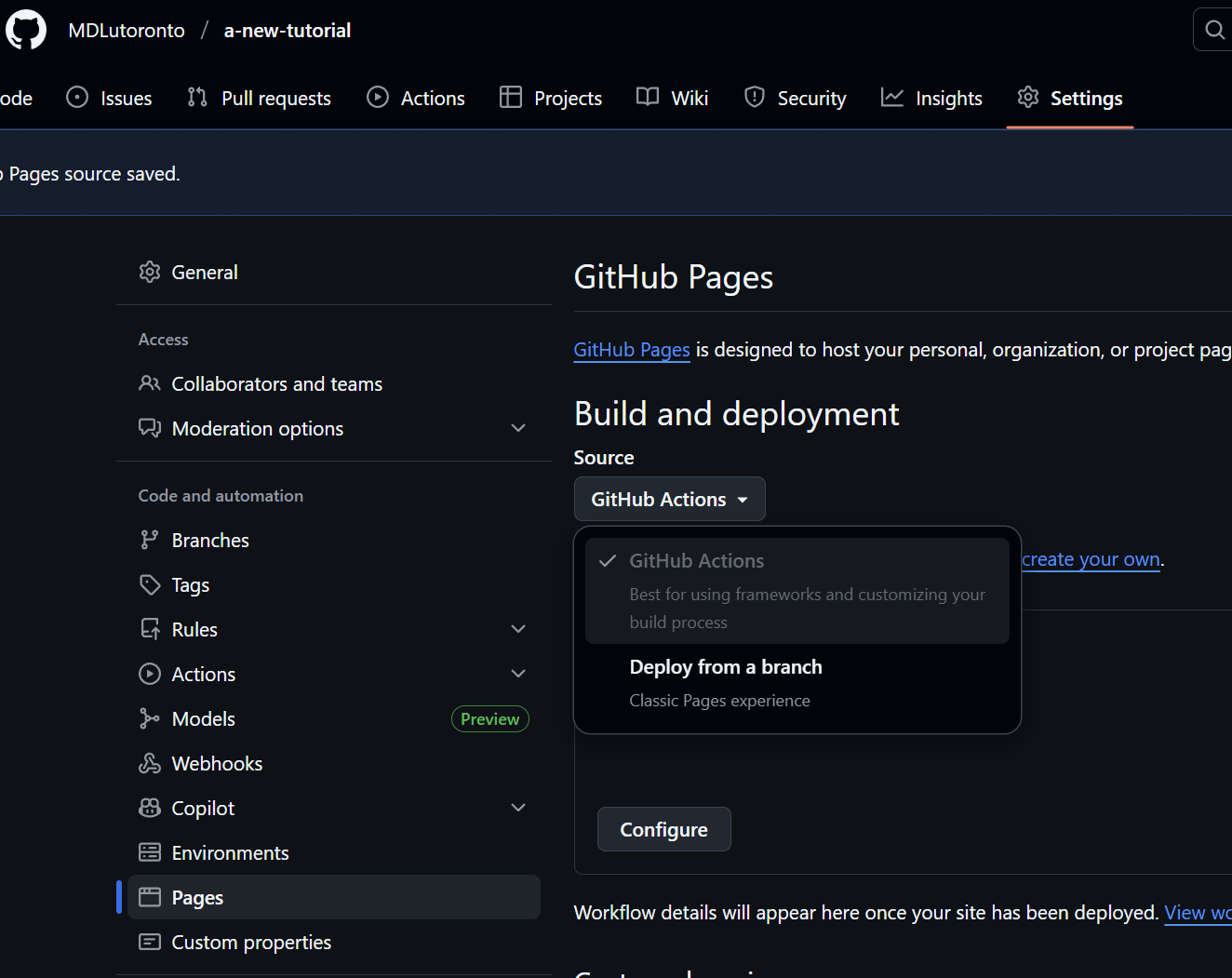
Modifying the configuration file
In order publish the website, you will have to modify the
_config.ymlfile in your new repository, with the following modifications:- First, replace the
jtd-themein theurlfield with the name of your new repository.
For example, if your new repository is called
a-new-tutorial, theurlfield should look like this:url: "https://MDLutoronto.github.io/a-new-tutorial"- Then, replace the repository: “MDLutoronto/jtd-theme” with the name of your new repository. For example, if your new repository is called
a-new-tutorial, therepositoryfield should look like this:url: "MDLutoronto/a-new-tutorial"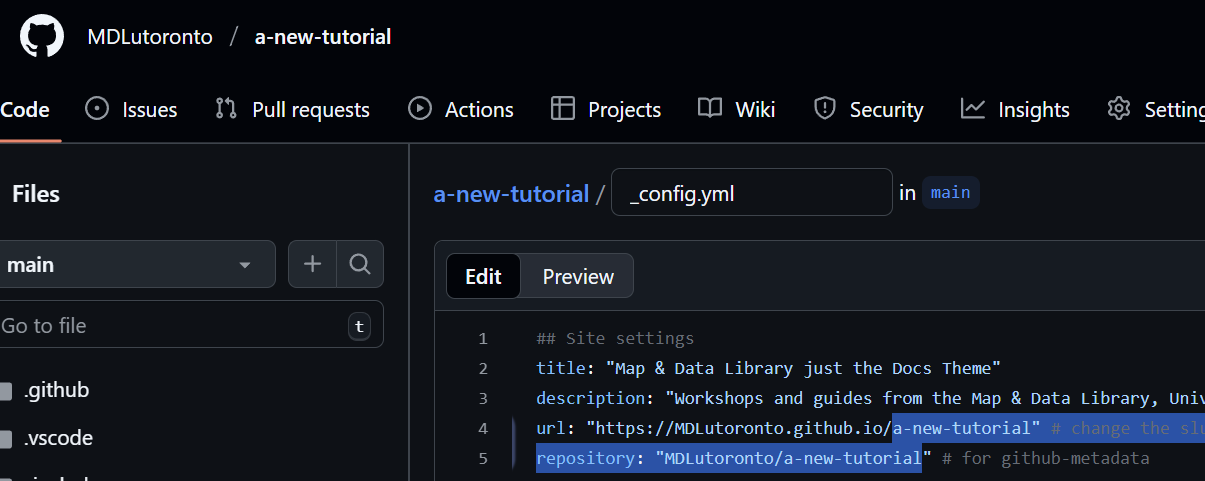
Commit the changes to the
_config.ymlfile. Enter your commit message. Ensure theCommit directly to the main branchoption is selected, then click on theCommit changesbutton.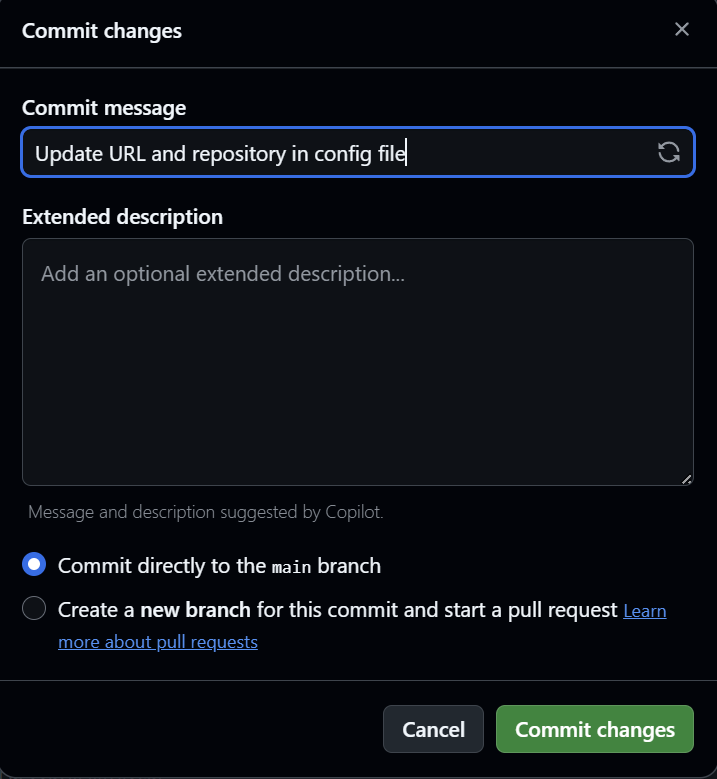
- First, replace the
You should now be able to see your new site at https://MDLutoronto.github.io/your-repo-name within a few minutes. For example, if your new repository is called a-new-tutorial, you should be able to see your new site at https://MDLutoronto.github.io/a-new-tutorial.
Creating a new page
To create a new page in your Just-the-docs site, follow these steps:
- In your new repository, navigate to the
docsfolder. - Create a new markdown file with the desired name for your new page. For example, if you want to create a page called
home, create a file namedhome.md. - Add the necessary front matter to the top of the markdown file.
---
title: Home   # Title of the page, which will be displayed in the navigation and the browser title.
layout: page  # Layout type, usually 'page' for standard pages.
nav_order: 1  # Order in the navigation menu.
description:  # A brief description of the page for SEO purposes.
permalink: /  # Optional: Custom URL for the page. It will serve as the slug. For example, /home/
created_date:  # Date when the page was created. Should be in YYYY-MM-DD format.
has_children: False  # Set to True if the page has subpages.
---
Add the content for your new page below the front matter, for example:
---
title: Home   # Title of the page, which will be displayed in the navigation and the browser title.
layout: page  # Layout type, usually 'page' for standard pages.
nav_order: 1  # Order in the navigation menu.
description:  # A brief description of the page for SEO purposes.
permalink: /  # Optional: Custom URL for the page. It will serve as the slug. For example, /home/
created_date:  # Date when the page was created. Should be in YYYY-MM-DD format.
staff:  # Optional: Nested list of staff members associated with the page.
   - name: Staff One
     link: https://library.utoronto.ca/staff/staff-one  # link is optional
   - name: Another Staff
     link: https://example.com/another-staff
student_staff:
   - name: Student Name
     link: https://example.com/student-name
   - name: Another Student
     link: https://example.com/another-student  # link is optional
has_children: False  # Set to True if the page has subpages.
---

# Title of the Page
Hello World! This is my new page.
(content goes here)
For the staff and student_staff fields, it is in a nested list format. Each staff member or student should have a
nameand an optionallinkfield. See the YAML documentation for Nested Lists for more detailsSee the Sink guide for the UI elements you can use in your markdown files.