Edit a guide
If you have created a new guide or want to make changes to an existing guide, you can follow the instructions below.
To edit a guide, you will first need to clone (download) the GitHub repository to your local machine.
Clone the GitHub repository in VS code
Here is a sandbox repository to test your access rights/connection: MDLutoronto/jtd-student-sandbox. After logging in with your account that has access to the MDL GitHub repository, you should be able to view the (private) repository in your web browser.
Open VS Code, then click on the ‘Source Control’ icon on the left sidebar (or press Ctrl+Shift+G) to open the Source Control panel. Next, click on the ‘Clone Repository’ button. You should then see a prompt at the top of the window showing ‘Clone from GitHub’. Click on it.
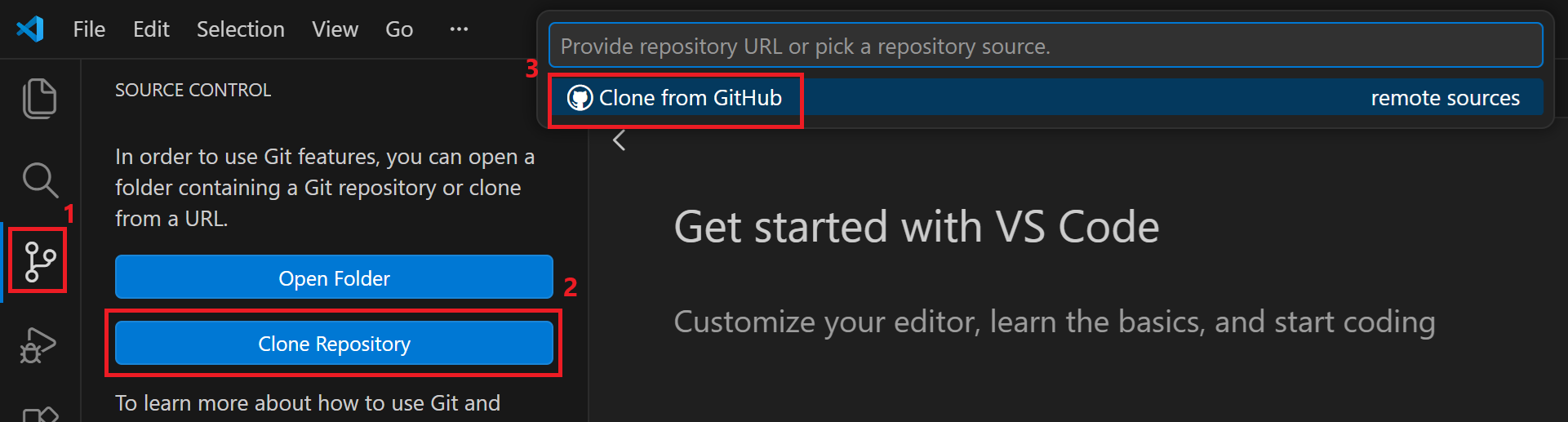
A drop-down menu will appear, showing the repositories you have access to. Select or type the name of the repository you want to clone (i.e. download) to your local machine.
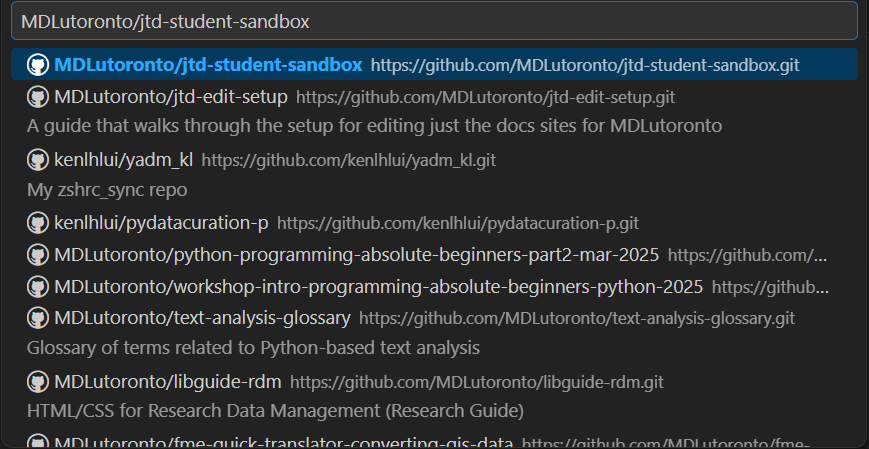 The format of repository name of MDL GitHub is
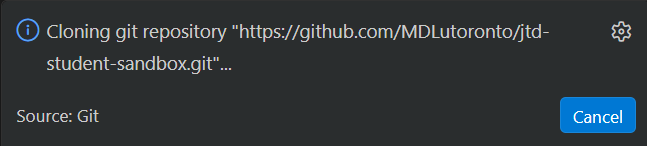
 MDLutoronto/${repository-name}. For example, the sandbox repository isMDLutoronto/jtd-student-sandbox.Once you select the repository, you will be prompted to choose a local directory to save the cloned repository. Choose a location on your computer where you want to store the project files, then click ‘Select as Repository Location’. You will see a message in the bottom right corner of the VS Code window saying ‘Cloning git repository…’.
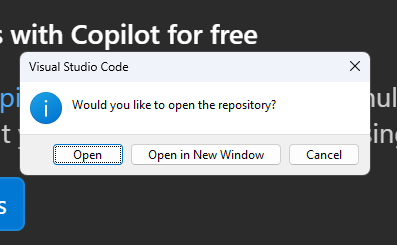
After the cloning process is complete, you will see a message in the middle asking if you want to open the cloned repository. Click ‘Open’ to open the repository in VS Code.
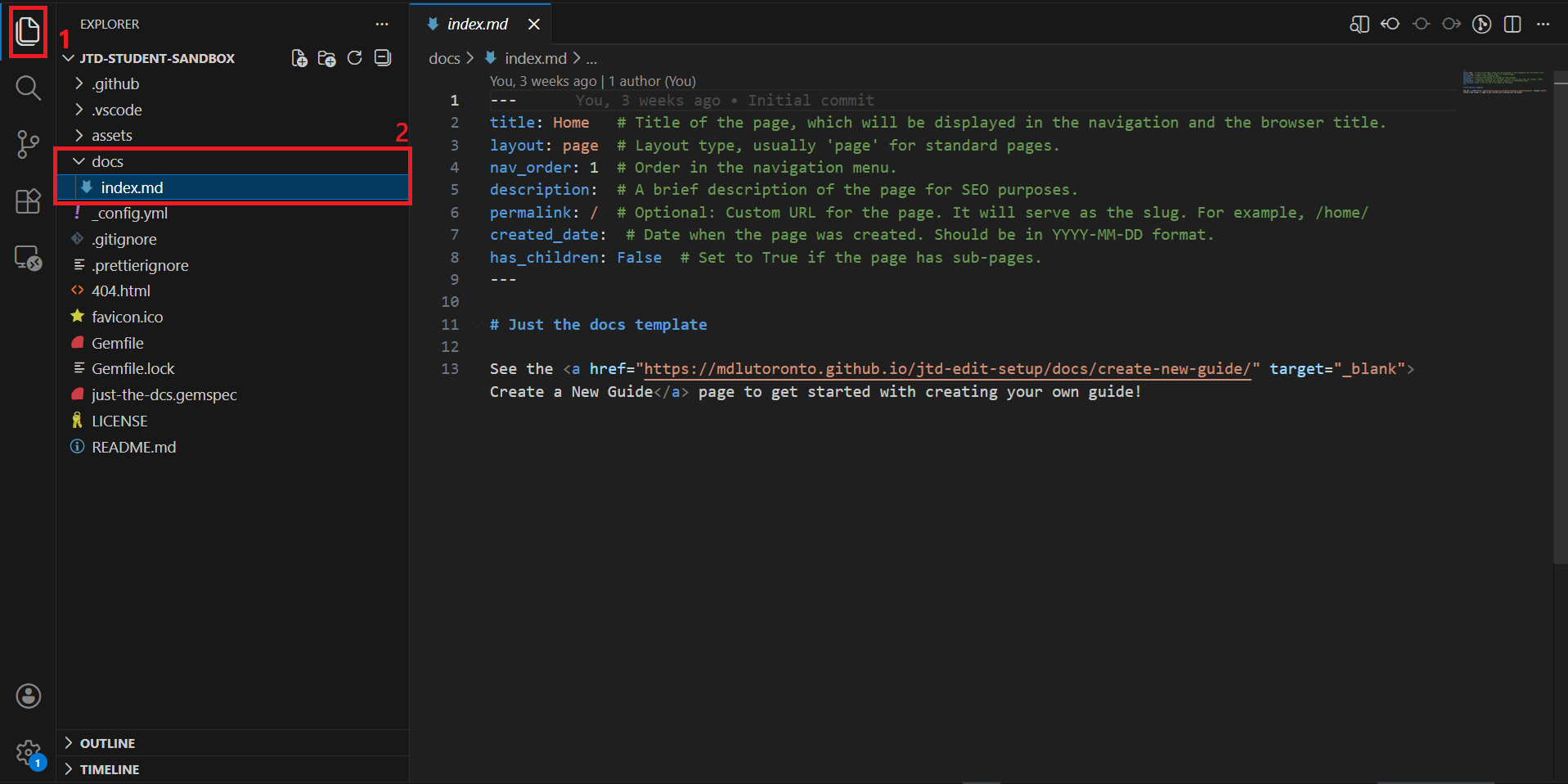
You should see the repository name in the left sidebar of VS Code (as the same as the local folder name). You can click on the ‘Explorer’ icon, then choose ‘index.md’ under docs to view the content of the guide in markdown format. You can edit the content in this file to make changes to the guide.
Edit the content
Open the
index.mdfile in VS Code. You will see the content of the file is in markdown format. The top part of the file is the front matter, which contains metadata about the page and is bounded by the three dashes (---). The content of the page goes after the front matter. Change the information in the front matter and the content of the page as needed. The front matter should follow the format below:--- title: Home # Title of the page, which will be displayed in the navigation and the browser title. layout: page # Layout type, usually 'page' for standard pages. nav_order: 1 # Order in the navigation menu. description: # A brief description of the page for SEO purposes. permalink: / # Optional: Custom URL for the page. It will serve as the slug. For example, /home/ created_date: # Date when the page was created. Should be in YYYY-MM-DD format. staff: # Optional: Nested list of staff members associated with the page. - name: Staff One link: https://library.utoronto.ca/staff/staff-one # link is optional - name: Another Staff link: https://example.com/another-staff maintainer: # Optional: Nested list of staff members associated with the page. - name: Staff One link: https://library.utoronto.ca/staff/staff-one # link is optional - name: Another Staff link: https://example.com/another-staff student_staff: - name: Student Name link: https://example.com/student-name - name: Another Student link: https://example.com/another-student # link is optional has_children: False # Set to True if the page has subpages. ---For the staff, maintainer, and student_staff fields, it is in a nested list format. Each of them should have a
name, and an optionallinkfield. See the YAML documentation for Nested Lists for the syntax.It will render the information, in the footer (with embedded links if provided), in the format below:
Tutorial maintained by ${maintainer names, separated by comma}.

Tutorial created by ${staff names, separated by comma}. Additional contributions by ${student_staff names, separated by comma}.
Add the page content after the front matter. You can use markdown and HTML syntax to format the content.
See the Markdown Kitchen sink page for the UI elements you can use in your just the docs site.
See the Markdown Guide for the syntax.
The markdown file should look like this, combining the front matter and the content:
 ---
 title: Home   # Title of the page, which will be displayed in the navigation and the browser title.
 layout: page  # Layout type, usually 'page' for standard pages.
 nav_order: 1  # Order in the navigation menu.
 ....
 ---

 # This is heading 1
 Content starts from here.
Next steps
After changing the content, you can preview the website. See the Preview the website guide for instructions on how to do that.
If you are ready to publish the changes, see the Publish the guide guide for instructions.