Introduction
This guide is for editing the migrated guides from MDL’s Drupal site to Just-the-Docs sites.
Each guide was scrapped in HTML format using python, and later converted to markdown, and uploaded to the GitHub repositories. Each repository corresponds to a guide.
Editing workflow
The workflow for editing the migrated guides is similar to editing any Just-the-Docs site. You can follow the steps below:
Pre-requisites
Access the tracking spreadsheet for this migration project. Claim one guides to edit.
Clone the repository of the guide you want to edit to your local machine. Check the Setup for editing Just-the-Docs Sites guide for the prerequisite software and accounts.
Navigate to the directory where you cloned the repository.
Then, switch to the designated
initial-editbranch, using the command:git checkout initial-editAnother way is to switch using the VScode feature. Open the Source Control pane, click on the branch name at the bottom left corner, and select
origin/initial-editfrom the list of branches. The VScode will automatically switch to theinitial-editbranch.Open the repository in your code editor (e.g., VScode), if you haven’t done so.
Open the docs/index.md file. This is the main file to edit.
You are now ready to edit the docs. The editing steps can be divided into updating and checking.
Updating the content
There are several things to update (add) in the migrated guides:
Front matter: Update the front matter at the top of the file.
Update the
staffsection with the name and the link of the creator of the guide. If you see a active staff member, put their name and profilestaff: - name: Ken Lui link: https://library.utoronto.ca/staff/ken-luiFor student staff member:
  student_staff:
    - name: [Your Full Name]
      link: [Link to your profile page, e.g., UTL staff page]
If you notice the author is student staff, please add this to the ‘issue’ of the repository, and inform the supervising staff member to confirm which author name to put.
Update the description section (plain text only, without markdown/html syntax, for example embedded links). Find the description in the tutorial-search site with the same guide title.
You may also refer to the backend YAML file.
description: Guide on editing the migrated guidesAt the bottom of the file, you might find the ‘Date Created’ value in the front matter. Update it to the current date in the format of
YYYY-MM-DD. Delete hte ‘Date Created’ line, including the ‘Updated:YYY-MM-DD’ line, once you have updated it.created_date: 2026-01-21
Update the syntax highlighting for code blocks. Make sure each code block has the correct language identifier after the triple backticks. You can check the rouge list for all the supported languages. For example, for python code blocks, you can use either
pythonor the aliaspyas the language identifier. The code block should look like this in the markdown file:
  ```python
  # Your python code here
  def hello_world():
      print("Hello, world!")
  ```
The rendered code block should look like this with the correct syntax highlighting:
  # Your python code here
  def hello_world():
      print("Hello, world!")
Checking the content
Check the following items while editing:
- Ordered list: rendered correctly and not with escaped characters (e.g.
1\.)? - Embedded links (out links): working correctly/not broken?
- Anchor links (internal links): working correctly/not broken?
- Images: rendered correctly/not broken?
- Spacing issue: extra or missing spaces between words or lines?
Back to toplink: remove theBack to toplink at the end of the guide, if there is one.
Once you have completed editing the guide, put a Y in the tracking spreadsheet’s initial_edit_status column for the guide you edited.
Other issues
If you notice any issue, please open a new ‘issue’ in the respective repository, and inform the supervising staff member.
You can find the ‘issue’ tab in the repository, as shown in the image below:
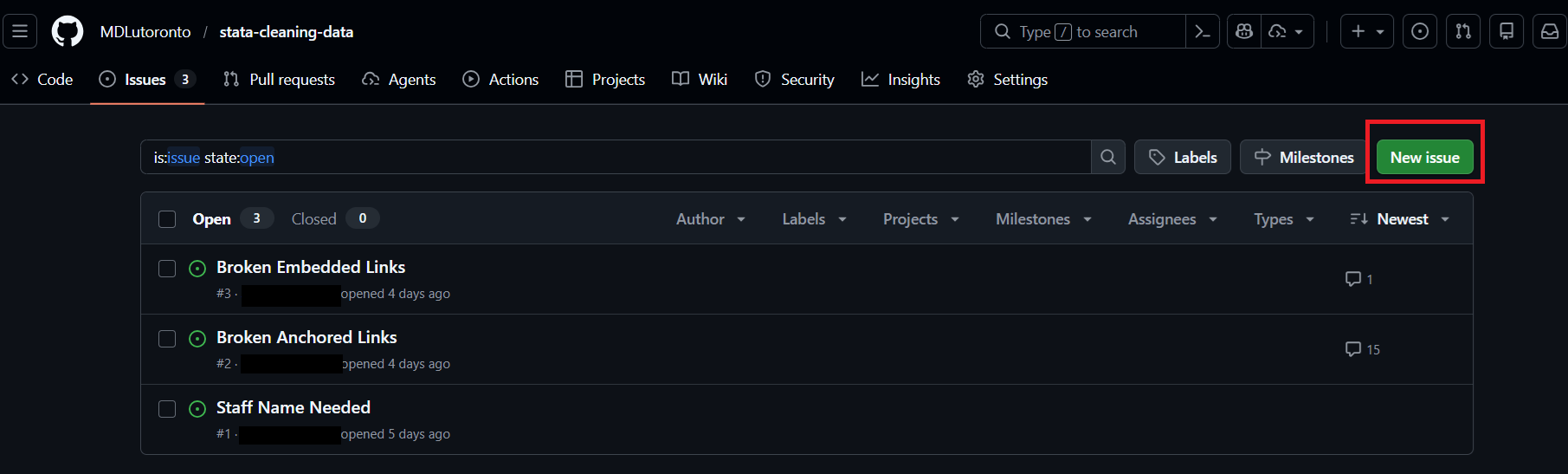
Give a clear title and description for the issue, and inform the supervising staff member to check and confirm the issue.
For example, if you notice the author of the guide is a student staff member, please mark it in the ‘issue’ and inform the supervising staff member to confirm which author name to put in the front matter.