Introduction
This tutorial will guide you how to add students to the MDLutoronto GitHub repository, which is necessary for them to edit the just-the-docs sites.
Adding students to ‘Students’ team
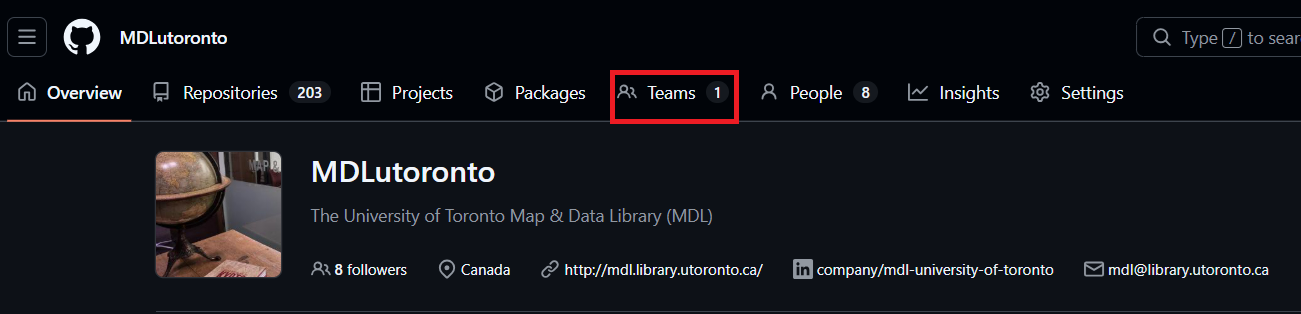
Go to the MDLutoronto GitHub repository main page. Click on the “Teams” tab to view the list of teams in the repository.
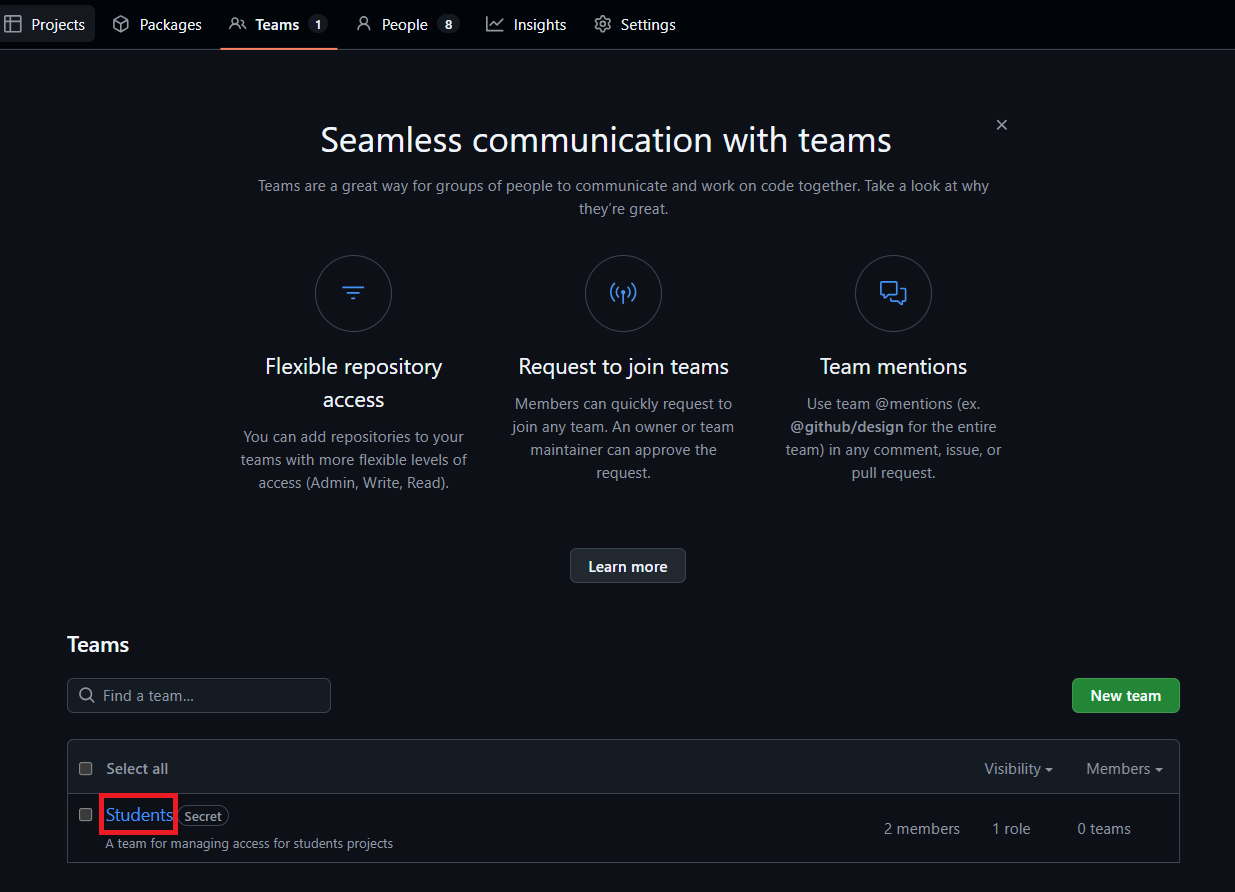
Scroll down and find the “Students” team. Click on the “Students” team.
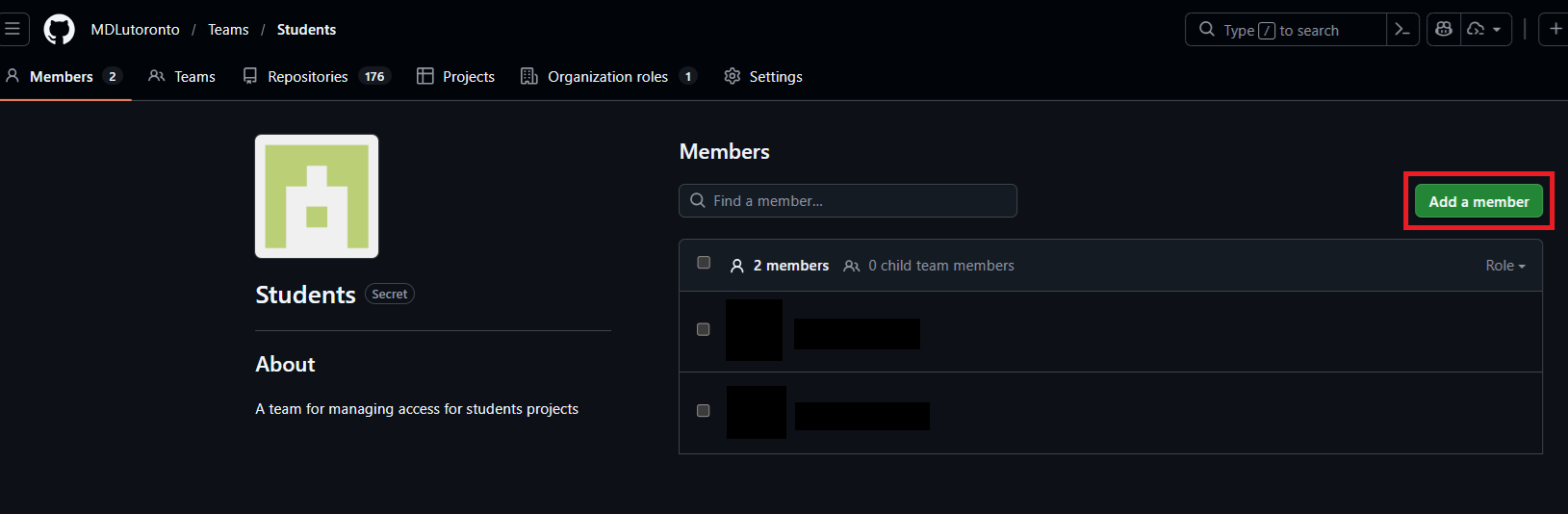
On the “Students” team page, click on the “Add a member” button.
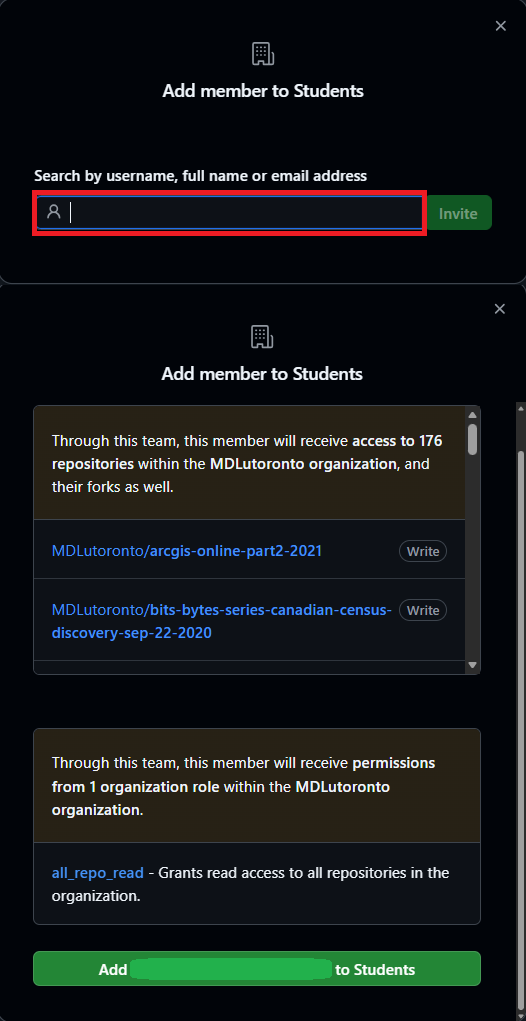
Search for the student’s GitHub username (handle). Once you find the correct username, click on it, and then click the “Add $username to Students” button to add the student to the team.
Add ‘Students’ team to repository with write access
For new tutorials, you will need to add the ‘Students’ team to the repository with write access. This only needs to be done once for each repository.

First, go to the repository’s main page. Click on the “Settings” tab.
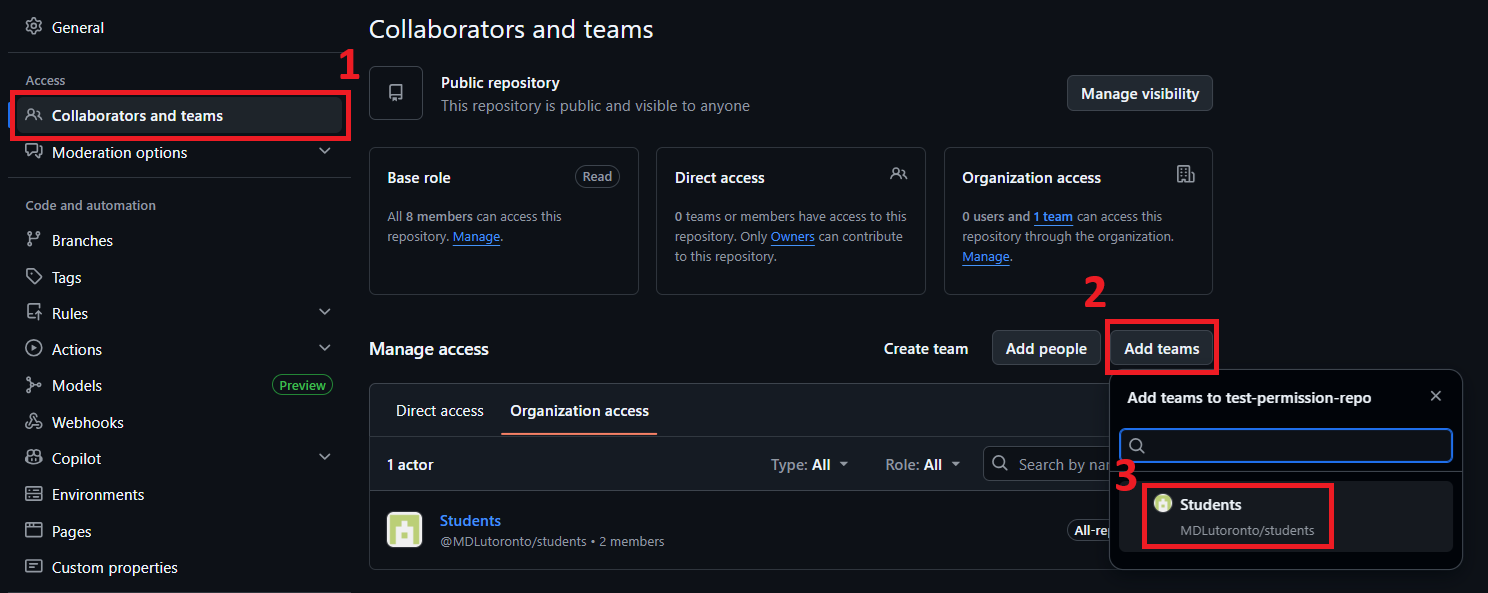
Select the ‘Collaborators and teams’ option from the left sidebar. Click on the “Add teams” button, and select the “Students” team from the dropdown menu.
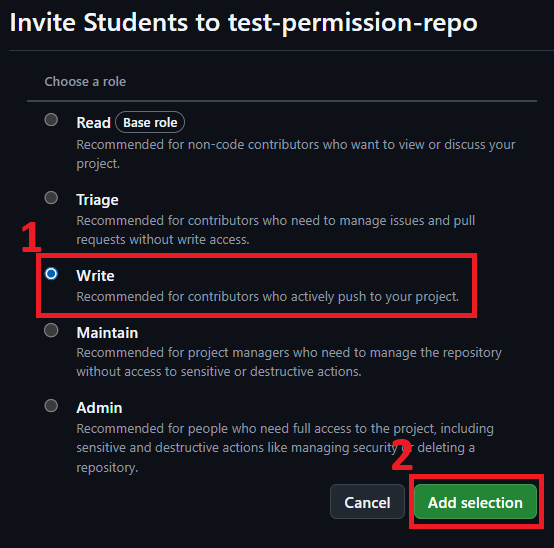 Select the ‘Write’ option, and click the ‘Add selection’ button to grant the ‘Students’ team write access to the repository.
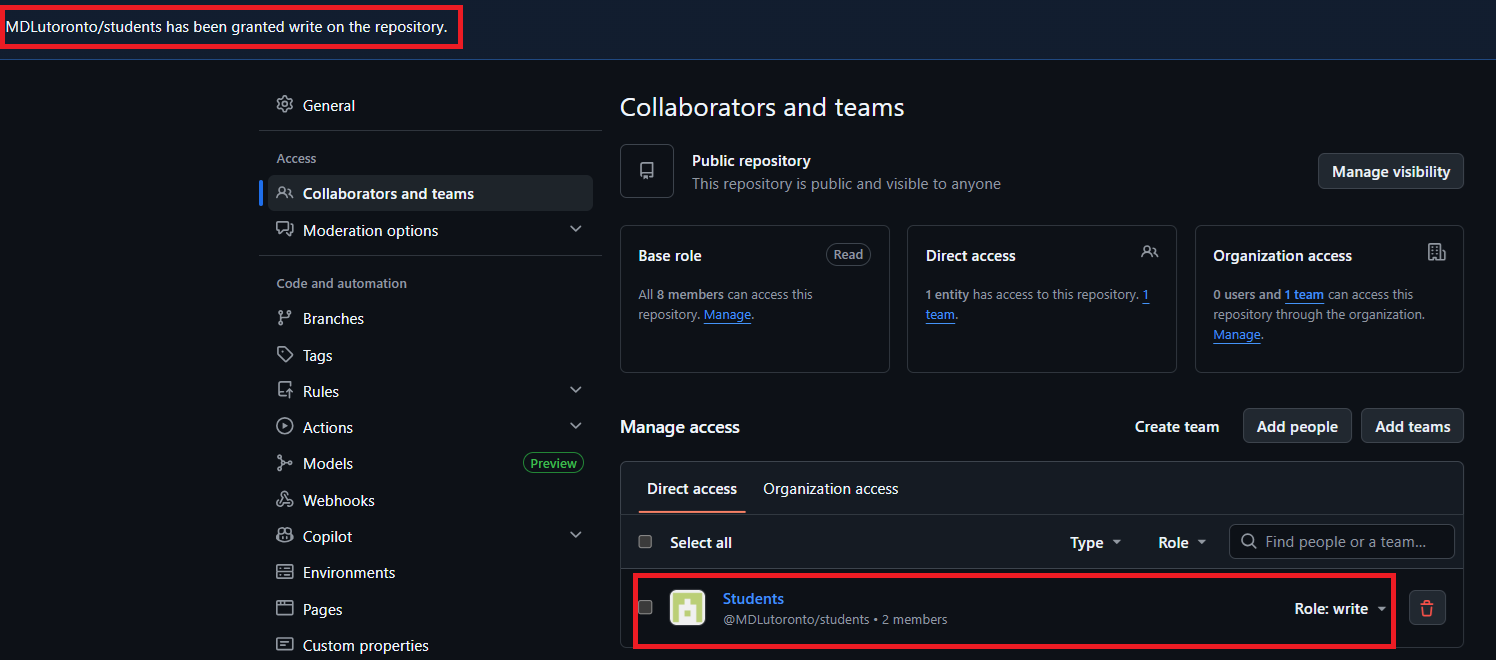 You should now see the confirmation message, and the ‘Role: write’ is displayed next to the ‘Students’ team in the list of teams with access to the repository.