NCapture
You may want to import in content from the web, and NVivo can help with this. To do so, you need to install a plugin for Google Chrome. Most web pages can be captured as PDFs. You can also capture some pages from Facebook, X (Twitter), and YouTube as datasets, videos and pictures. NCapture files (.nvcx) contain your captured content as well as the URLs, capture times and any additional information such as a description, memo and coding that you specified at the time of capture. To use NCapture, you would use Chrome to go to the page you want to capture, and then click on the NCapture button to capture the content. These NCapture files can then be brought into NVivo to analyze. However, I will warn you that it is fairly limited in its use and the results can be unpredictable – it’s really best for capturing web pages. For extensive social media data gathering, other tools are better suited than NVivo to capture them.
For this tutorial, let’s capture an article for analysis in NVivo.
First we need to install NCapture in Chrome. Go to NCapture for Chrome in the Chrome Web Store.
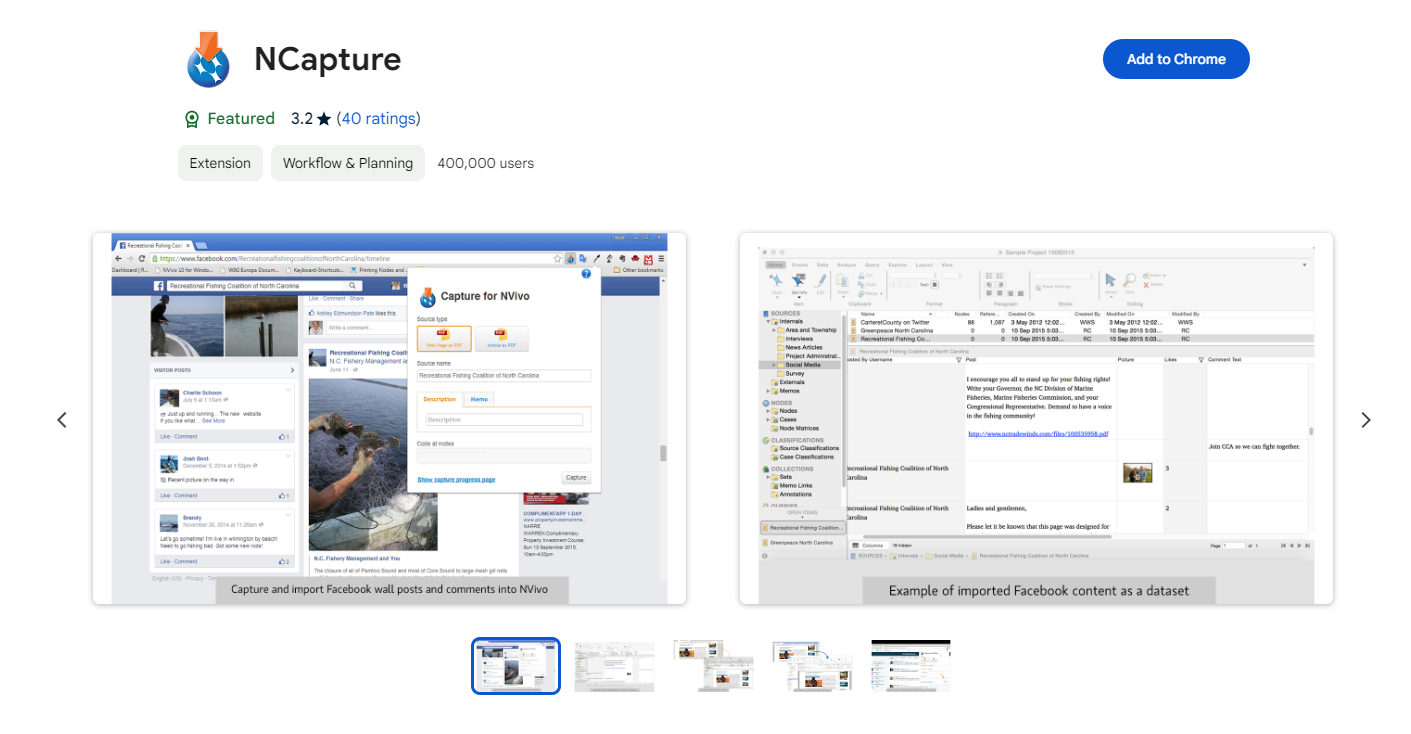
Click the Add to Chrome button.

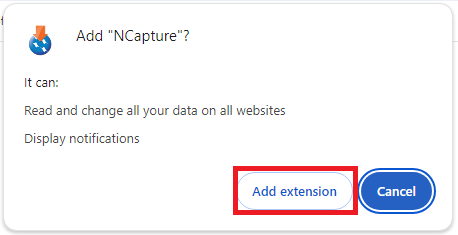
Then click on Add extension to confirm.
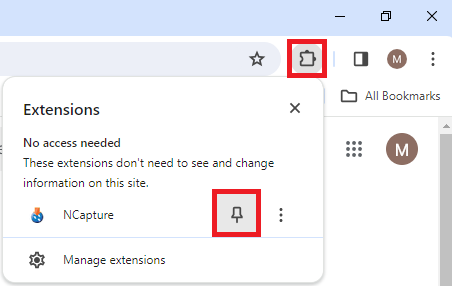
NCapture for Chrome is added to Chrome, with an icon in the toolbar. If you don’t see it, click on the puzzle piece to display all your extensions, and then click on the pin icon to pin NCapture to your extensions bar.
Next, let’s try a really simple example of capturing a webpage as a PDF file. Use Chrome and go to this URL: https://www.theglobeandmail.com/business/industry-news/property-report/article-demand-for-storage-space-in-the-cloud-creates-a-land-rush/
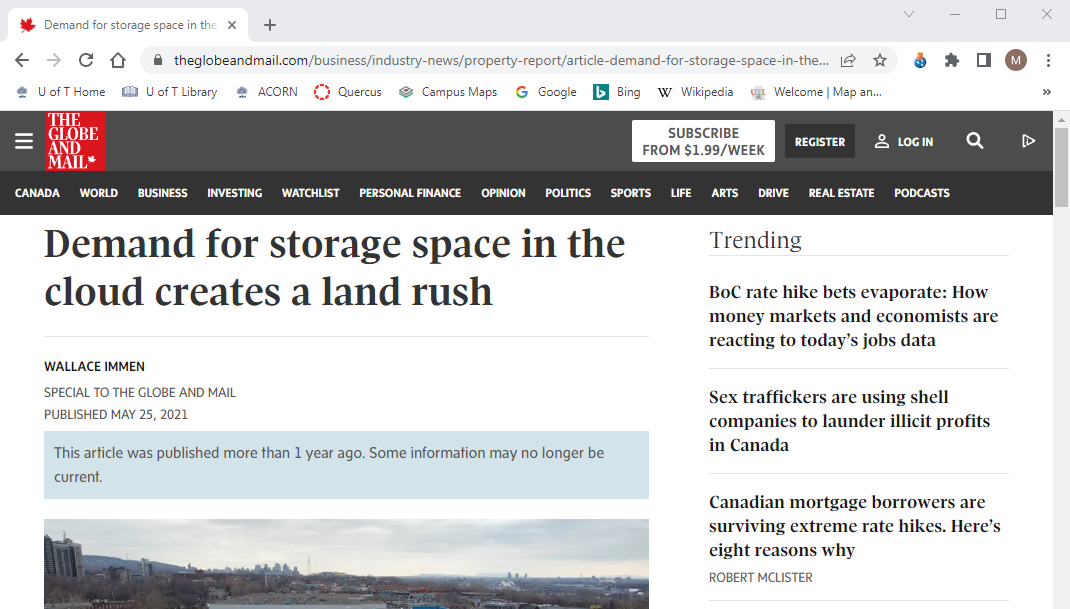
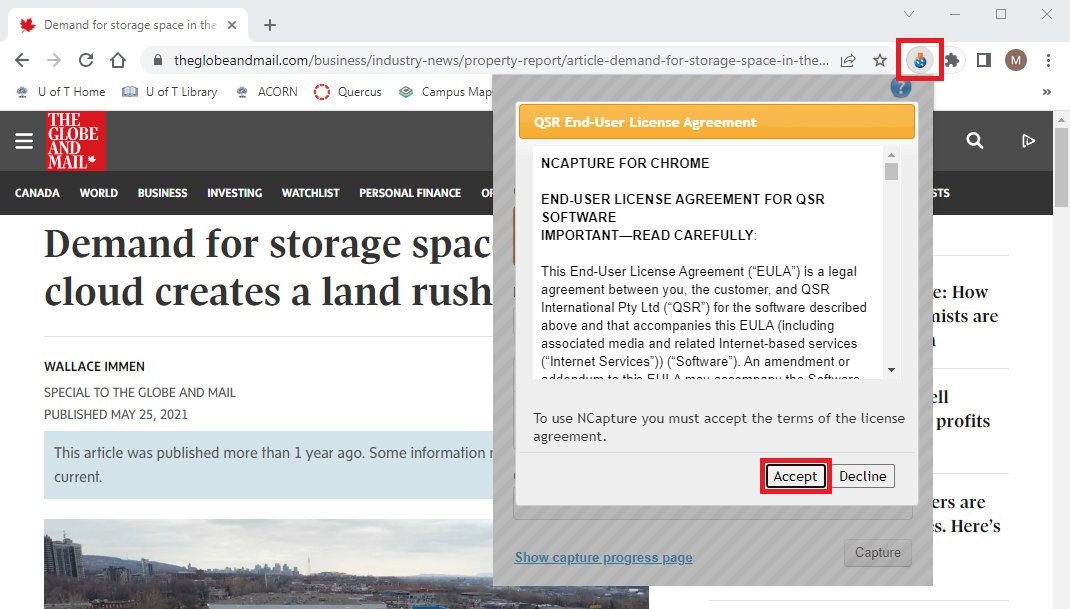
Click on the NCapture icon on the top right of Chrome (you will need to accept an end-user license agreement the first time you use it).
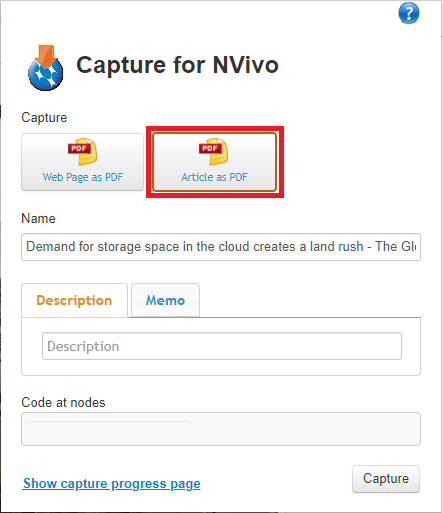
When you click on the NCapture icon, you are presented with the choice of capturing the entire page, including headers, ads, etc. or just the main article itself as a PDF. Let’s choose the article – so select Article as PDF.
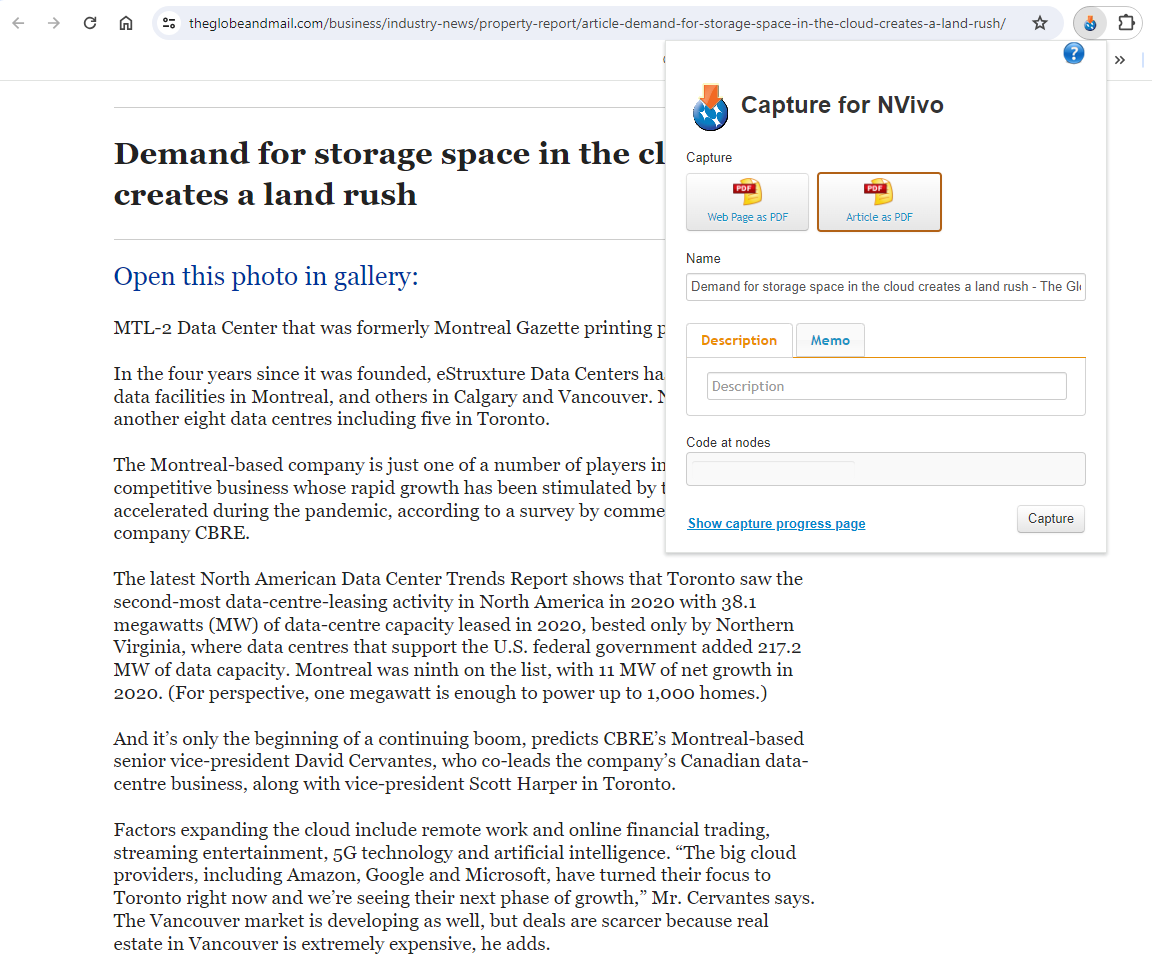
You will see it shows you a simplified version of the page and what it will capture.
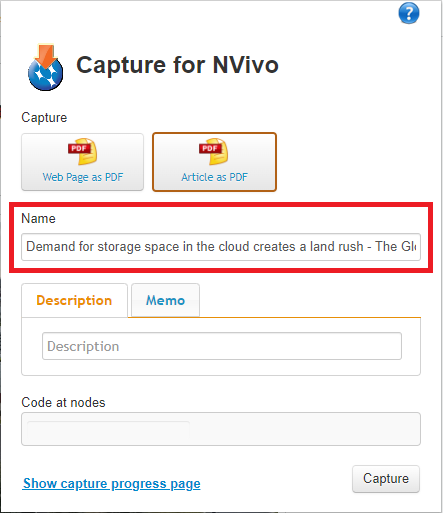
You can give it a name if you like, but let’s keep the default name in this case.
We could provide a description and/or attach a memo if you like. We can skip that for now.
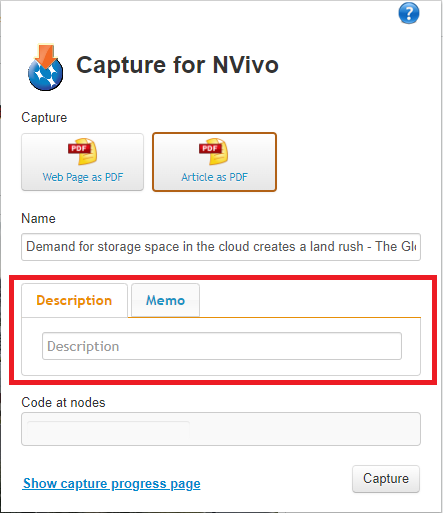
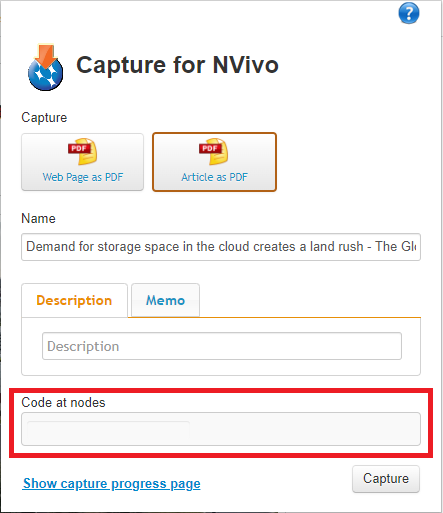
You can also code the entire thing with a code, if appropriate. Let’s leave it blank.
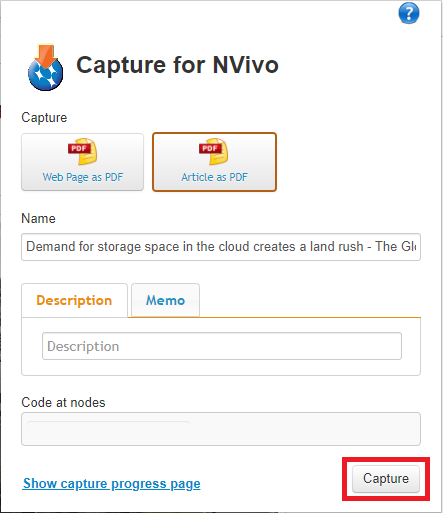
Finally click on the Capture button.
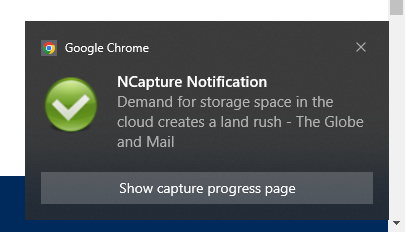
You will see a small window pops up on the bottom right corner. Click on the link to see a full progress page in Chrome, because the pop-up window will disappear after a short while, even if the capture has not finished (if you don’t see a pop-up, you can click on the NCapture icon again to find a link to the progress page).
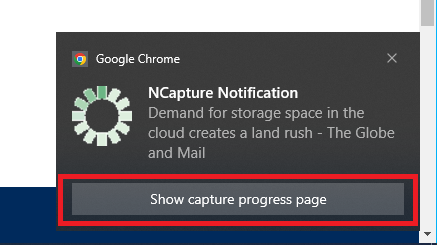
The progress page will allow you to stop the capture, if you made a mistake or it is taking too long.
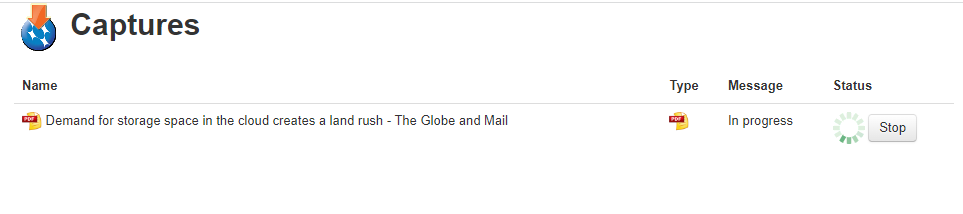
It should capture the page fairly quickly and another small window pops up on the bottom right corner that will notify you when the capture is complete. A pop-up window may ask you where to save the file. Save it somewhere you can find it, such as your Desktop. If you are not prompted about where to save the file, check your Downloads directory, as that is often the default location where items will be saved.
Then go back to NVivo. Create a new project file or open up an existing project file that you want to import this into. From the top menu, under Import, select NCapture.

Browse to the folder where the capture was saved.
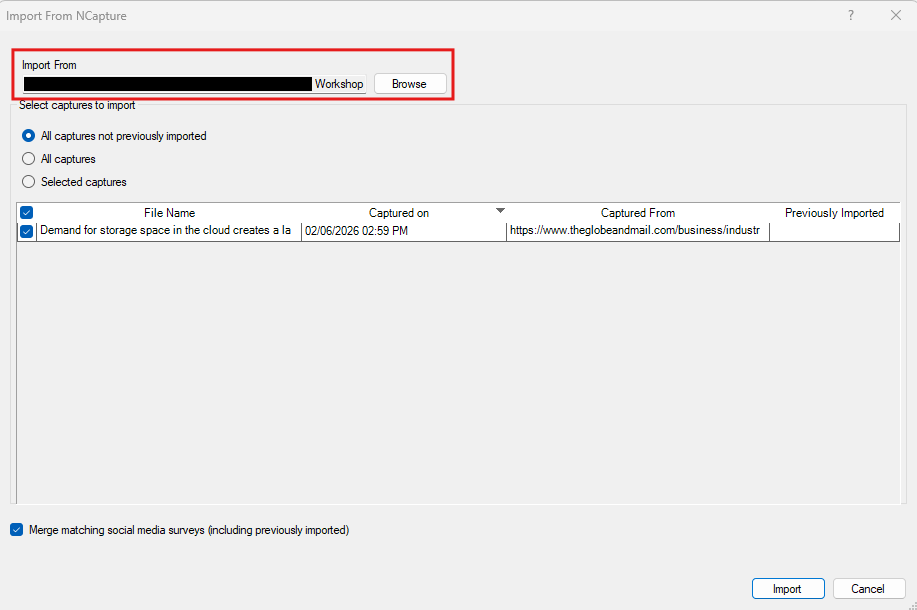
You should now see the file in the list. Finally, click on Import.
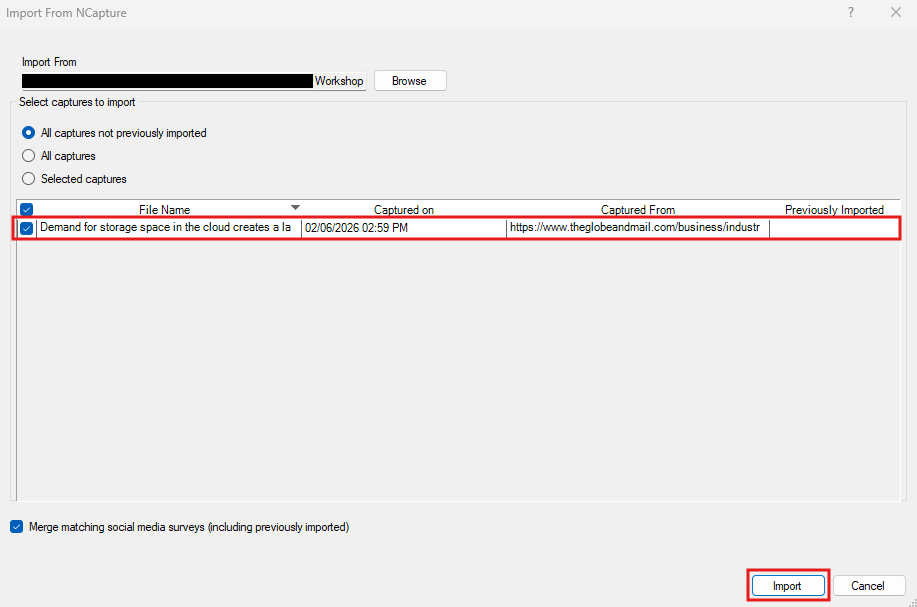
NVivo will import the PDF file into your Files folder, but you can then move it to reorganize your files, if you wish.
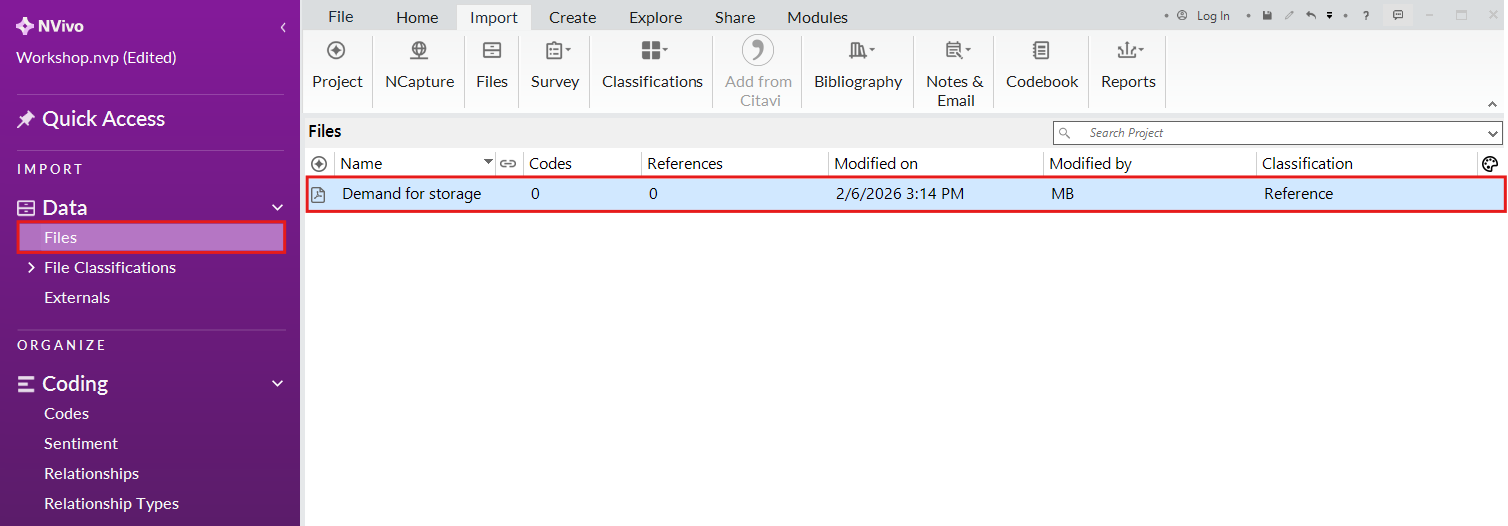
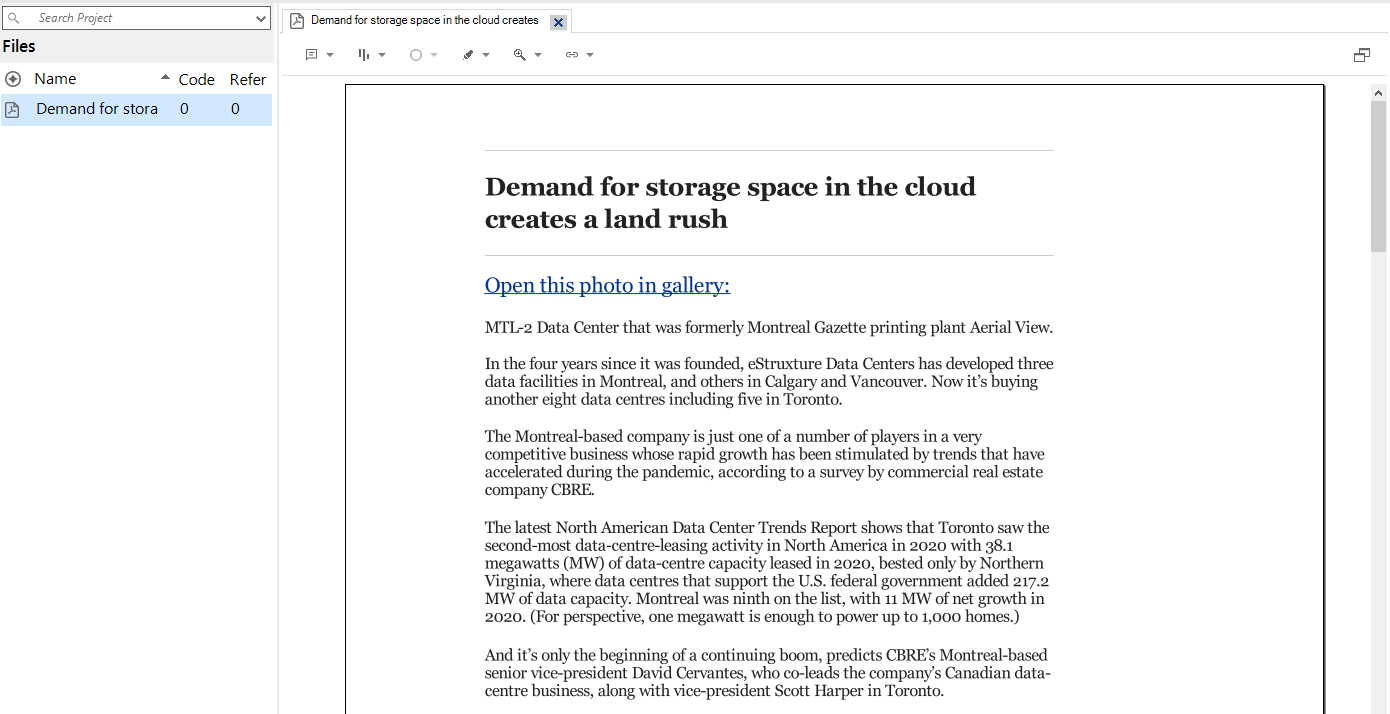
If you double click on it, it will open up the PDF, and you will be able to read it and code the text. You may need to use the Zoom options on the bottom right to make the text larger to read.
Technique: Qualitative Data Analysis | Tool: NVivo