TDM Studio Workbench
- Creating a Dataset
- Downloading metadata extracts in Workbench
- Working with your Data in Workbench
- Collaborating in Workbench
- Exporting Results
Create an account with ProQuest. Note: in order to gain access to licensed UofT collections you must use your UTORONTO email address in the form (@mail.utoronto.ca, @utoronto.ca, @rotman.utoronto.ca, etc.) This account will provide you with access to both Visualizations and Workbench.
Once you have created your account and successfully logged in, select Workbench Dashboard from the main login screen.
Creating a Dataset
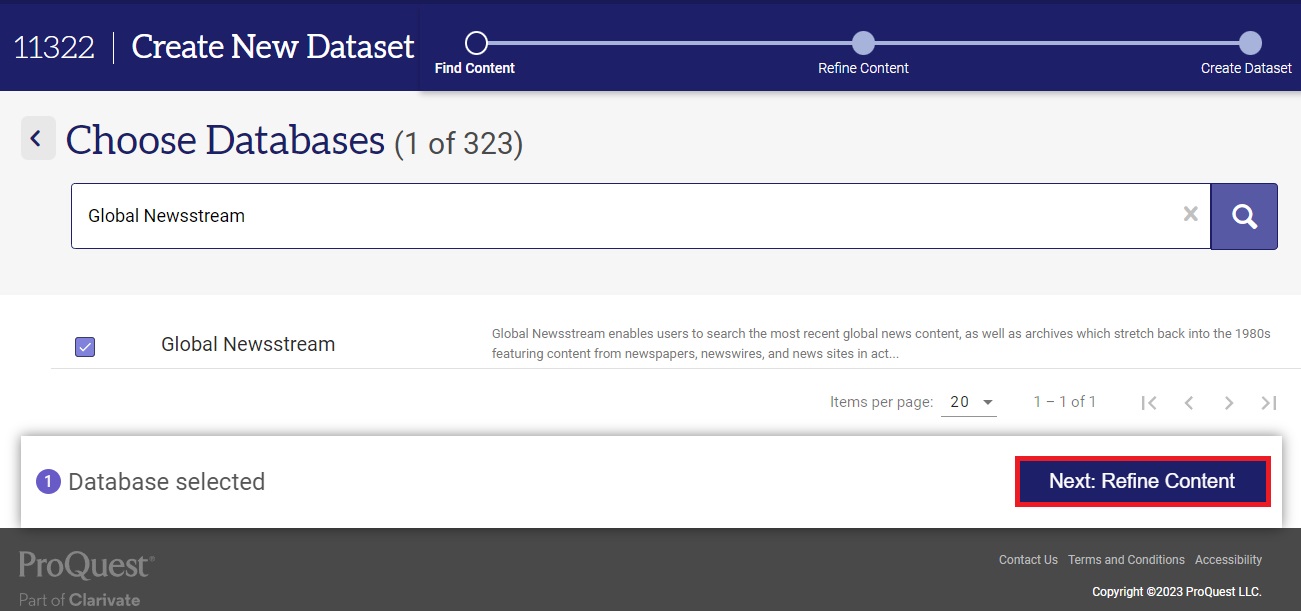
In Workbench, you can create a maximum of 10 datasets of up to 2,000,000 documents. You can begin your search by selecting either individual publication titles or complete databases, and then running a search on content in those titles/databases (for example, ProQuest Global Newsstream).
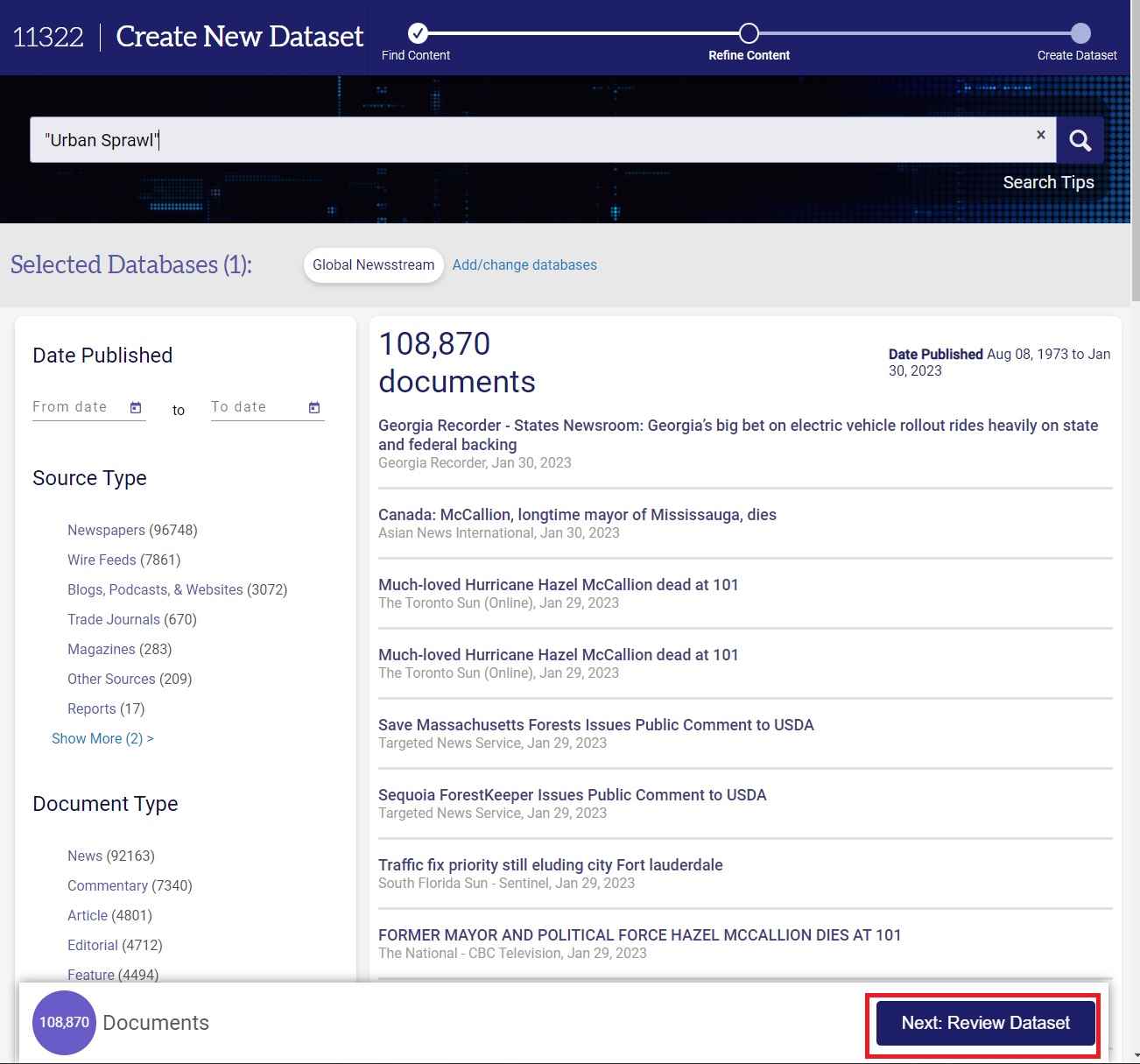
Once you’re happy with your search results, select “Review Content”, where you will be asked to provide your dataset a name and optional description. Then select “Create Dataset”. Your dataset will now be visible in your TDM Studio Workbench Dashboard with the status of “In Process”. Once your dataset is complete, it will show a status as “Completed”.
Note that TDM Studio processes 100,000 of documents an hour. This processing involves gathering the data on ProQuest’s servers, and then transferring this onto Amazon Web Service (AWS) servers, which power the Workbench Virtual Machines. Due to this, processing may take several hours. Note that once a dataset is “Completed” it can be deleted from your Dashboard, as it has already been transferred into the Virtual Machine environment.
This ProQuest Guide provides more information on creating a dataset.
A note on corpus: TDM Studio Visualizations includes the majority of UofT’s licensed content, over 300 databases. This represents both recent and more deeply historical scholarly publications (books and journals), primary source texts in the humanities, business, public policy, public health and other scientific literature, as well as extensive recent and older newspaper articles from across the globe. Note that a small number of databases are not currently available for TDM in Workbench due to technical or licensing restrictions. For a complete list of databases currently accessible via Workbench, please contact the Map & Data Library.
Downloading Metadata Extracts in Workbench
As of August 2023, it is now possible to extract basic citation metadata, or more complete (extended) metadata for your datasets in Workbench. This is done via the Workbench Dashboard, and does not require you to open the Workbench Virtual Machine. This option can be found by selecting the download arrow immediately to the right of your dataset information. Metadata will download as a single .csv file.
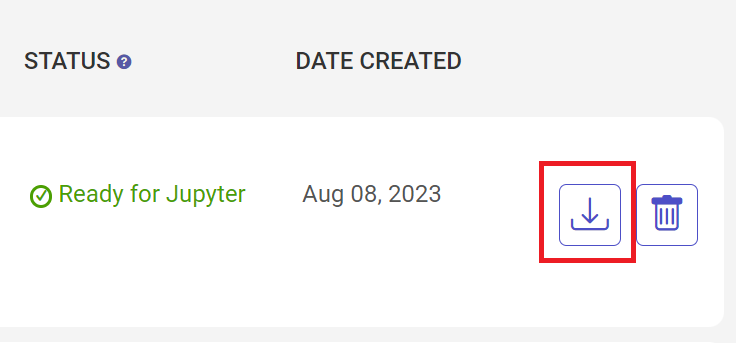
Please note that this option will not appear for any datasets created prior to August 2023. To extract metadata for those datasets, they will need to be recreated.
Working with your Data in Workbench
Once your dataset is “Completed”, you can work with it in the Workbench Virtual Machine (VM). If this is the first time you’ve used the VM, or you’ve been offline for several days, you’ll need to restart your virtual machine by toggling it “on” from the slider on the top right corner of the dashboard. After the button is switched to ‘On’, click on ‘Open Jupyter Notebook’ to launch the Virtual Machine.
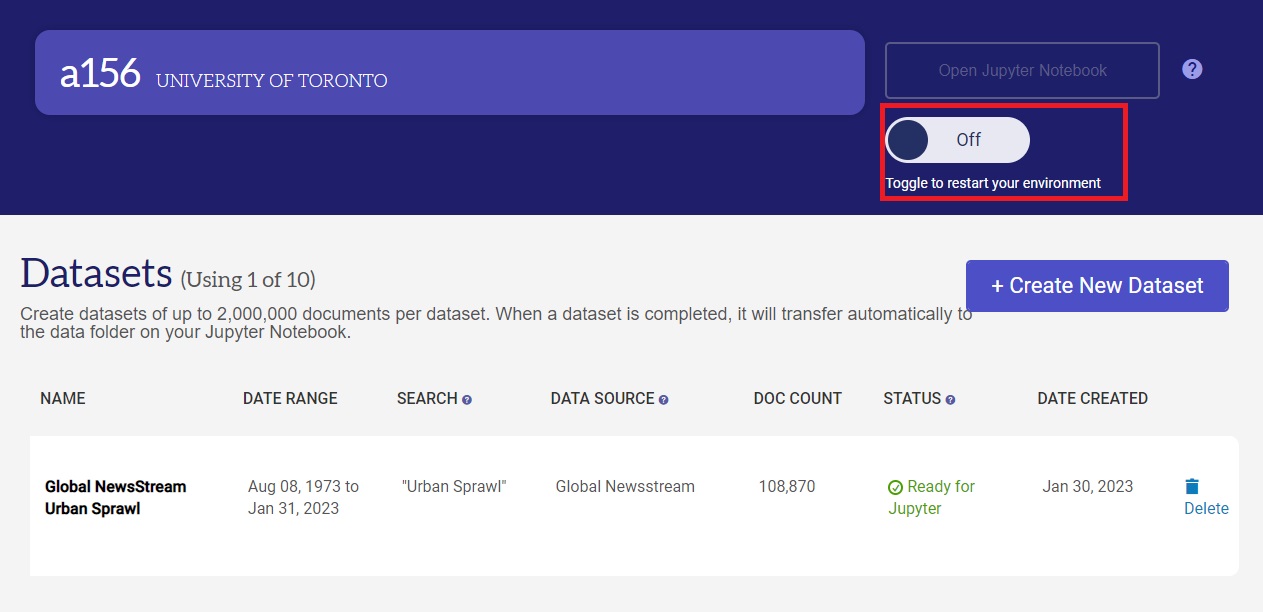
The VM provides 4 processors, 156GB RAM and 100 GB of storage. This can be upgraded on request by contacting ProQuest’s technical support.
Each VM comes pre-loaded with Jupyter Notebooks, and several pre-configured environments both in Python and R that include libraries and modules commonly using in text and data mining. Additional packages can be installed within the VM using conda. Example Python scripts are available in Jupyter under the ProQuest TDM Studio Samples folder.
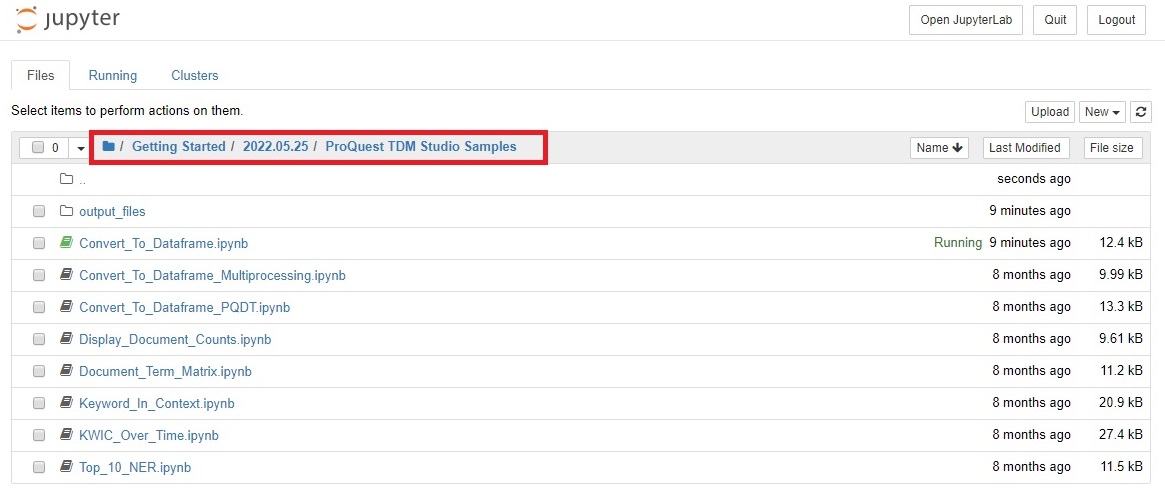
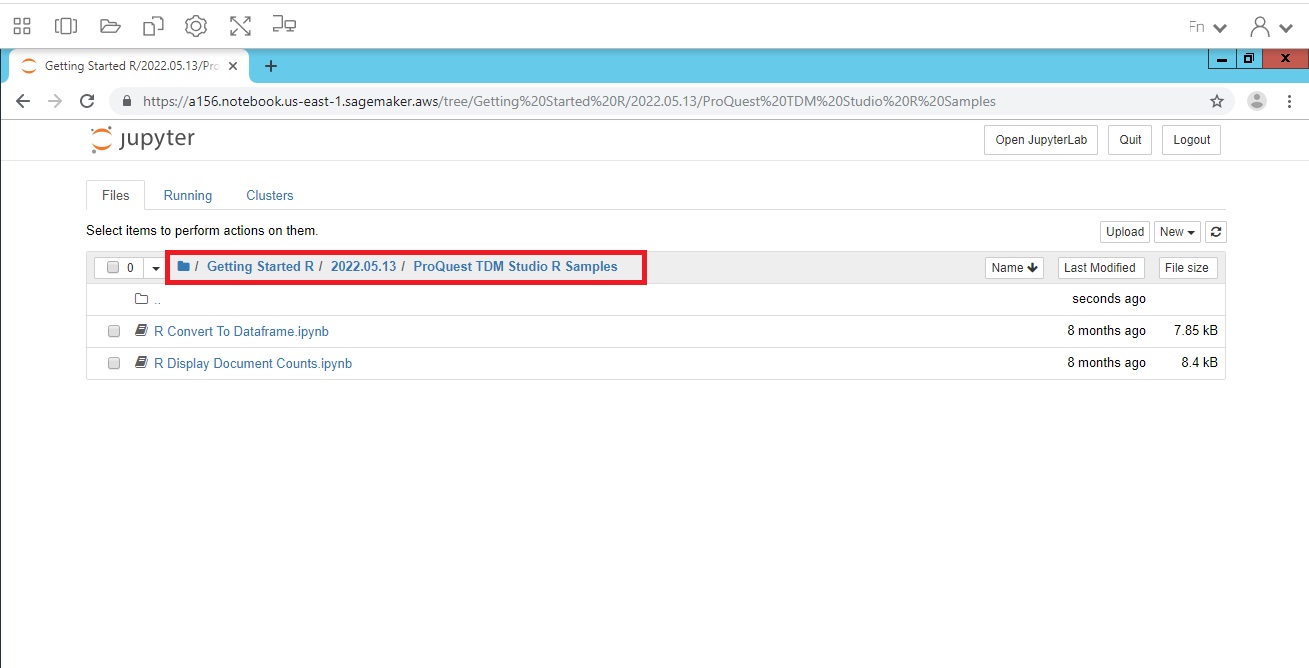
Example R Scripts can be found here: Getting Started R > [last update date] > TDM Studio Samples
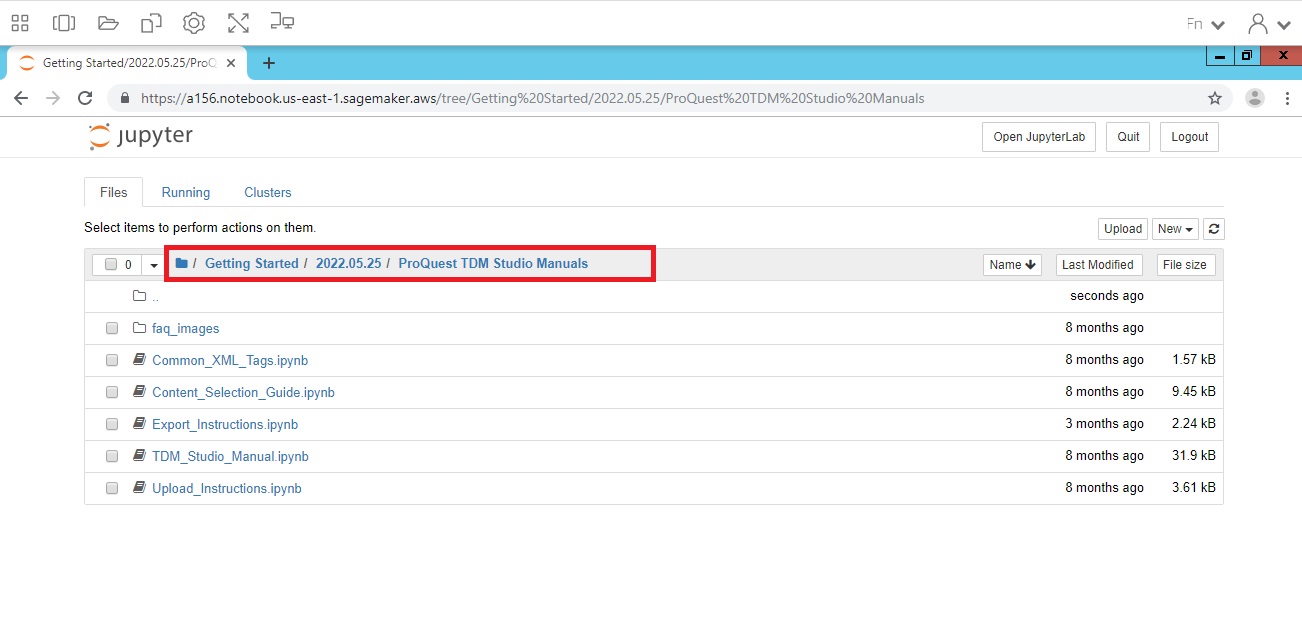
Importing outside scripts and data to work with inside of the VM is also possible. More information is provided in this short ProQuest video, and in the Uploading Instructions.ipynb file in the ProQuest TDM Studio Manual folder of the VM Jupyter Notebook.
It is also possible to work with the raw XML files in the VM by opening a Terminal window in Jupyter. These XML files can be found in the data folder of Jupyter, organized under your chosen dataset name.
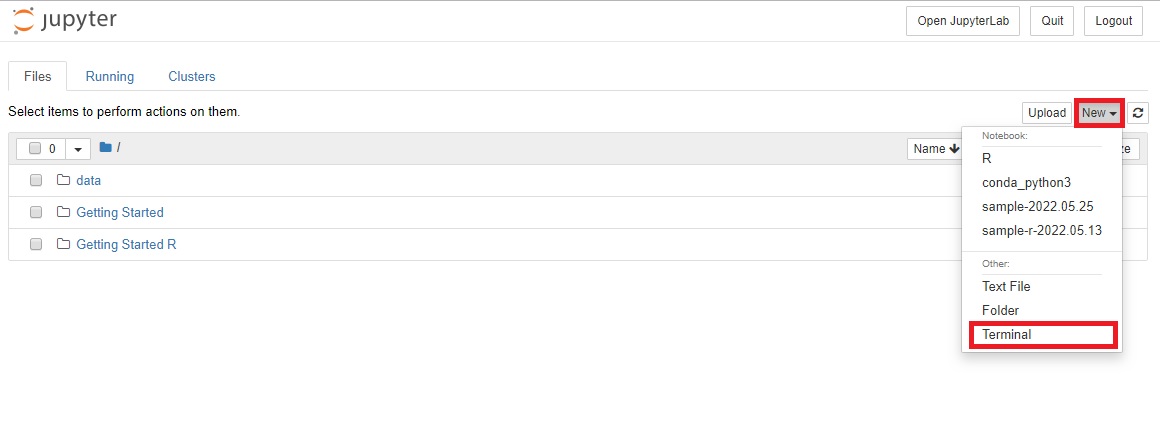
Note: do not click on your dataset folder, as this action will often crash the VM as it tries to open thousands of individual files!
Collaborating in Workbench
TDM Studio Workbench allows you to add up to 4 additional users to your Workbench, using their institutional emails. Accounts can be linked on request by emailing their technical support: email.technicalsupport@proquest.com.
Exporting Results
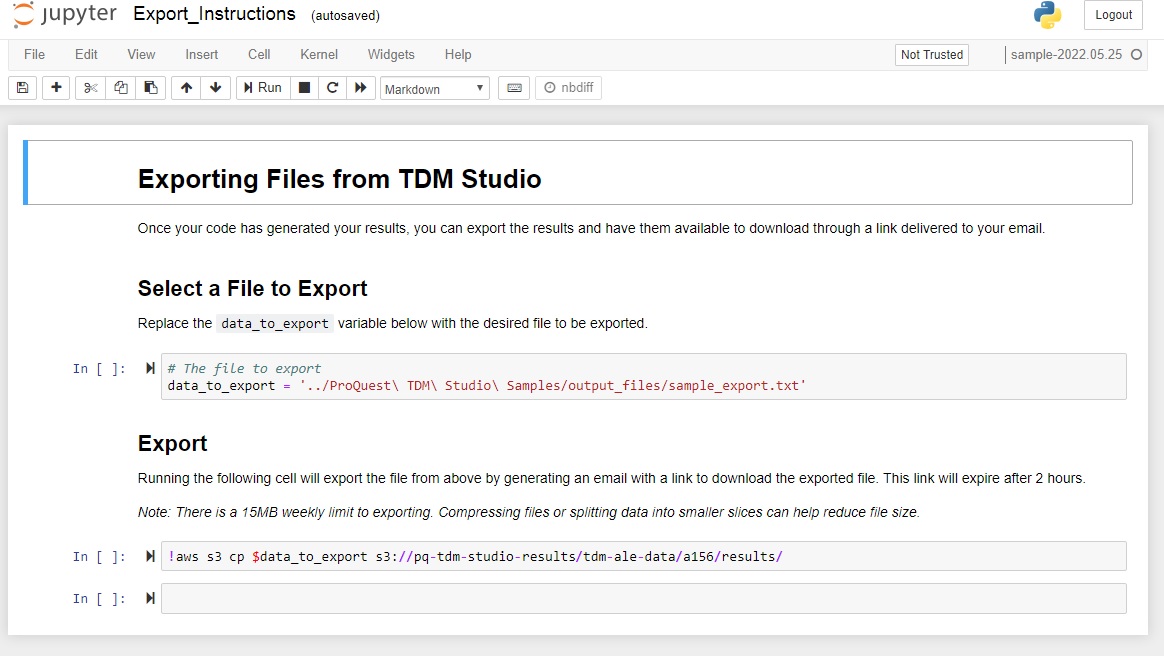
Derived data or results of your analysis can be exported by running the Export Instructions.ipynb script in the ProQuest TDM Studio Manual folder of the VM Jupyter Notebook. You will receive a download link to retrieve your results (download links for all export requests will be sent to all users on that account).
Exports are limited to 15MB per week. Note that larger exports are possible on request by contacting ProQuest’s technical support.
Technique: Text and Data Mining | Tools: ProQuest TDM Studio