Downloading and Installing NVivo 15 - New Users
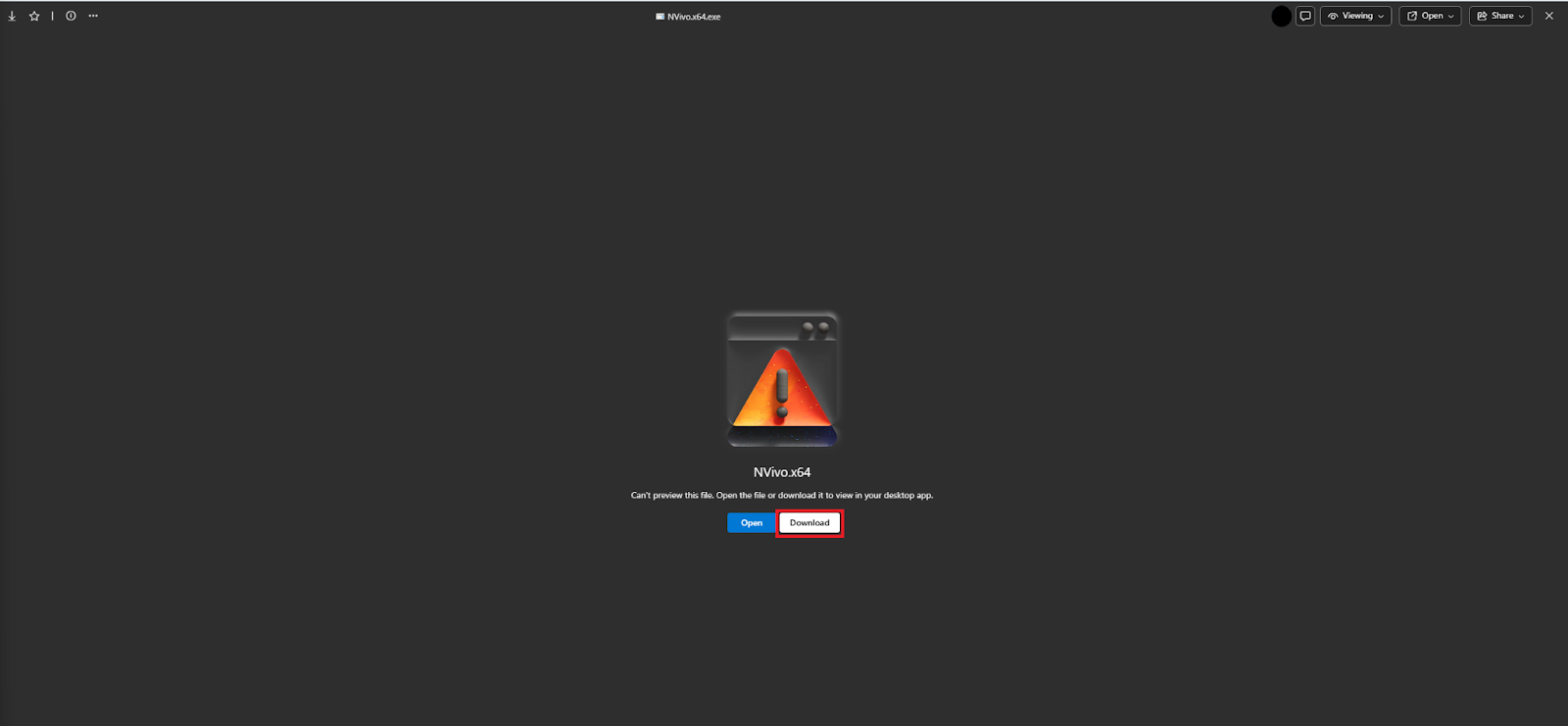
In the NVivo Software License Request email, click the link to download the NVivo 15 installer for Mac. You may be prompted to enter your UTORid before downloading the software. If you are presented with a screen that says “Can’t preview this file…” click Download.
- Locate the NVivo installer in your Recent Downloads, and open it.
Drag the NVivo image on the left in to the folder on the right, this will make a copy of the software in the Mac Launchpad
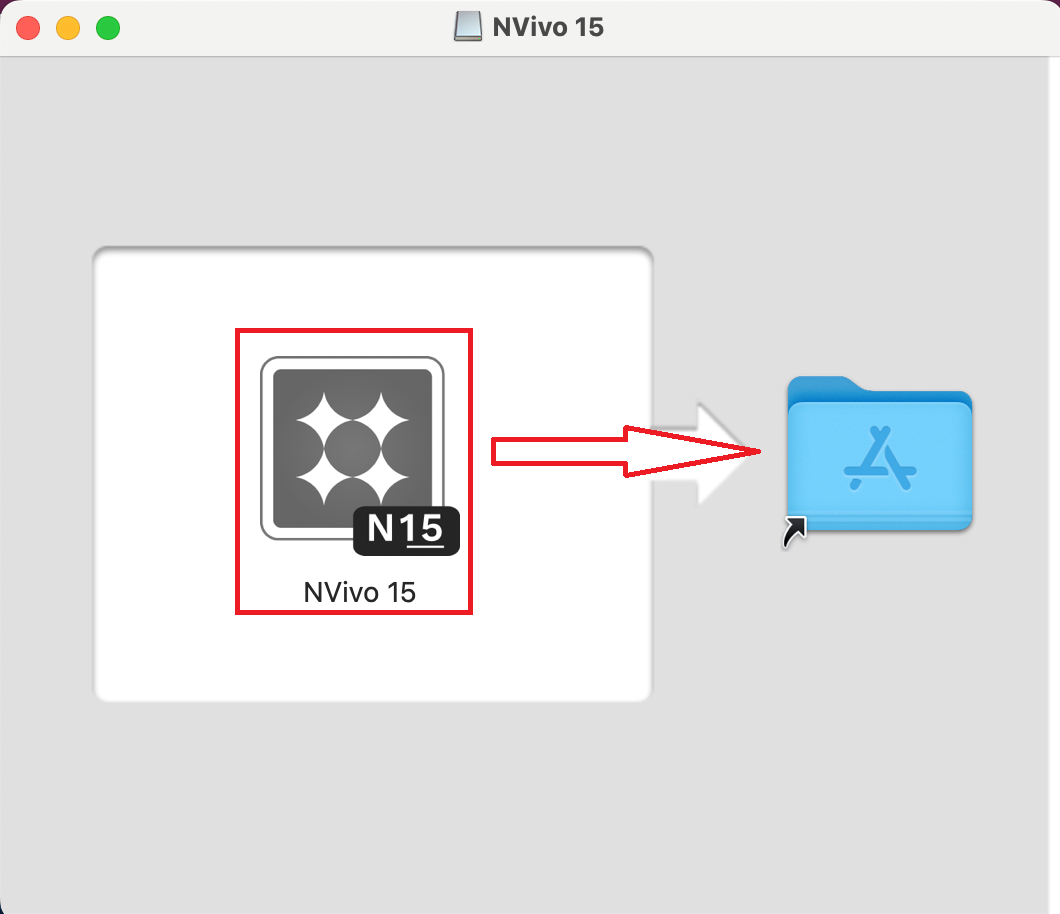
- Once the copy is complete, go to the Launchpad and open NVivo 15 (or the appropriate NVivo version)
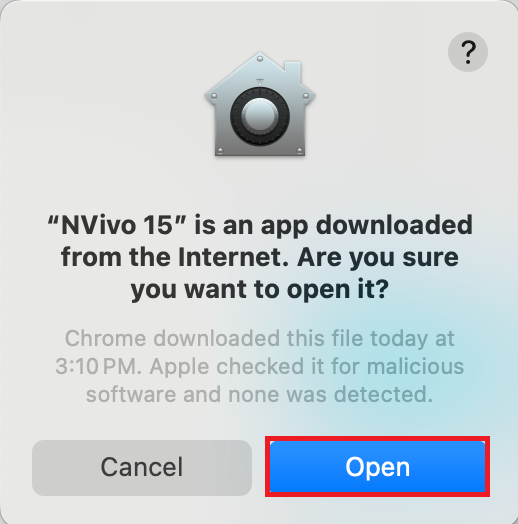
You will be asked to confirm that you would like to open the application, select Open
- Allow for NVivo to access files in your Documents folder
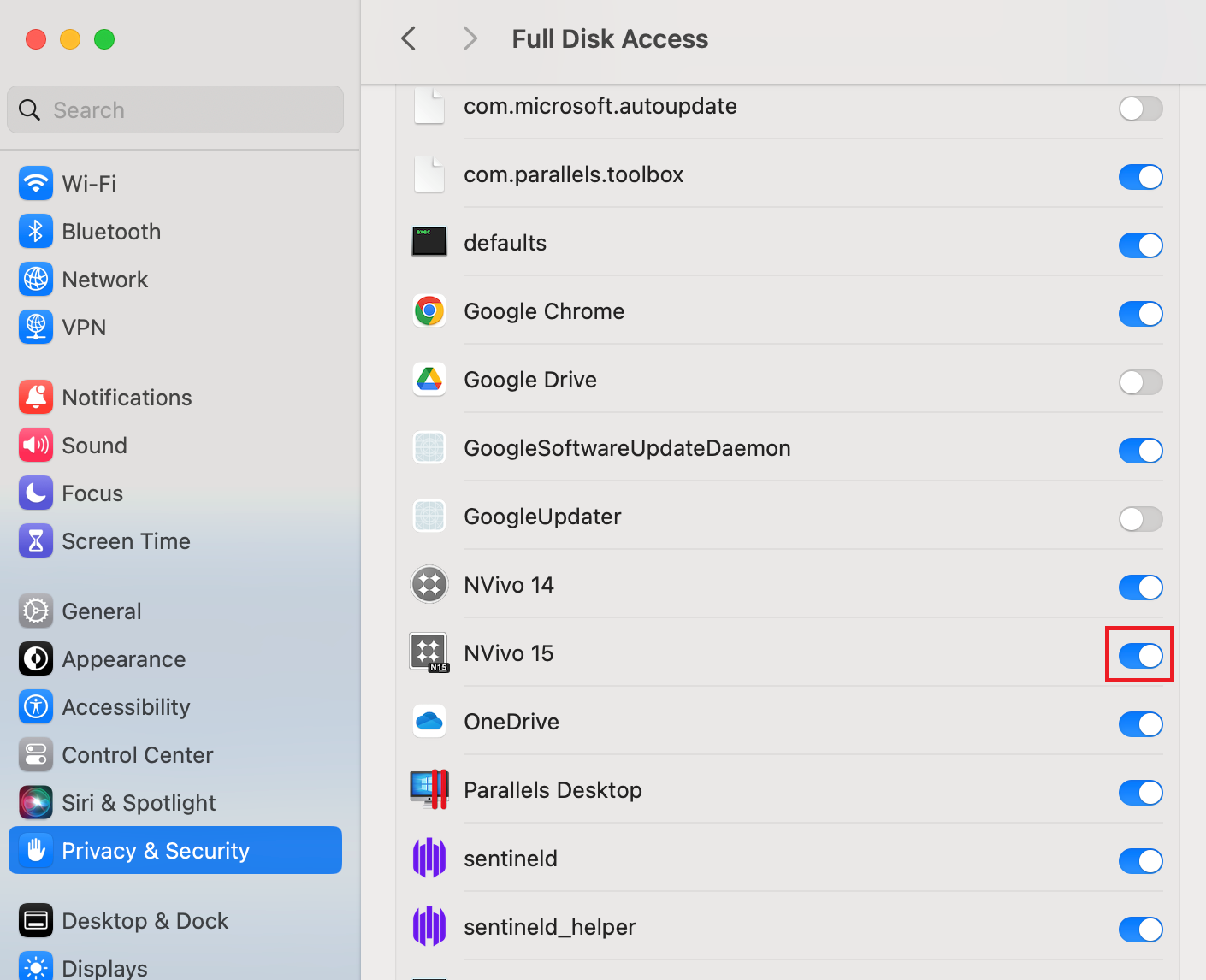
- You will need to give NVivo permission to access data before it can run, you can do this by opening Security & Privacy
Turn the toggle next to NVivo 15 (or the appropriate NVivo version) ON
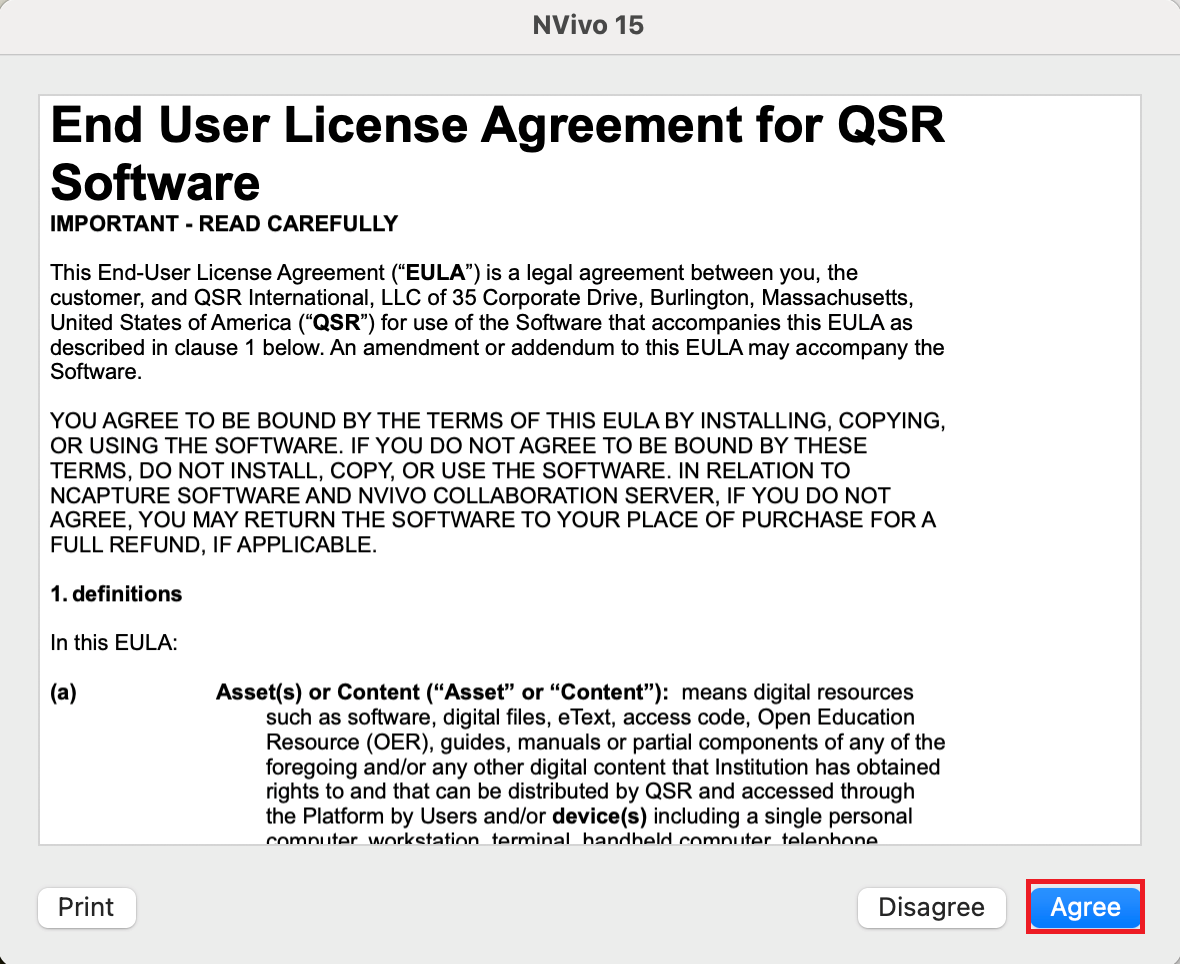
Read through the License Agreement, click Agree.
NVivo is now installed! Continue with the next steps to activate your license.
Technique: Installation | Tools: NVivo