Accessing Microsoft Apps
- Open your browser of choice and login to your Microsoft Account using your UofT credentials (via UTORid login). (Often the easiest way to access this is by logging into your UofT email.)
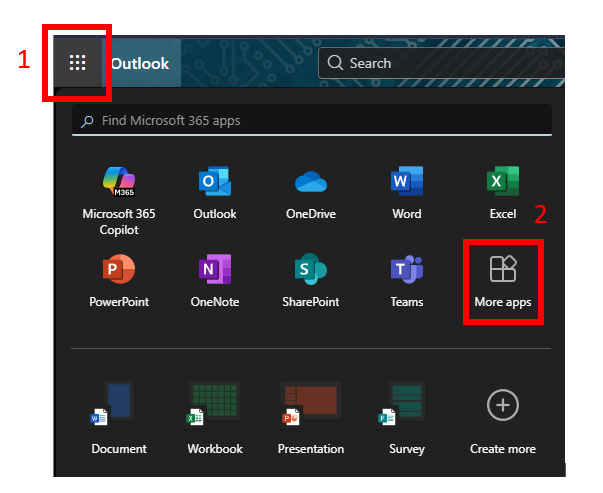
From any of the pages (your Outlook, SharePoint, or other Microsoft App), select the waffle at the top left of your screen and navigate to the More apps option.
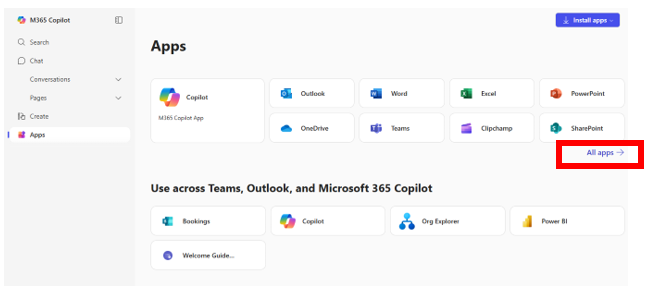
Your landing page might look something like below. Click on the All Apps → tab to explore more of the apps available to you.
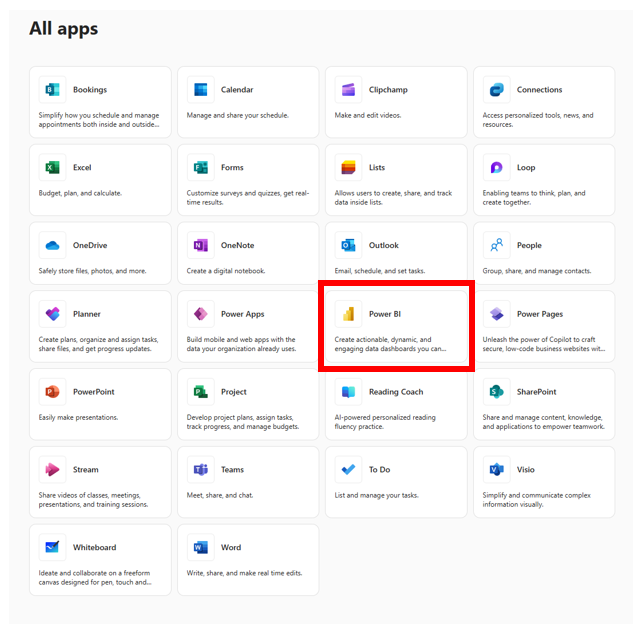
You’ll now find more apps, products, and services available to you. In this section, navigate to Power BI, which will now bring you to the Power BI Service Homepage.
Technique: Data Visualization, Installation | Tools: Power BI