R
R is a programming language and a free software environment to write and execute the R language. The latest version of this free R software environment can be downloaded here (mirror: here). Select the closest mirror. If you are not sure, select 0-Cloud. Then you will need to select the operating system of your computer whether it is Linux, Mac or Windows.
The basic R environment looks like this. 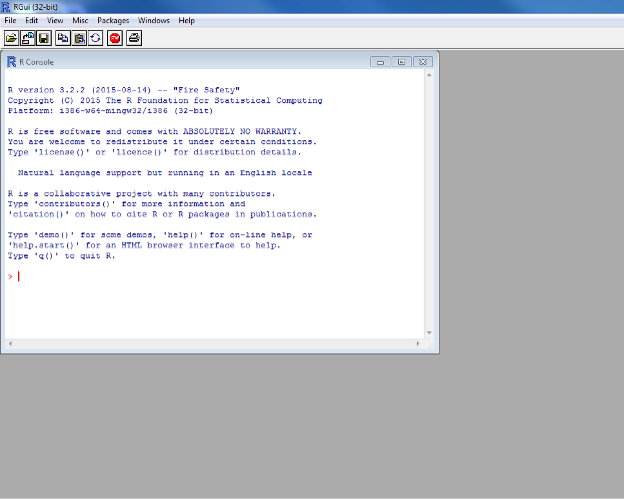
The console window is where you type and submit your R commands. The results of your code will also appear in this window. Entered commands appear in red and the results of your commands will appear blue.
Instead of typing your code in the console window, you can also enter your code in the R script window. To open a new script window, go the File menu and select New Script. For clarity, you can organize these windows by going to the Windows menu and selecting either Tile Horizontally or Tile Vertically.
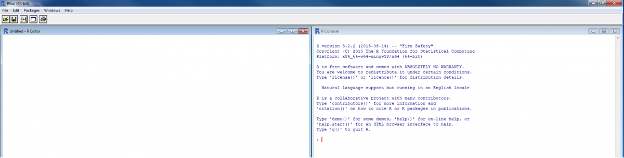
Your screen should look like this, with your script editor on one side and the console on the other. Now, you are ready to begin using R!
EXECUTING CODE
R is a code-based program (you have to type what you want it to do rather than clicking buttons). You can type your code in the console window or in the R script window. If you are writing your code directly in the console window, hit enter to submit and run the code.
There are two options to run a line of code from the R script window:
- Use the shortcut Ctrl + R
- Go to the Edit menu and click on Execute (the button is greyed out if you are in the console window).
To run multiple lines of code, select the lines of code and use one of the options above.
Tool: R