RStudio
RStudio is an Integrated Development Environment that provides free and open-source tools for R. You can run your data analysis in the basic R environment. However, RStudio does have a more intuitive interface and more tools to help you write your R code.
You need to install both R and RStudio to use R in RStudio. The latest version of the free RStudio environment can be downloaded here. The free open-source version is RStudio Desktop.
The RStudio interface has many windows. You will find the name of each window in the top-left corner of that window. On the left-hand side, you have the console window where you can type and submit R code. The results of your code will also appear in this window. 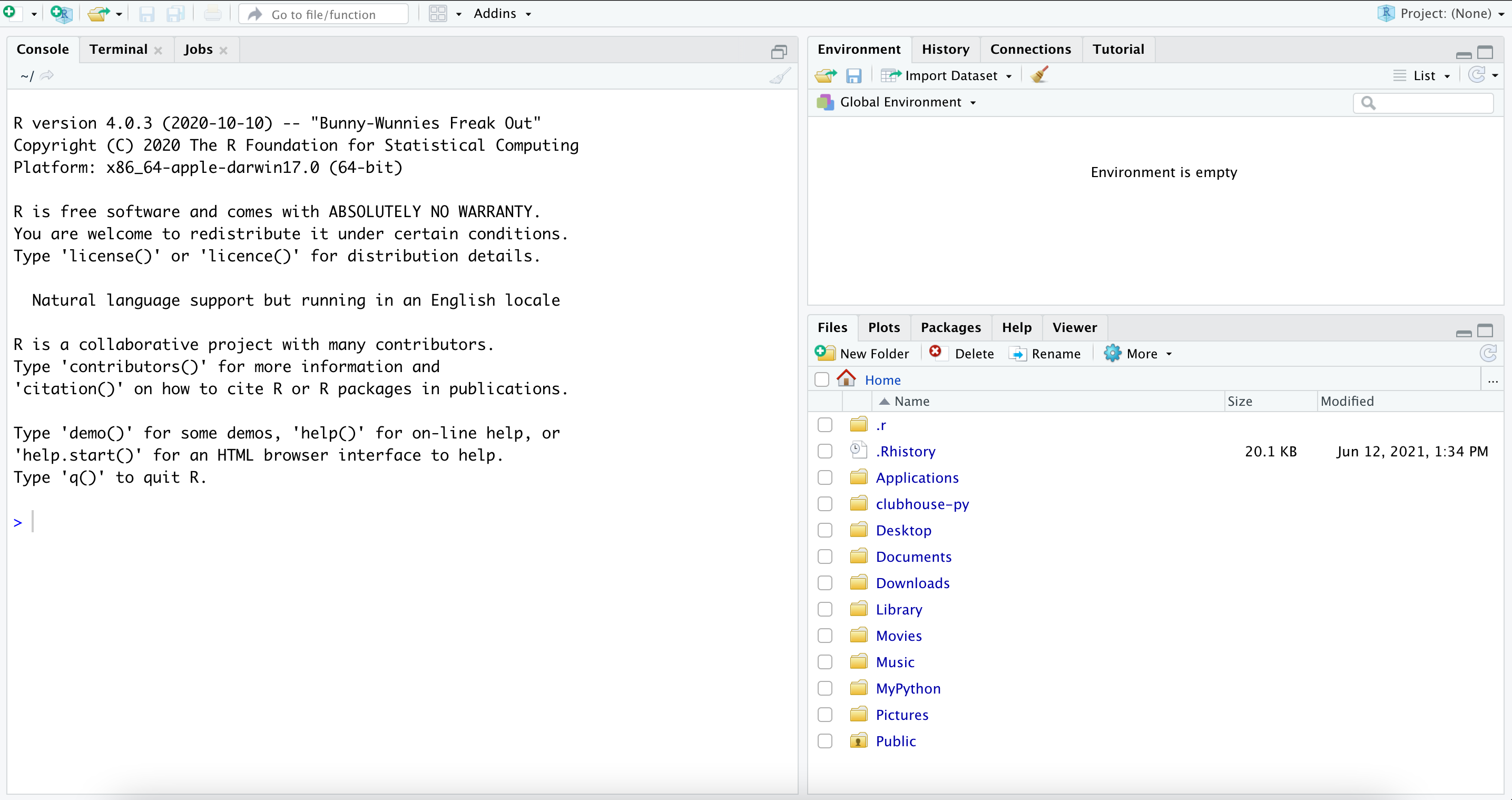
You can also type your code in the R script window. To open a new R script file, go to the File menu, then go to New File and select R Script. You can also click on the white page icon on the toolbar to open a new R script page.
You can interact with RStudio by typing your code in the console window or in the R script page. The advantage of the R script is that you can save your code, edit it later and share it with others. 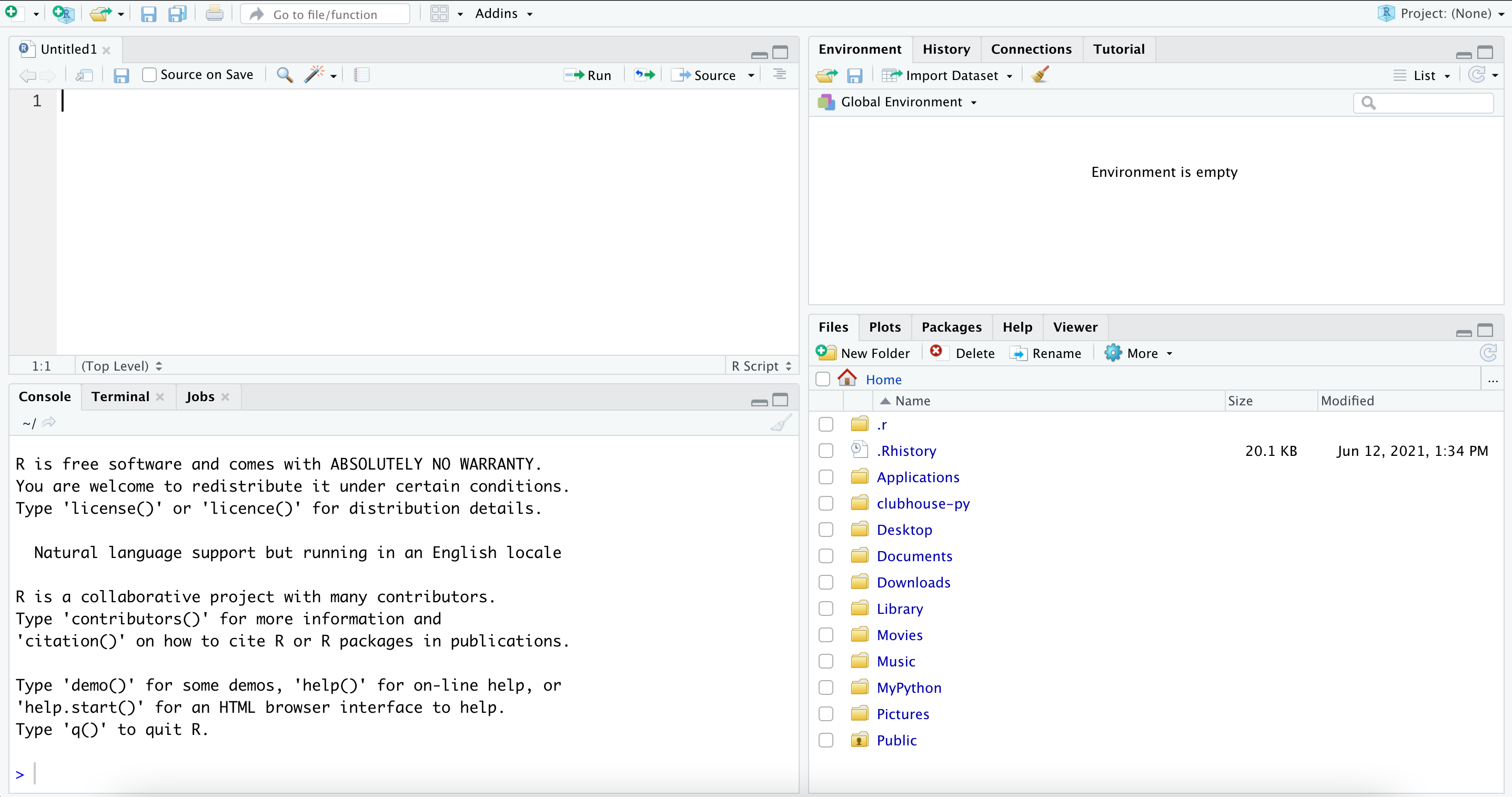
To submit R code from the console window, simply type your code and hit enter. To submit R code from the R script window, make sure your cursor is on the line of code you want to submit and either click on the Run icon on the toolbar or use the shortcut CTRL-ENTER (CMD-Return for Mac).
Some additional windows that are useful when you are getting started are the following: the environment window, the files window, the plots window, and the help window. The environment window is your workspace. Any data that you import or create can be found in this window. The files window shows the list of files in your home directory and allows you to change your home directory. The plots window shows you graphs that you create. And finally, the help window allows you to search and view the help file of specific functions.
To rearrange these windows, go to the Tools menu and select Global Options. Click on the Pane Layout tool from the list on the left-hand side. You can use the Pane Layout tool to rearrange the windows.
Whenever you start a new data analysis project that you want to work on in RStudio, it is useful to create an RStudio project for it. A project file allows you to pick up where you left off whenever you quit RStudio. To create a new project, go to the File menu and select New Project. You can associate your new project with a new directory or an existing directory. After you create the project, you will find the project name in the top-right corner of the RStudio interface. The home directory in the files window will also be updated to your project folder and you will find the project file in this folder.
Tool: R