Creating Pie Charts
Let’s try loading our own data – this time some qualitative humanities data. Tableau is not meant to work directly with text data files, but you can use other better-suited textual analysis tools to create datasets that you can then visualize in Tableau. What I did was take the freely available text for Shakespeare’s play Romeo and Juliet. I ran it through a free online tool called Voyant Tools and it generated a word frequency table that we are now going to use as our dataset. If you want to learn more about textual analysis and visualization tools, such as Voyant, you can take a look at the Tools & Tutorials page in the data viz guide.
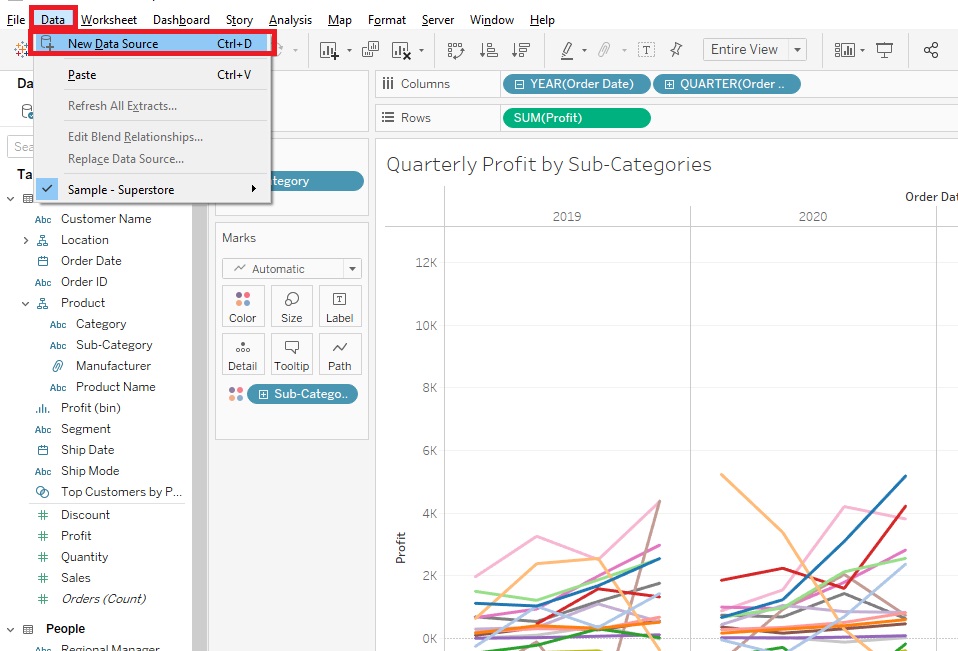
Let’s load this word frequency data into Tableau. Again, go to Data->New Data Source.
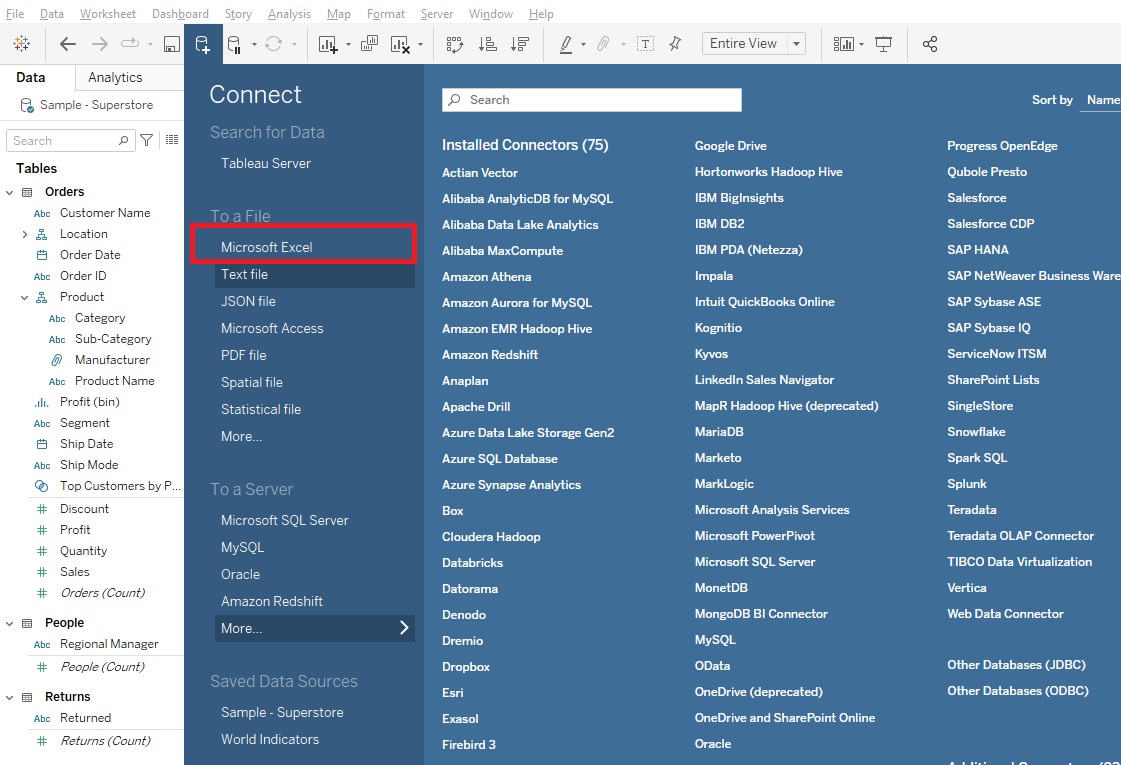
Select Microsoft Excel.
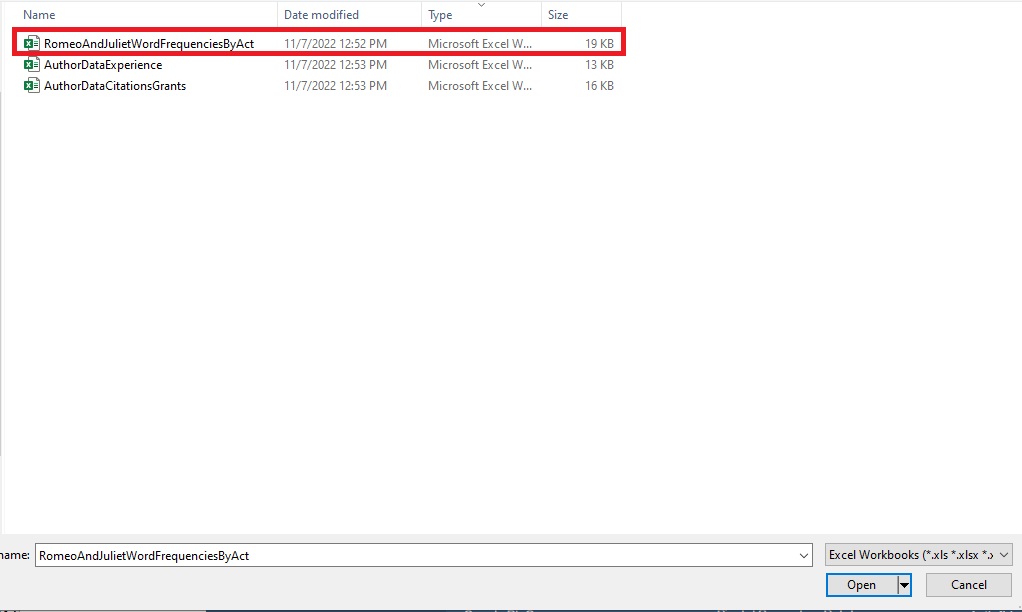
Pick RomeoAndJulietWordFrequenciesByAct.xls. in your folder.
You can see that it is a simple spreadsheet that counts how many times a term/word came up in each act. Let’s click on new worksheet to get started. Let’s rename this one to “Pie”.
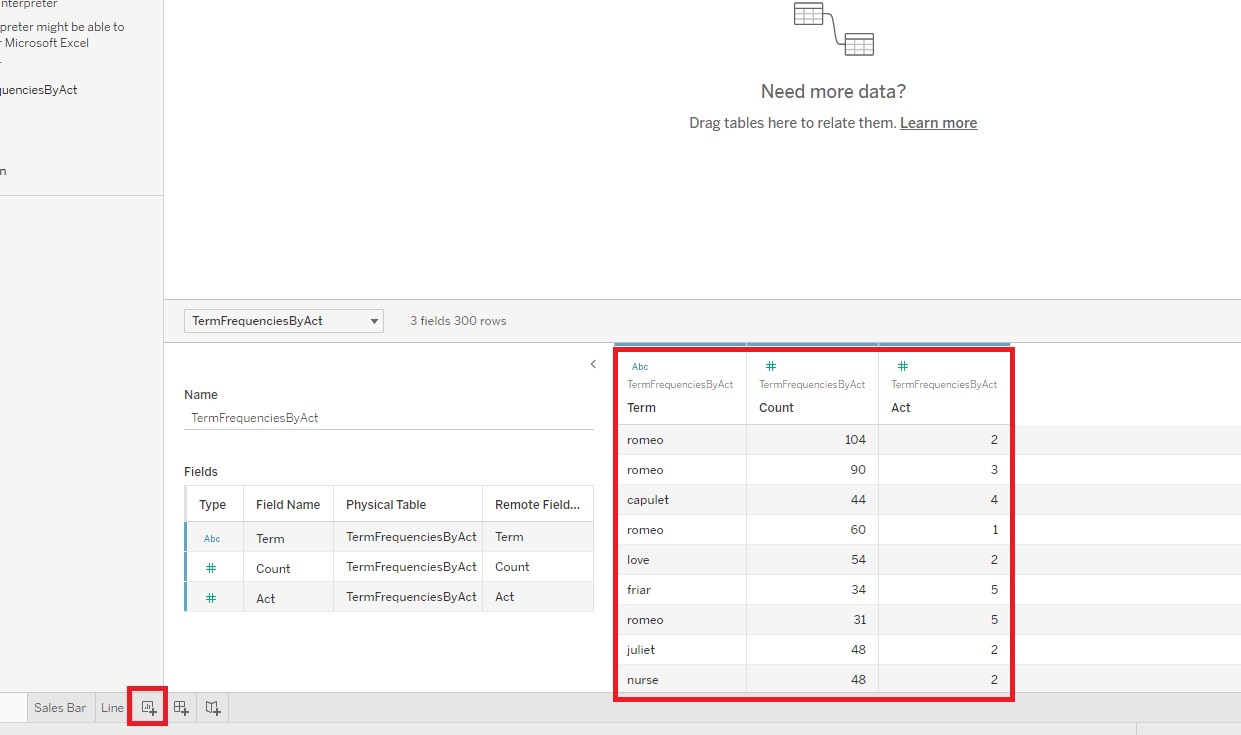
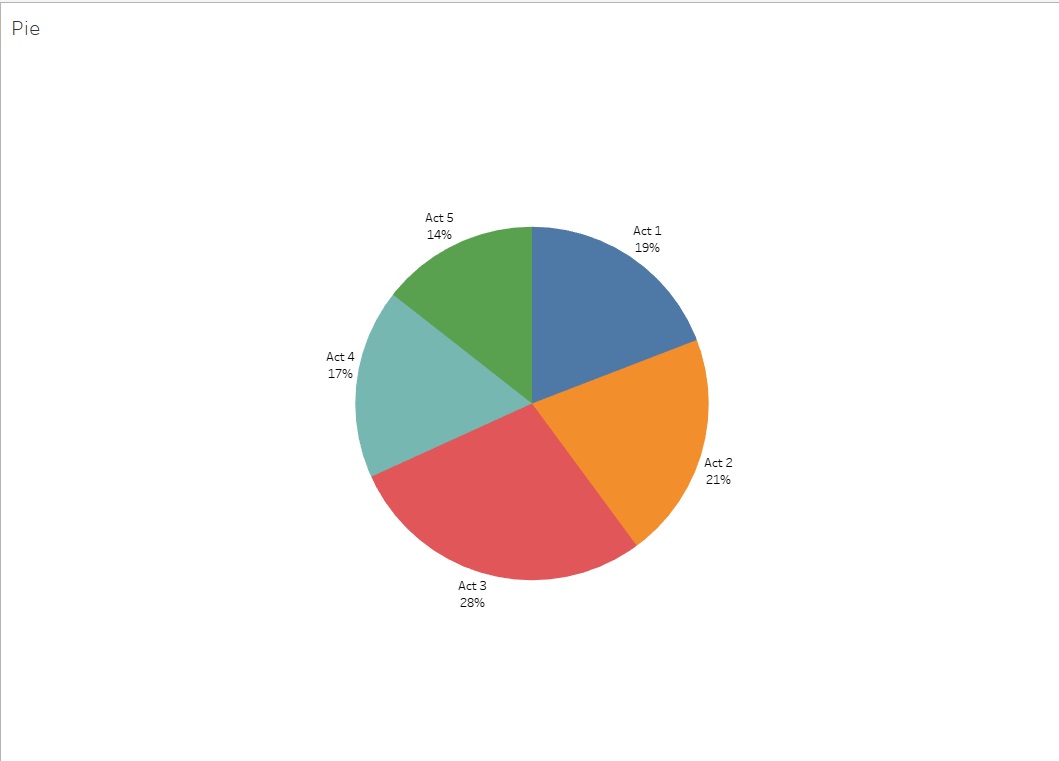
- Let’s first make a simple pie chart to show how many words are in each Act of the play, to see which Act is the longest and shortest and how they contribute to the whole.
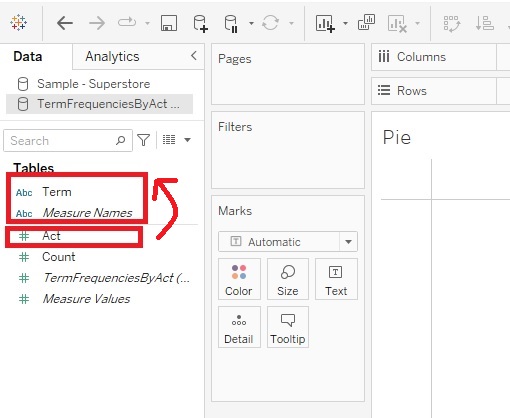
Before we begin building our visualization, let’s make sure our variables are correct. If we look at what the variable types Tableau’s has identified in our dataset, you’ll notice that it thinks Act is a numeric variable in the Measures section, when really it is categorical in this case. So let’s change it to move it to our Dimensions section. Drag the Act variable into the Dimensions section.
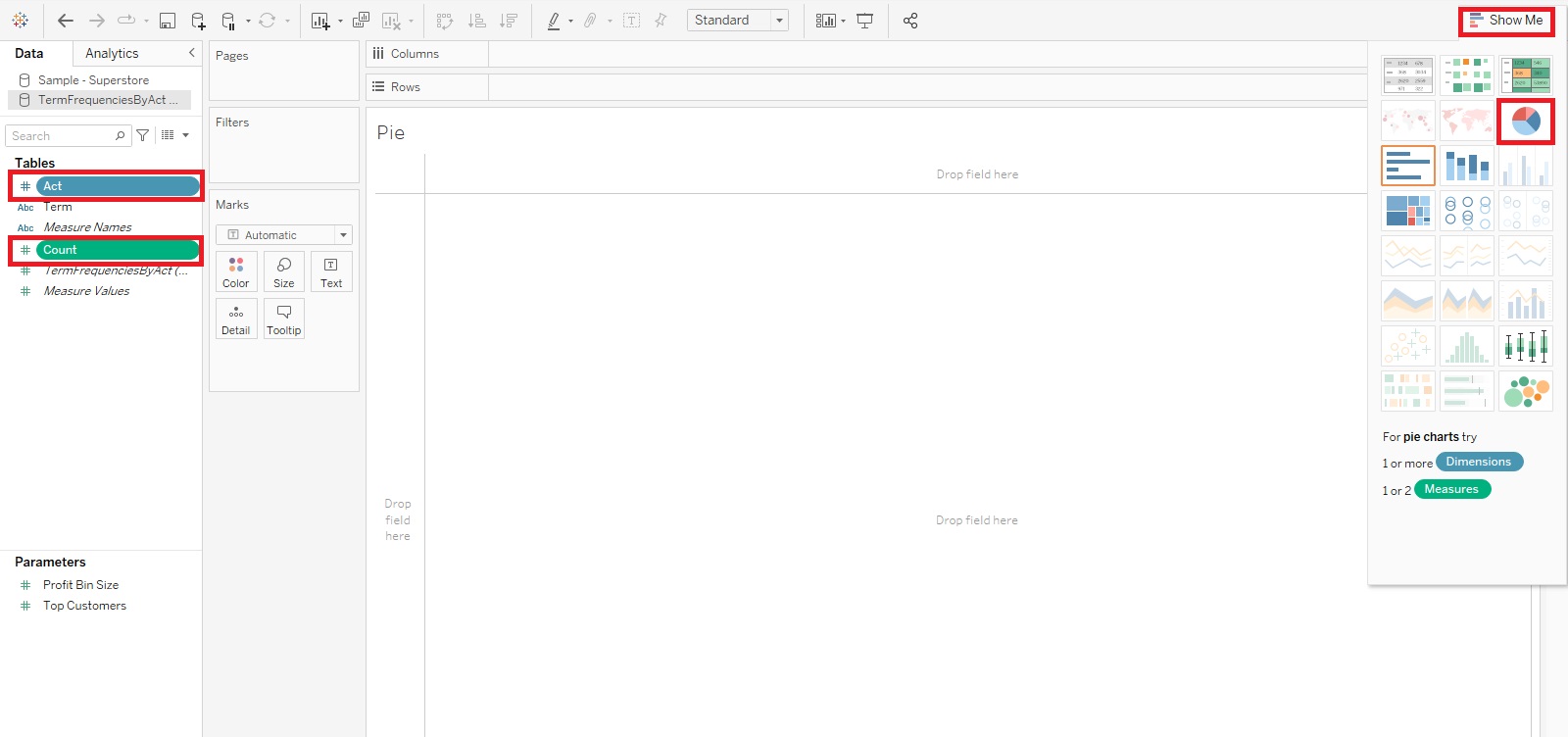
Using Show Me, hold down the Control Key and click on Act and Count (hold down the Command Key if on Mac), and then expand the Show Me tab. I see that pie chart is one of the recommendations. Let’s pick it.
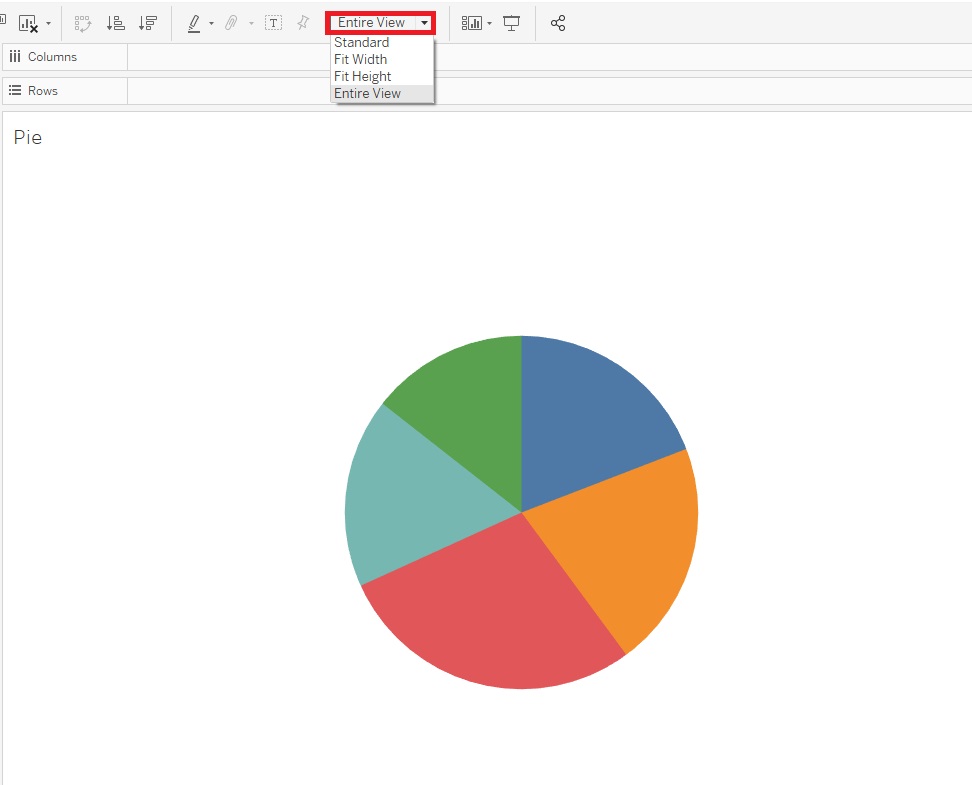
It is very small, so let’s make it larger by selecting Entire View from the ribbon drop-down.
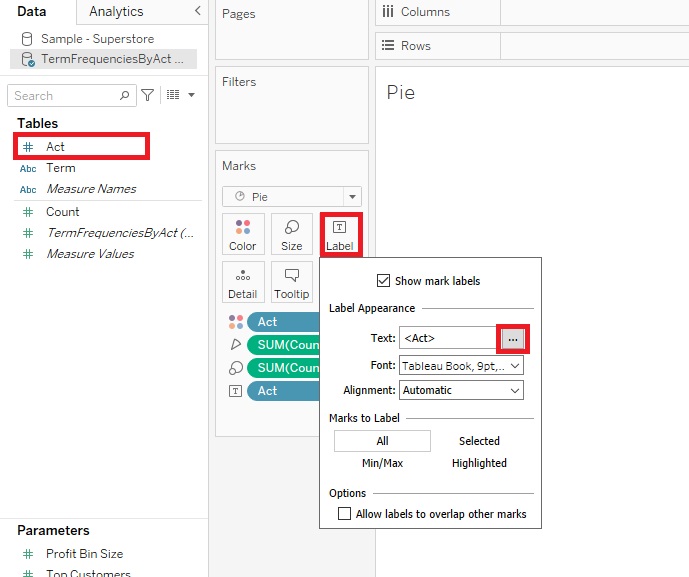
Next, let’s label it. Drag Act on to Label, and then Count on to Label. Then click on Label, and click on the … icon next to the Text field to edit the label.
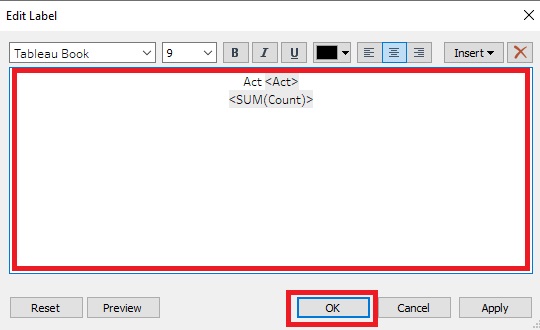
Add the word “Act” to just before the <Act> number to clarify the label, and then click on OK. Then click away to close the window
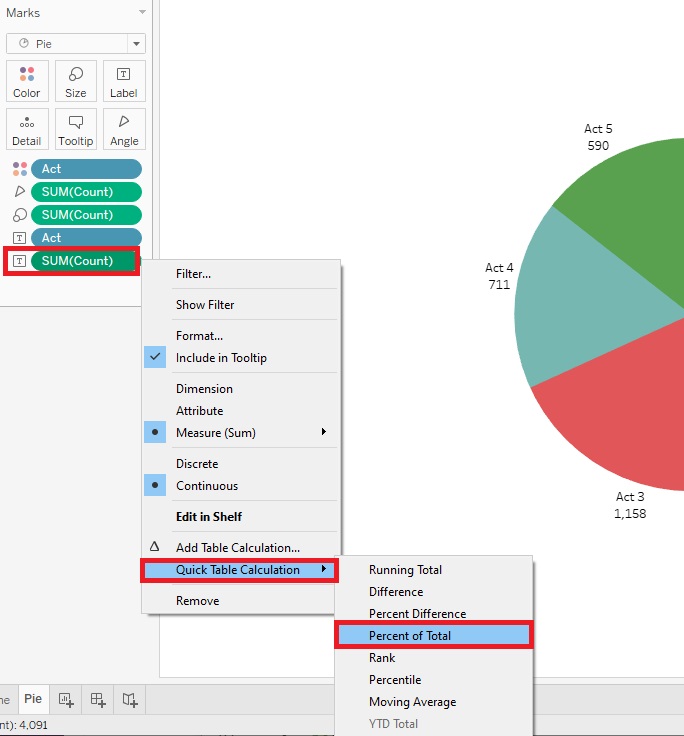
Currently it is showing the frequency count as a raw number, but we could show a percentage of the total instead, which is more common for pie charts. Right click on the SUM (Count) Label Pill (the last one listed on the Marks card). Select Quick Table Calculation and then Percent of Total.
We could also format the percentages to round to whole numbers. Right click on the SUM (Count) Label Pill again, and this time select Format.
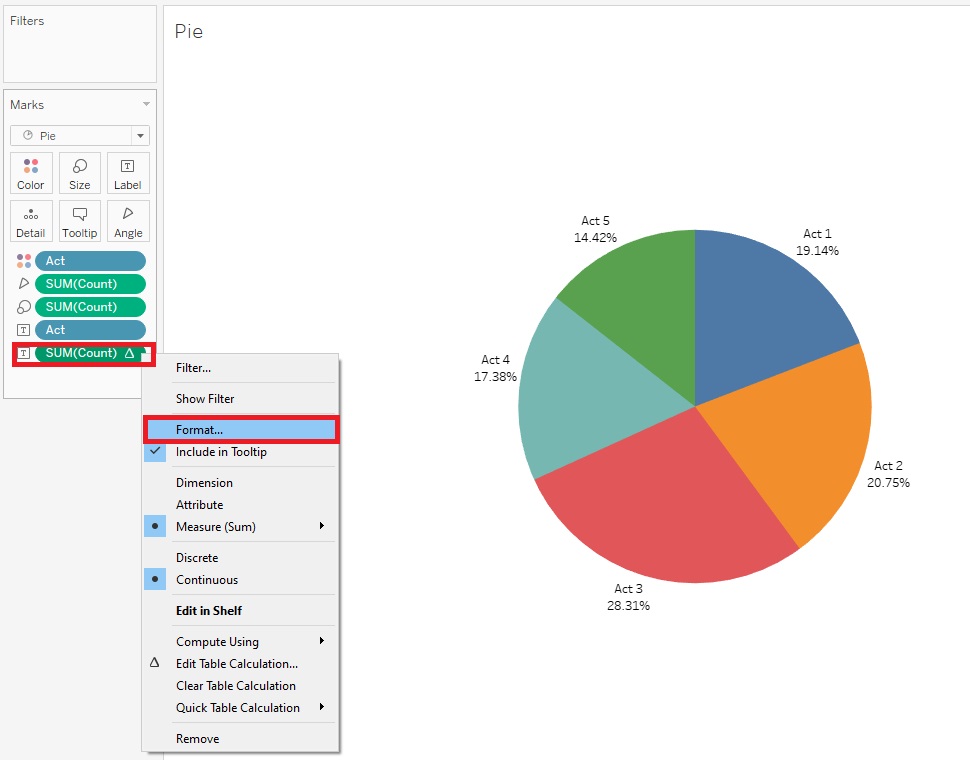
From the Format window that appears on the left, in the Pane tab, under the Default section, from the drop-down for Numbers, select Percentage and then change the number of Decimal places to zero. Then click away to close the window.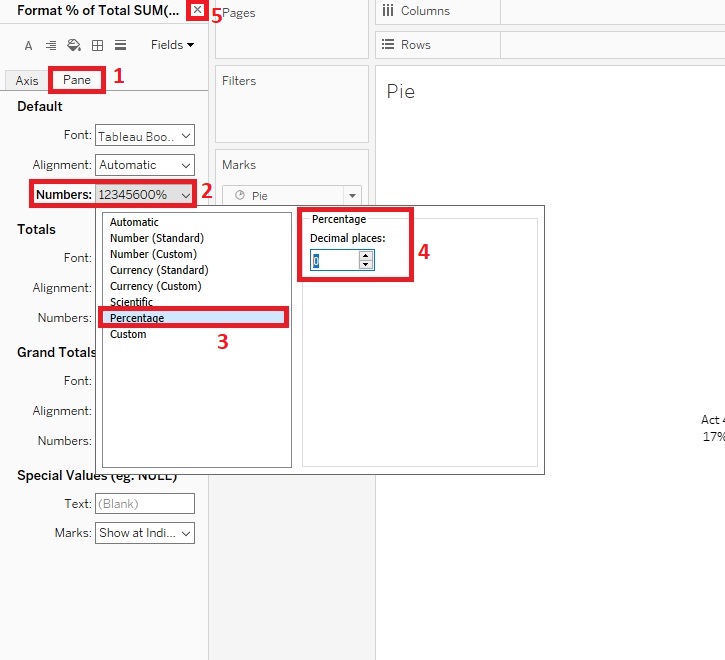
We can see the number of words used is quite evenly distributed throughout the acts, but Act 3 uses the most and Act 5 uses the least.
Technique: Data Visualization | Tools: Tableau