Case Classification and Cases
If you have demographics or other important attributes that you want to incorporate into your study, case classifications and cases can help. For example, if you were analyzing interview transcripts, you might want to create a case classification called “Interviewees” with attributes such as their name, age, education, job title, etc. Once your case classification is in place that defines what characteristics you want to capture for your interviewees, you could then create one case for each interviewee with those attributes filled in. So for example, if you interviewed someone named Geeta, you would create a case called Geeta (or some ID number if needed for confidentiality) with information about Geeta. You would then use that Geeta case to code all the files/content that are associated with Geeta (where the Case acts like a Code). Later you can then run queries that incorporate that information to answer questions such as, do executives talk more about sustainability? We will talk about how to run queries later in the tutorial.
You can manually create case classifications and cases, but often times, it is easier and more common to upload a spreadsheet with all the information for the cases. Let’s try that now.
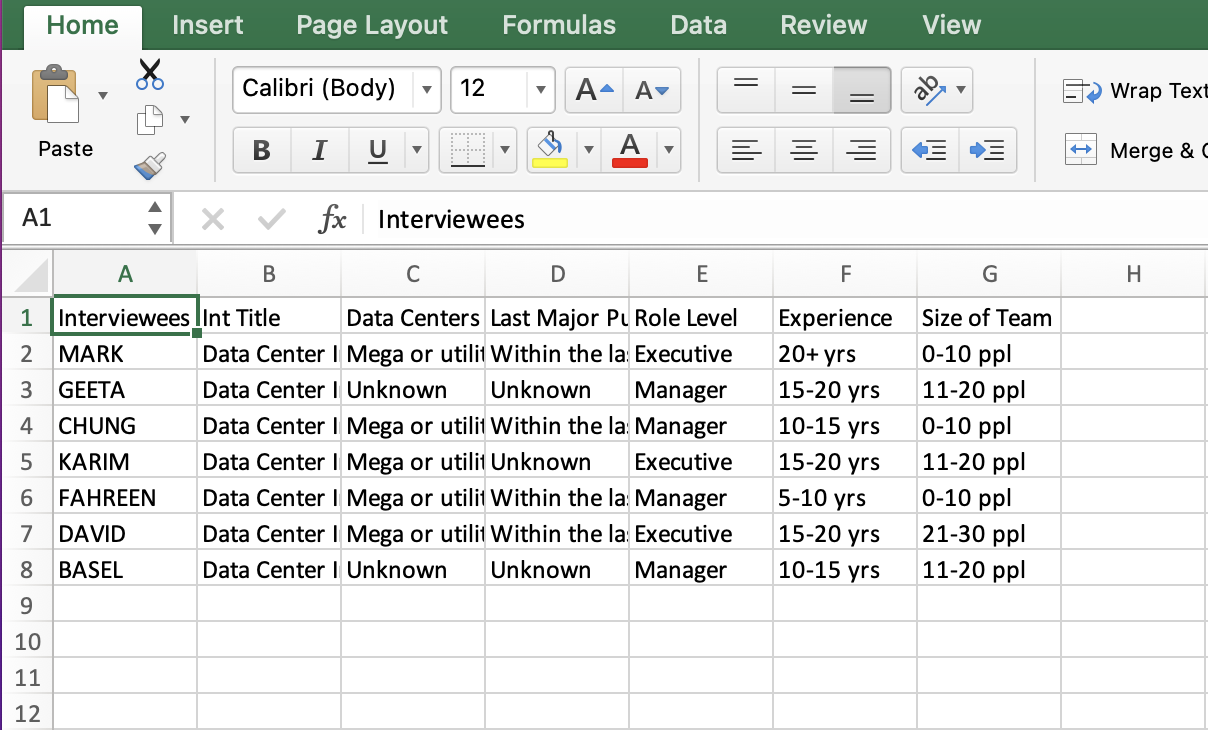
For our project, we have a file called Interviewees.csv. Open it up and take a look. It lists our interviewees and their attributes. Numeric attributes in NVivo work best in queries when they are transformed into categorical variables. You can see examples where experience and size of teams are ranges instead of a number. NVivo would call this a classification sheet. Now close it and go back to NVivo.
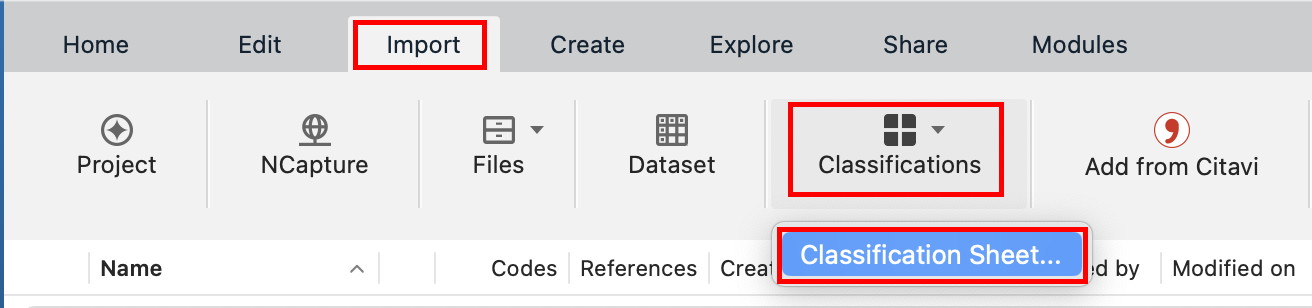
Go to the Import menu,and from the Classification drop-down menu, select Classification Sheet… (You can also go to the Home menu, and from the Case Classification drop-down menu, select Import Classification Sheet).
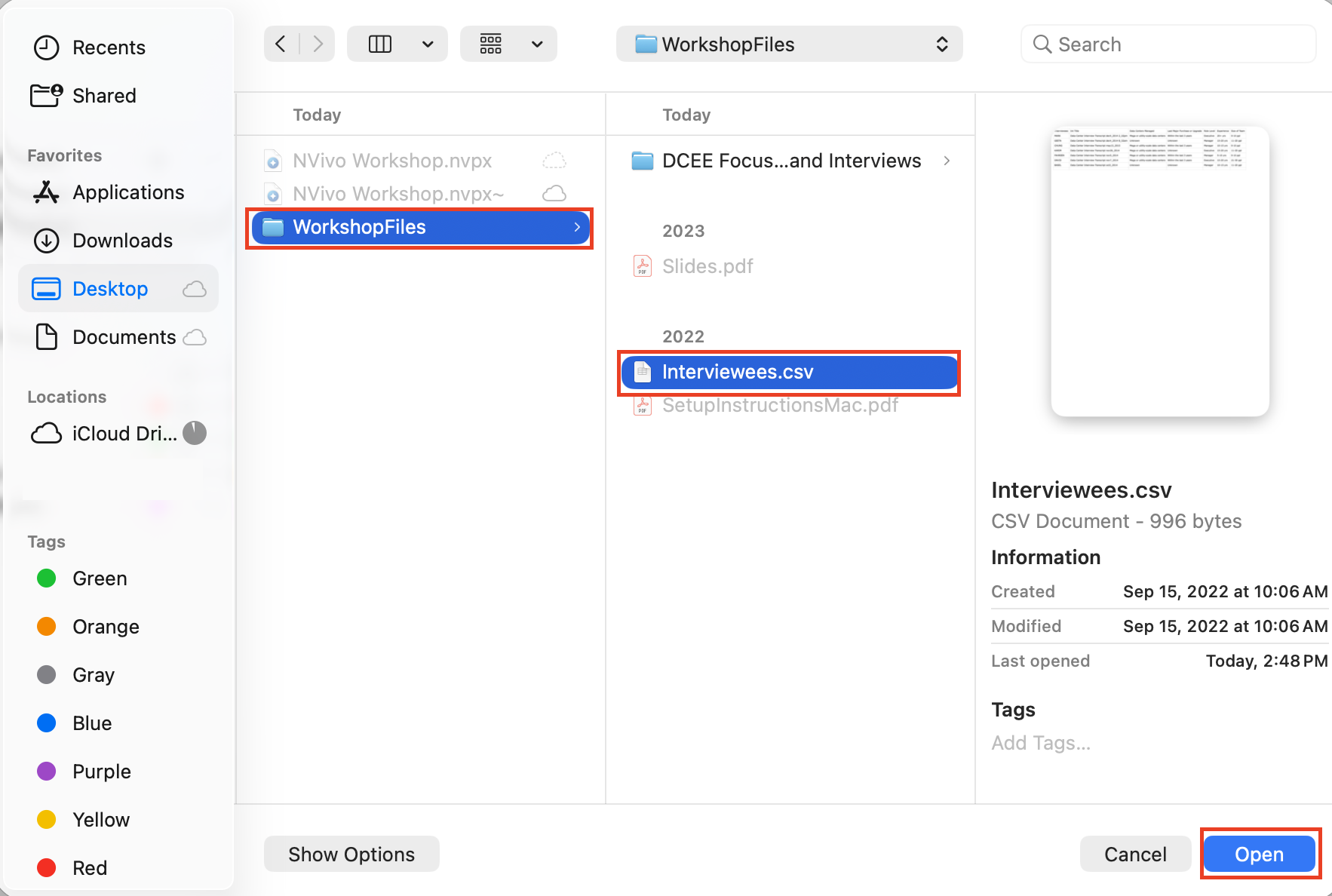
Browse to the Interviewees.csv file and click on Open.
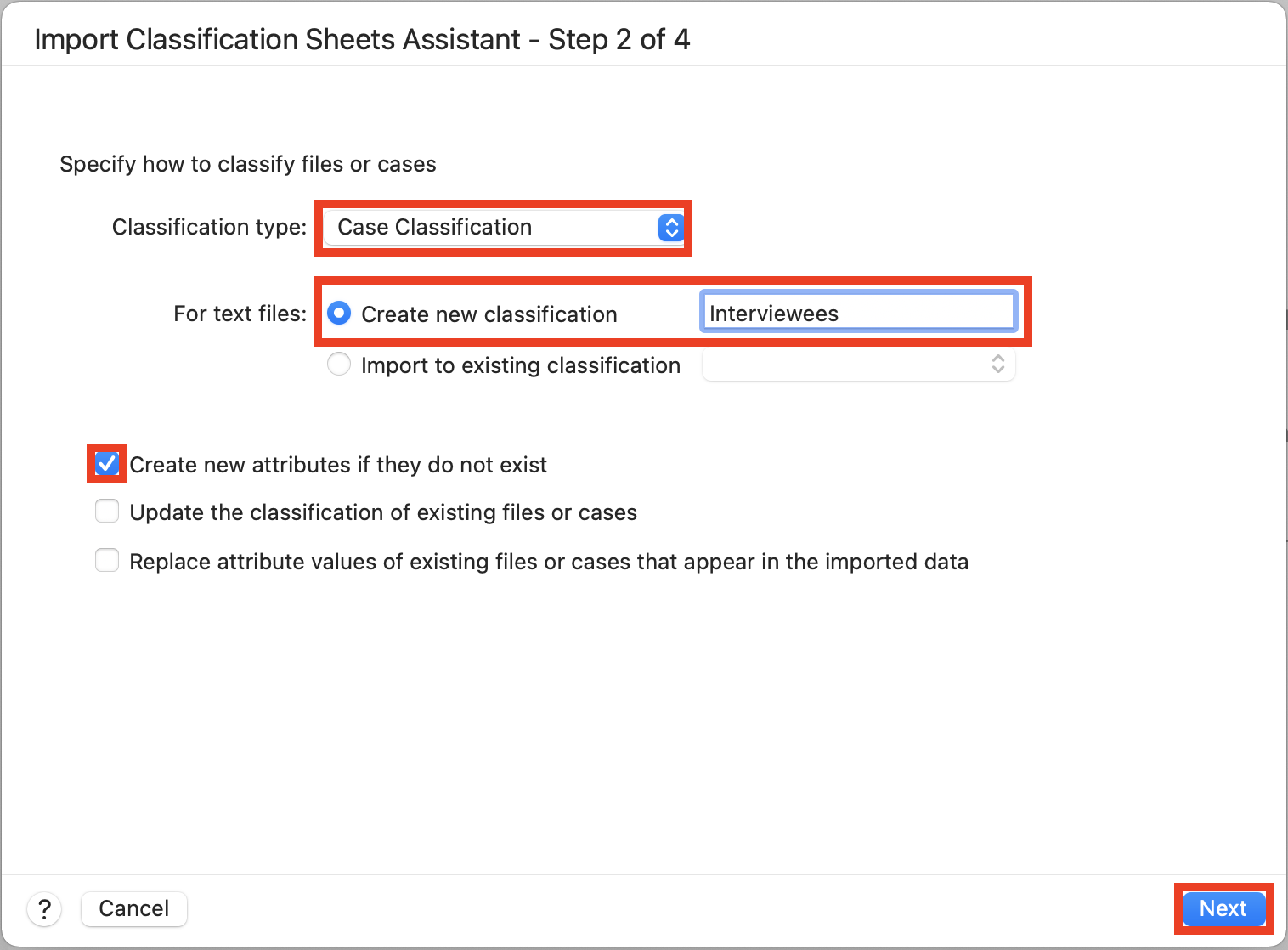
From the Classification Type drop-down menu, make sure it says Case Classification. Next for Create new classification, type in “Interviewees” (to give it that name) and then keep the rest of the defaults (where there should just be a checkmark next to Create new attributes if they do not exist) and click on Next.
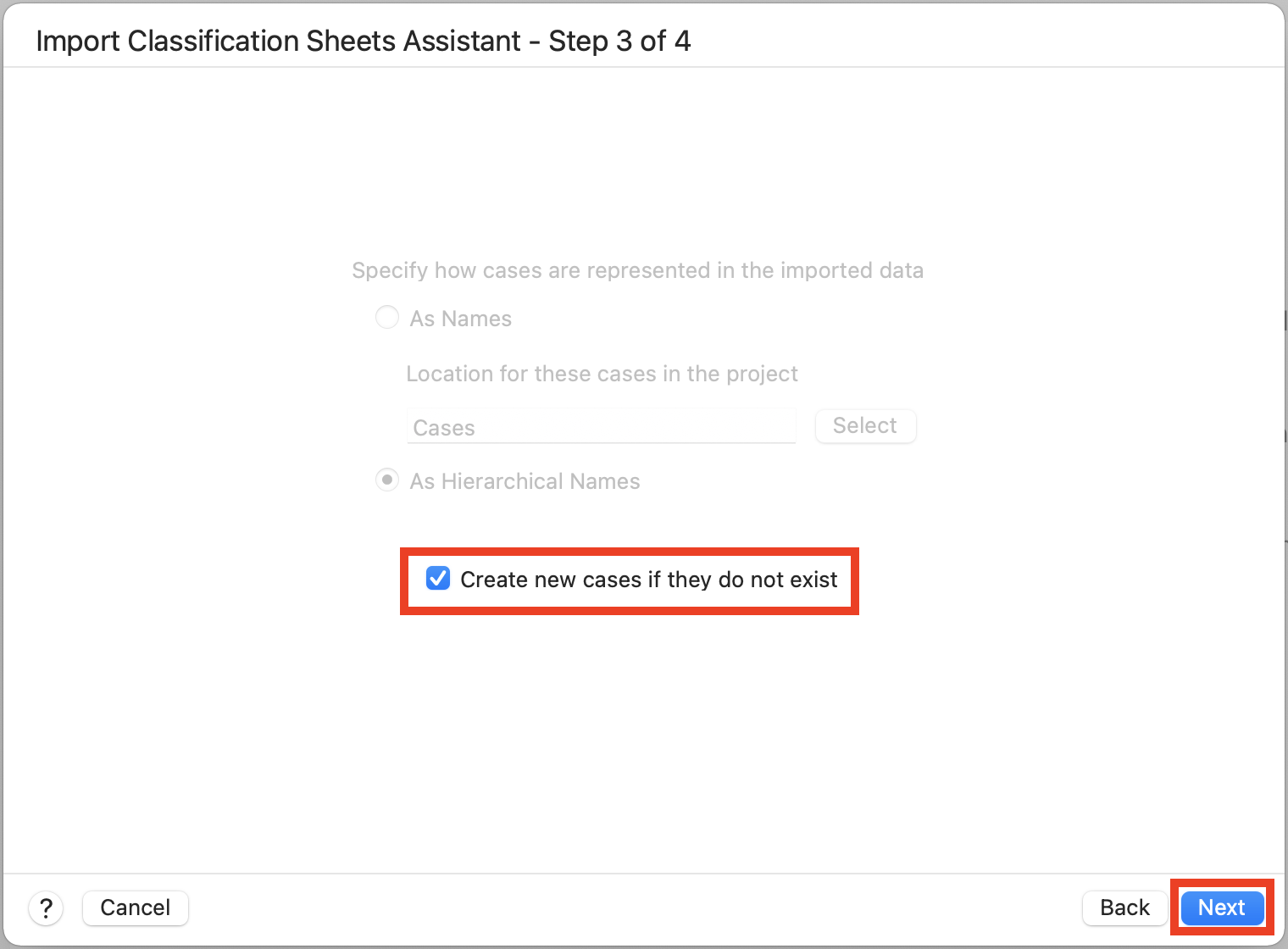
Our classification sheet’s first column provides the name of each case (i.e., the interviewee’s first name). Keep the defaults here (where there should be a checkmark next to ‘Create new cases if they do not exist’) and then click on Next.
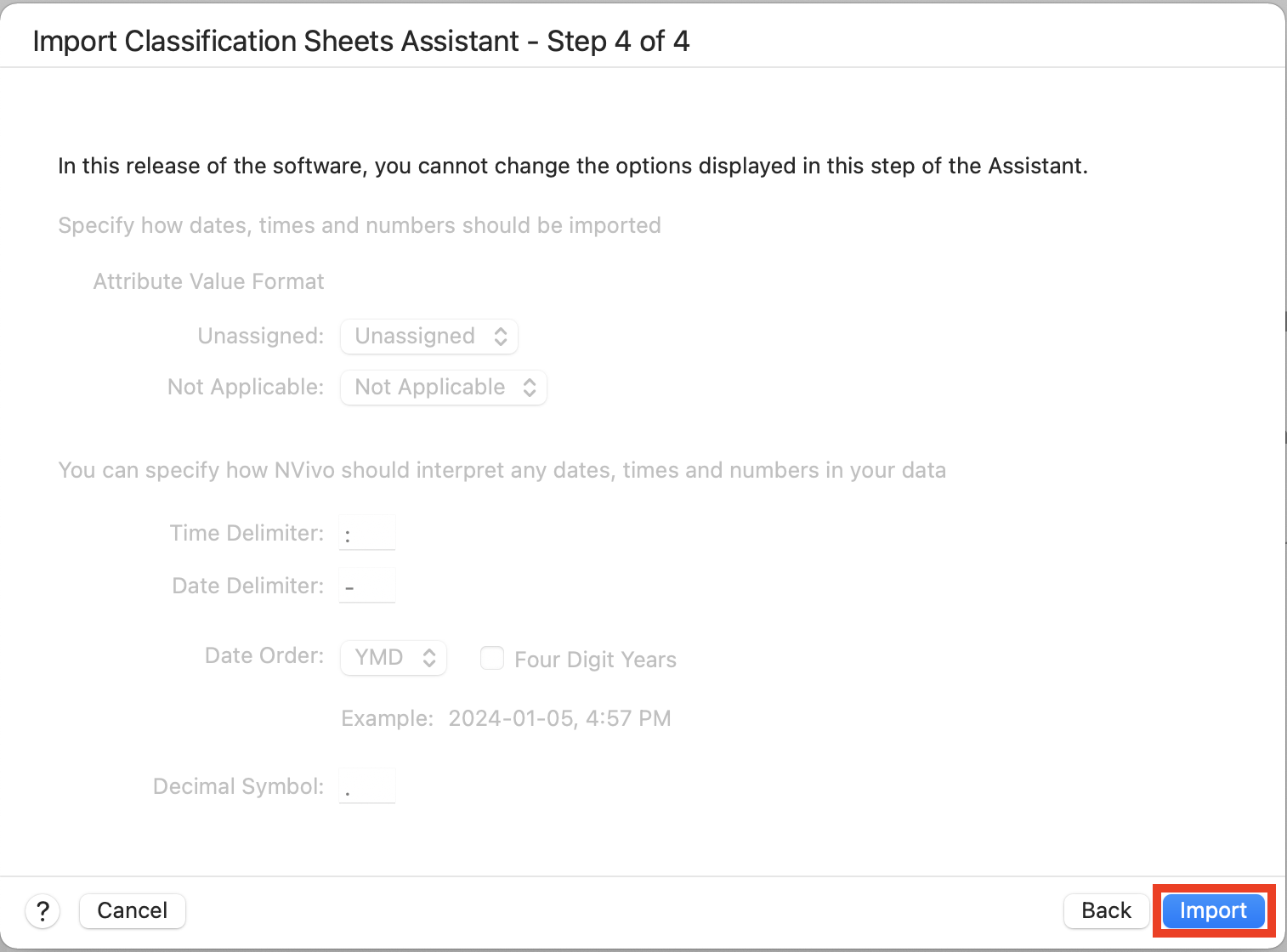
Then click on Import. It should open up the newly created Interviewees case classification sheet and attributes.
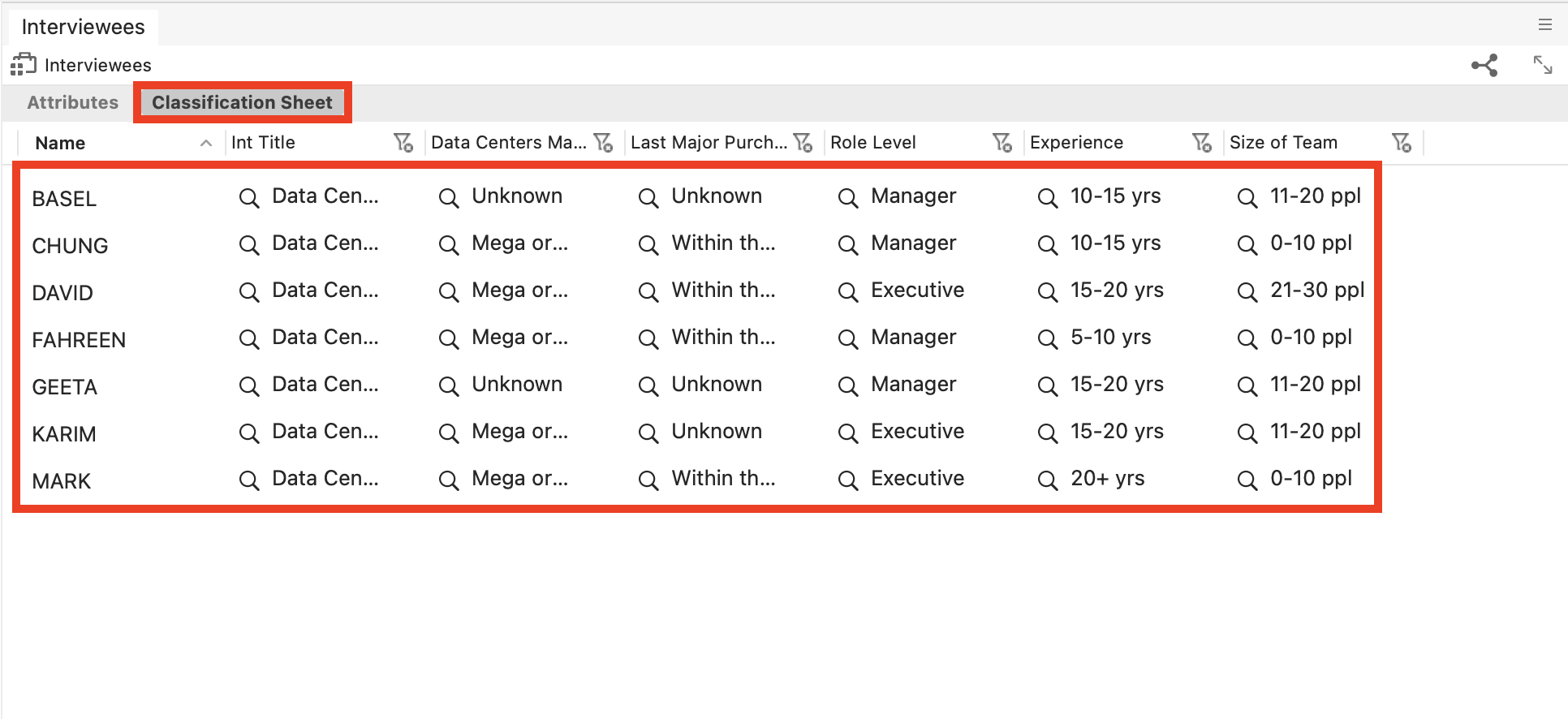
Click on Classification Sheet at the top of that window to see something that resembles the csv file we imported. If it looks good, then close it.
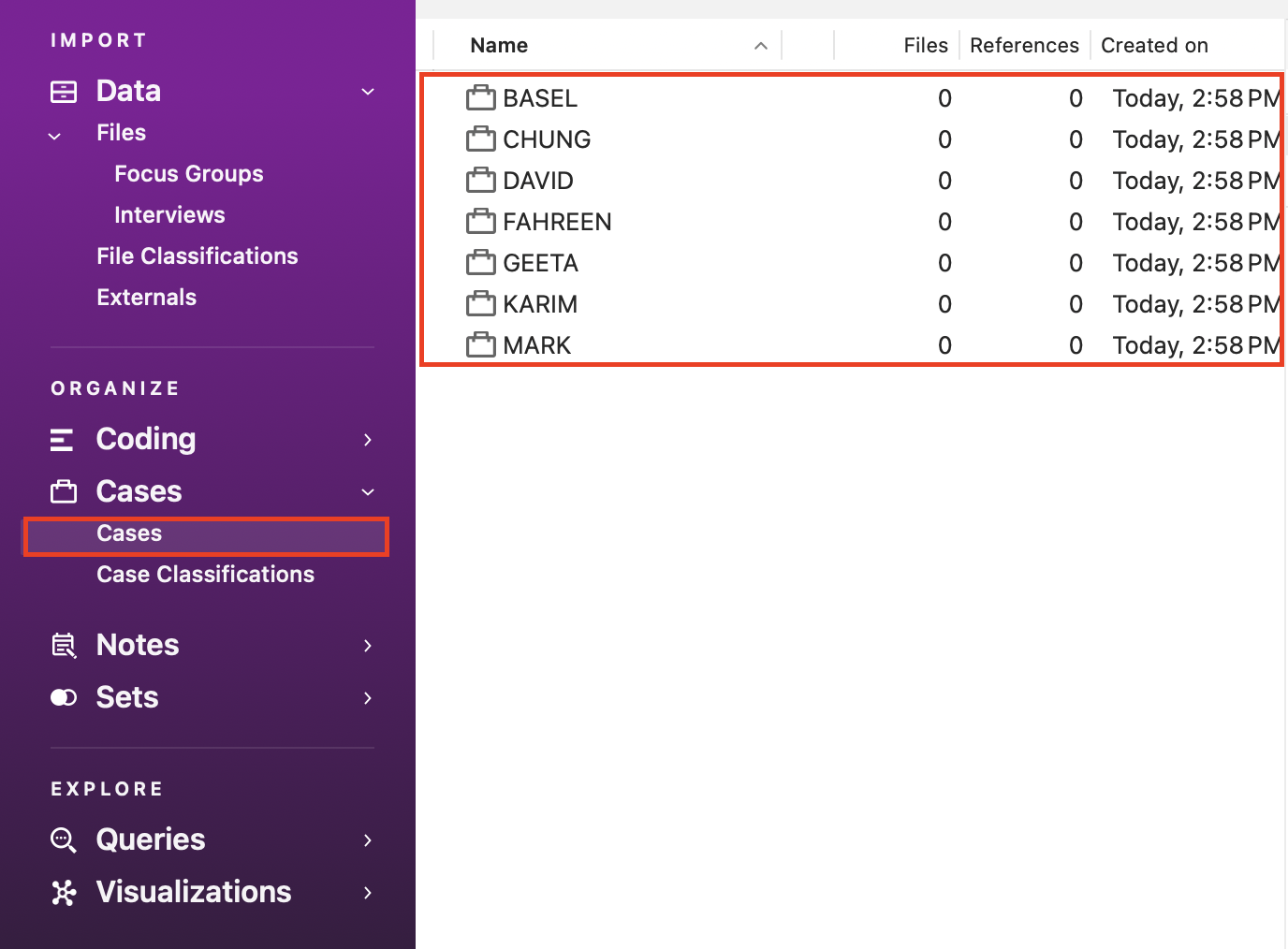
From the left menu, under Cases, click on Cases to see our newly created cases. These cases can now be used in coding the same way codes are used.
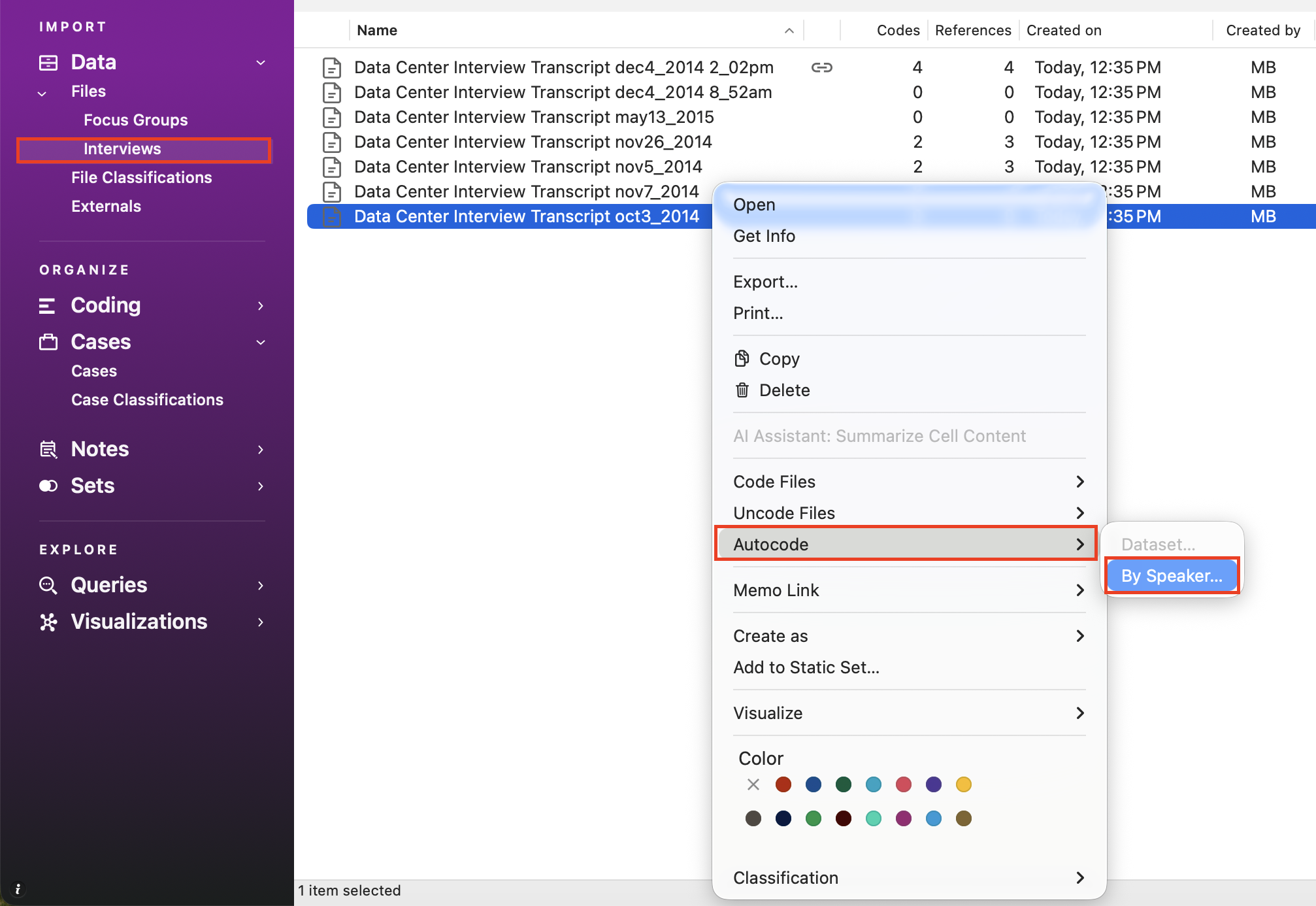
We can take advantage of NVivo’s autocoding features to allow us to identify the interviewee’s responses in a file and code them automatically into the appropriate case. From the left menu, under Files, select Interviews. Hold down the Control key and click on the “Data Center Interview Transcript oct3_2014” file and select Autocode, and then select By Speaker…
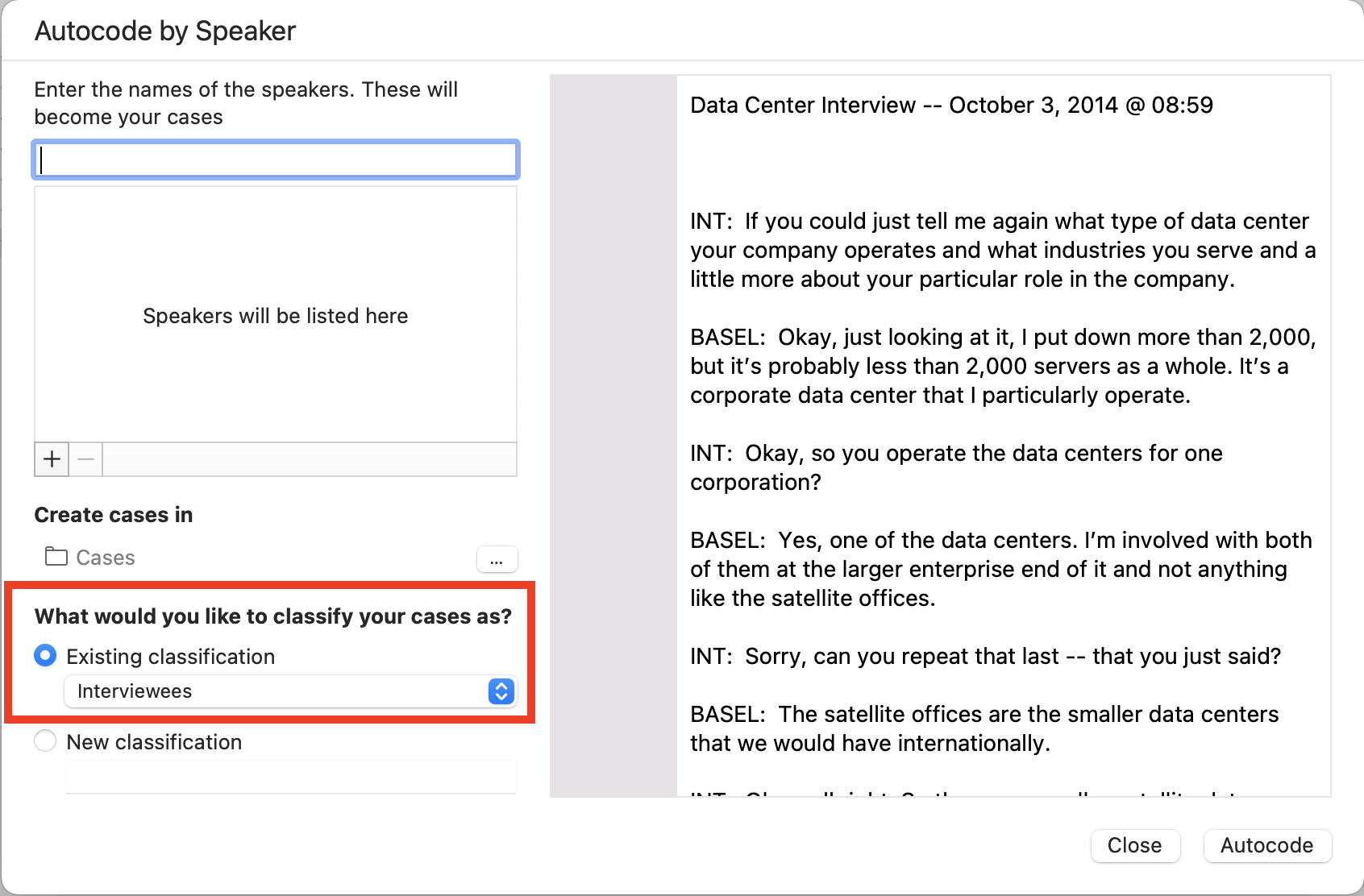
First, make sure that under What would you like to classify your cases as? it has Existing classification > Interviewees selected.
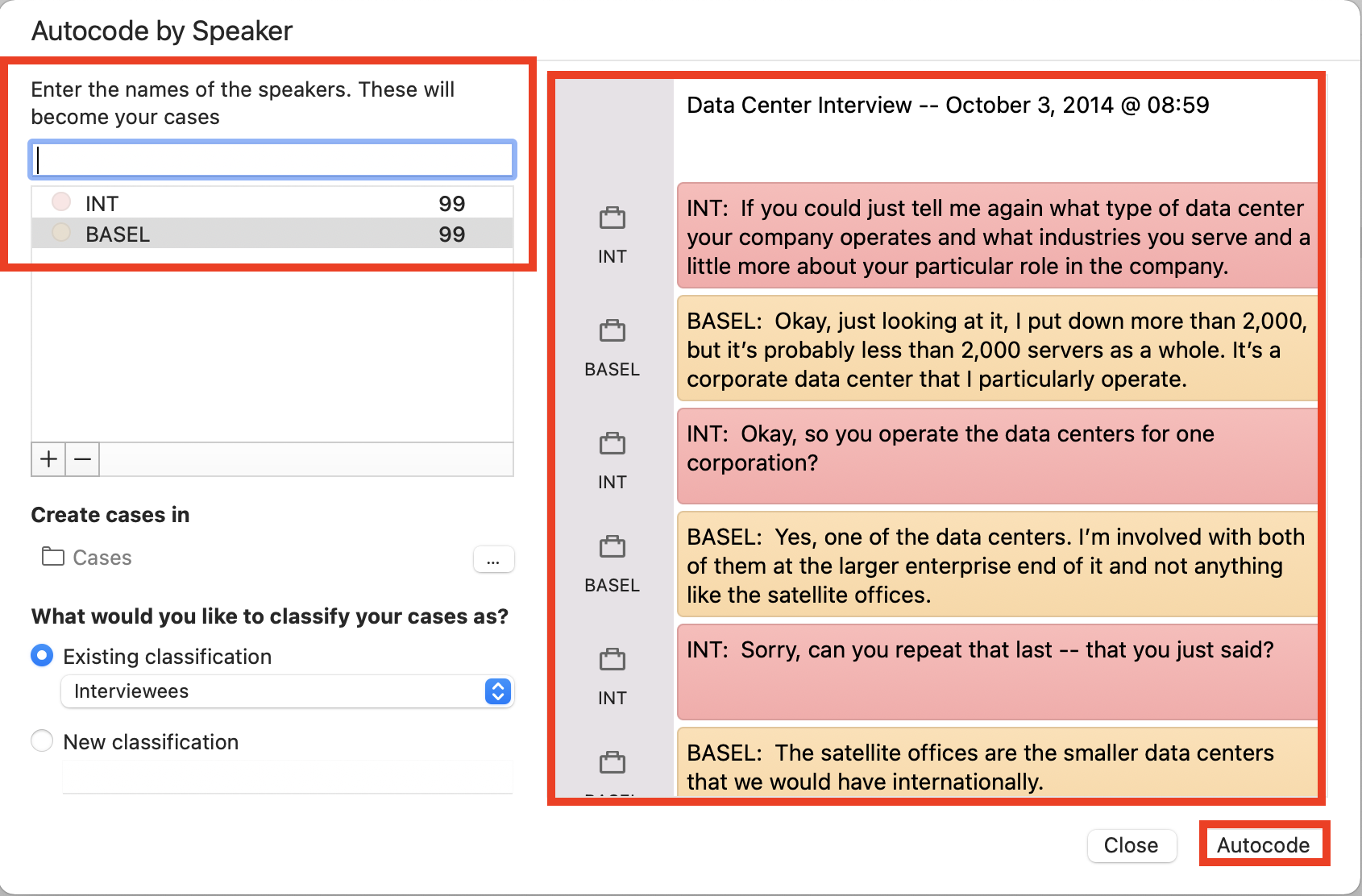
Next, our transcripts are formatted in a consistent manner so we can always pick out who is speaking because the text is labeled as “INT:” for the interviewer’s words, and the person’s name in capital letters followed by a colon for the interviewee’s words. We need to tell NVivo who are all the unique speakers in this document. Under “Enter the names of the speakers. These will become your cases.”, type in “INT” and hit Enter. Then type in BASEL and hit the TAB key. You should check the preview on the right to confirm that NVivo is picking up each unique speaker by highlighting them in different colours. If it looks correct, click on Autocode. This should code everything that Basel said in the transcript with Basel’s case.
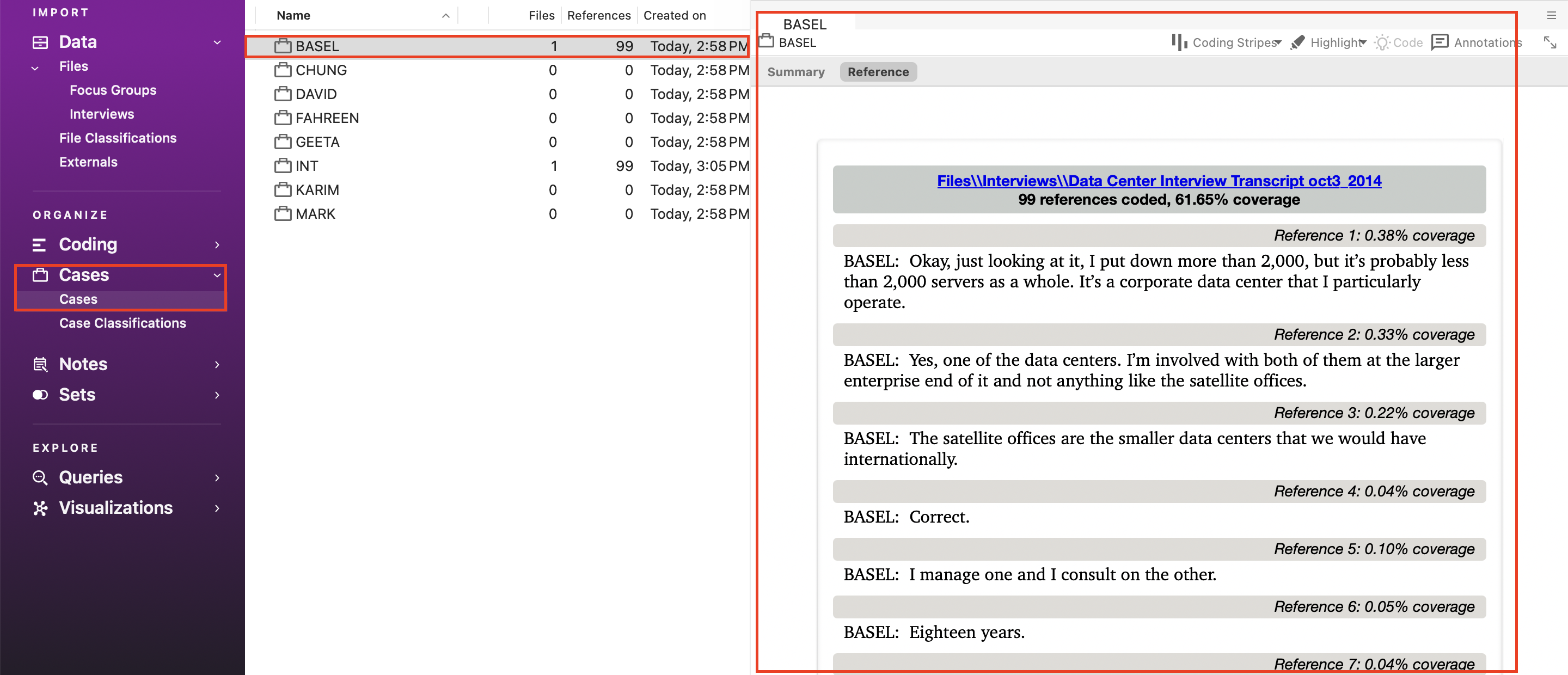
From the left menu, under Cases, click on Cases. Then double click on Basel. You should see everything that Basel said in his interview. These words are coded to this case. The BASEL case code is now linked to Basel’s interview responses.
Technique: Qualitative Data Analysis | Tools: NVivo