Export Data
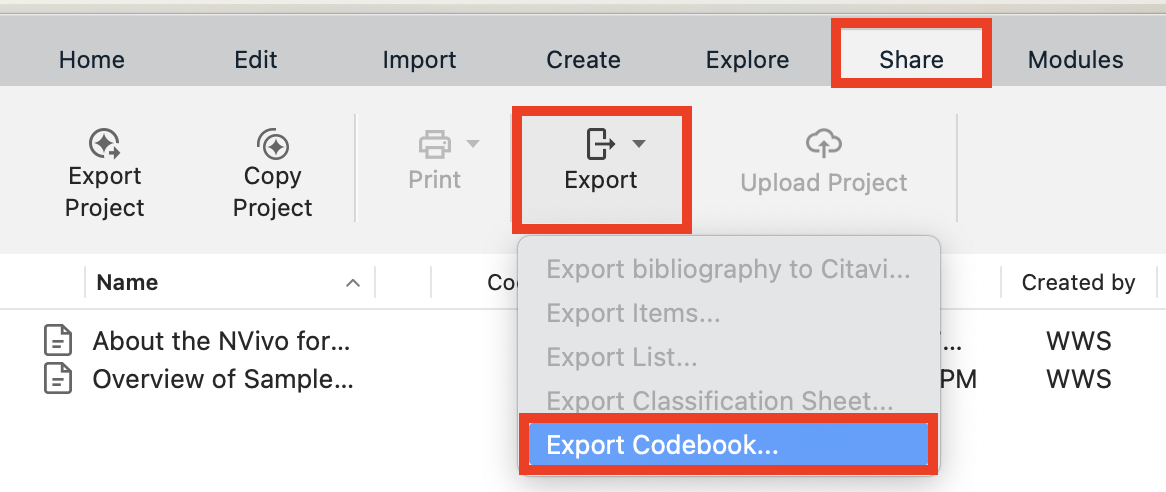
You can export your codes as a list or its references. To export your full list of codes, go to the Share menu, and from the Export drop-down menu, select Export Codebook…
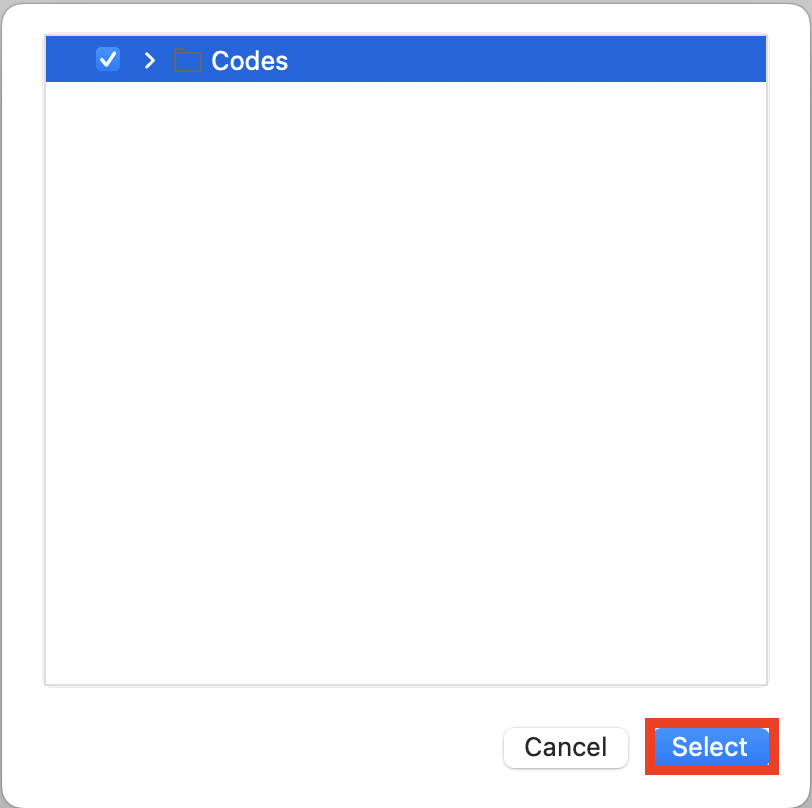
You can keep the defaults to include all codes and click on Select. This will save your all of your codes in a document that includes a description, the number of files coded with that code, and the number of references.
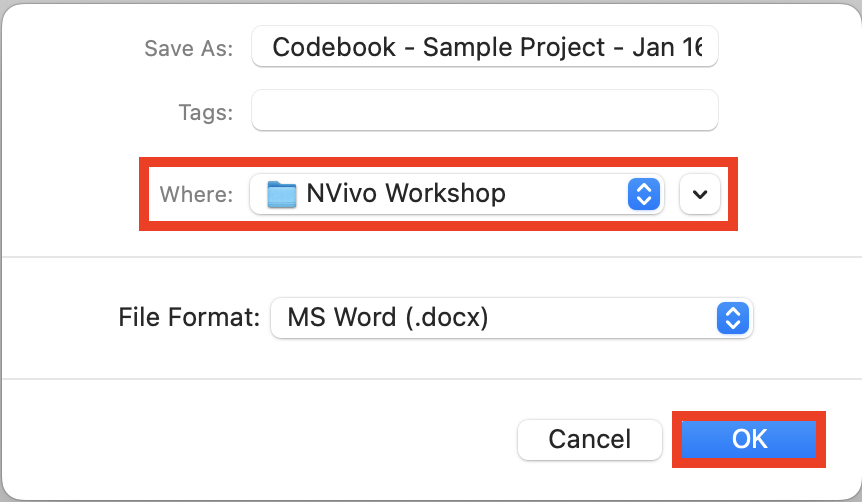
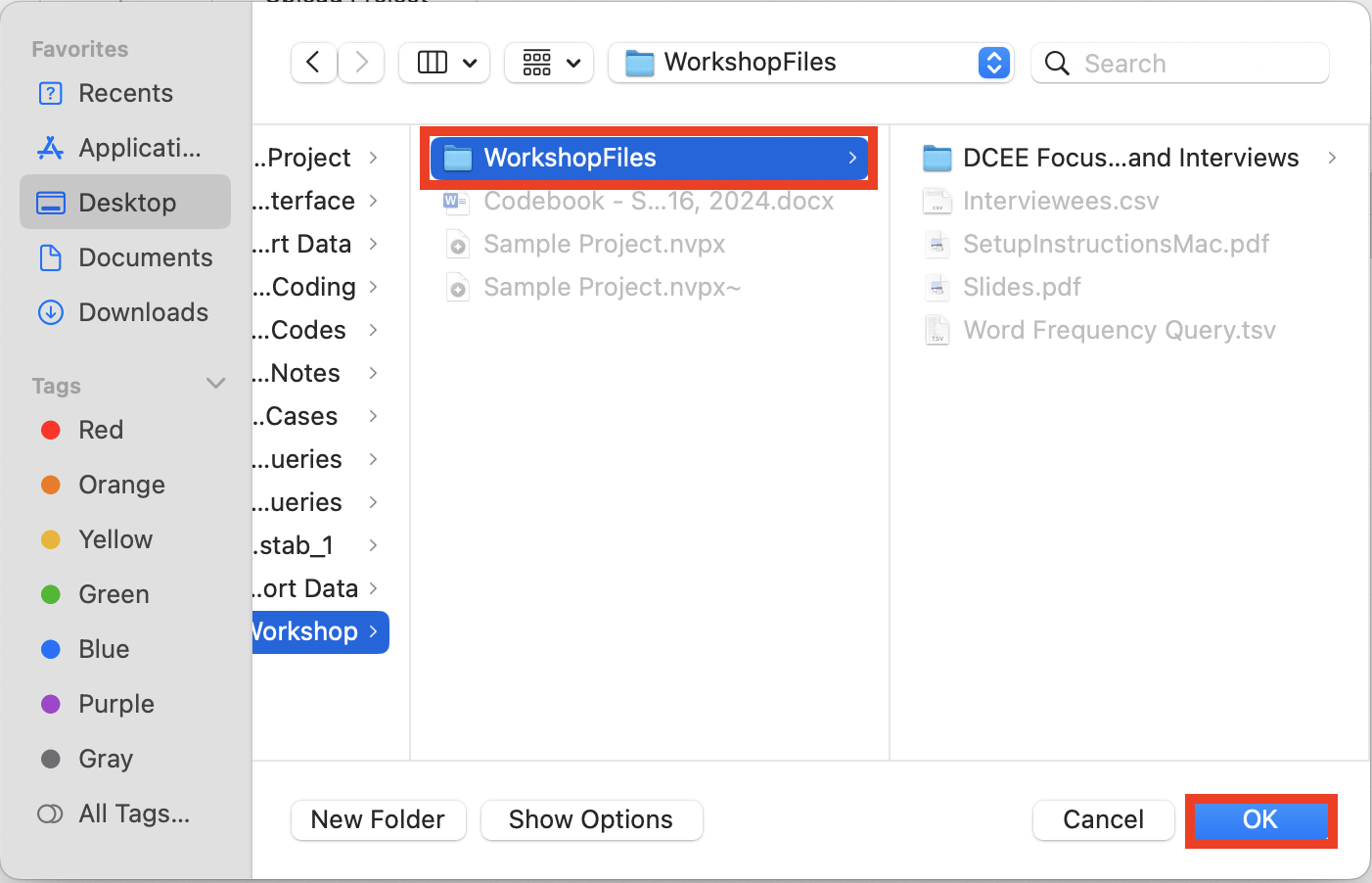
Browse to where your workshop files are, name your file or keep the default, decide if you want it as a document or spreadsheet format, and then click on OK.
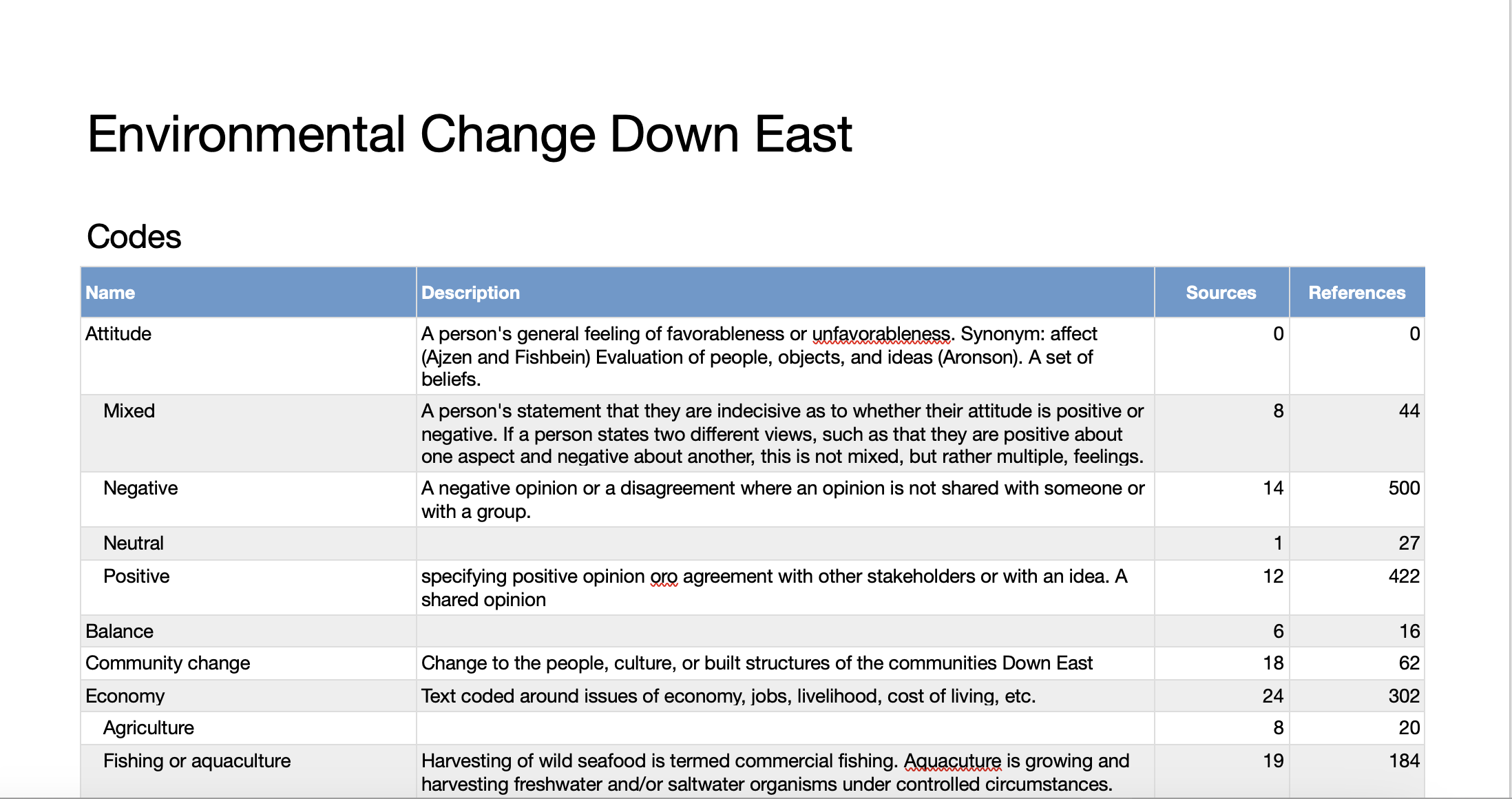
Here is what the Codebook file looks like:
You can also export all the references for a particular set of codes. To do this, first select your subset of codes. For example, select Balance and Community Change (hold down the Command key to select more than one item).
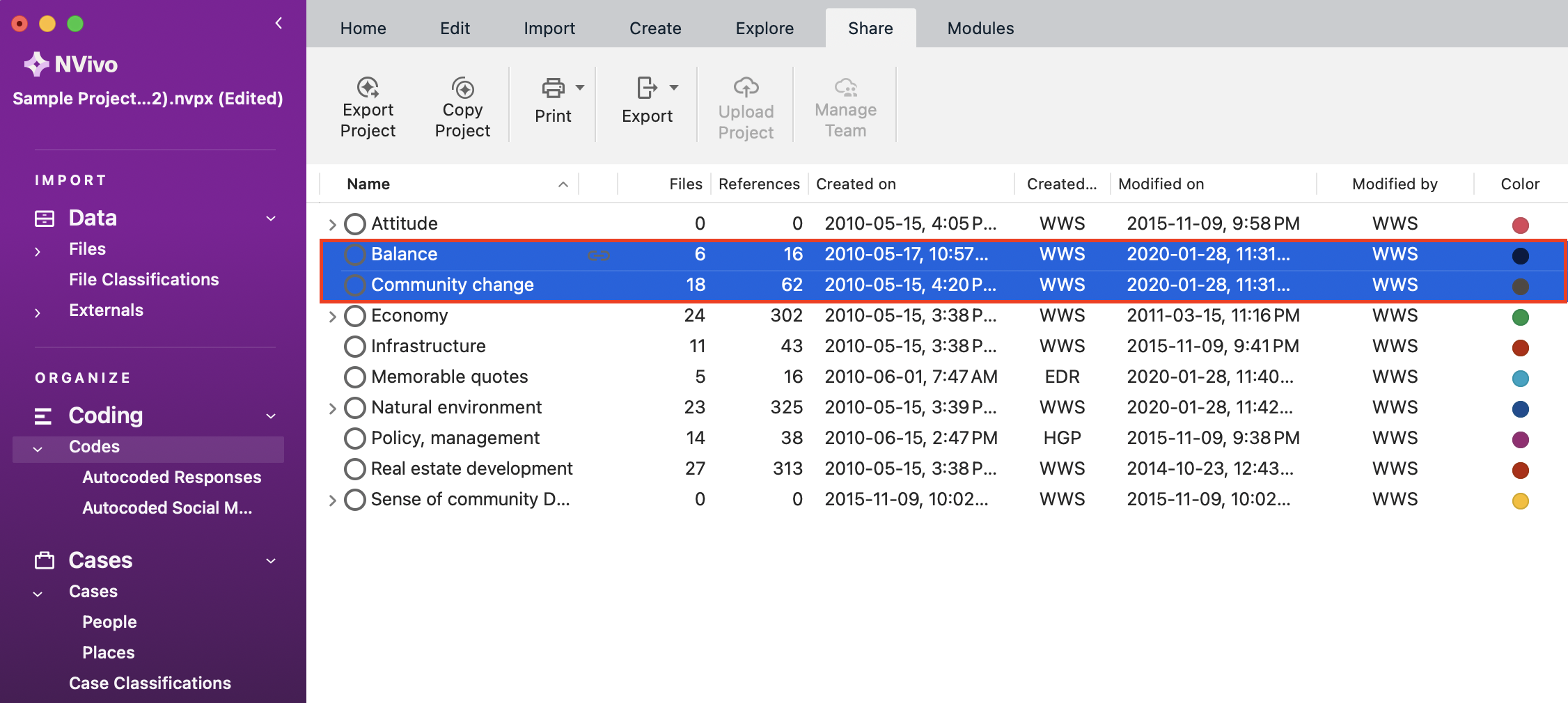
Then go to the Share menu, and from the Export drop-down menu, select Export Items…
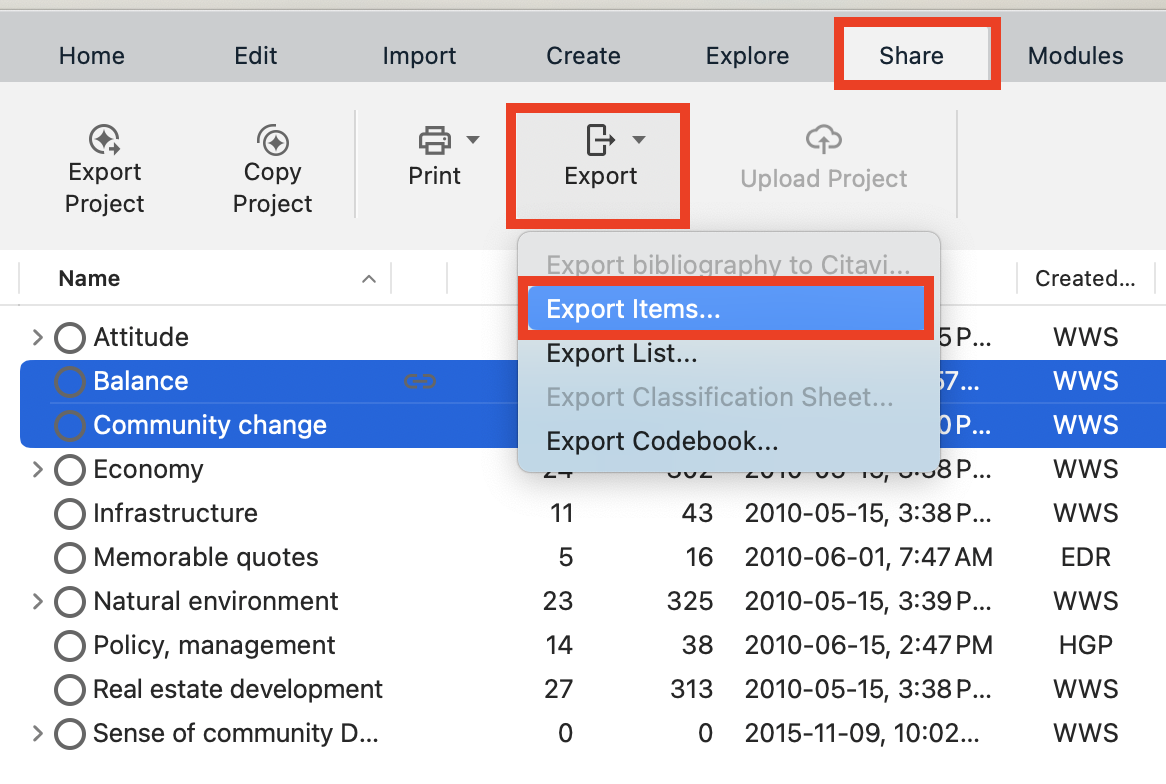
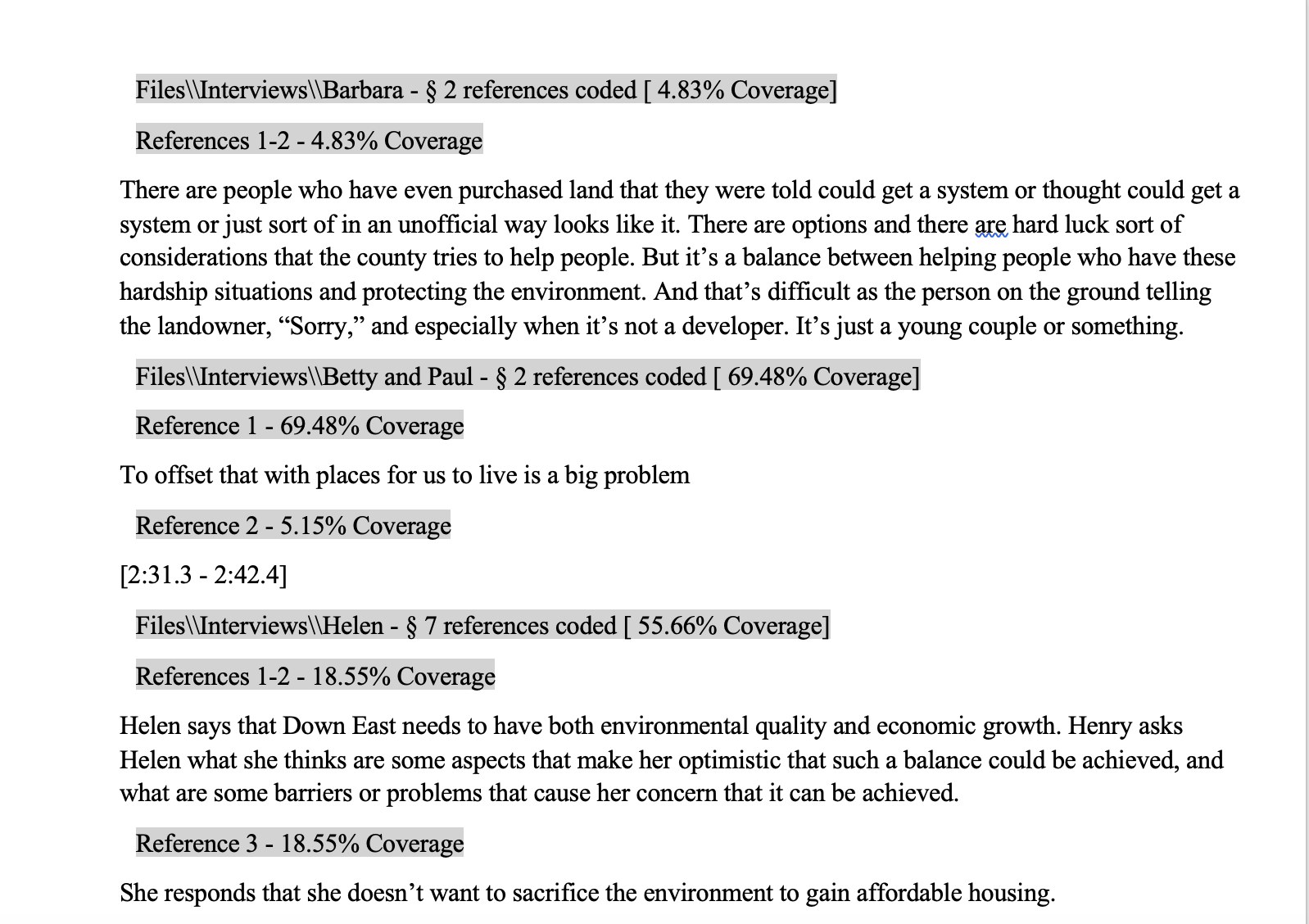
It will ask you where to save the files, so browse to where your workshop files are. It will create a document for each code that contains a list of each reference, similar to what you would see if you double clicked on the code. Open up all the files you have exported to see their contents, if they don’t open automatically.
Here is an example of the resulting file for the Balance code:
And that’s it!
Technique: Qualitative Data Analysis | Tools: NVivo