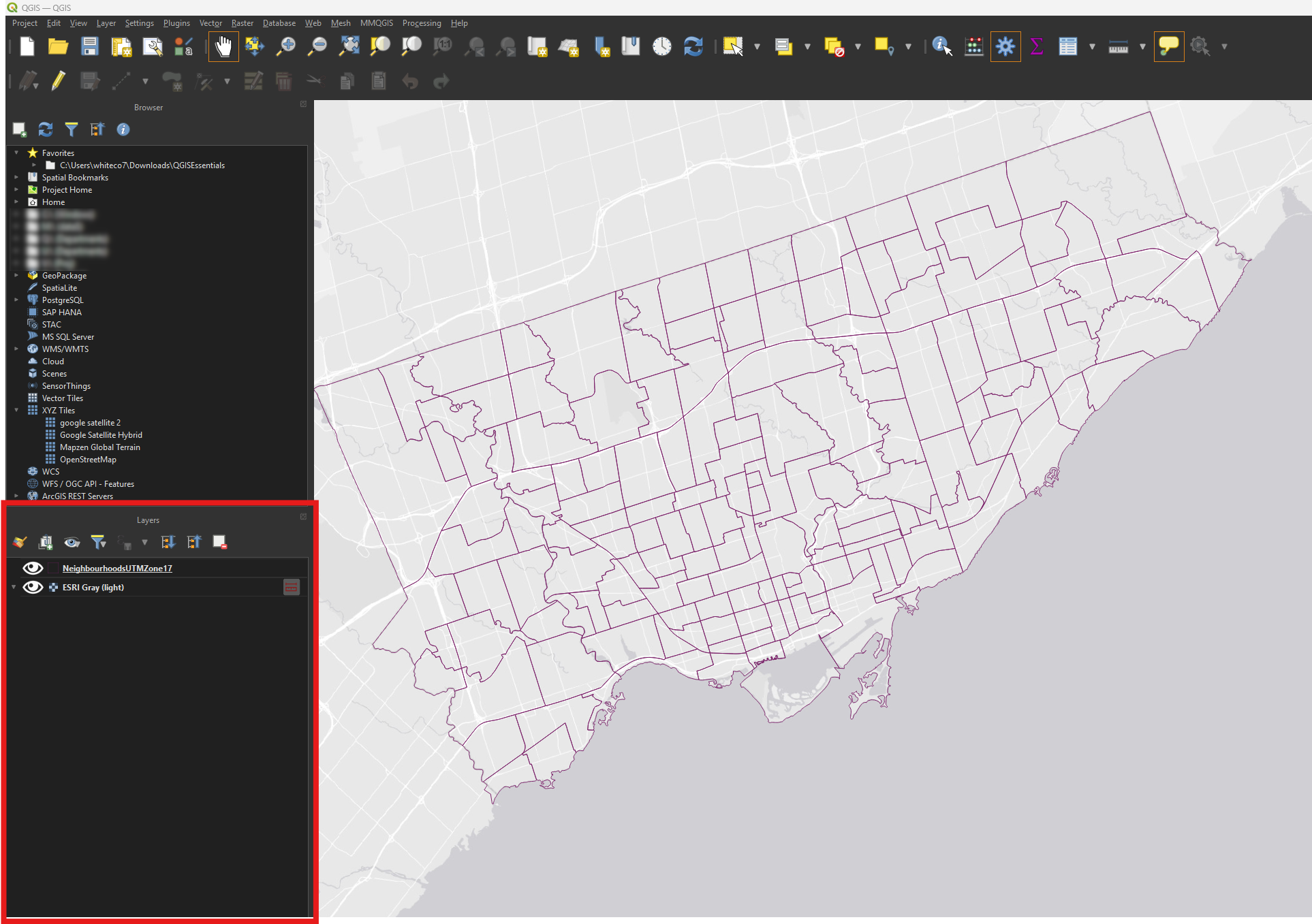
Setup
If you’d like to follow along with the examples, please download and unzip the sample data from the Map and Data Library: QGISEssentials.zip
Opening the project file
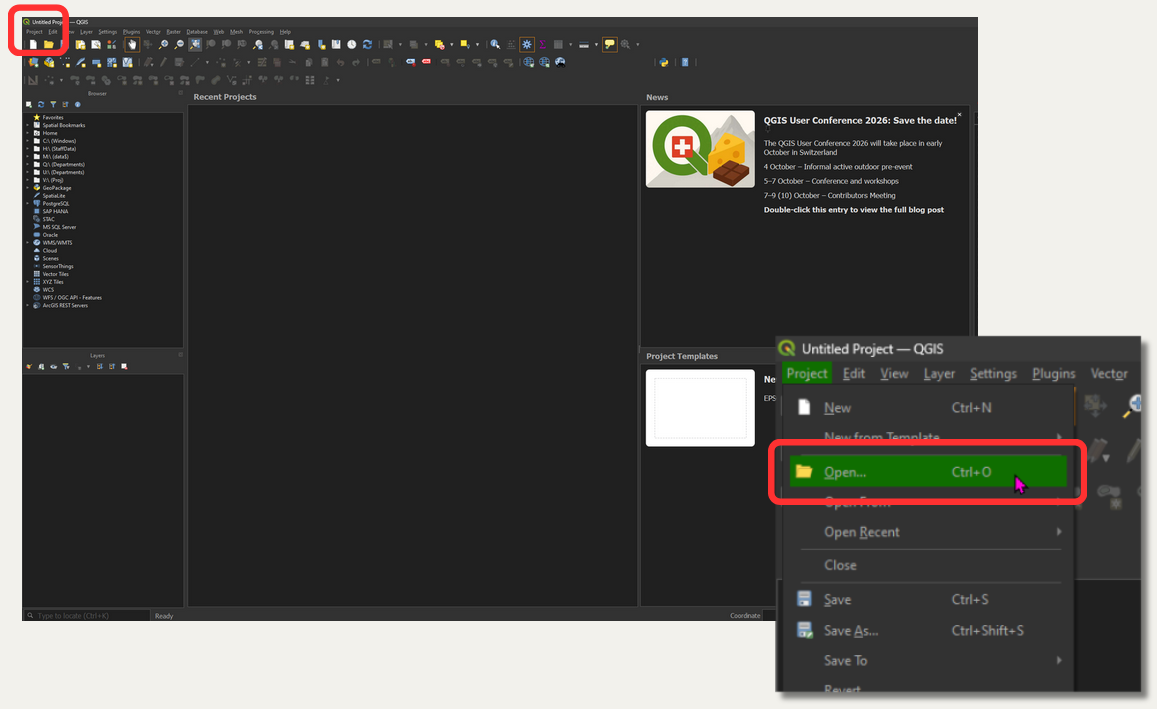
Launch QGIS3. From the menu at the top of the interface, choose Project → Open…
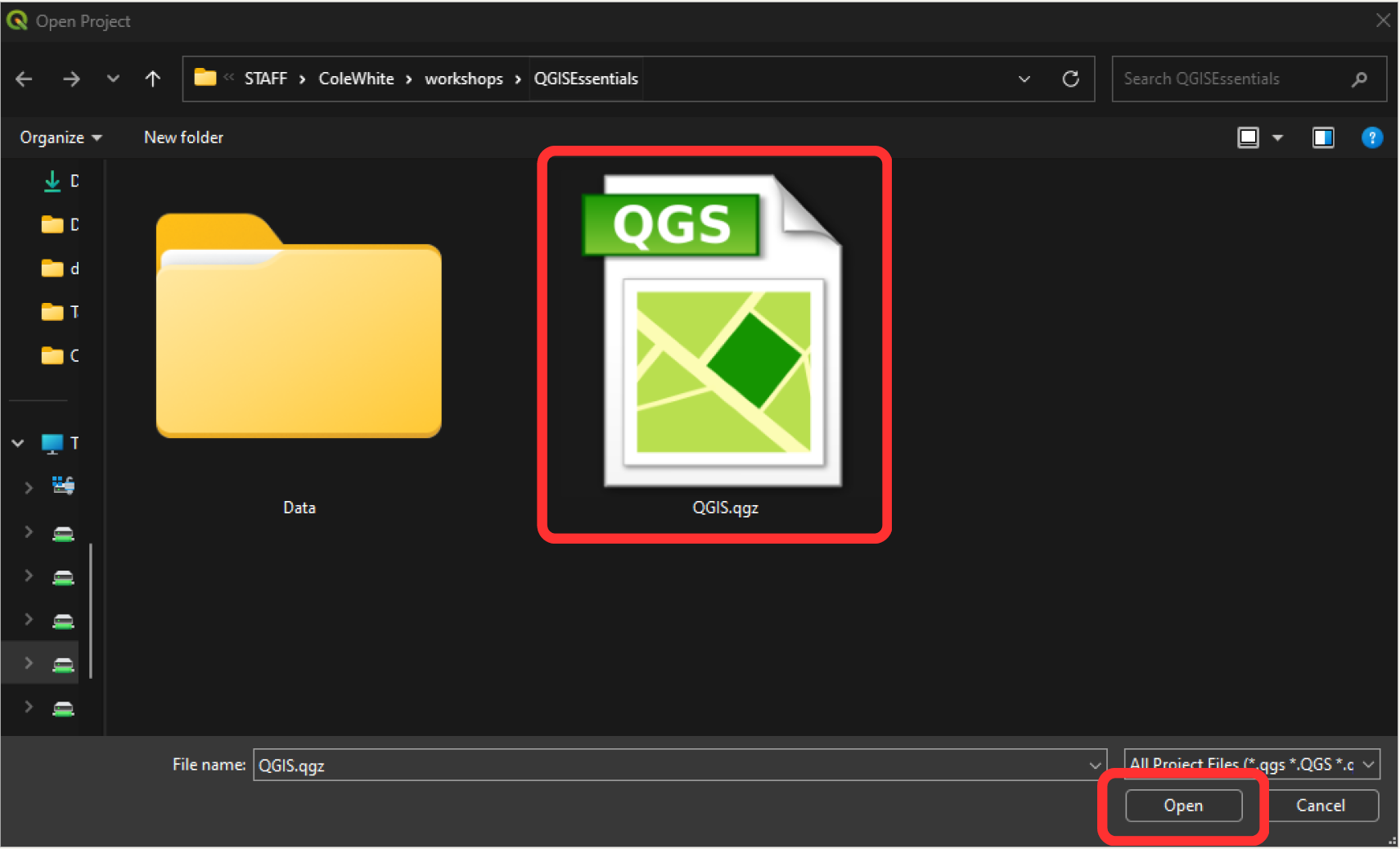
Navigate to the location of the unzipped sample data. Select the project file (qgis.qgz) and click the Open button.
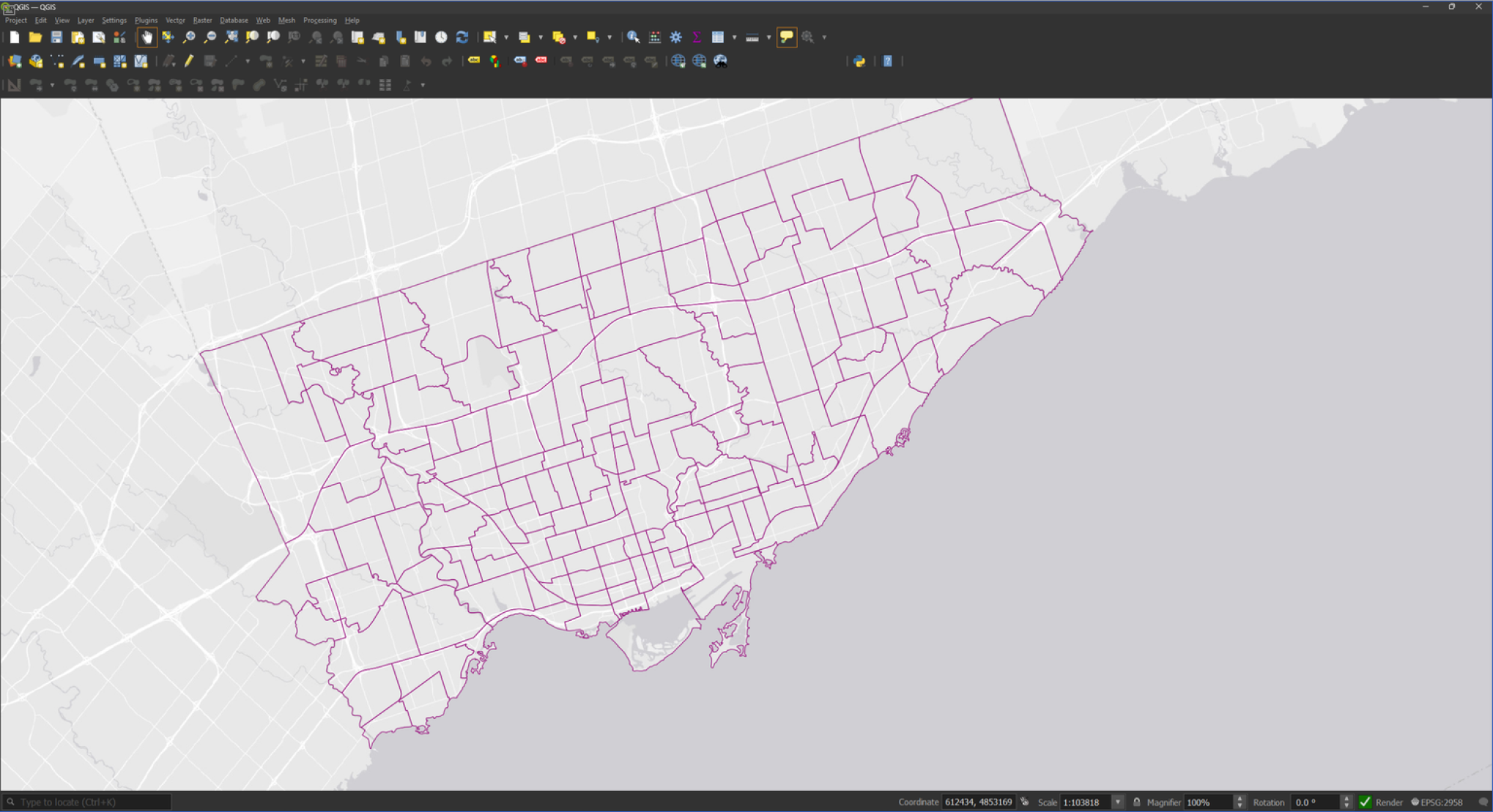
The project file will be loaded into QGIS and a map showing Toronto’s neighbourhood boundaries will be displayed.
QGIS Interface: Panels
If they’re not already open by default, add the Browser, Processing Toolbox, and Layers panels.
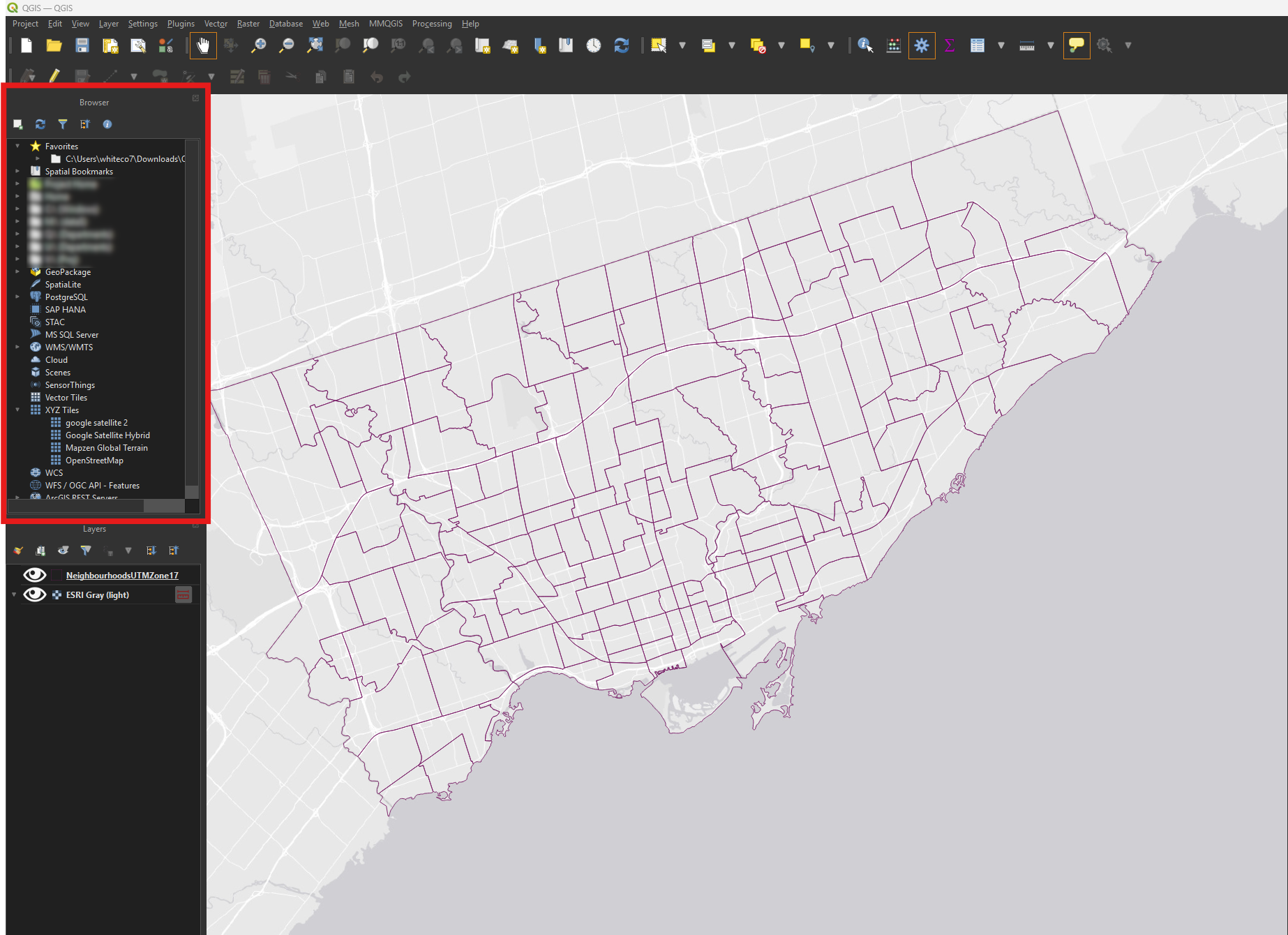
• Click View → Panels → Browser.
The Browser panel allows us to view and work with all the components of our QGIS Project.
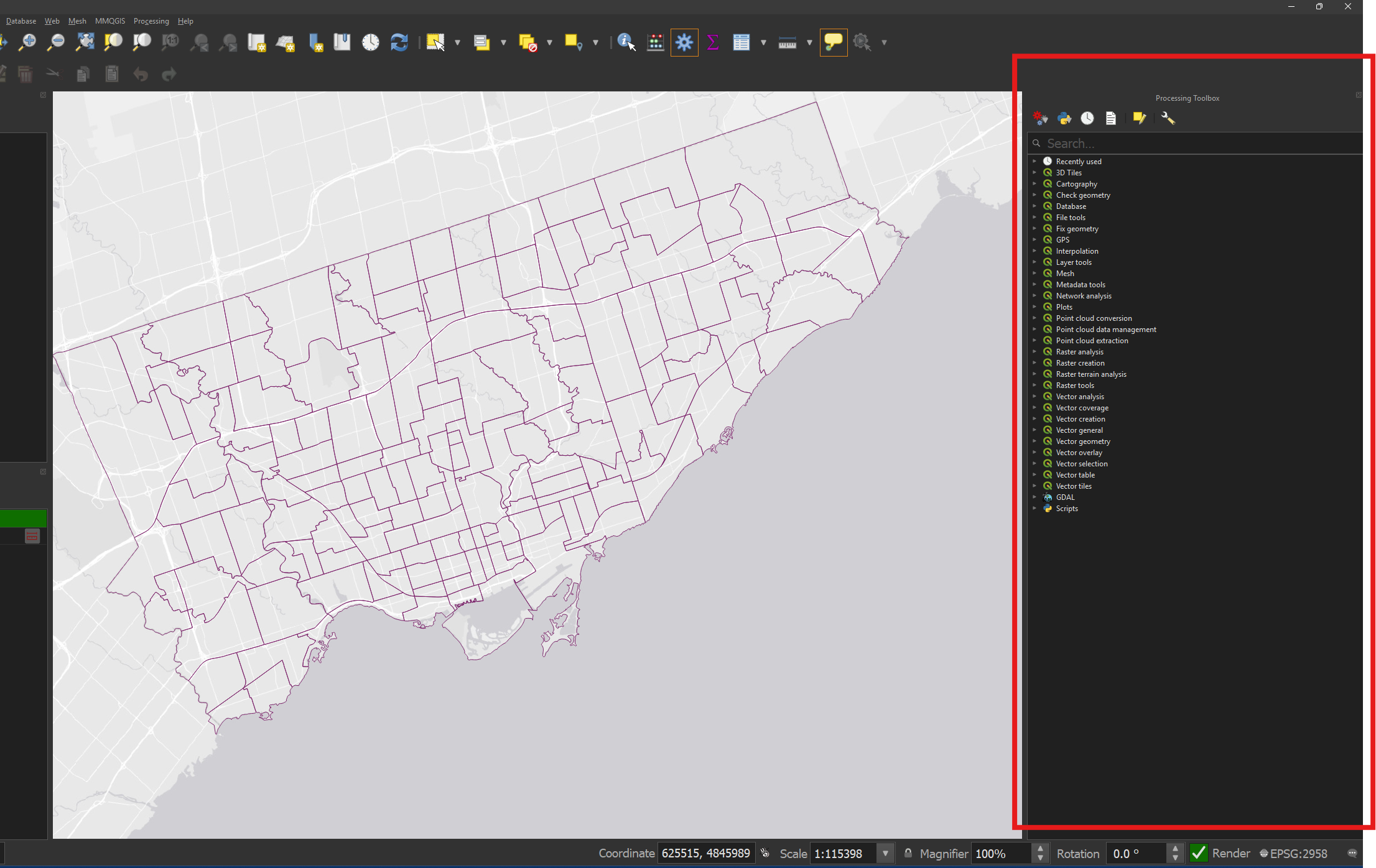
• Click View → Panels → Processing Toolbox.
The Processing Toolbox gives us access to tools that can analyze and transform our data.
• Click View → Panels → Layers.
The Layers Panel shows us all data that’s been added to the project. test