Creating a New Project
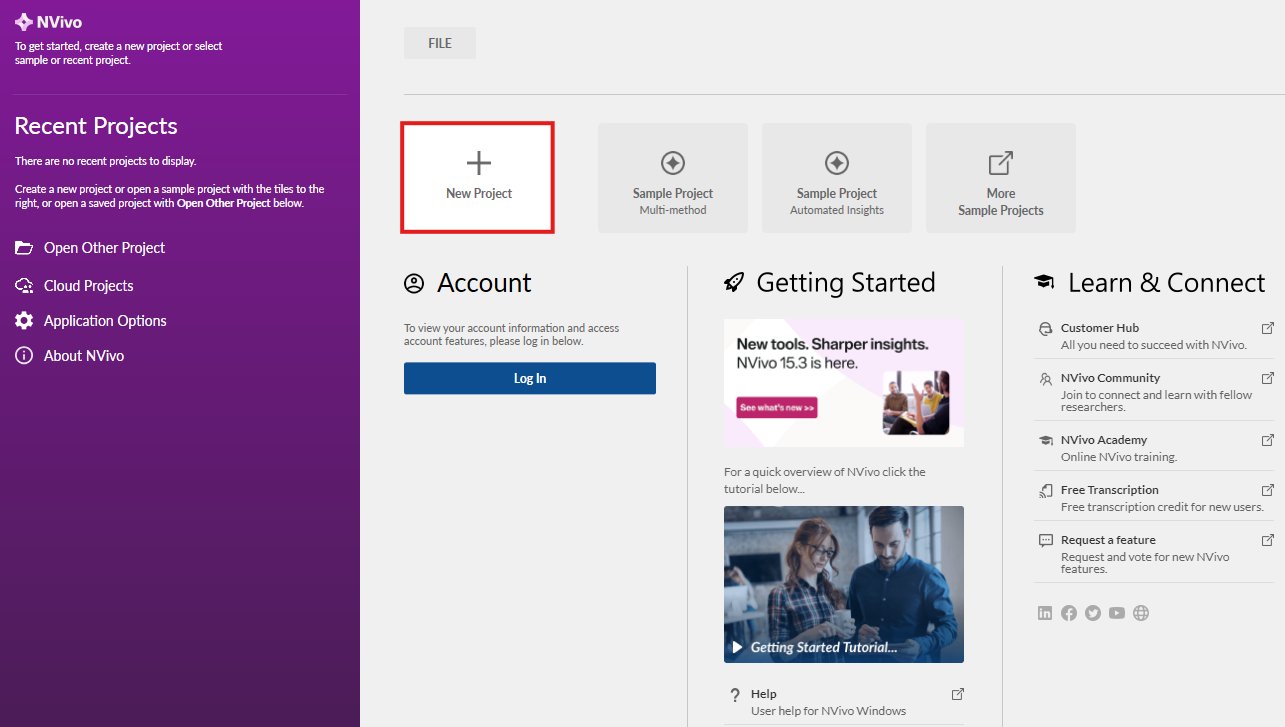
First start up NVivo 15. From the main screen you can start a new project, open some sample projects, and access several resources for learning and using NVivo. We will look at a sample project later. For now, click on New Project to get started.
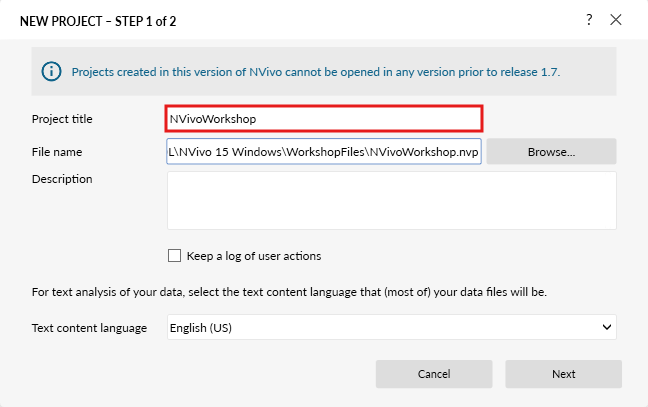
Title your project. For this tutorial we will name ours “NVivoWorkshop”. If you’d like, you can add a description.
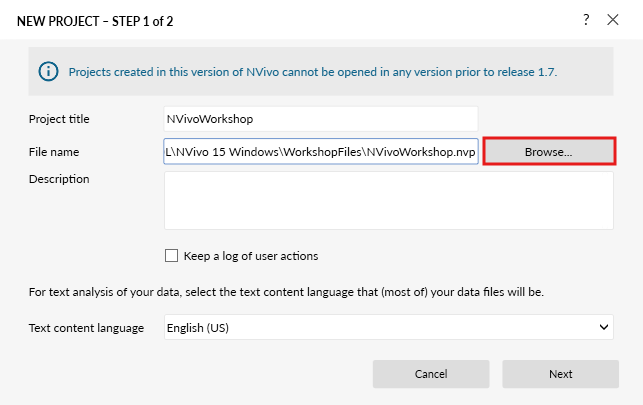
Next, browse to where you want to save the project file. Let’s save it on our desktop for now.
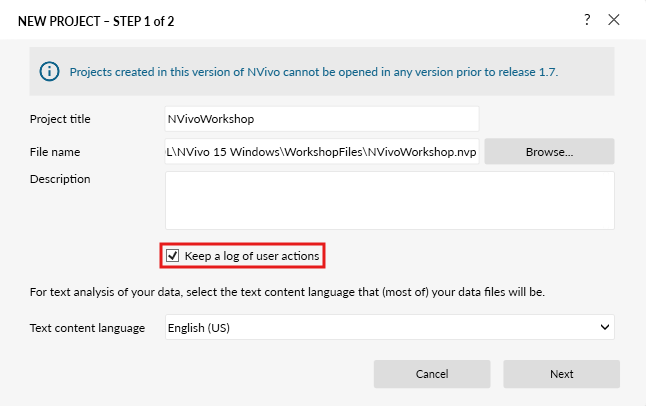
Check the “Keep a log of user actions” option and select Next. This will record everything you do in NVivo in a log file. If you have any issues and contact Lumivero for help, their customer service representatives might ask you for this log file, as it will help them troubleshoot your problems.
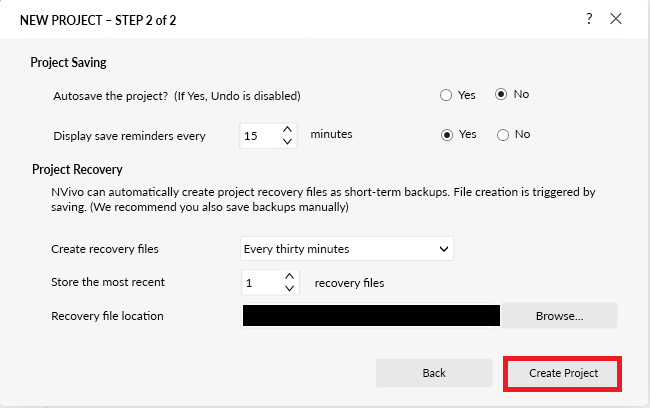
Finally select Create Project to create your new project.
Technique: Qualitative Data Analysis | Tools: NVivo