Creating Notes
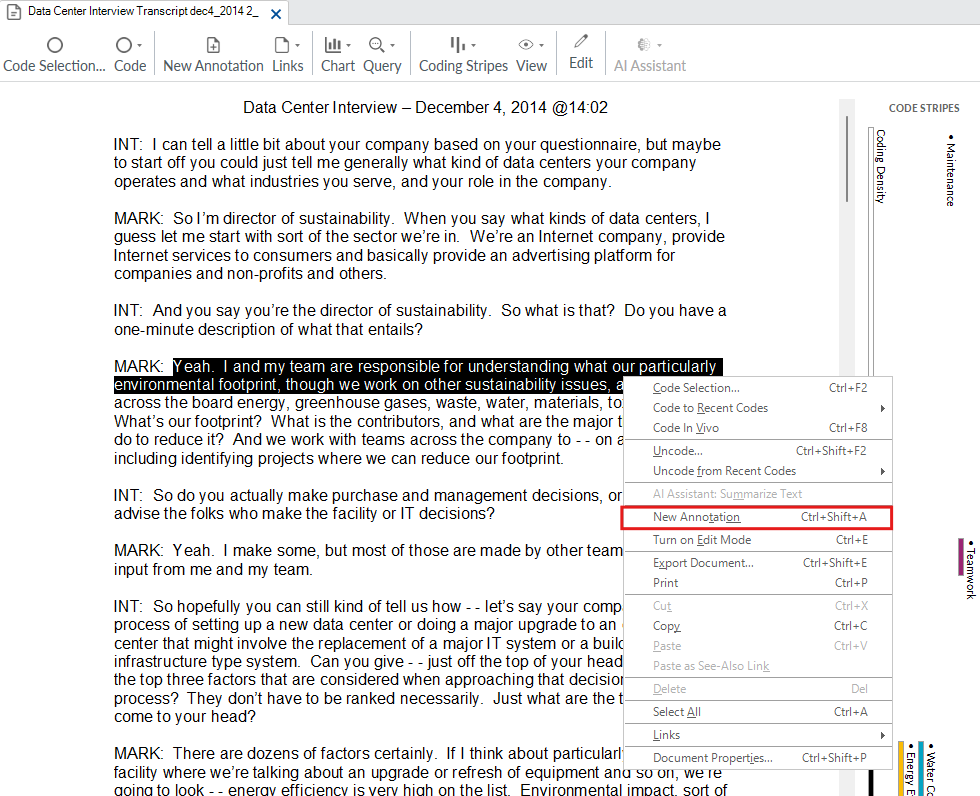
Let’s move on to another use of NVivo. You can create different types of notes to capture your thoughts on some text in a file, a file itself, or the project as a whole. Let’s make a note about something that has come up in the text. Open up one of the interview files, highlight some text, right click, and select New Annotation.
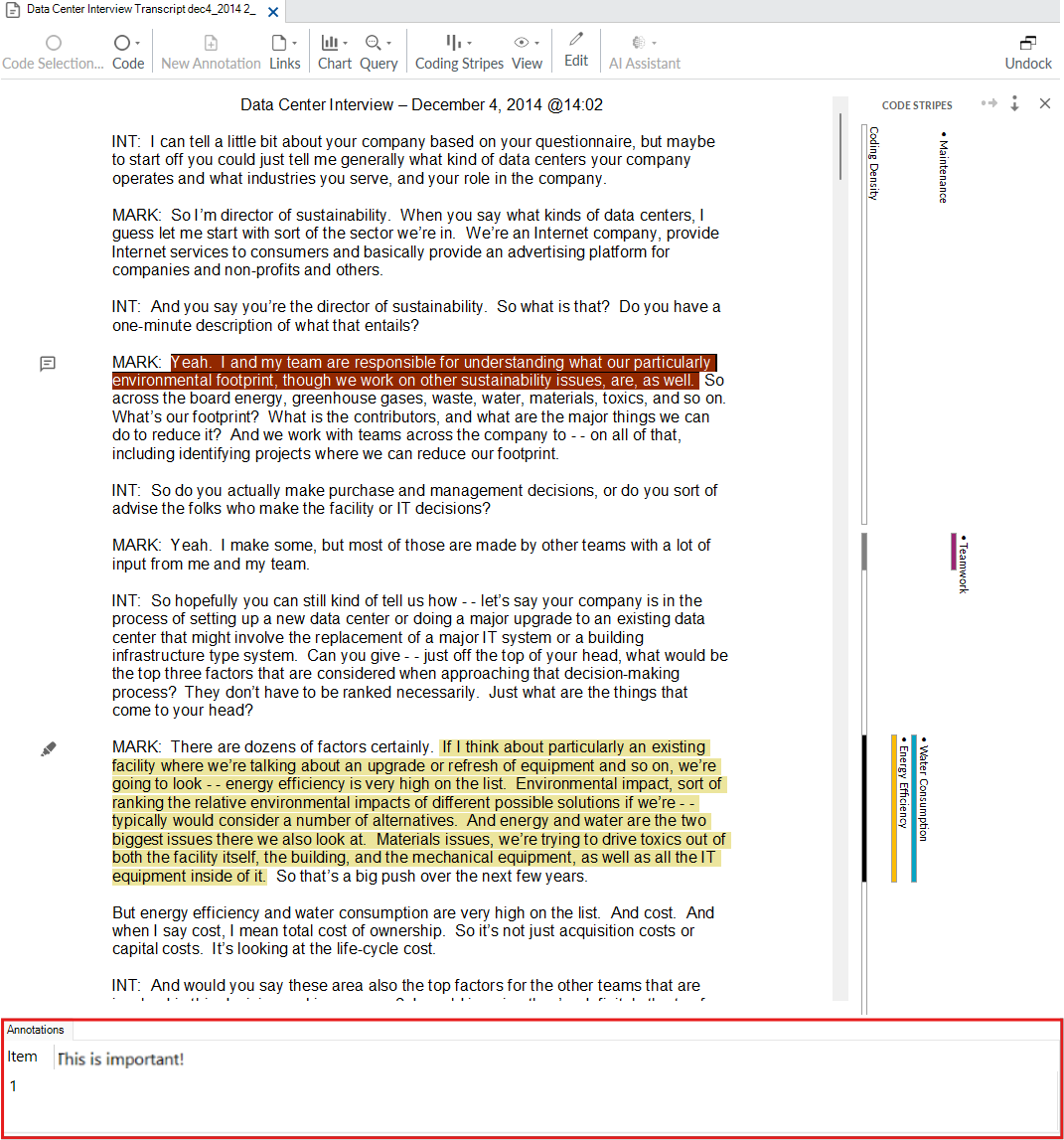
A small table should pop up at the bottom where you can add your note. Type out a small note, such as “This is important!” When you’re done typing your note, just click on the document again. You will see that annotations are highlighted in blue. If the text was also highlighted due to coding, it shows as green. Close the file.
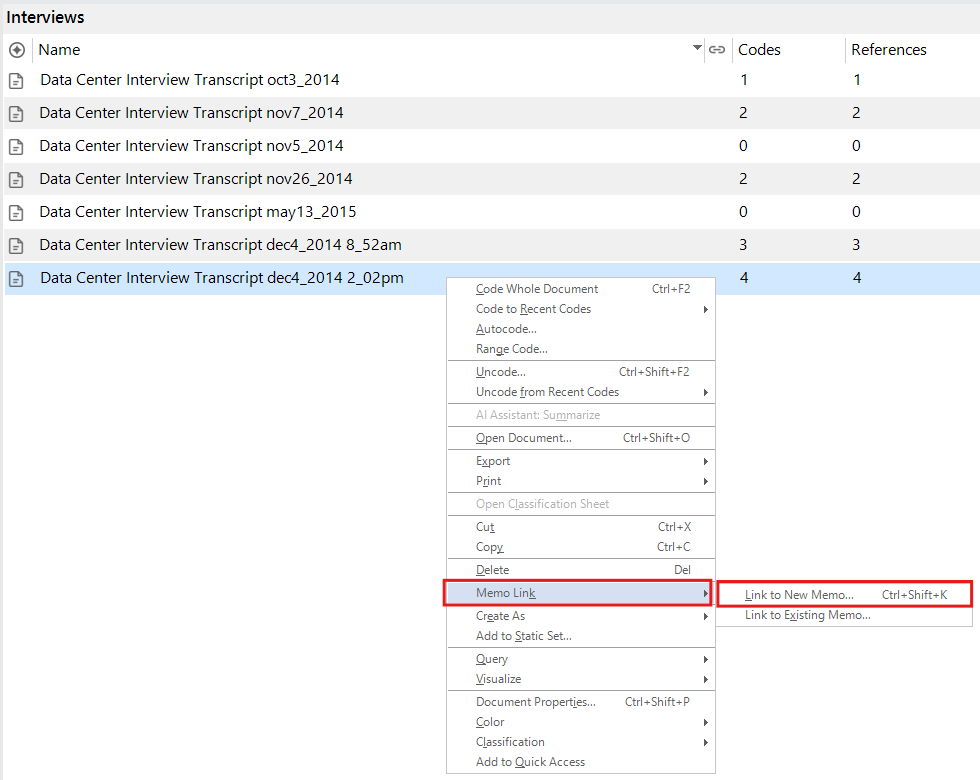
Let’s say instead that you want to make a note about this whole interview file that you had open. Go to the Interviews folder and right click on an interview file. Select Memo Link and then Link to New Memo.
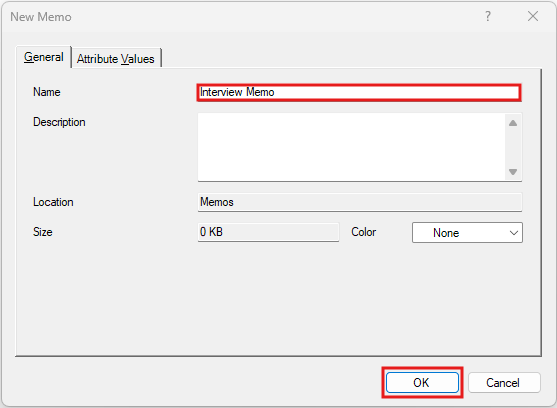
Give your memo a name, such as “Interview Memo” and click OK.
You will be given a blank page where you can write a detailed memo about that file. Perhaps, for example, this interview was held in poor conditions, such as a noisy coffee shop, that might have influenced what was talked about. You could note that here.
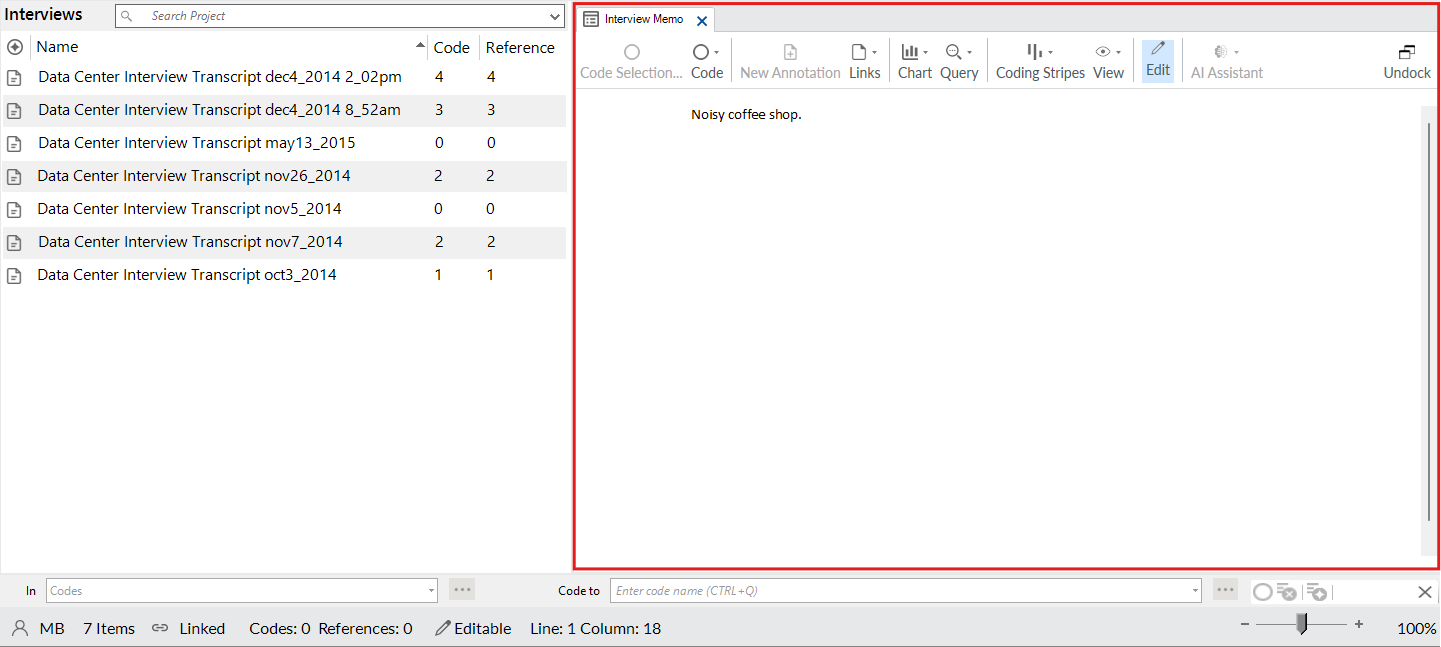
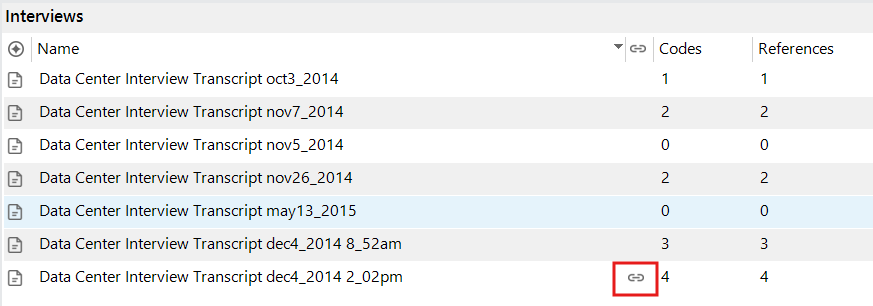
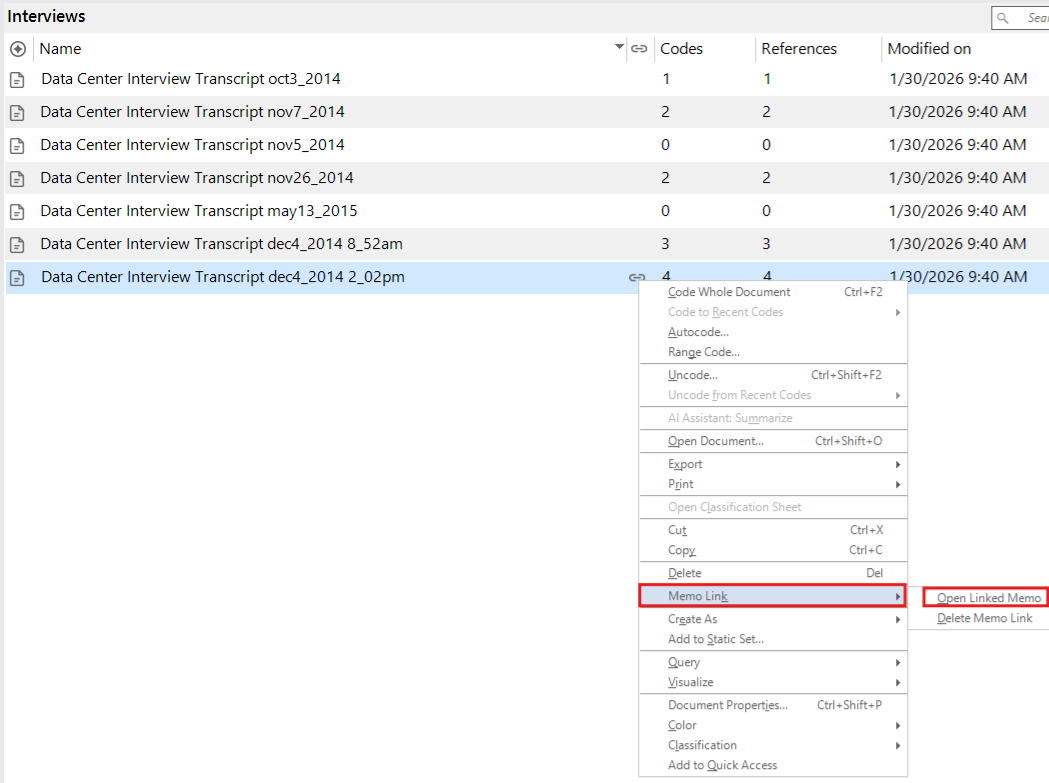
Once you close the window, the memo is saved and linked to this file. You should see a small icon next to the interview in the list for the memo link when you have the interview list opened completely (with no other files open to the right of it). To view the memo link, right click on the file again, select Memo Link and then Open Linked Memo.
To see annotations you have created all in one place, using the left menu, under Notes, select Annotations. Double click on one to open up the file and see the highlighted text and the annotation highlighted in the table. To see the memo links, under Notes, select Memos.
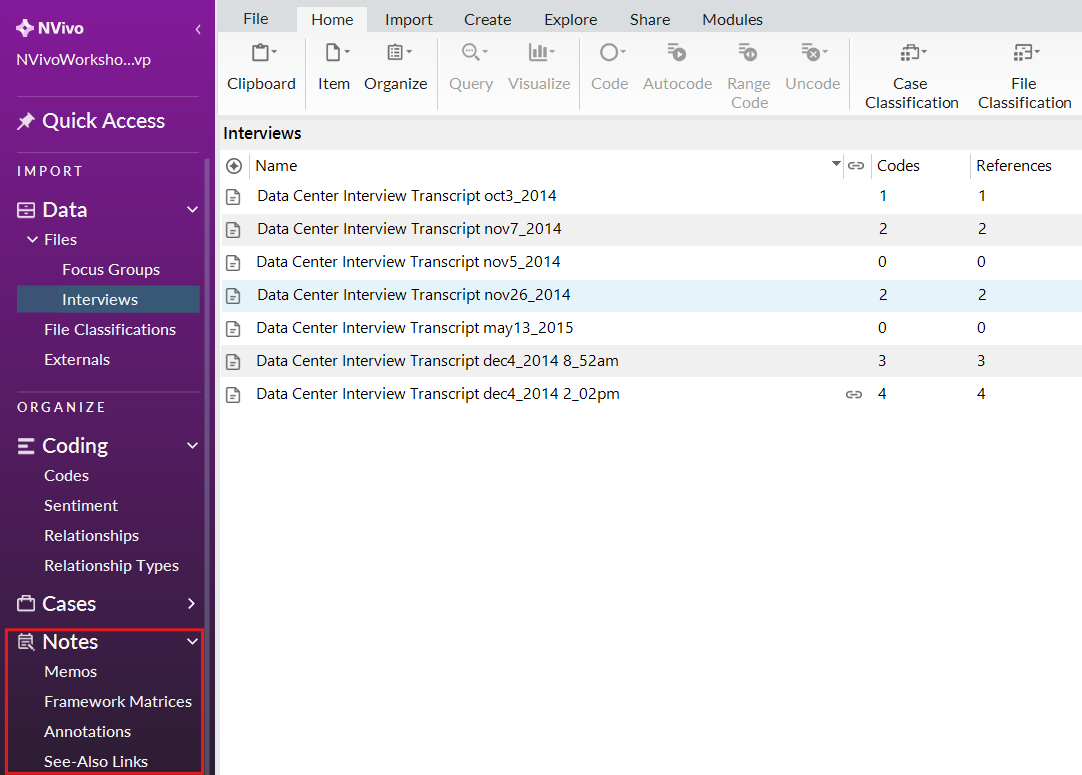
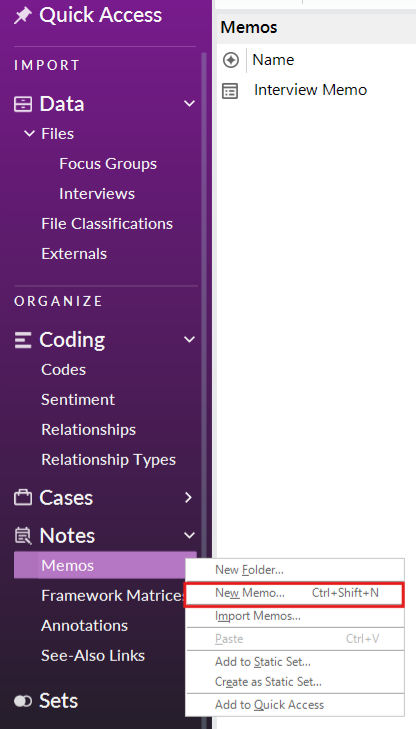
Finally, you can also create a note that applies to the entire project, for example, maybe some ideas you have about how the research is going or new themes that are emerging. Right click on Memos and select New Memo.
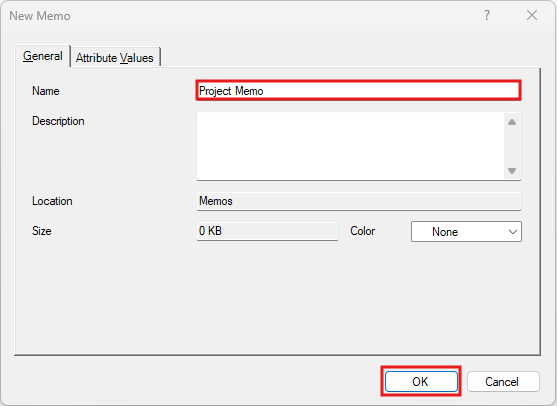
Give it a name, such as “Project Memo” and click on OK.
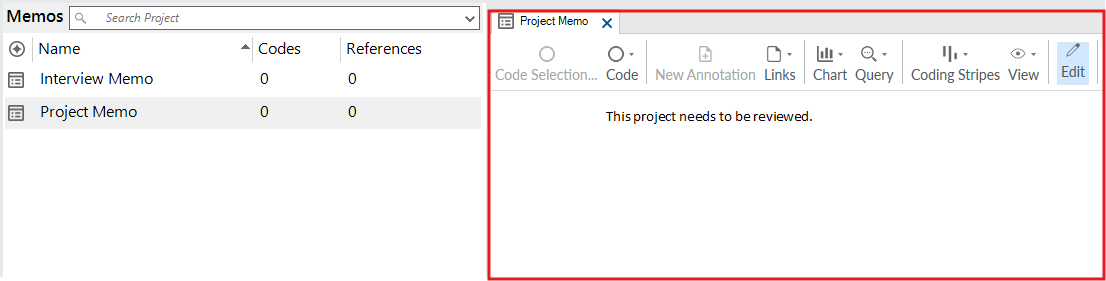
Type some notes, such as “The project needs to be reviewed” and then close it to save. You can always double click on it from the list of memos to re-open it.
Technique: Qualitative Data Analysis | Tools: NVivo