Coding Queries
Okay, now let’s move on. Close any query results tabs that you have open.
The next few queries I am going to show you are better to use when you have done some coding, as they can help you gain insight from all your work coding your content. For example, you could use these to find potential connections between codes, or connections between a code and a certain demographic.
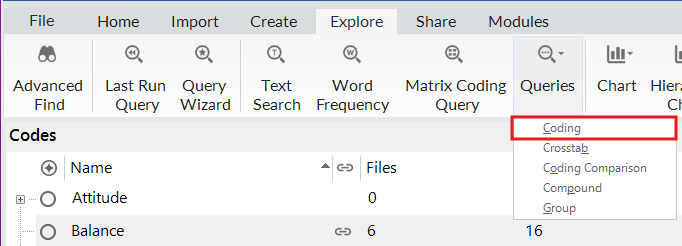
Let’s start with Coding queries. You can use these to find all content coded at selected codes, a combination of codes, or a combination of codes and attributes. You can go to the Explore menu, and from the Queries drop-down menu, select Coding, or it is described as “Search for content based on how it is coded” in the Query Wizard. So for example, let’s say you want to see if there is content coded as both “memorable quote” and “real estate development,” and you only want to see references that are from residents of Marshallberg – you can do this with a Coding query. Let’s access it through the Explore menu, as we can create a more complex query that way. Go to the Explore menu, and from the Queries drop-down menu, select Coding.
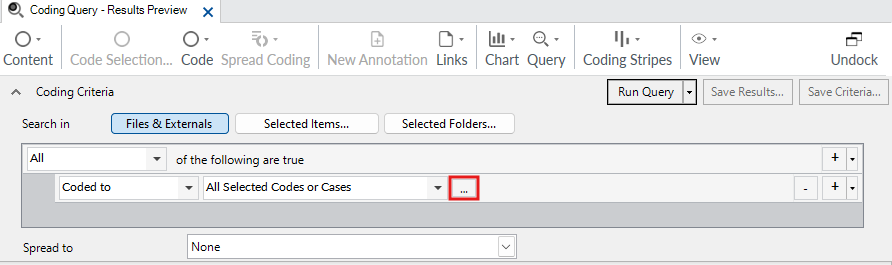
We can keep the defaults for now, which only finds references that are coded with all the codes listed. So we just need to click on the ‘…’ button next to the All Selected Codes or Cases drop-down menu to select the two codes we want.
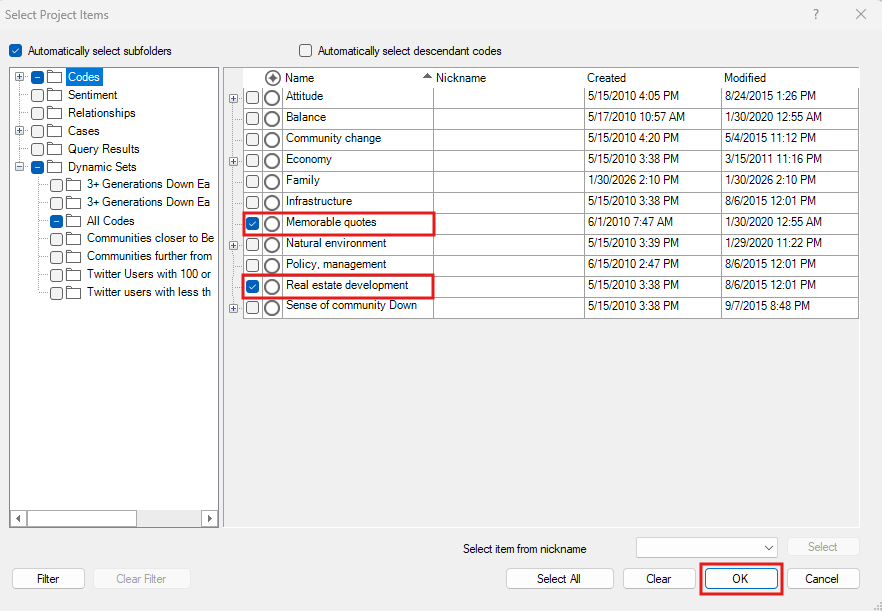
Select“Memorable quote” and “Real estate development.” Then click OK.
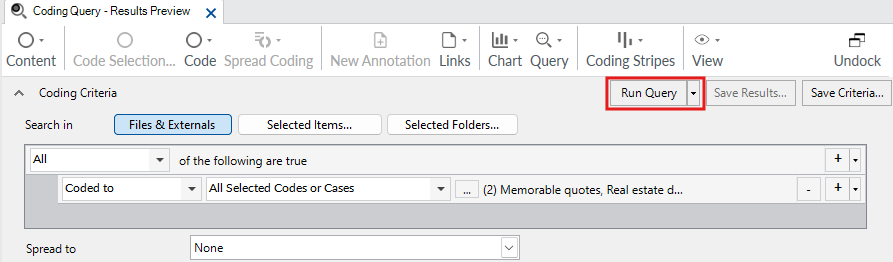
Now let’s click on Run Query to see the results.
You are shown all the results in the References tab, but you can also click on the Summary tab on the right to see how many results you got. We can see there are a few results in interviews and survey responses.
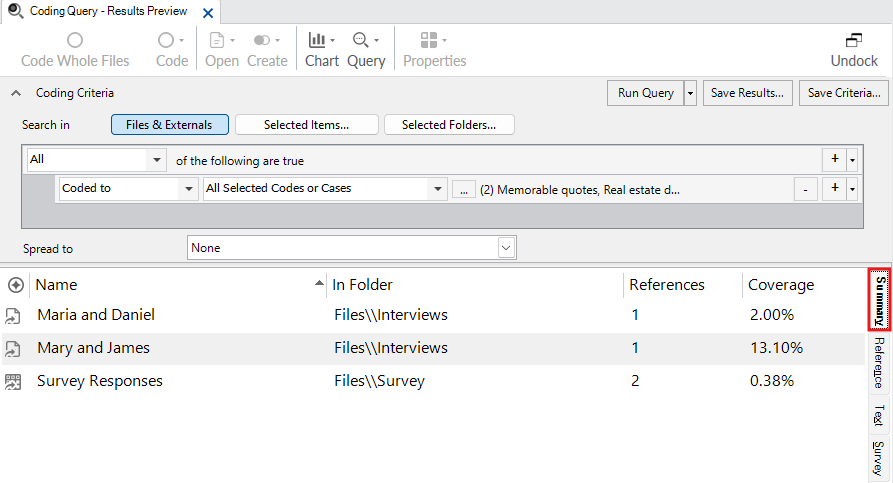
We can narrow this down further, to just quotes from residents of Marshallberg. To do that, click on the plus sign at the top right to add another parameter to our search.
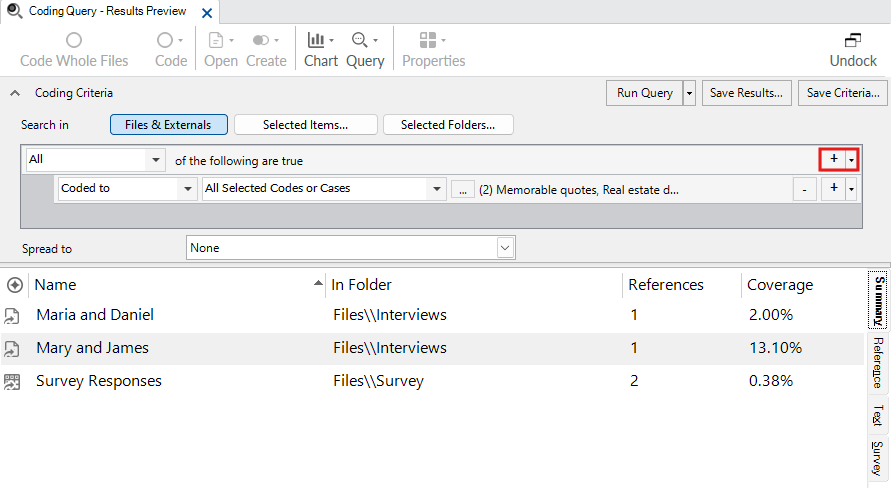
For this new row, we use the All Selected Codes or Cases drop-down menu to select Any Case Where.
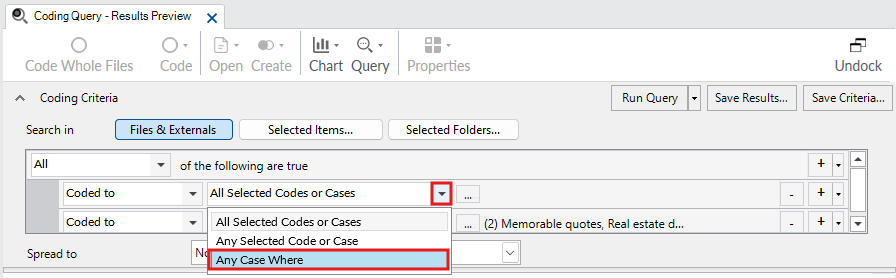
Next click on the … button.
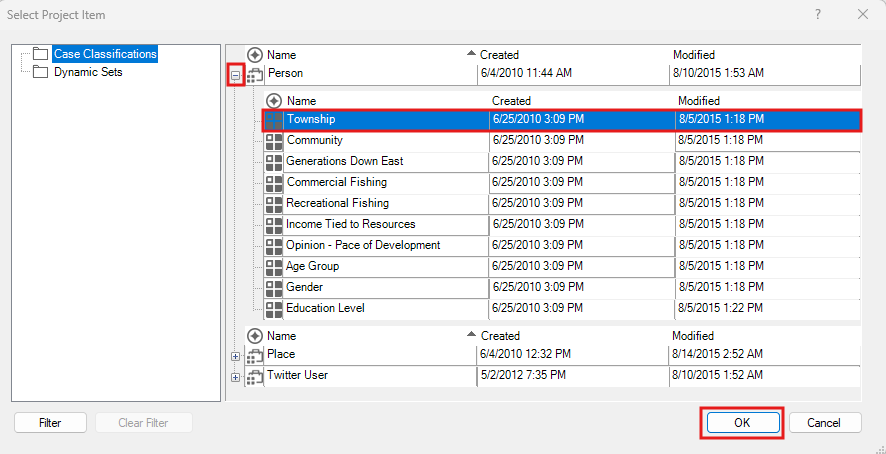
Then expand Person, select Township, and click OK.
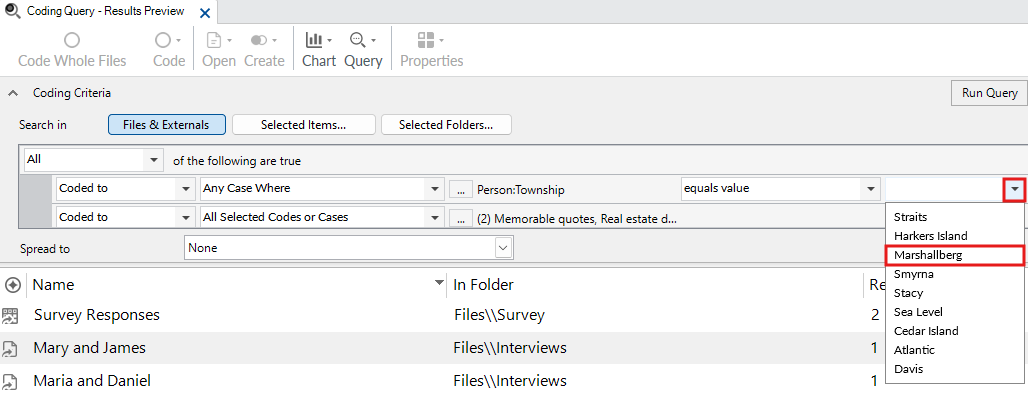
From the far right drop-down, select “Marshallberg.” (You might have to scroll to the right to see this.) So the query says “All” at the top left, meaning all of these conditions must be true. Then one line says that the content must be coded with both codes, Memorable quotes and Real estate, and then the other line says AND the person who said this must be from Marshallberg.
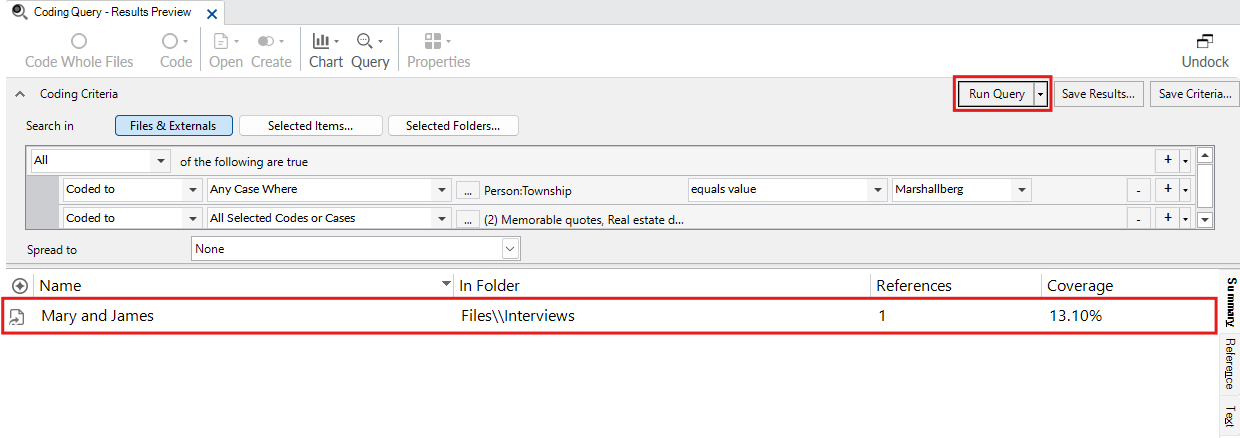
Click on Run Query again. This time you can see we get just one large memorable quote on real estate from Mary and James, who are from Marshallberg.
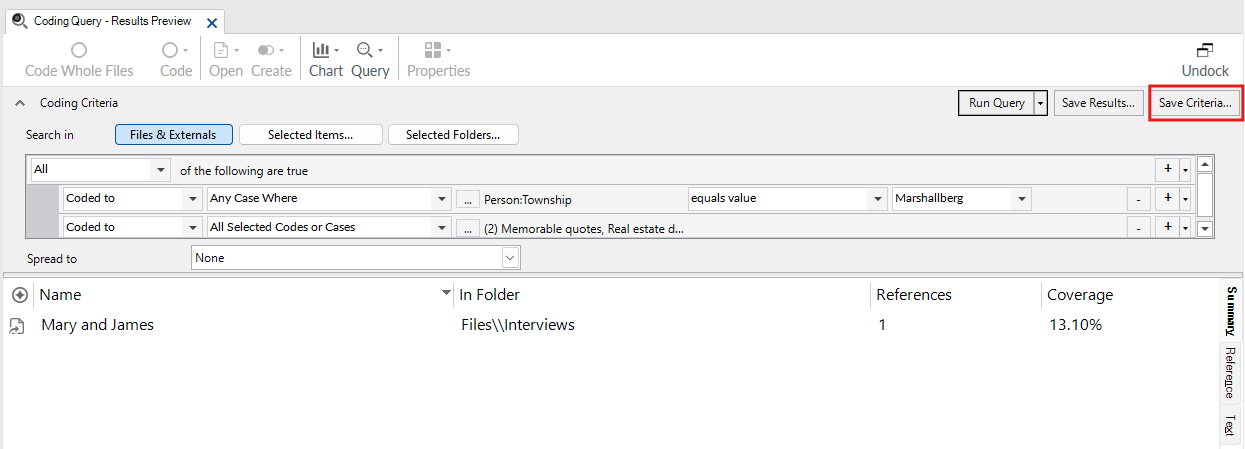
We might not want to save the results, but we might want to save this query to re-run again in the future as we continue to code. To do that, click on Save Criteria at the top right.
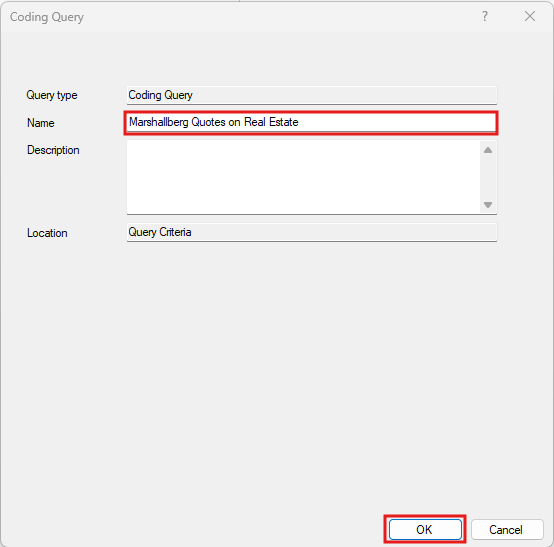
Give it the name “Marshallberg Quotes on Real Estate” and click on OK. Then close the query results tab.
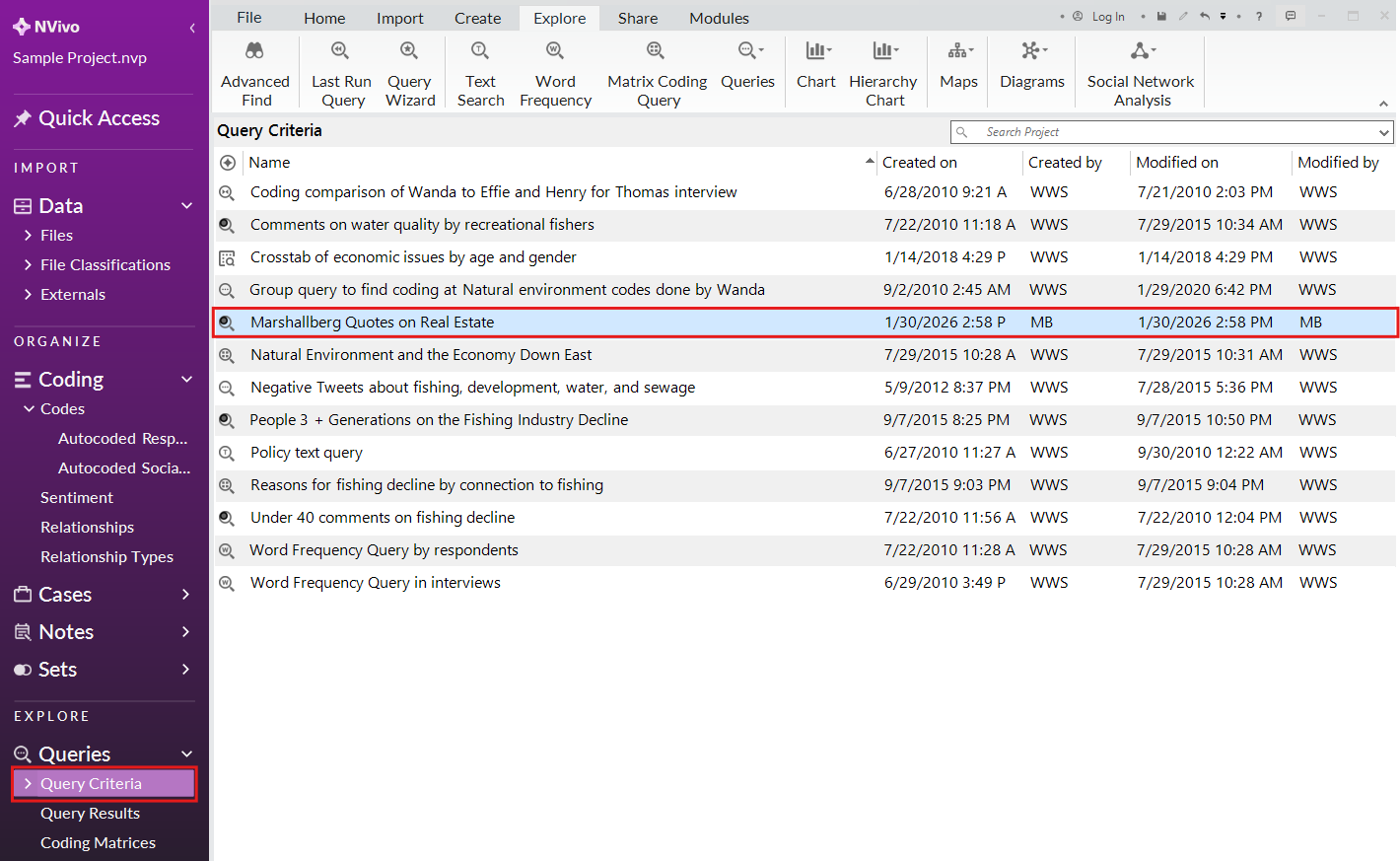
You can find this query now saved if you go to the left menu, under Queries, select Query Criteria. You can double click on it at any time to re-run the query.
Test Your Understanding 2
Using the Explore menu option run a Coding query for the project to find interview content coded as “Infrastructure,” “Policy, management,” OR “Real estate development” where the interviewees are from Harkers Island. How many references did you find?
(Hint: You will have to change an option to say Any instead of All to satisfy the “or” condition, different than in the demonstration.)
Click here for the answers.
Technique: Qualitative Data Analysis | Tools: NVivo