8. Creating a Dashboard
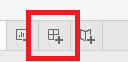
Now so far we’ve been creating visualizations within worksheets. But you can also create dashboards that combine a number of worksheets together. We are now going to create a dashboard capable of displaying the average monthly rainfall and temperature for one country at a time. Let’s click on the create new dashboard icon at the bottom, next to the new worksheet icon.
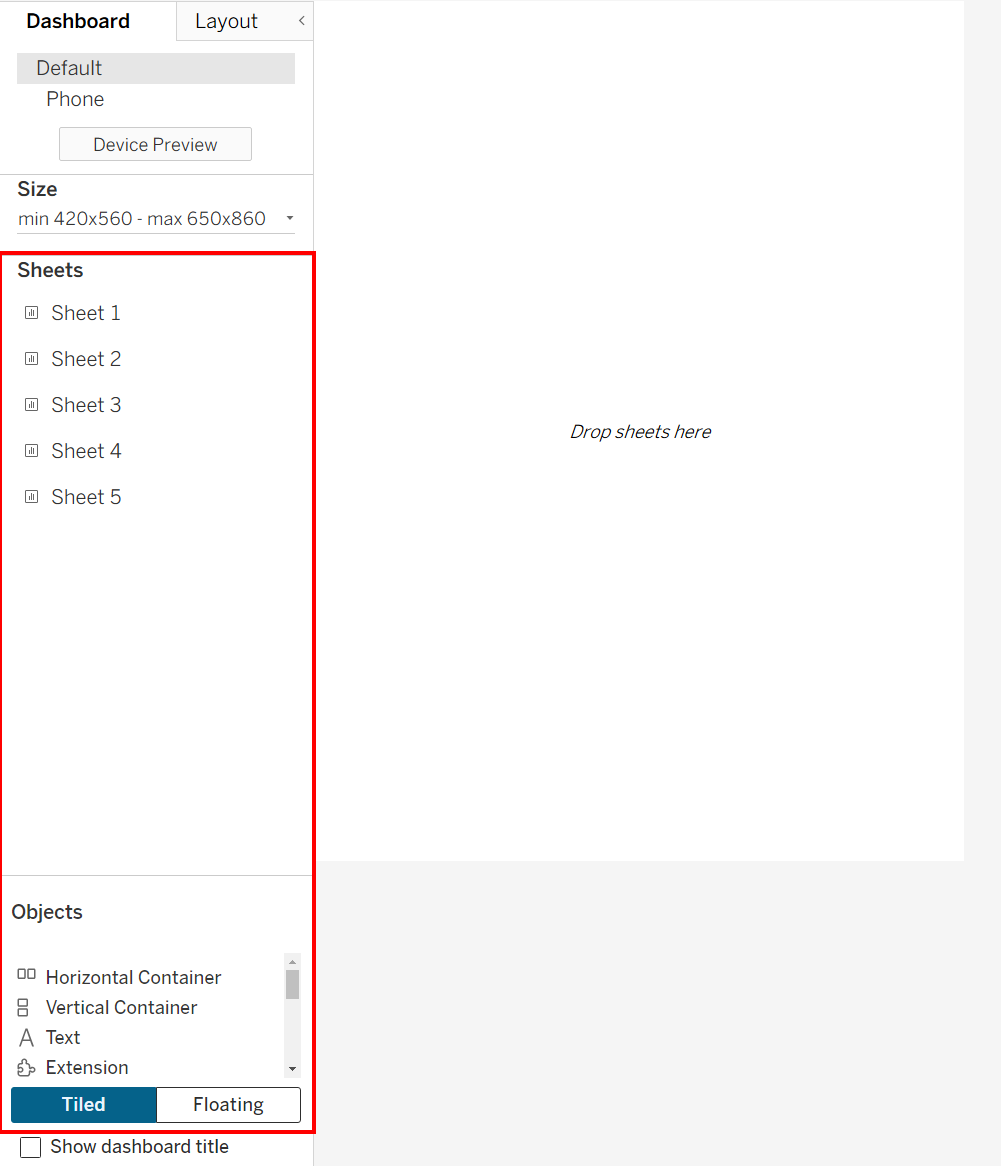
You then can drag and drop various sheets to layout a dashboard. You can also drag other objects, such as text or images to create your dashboard.
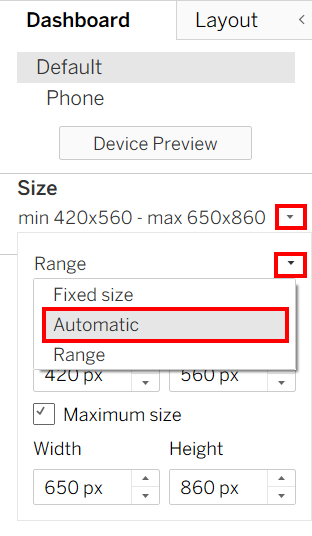
We can also adjust the size of our dashboard. Under Size, select its drop-down menu. Then select the drop-down menu next to Range and change it to Automatic, so that the dashboard will re-adjust its size to fit the screen it is viewed on.
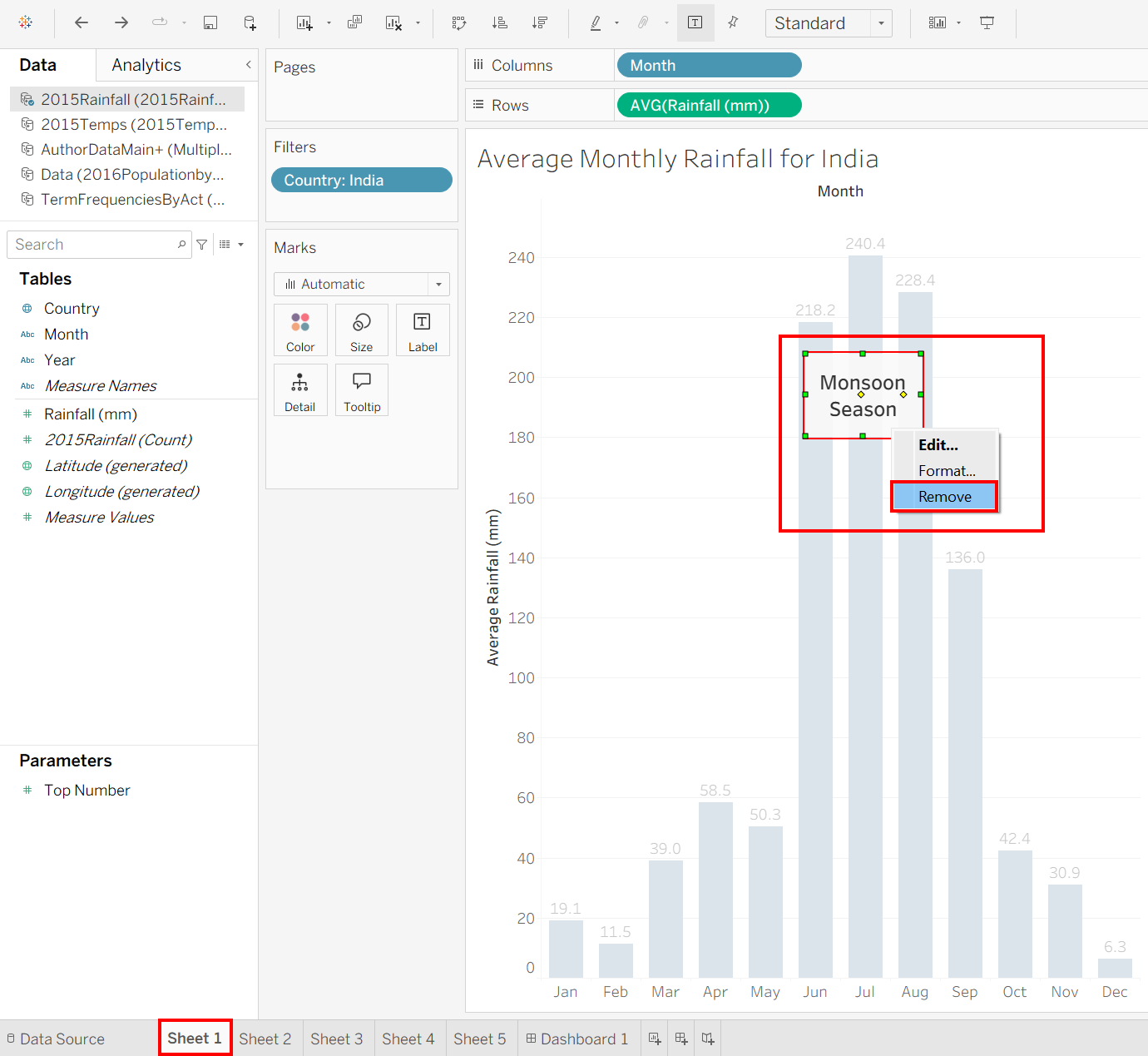
Before we drag a sheet onto the dashboard, let’s also make some adjustments to our Sheet 1. Click on Sheet 1 at the bottom to go back to your original bar graph. Right click on the Monsoon Season annotation and select Remove to clean up our visual.
Adjust the title, removing the mention of a particular country. Drag the Country pill on the Filters shelf, set to India, back towards the Dimensions and Measures section to remove it (which you can do with any variables you want to remove from your visualization).
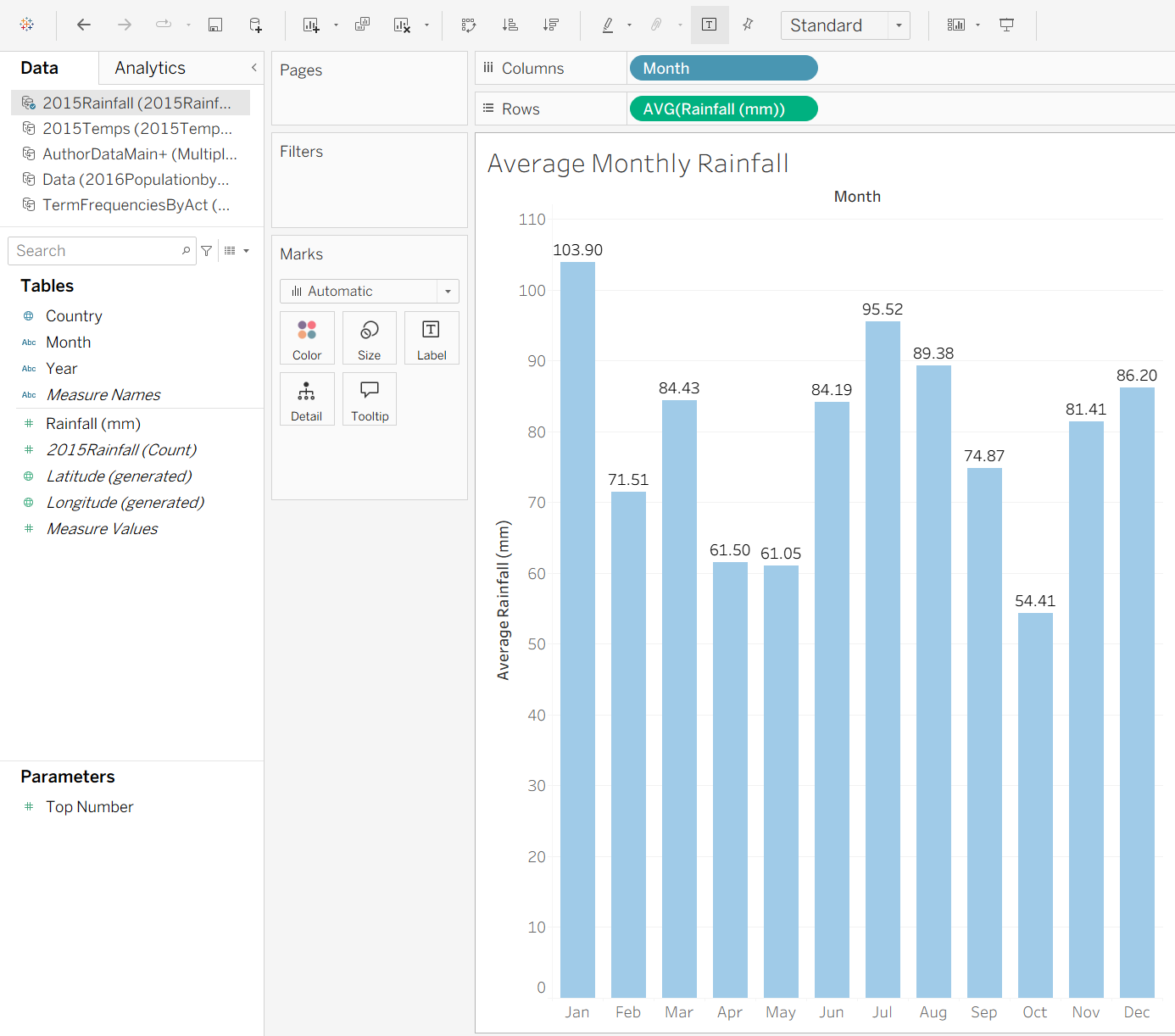
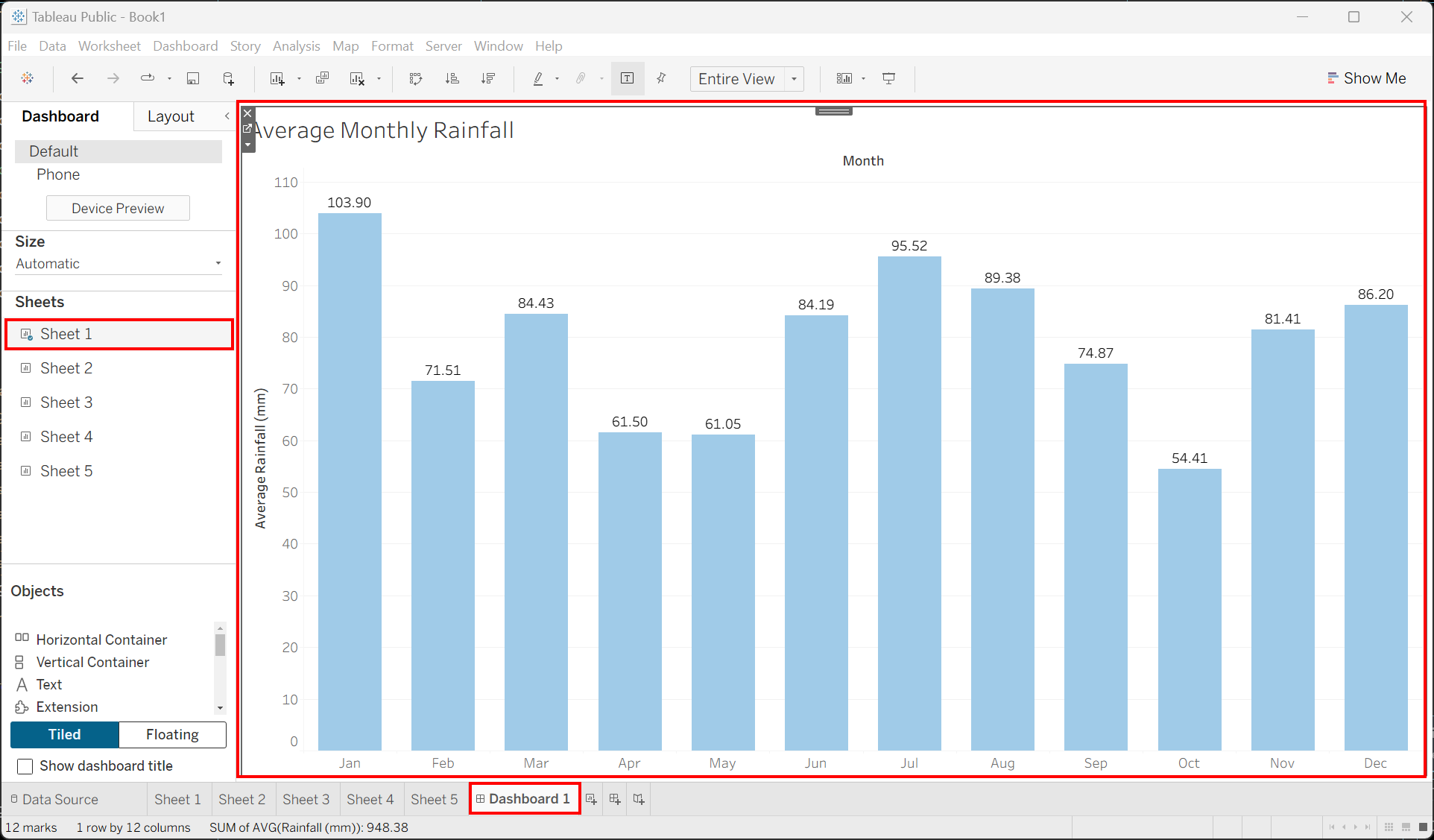
Then go back to the dashboard by clicking on Dashboard 1 at the bottom. From the left side of your screen, drag Sheet 1 to the dashboard area.
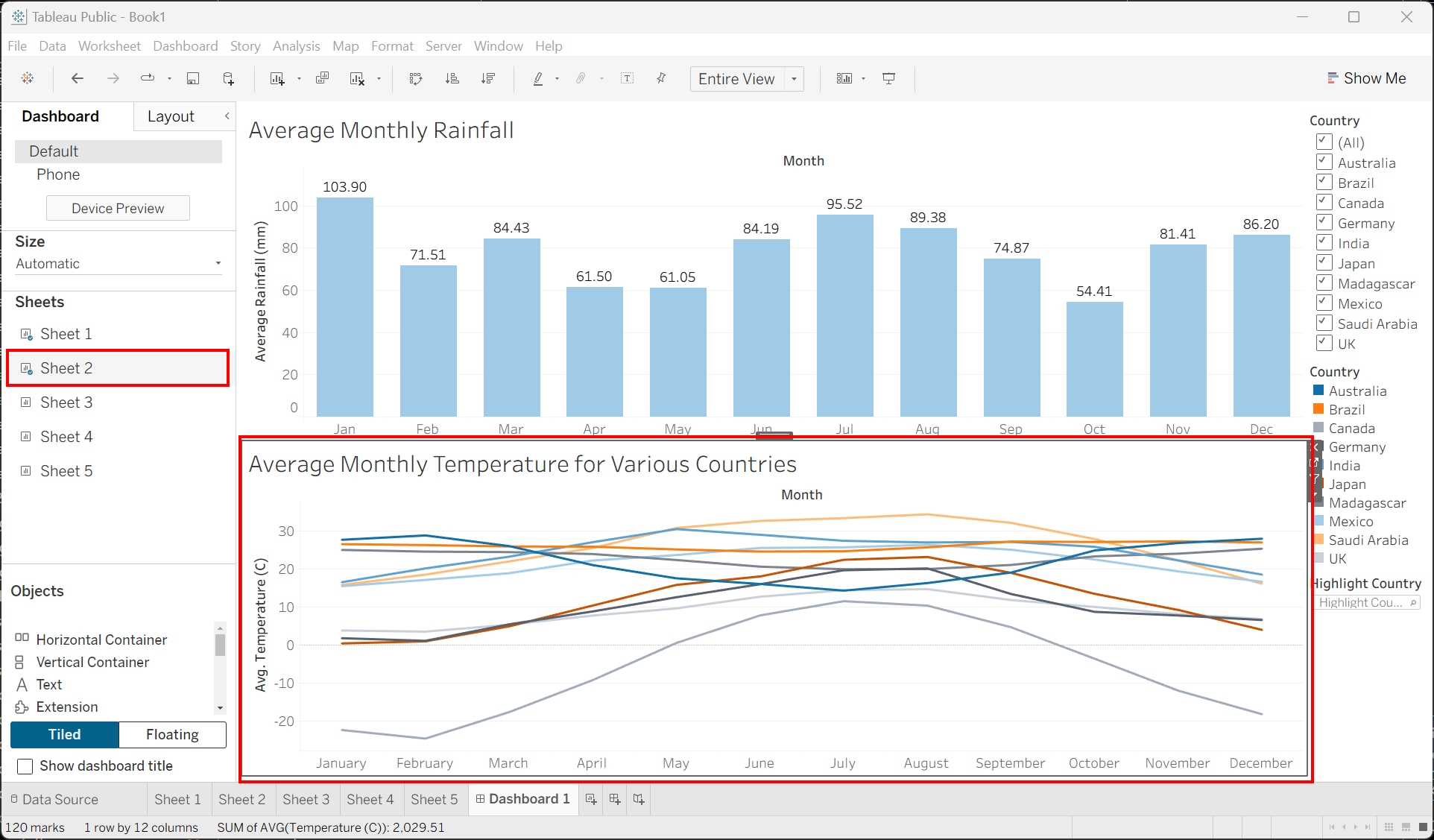
Next drag Sheet 2 to the bottom of the dashboard area. As you are dragging each sheet, Tableau will shade in the section of the page the sheet will occupy once you release it, so use this as your guide to place your sheets in the dashboard.
We can also take the filters we had for one worksheet, in this case the temperature graph, and then apply it to the all the sheets on the dashboard. Right click on the title of the filter, Country, select Apply to Worksheets, and then pick All Using Related Data Sources.
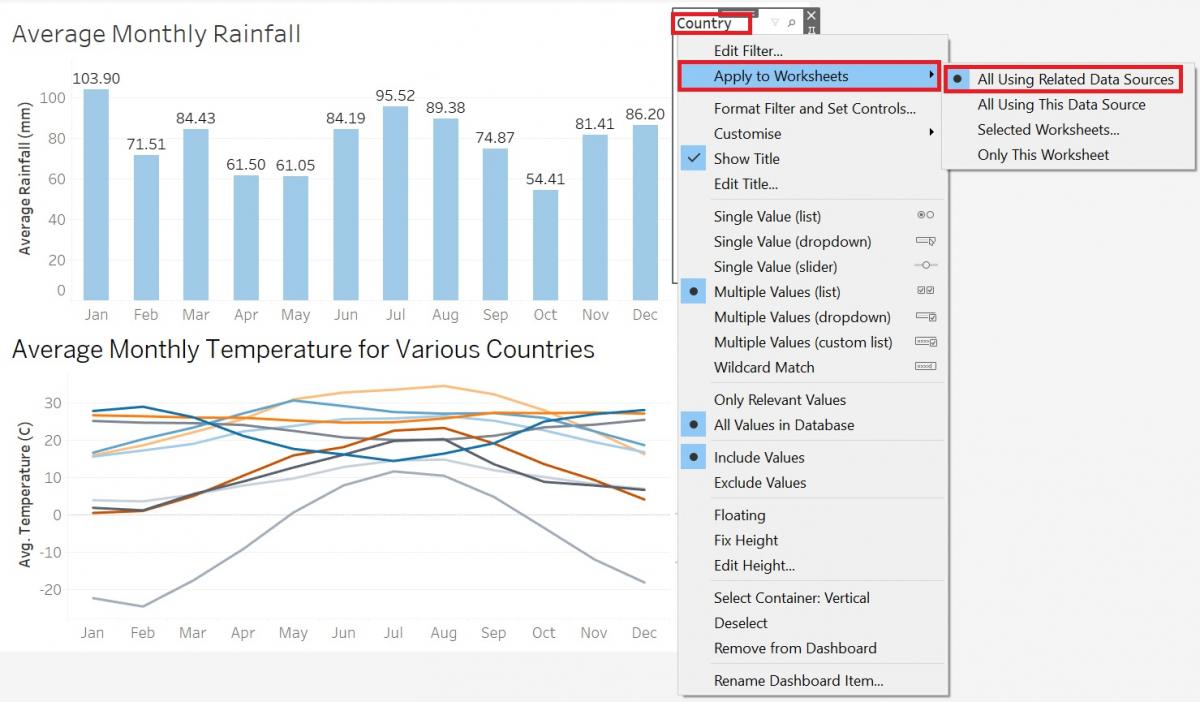
Right-click again on the Country filter title, but this time select Single Value (list). This will make sure that your audience can only view one country at the time. Now you’ll see that when you select one country, both graphs refer to that country.
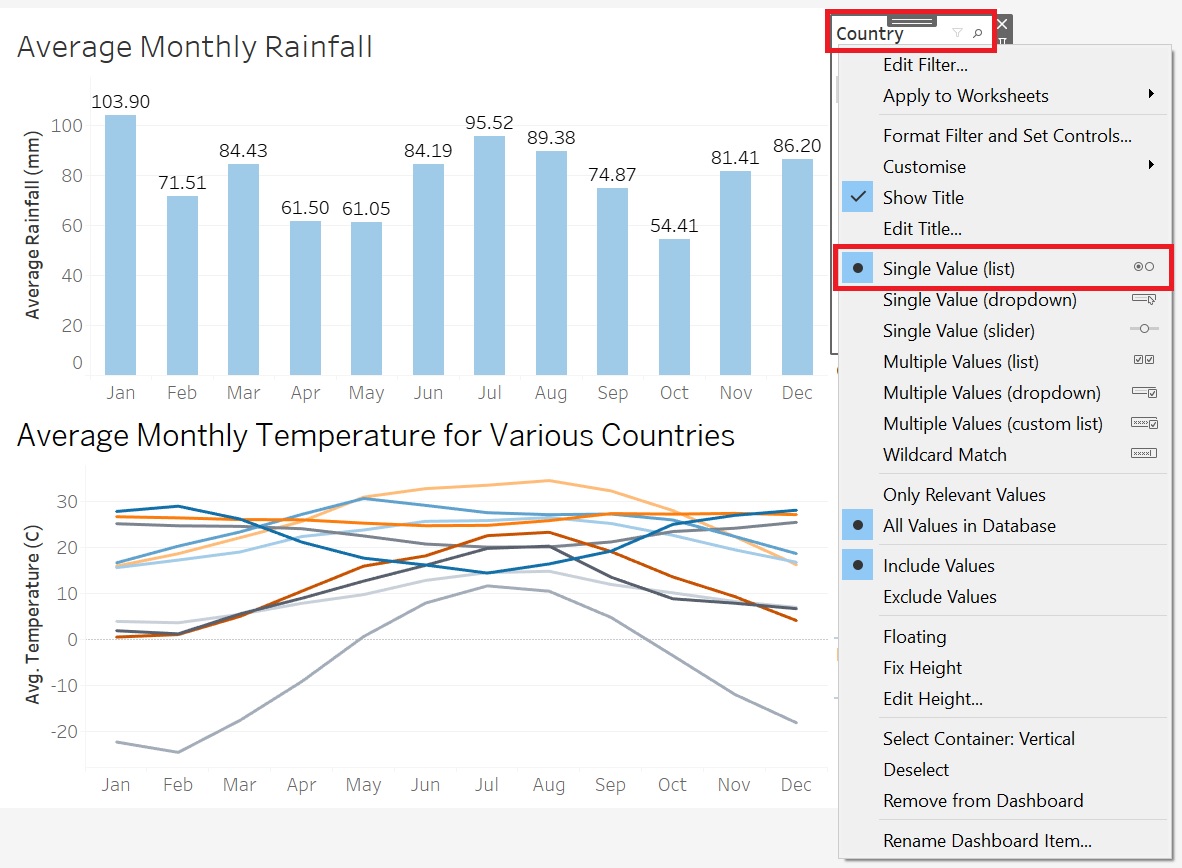
Now you’re done your first dashboard!
Technique: Data Visualization | Tools: Tableau