9. Publishing Tableau Visualizations and Further Resources
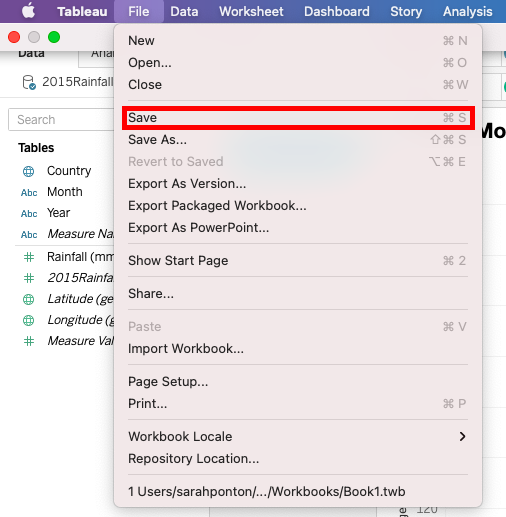
If you’re working on some visualizations, like we have been in this guide, you can save work-in-progress as a Tableau Workbook file. Go to the File menu and click on Save. Give it a name and select where you want to save the file. (Note: If you do this, it doesn’t save the underlying data, so you have keep the data file(s) - such as your Excel worksheets - and Tableau workbook together).
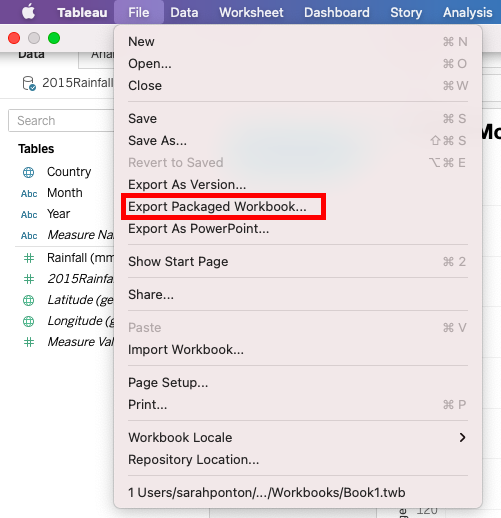
Or you can Export Packaged Workbook… (also from the File menu). Then you could share that file with others who have Tableau (and this time it would include the data). In both cases, you can always come back later to revisit your work by reopening it on Tableau.
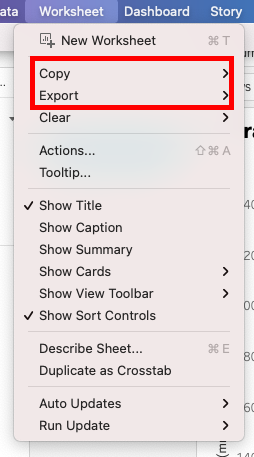
If you want to export one of your worksheets to an image you can use in a report or article, you can do so from the Worksheet menu (Tableau Desktop only). First, go to the worksheet tab you want to save. Then, open the Worksheet menu and use the Copy or Export options to copy/ paste your visualization into a document/ image editing software or export it directly.
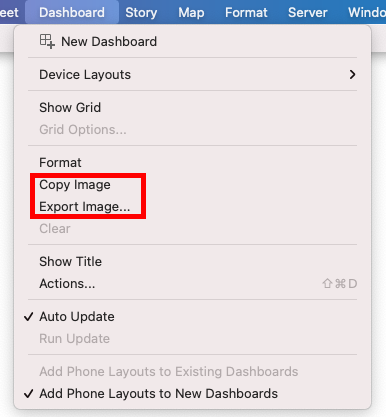
You can do the same thing for your whole Dashboard from the Dashboard menu (“Copy” or “Export” image) (Tableau Desktop only). Try it out! Note: these options only share a static image, without the filter capabilities we added to the dashboard in the previous section. If you want your users to interact with your visualization, continue reading below.
Finally, you can publish your worksheets and dashboards so that readers can interact with them. Your free option is to create a Tableau Public account and publish it there using the Publish Workbook option in the Server menu (or from the File menu for Tableau Public), but note it is public; however, you can adjust the settings, if you don’t want readers to download the underlying data and/or workbook. Once it is uploaded to Tableau Public, there is also functionality built-in for you to embed your visualization on a website. Using the “share” option at the bottom of a published visualization on Tableau Public, you can copy and paste the HTML code for embedding the visualization in a website.
There are also paid options (Tableau Online and Tableau Server), if you want to be able to limit permissions on who can view your visualizations or to publish to your own server; use the Publish Workbook option from the Server menu to access these options (Tableau Desktop only).
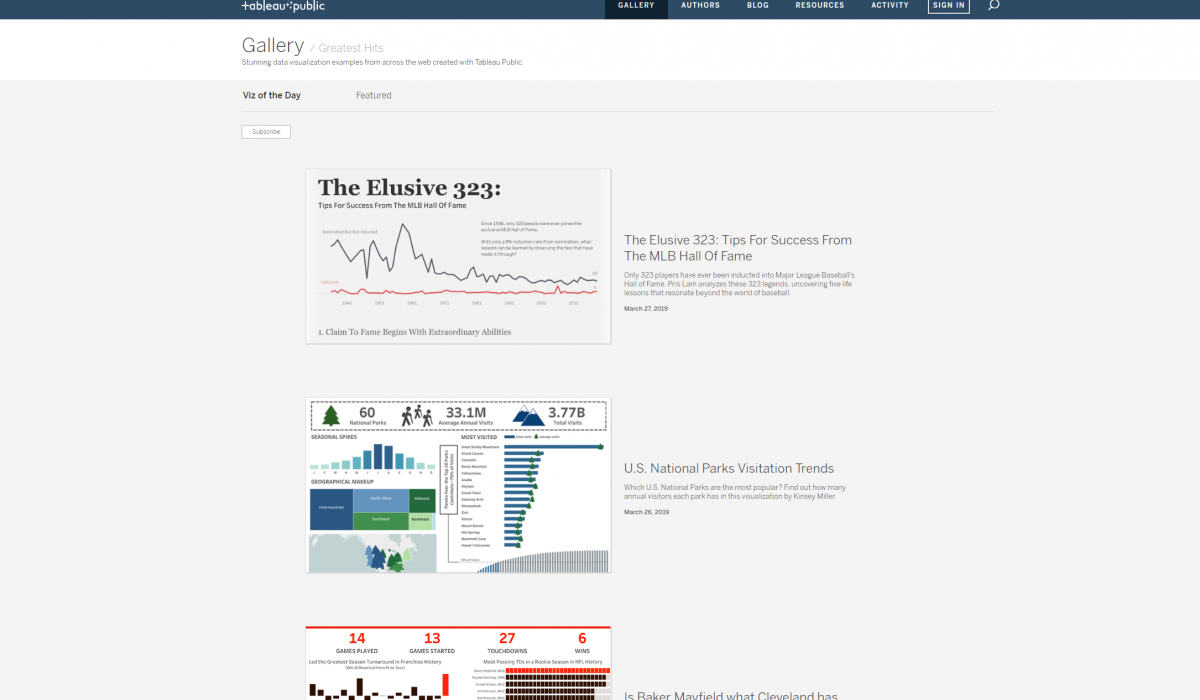
You can also get inspiration for future visualizations and dashboards by browsing Tableau Public’s Viz of the Day gallery
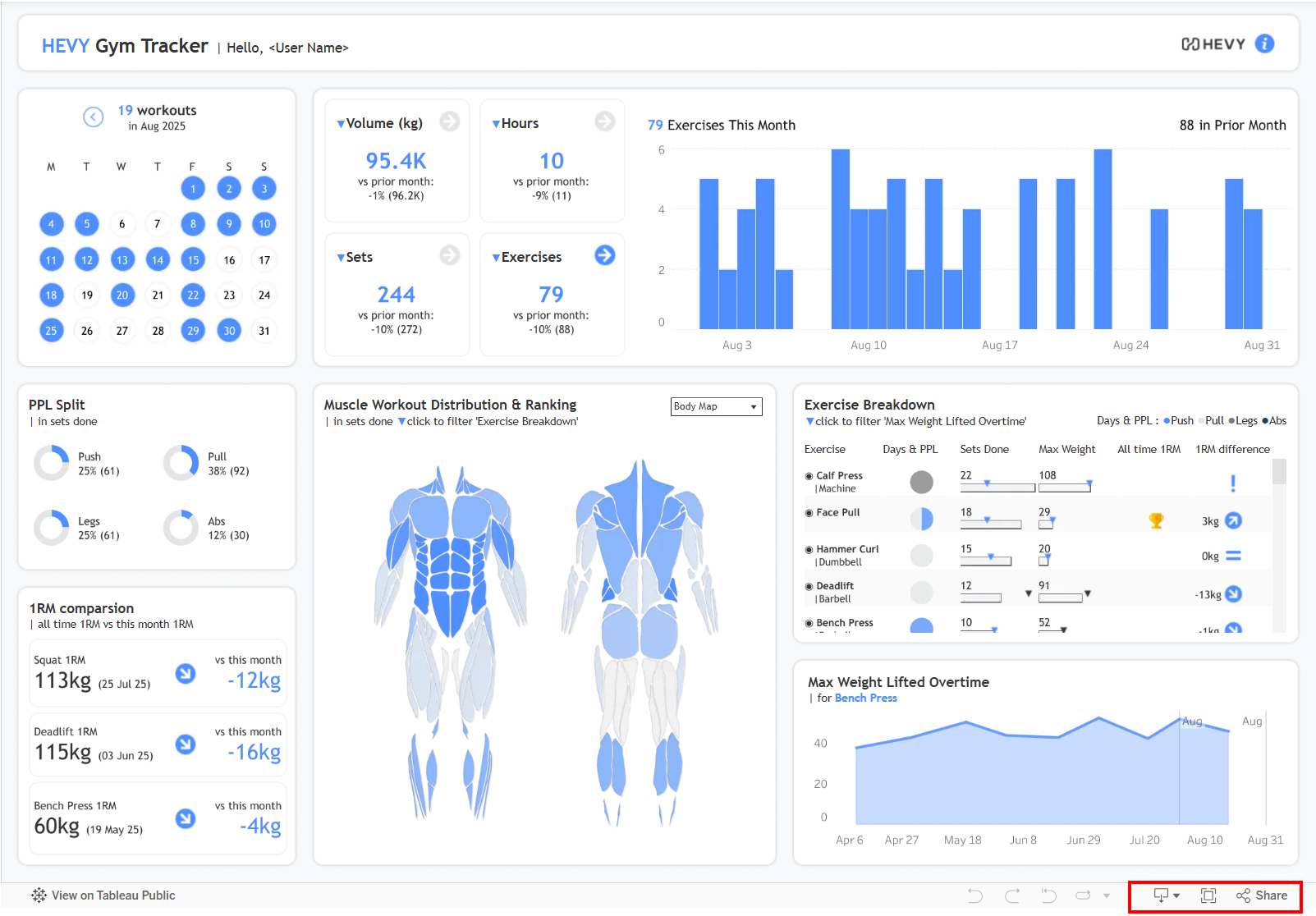
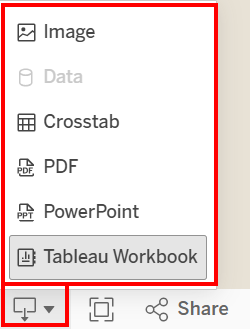
In some cases, you may download the workbooks these visualizations were created in (and study them to recreate your own visualizations!). You can see how to download or explore these Tableau Public visualizations by clicking the download button, which will display a pop-up window with the options set up by the user who published the visualization.
For further learning, training videos, and tutorials, please explore the many resources available on the Tableau Help page.
Technique: Data Visualization | Tools: Tableau