Clean up and remove unused data
As a best practice, regularly review your ArcGIS Online content and remove anything you don’t need, especially if it’s a large feature layer.
We also encourage you to offload spatial data layers once you’re done with them. If you no longer need to work with or display the data in ArcGIS Online, export it and save a copy to your local device, OneDrive, or another safe location, then delete the hosted layer from ArcGIS Online.
Exporting data from ArcGIS Online
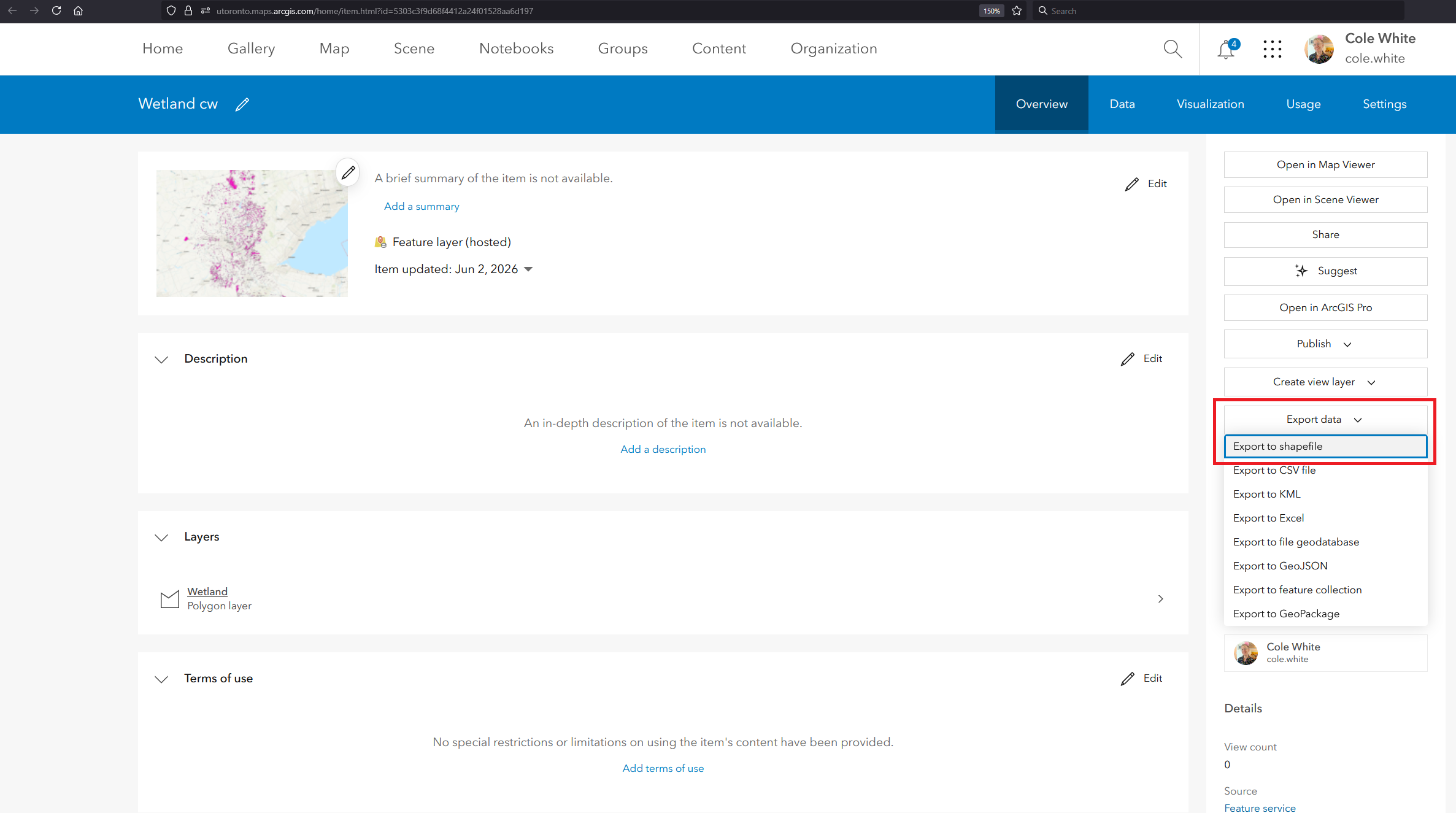
• Navigate to the Item Details page of the layer you’d like to archive. Click the Export Data and choose a file format (shapefile is often a good general purpose choice for spatial data).
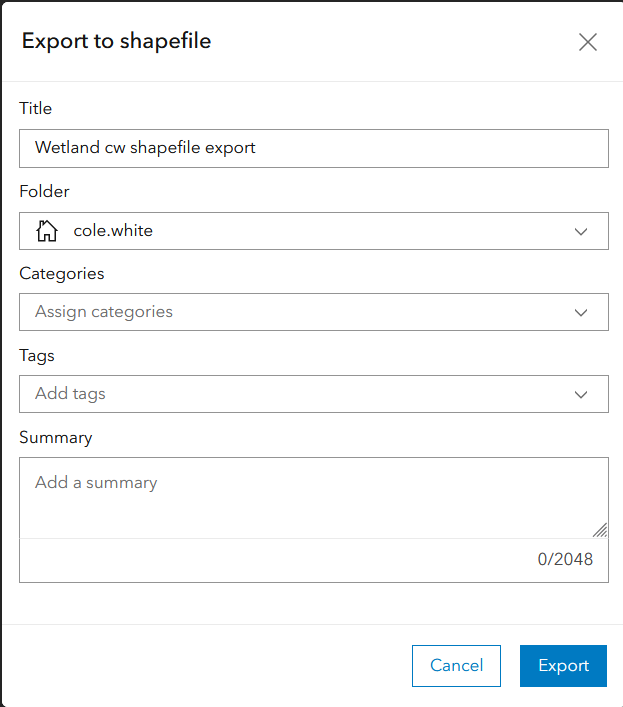
• Specify a name and folder for the exported item, and click Export. This may take some time depending on the size of the file.
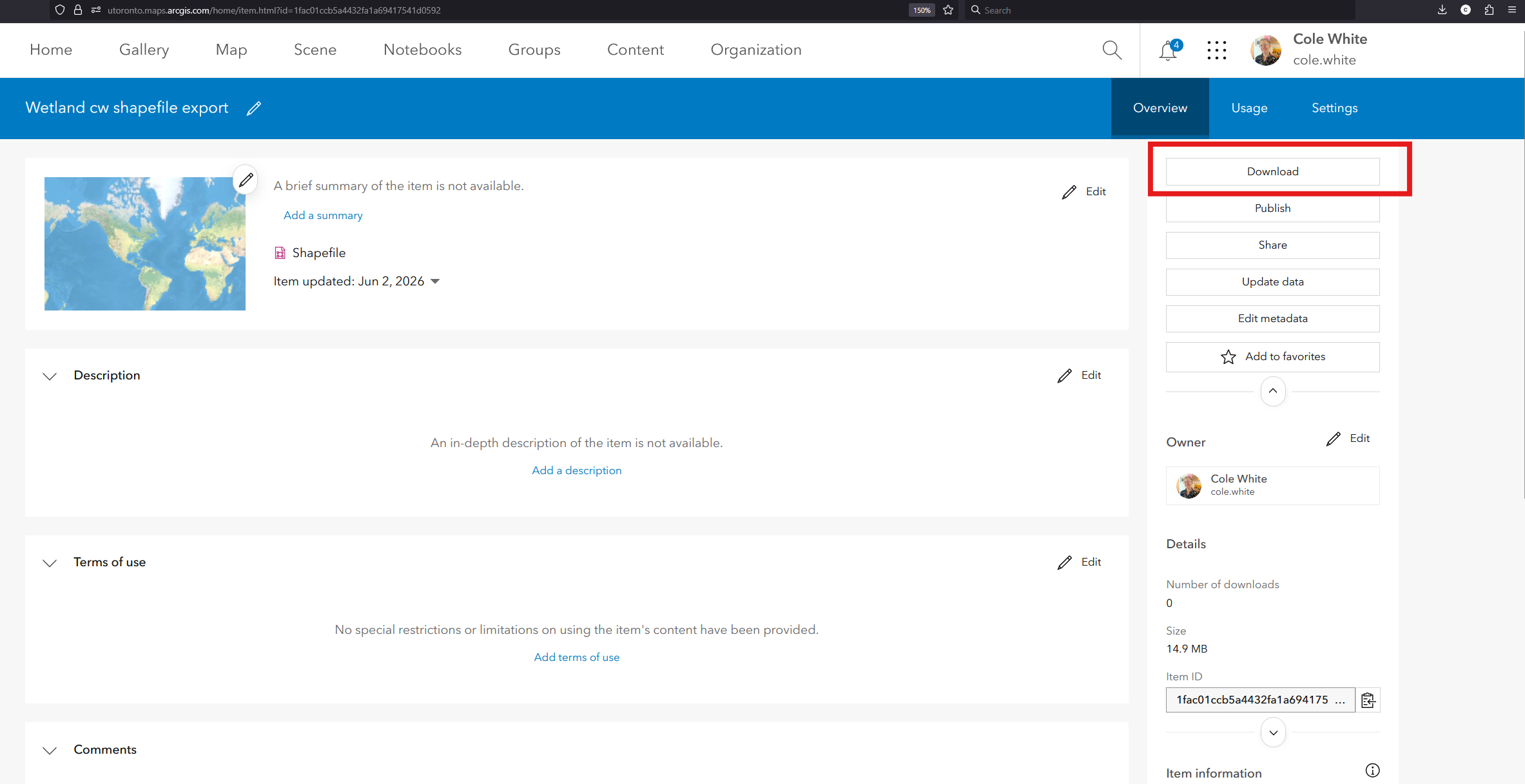
• When the export has completed, you will be taken to the Item Details page of the exported item. Click the Download button. The file will be saved to your device.
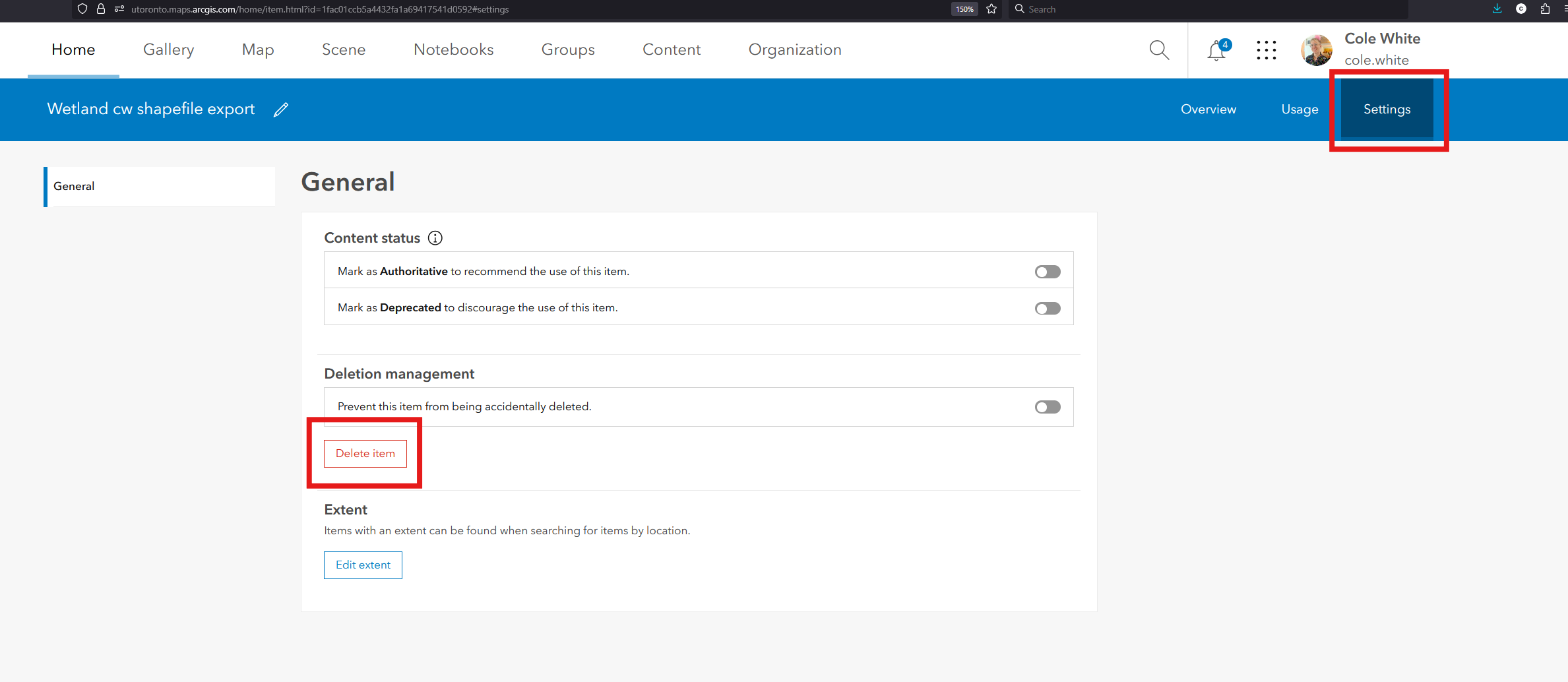
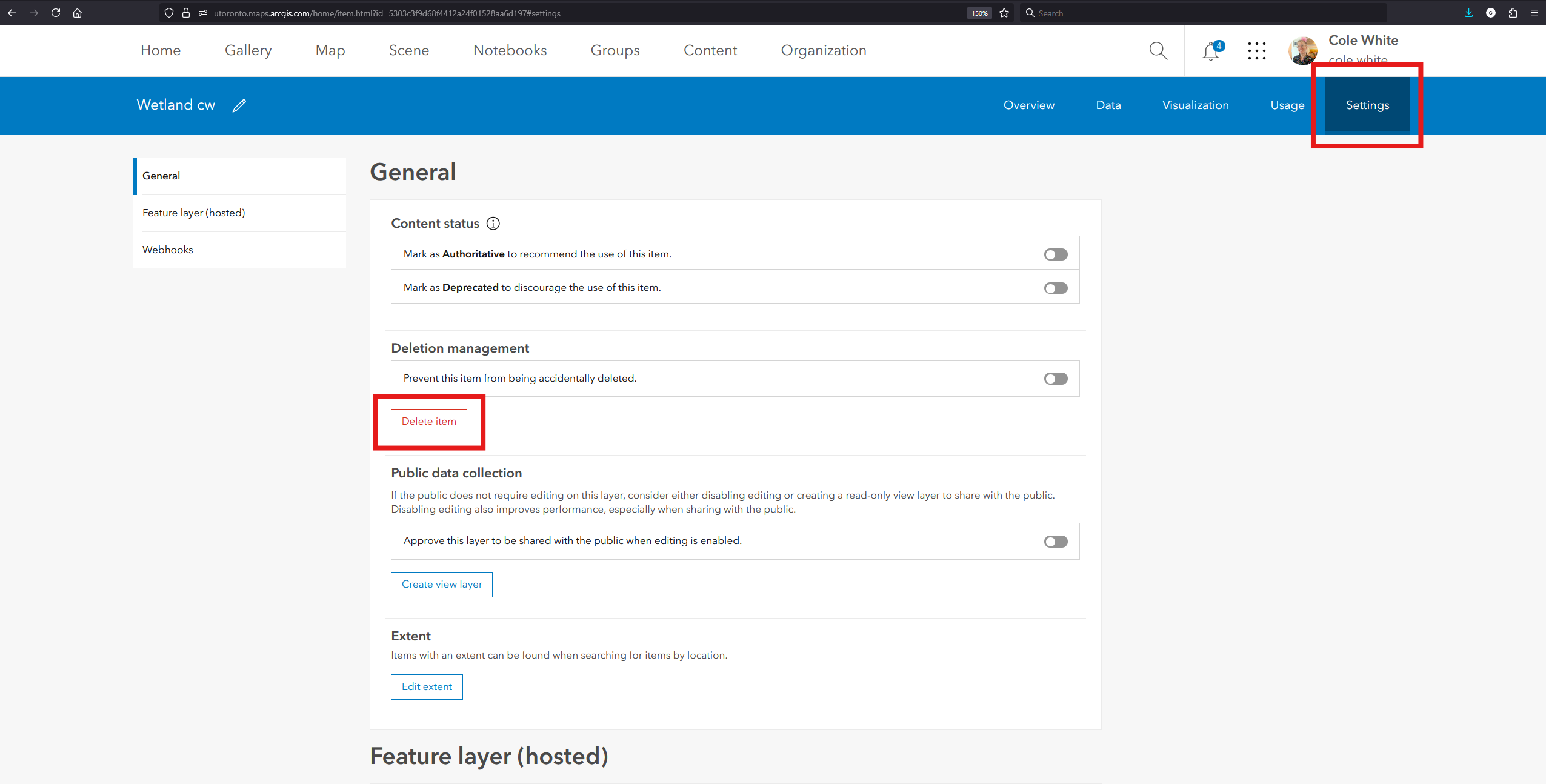
• After the download has completed, delete the exported item by clicking the Settings tab and then the Delete button.
• Navigate to the original hosted feature layer and delete that too.
You’ve now freed up space on ArcGIS Online, and you’ve saved a local copy of your spatial layer that you can keep as an archive. You can also work with the local copy in ArcGIS Pro or QGIS and re-upload it to ArcGIS Online if needed.