Subsetting data
As an alternative to clipping, you can query a subset of features from your spatial layer to upload.
Jump to: ArcGIS Pro instructions | QGIS instructions | ArcGIS Online instructions |
Subsetting in ArcGIS Pro

See our Extracting the geographic features you need from a larger dataset in ArcGIS Pro tutorial to learn how to subset data in Pro.
• Once you’ve created a subset layer, you can use ArcGIS Pro’s Share as web layer functionality to add it to ArcGIS Online, or upload a zipped shapefile to the platform.
Subsetting in QGIS

We also have a tutorial on Extracting the geographic features you need from a larger dataset in QGIS.
• Once you’ve extracted a subset of your dataset by following these steps, you can save the output as a zipped shapefile and upload it to your ArcGIS Online content.
Subsetting in ArcGIS Online
As with clipping data, we recommend doing this in desktop GIS software before uploading the layer to ArcGIS Online. However, if you don’t have that option, here is how you can achieve the same result using ArcGIS Online:
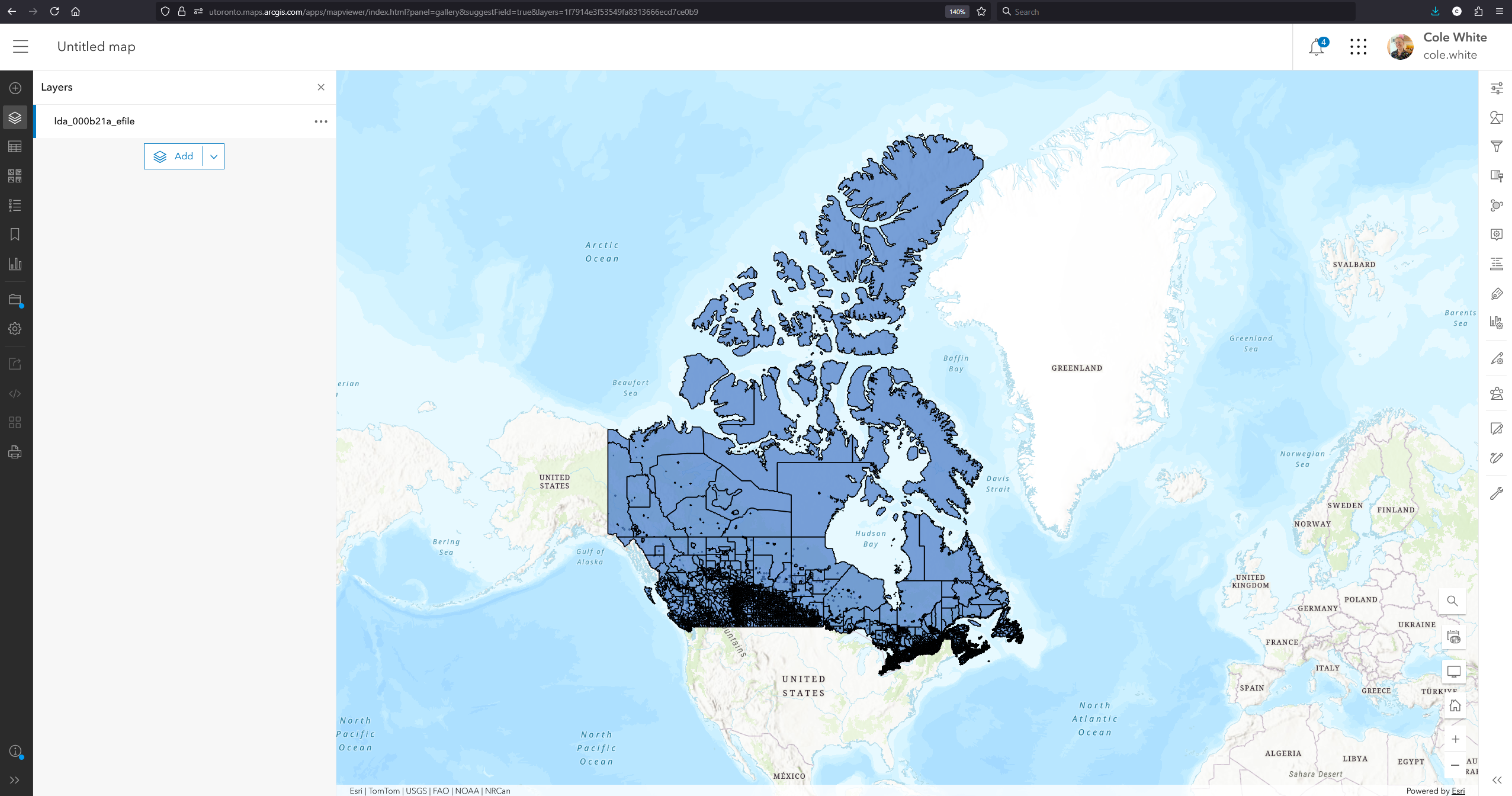
• Log in to ArcGIS Online and open the large layer in the Map Viewer.
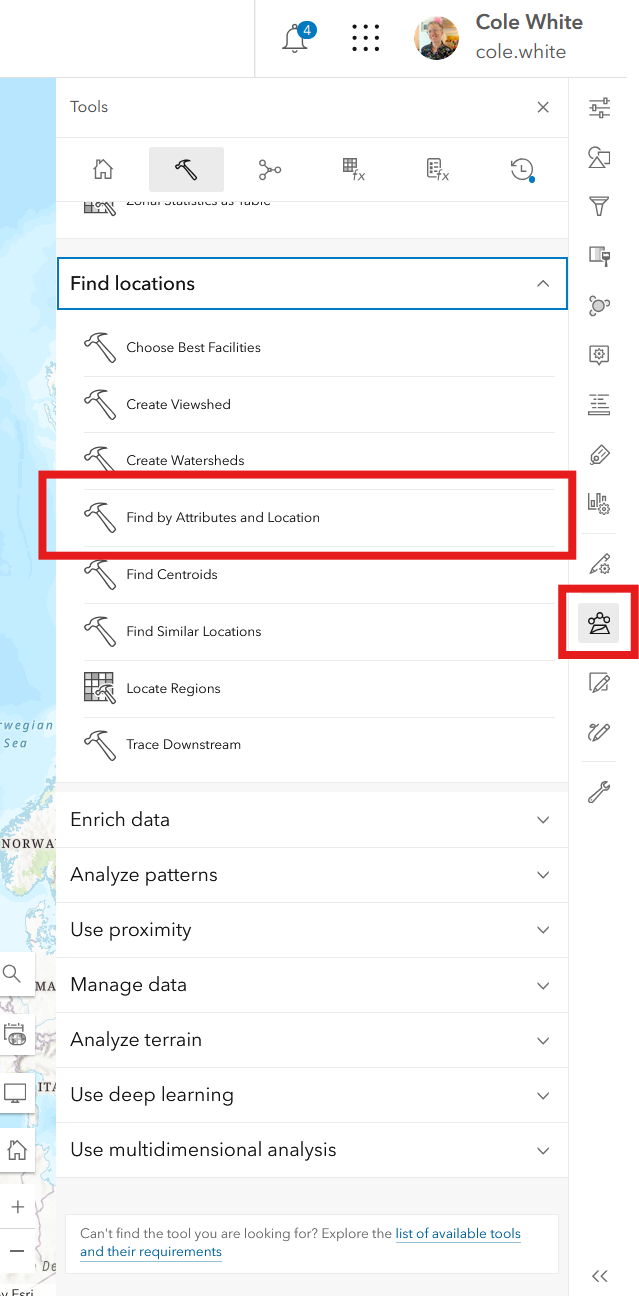
• From the Analysis tools, open the Find by Attributes and Location tool.
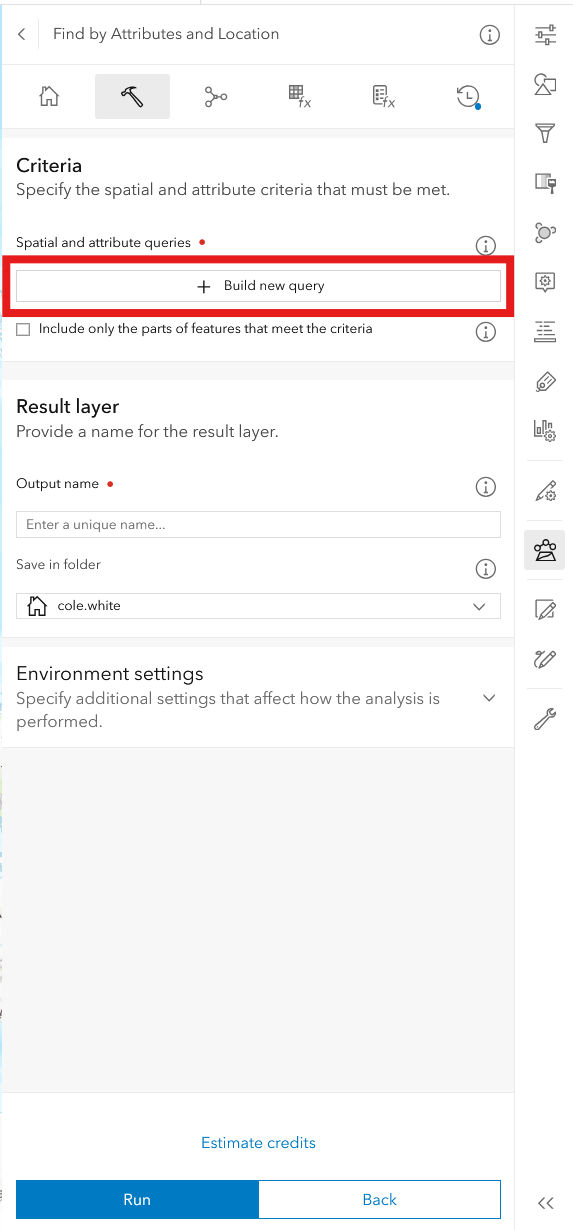
• Click Build new query.
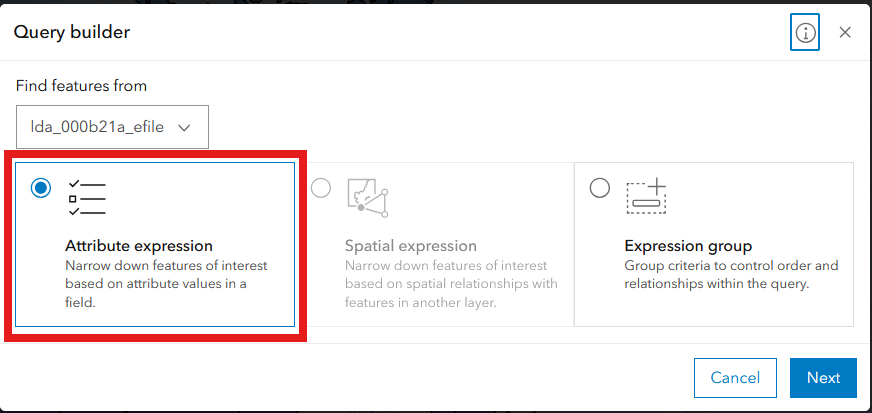
• Choose Attribute expression. Click Next.
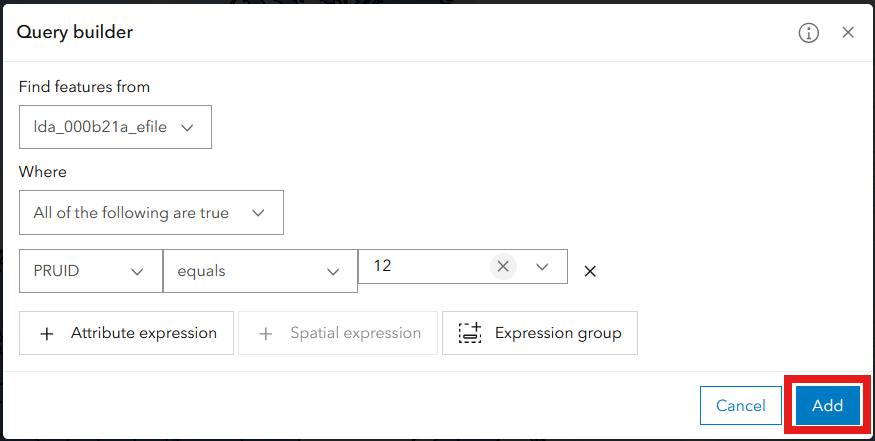
• Construct a query to define your features of interest. Click Add.
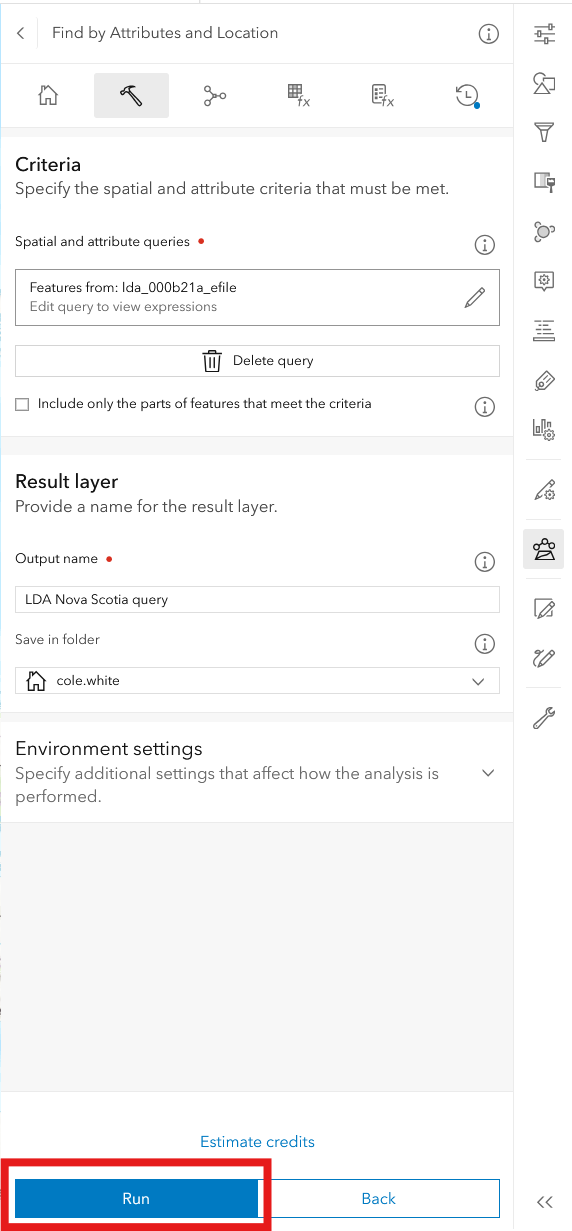
• Give the output layer a descriptive name. Click Run.
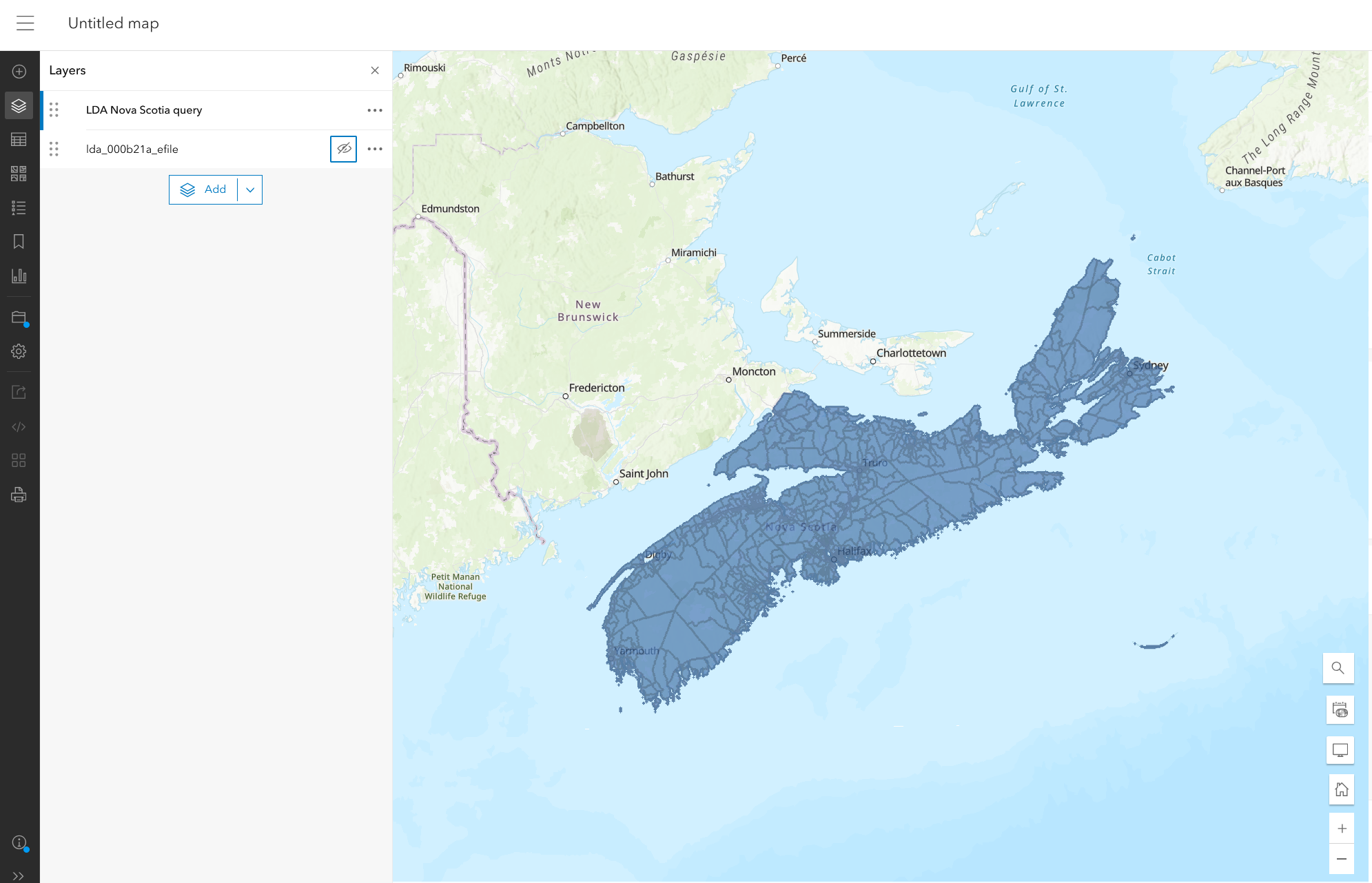
• The tool should output a new layer containing only the queried features.
• Next, you will need to delete the original layer. Find the layer in your content and open its Item Details page. Click the Settings tab.
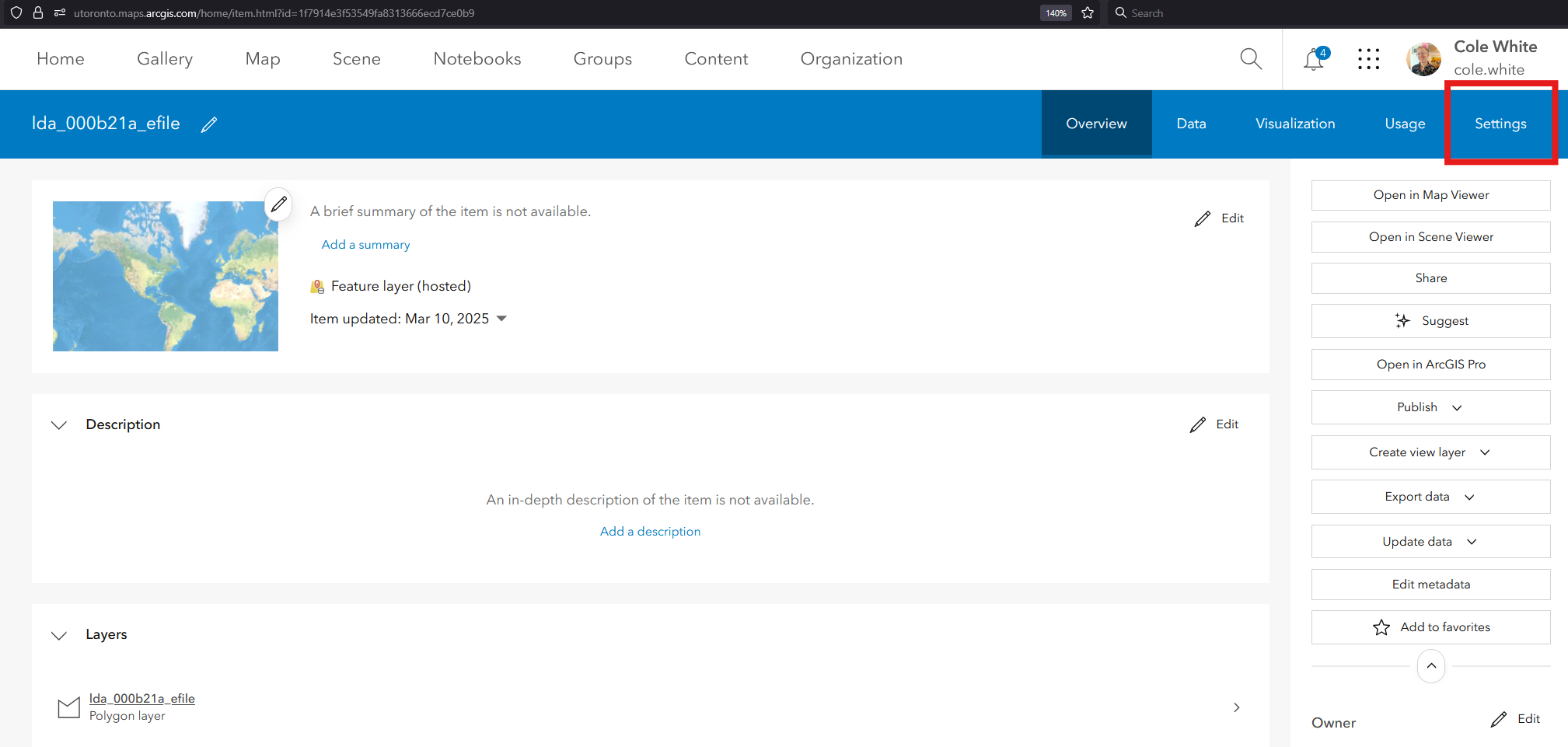
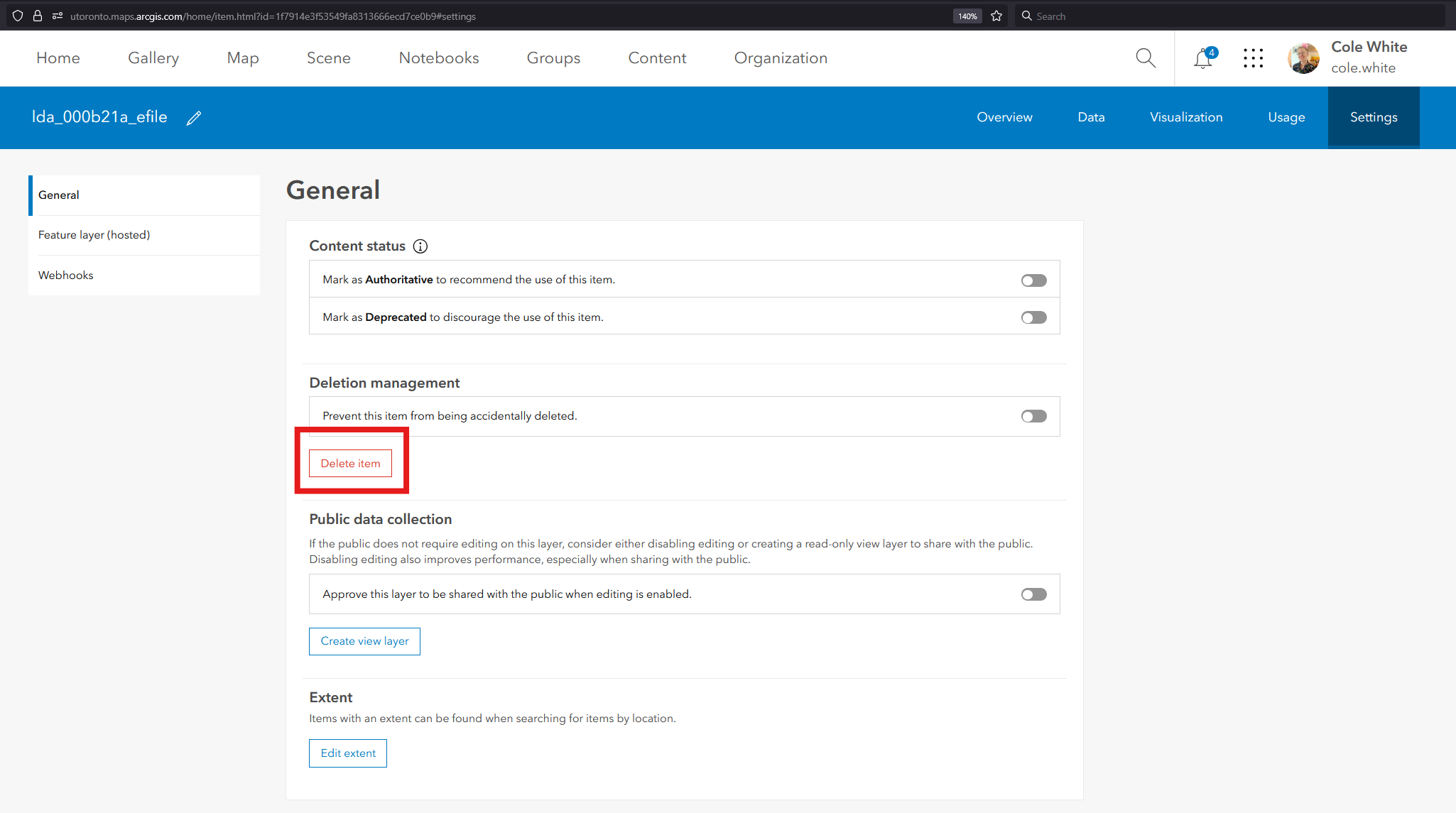
• Click the Delete button.
• Click the Show more button.
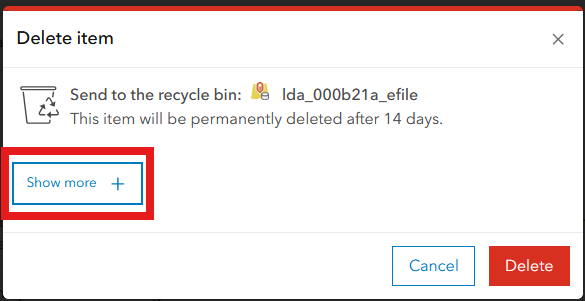
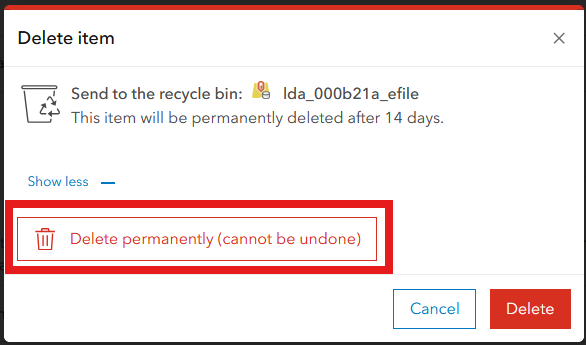
• Click Delete permanently (cannot be undone). The layer will be removed from UofT’s ArcGIS Online instance and space will be freed up.