ArcGIS Online credits
Credits are the currency used in ArcGIS Online. In addition to the subscription paid for by UofT, certain actions within the ArcGIS Online platform consume credits, which are also purchased from Esri.
Various tools found in the Map Viewer, including network analysis and geocoding, consume credits when executed in ArcGIS Online. Notebooks, Data Pipelines, and Model Builder also use credits. Each new user in the system is granted 2,000 credits by default to use for these operations. If you run out of credits, you can <a href=”https://library.utoronto.ca/contact-us/data-maps”_blank”>contact the Map and Data Library</a>. Depending on the tools you’re using and the projected credit expenditure, we will either grant you more credits from UofT’s organizational credit pool or advise on workarounds.
View your credit allocation
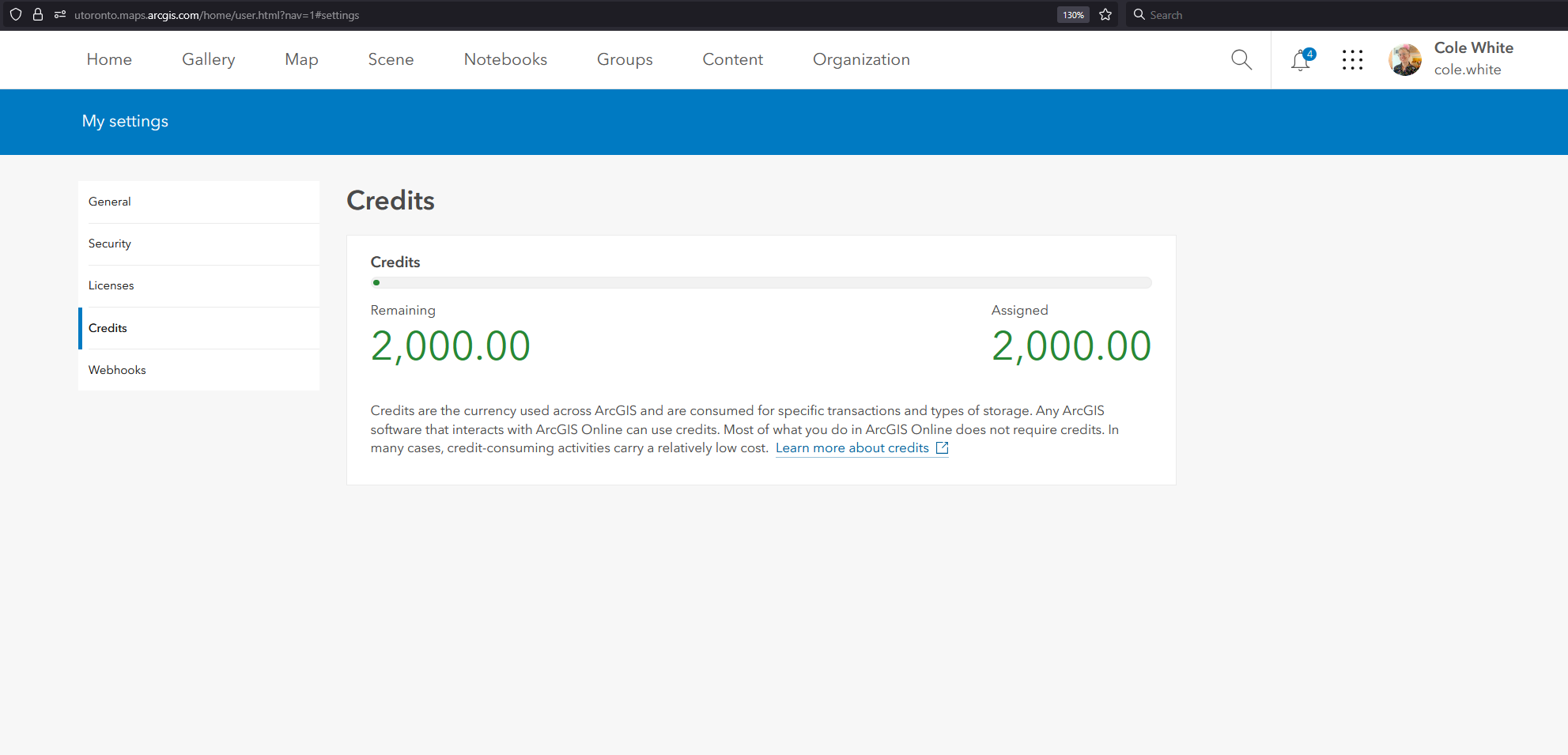
If you’d like to check how many credits you have:
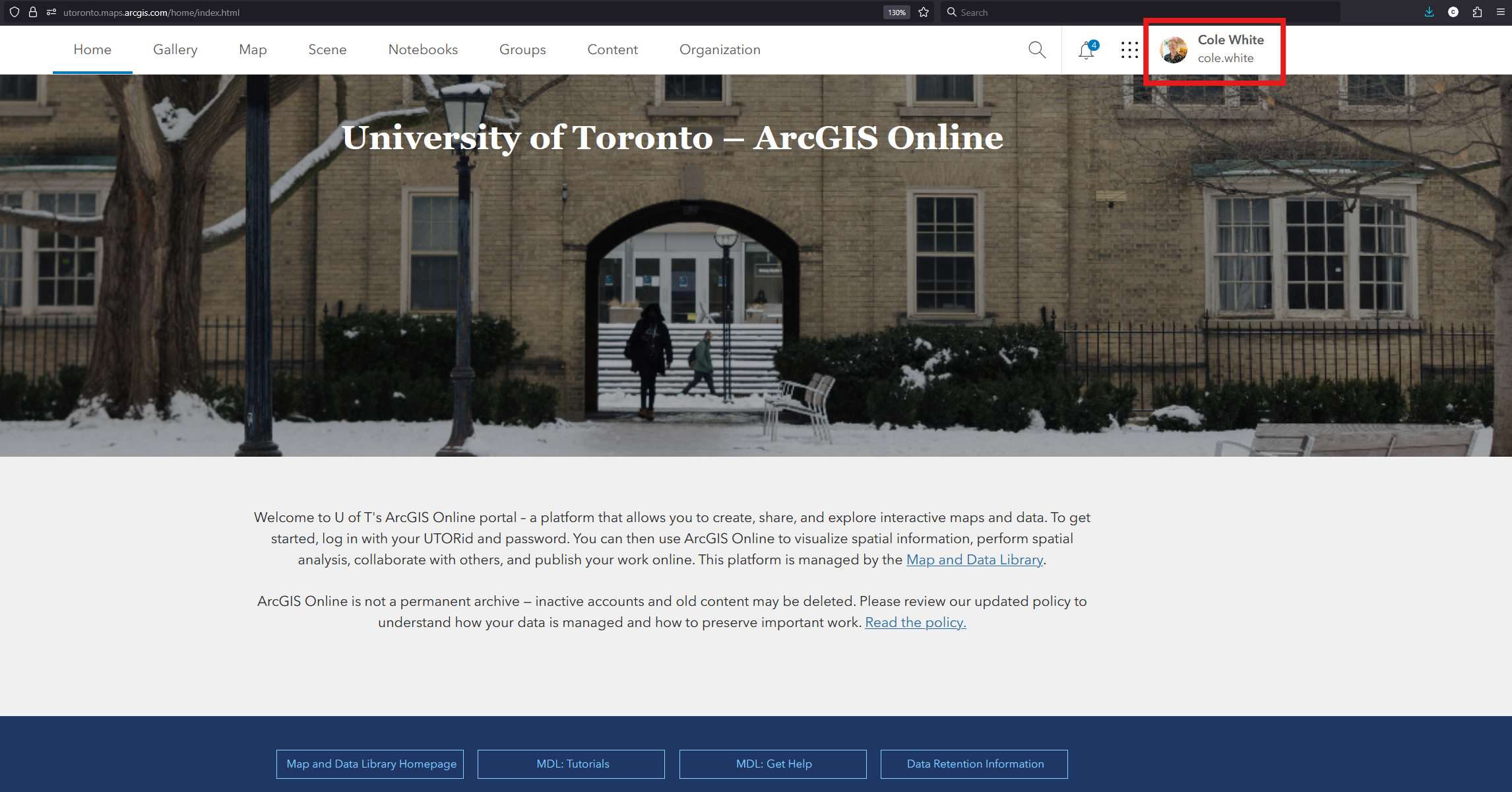
• Log in to ArcGIS Online. Click your user profile icon at the top right of the screen.
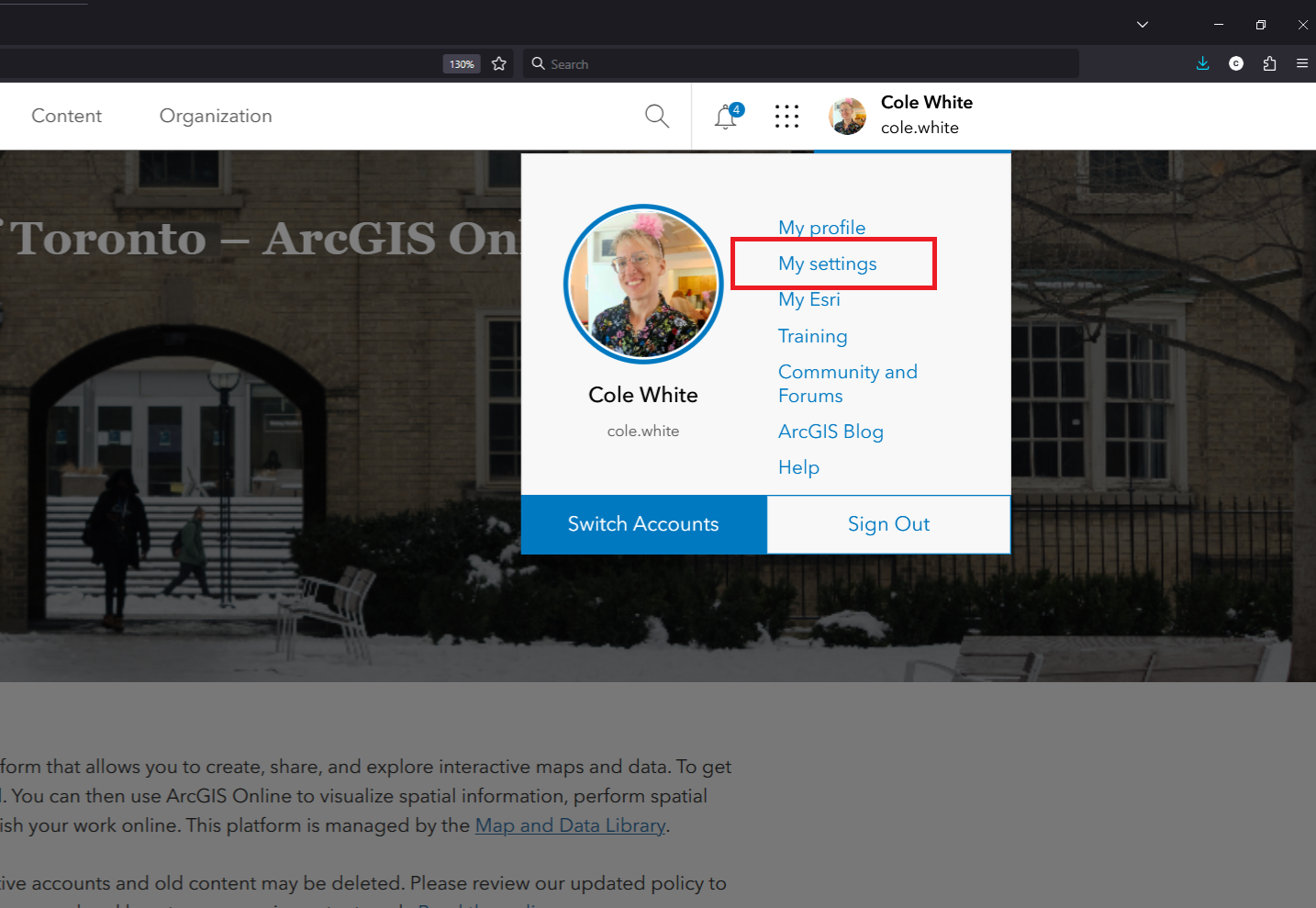
• Click My settings.
• Click Credits.
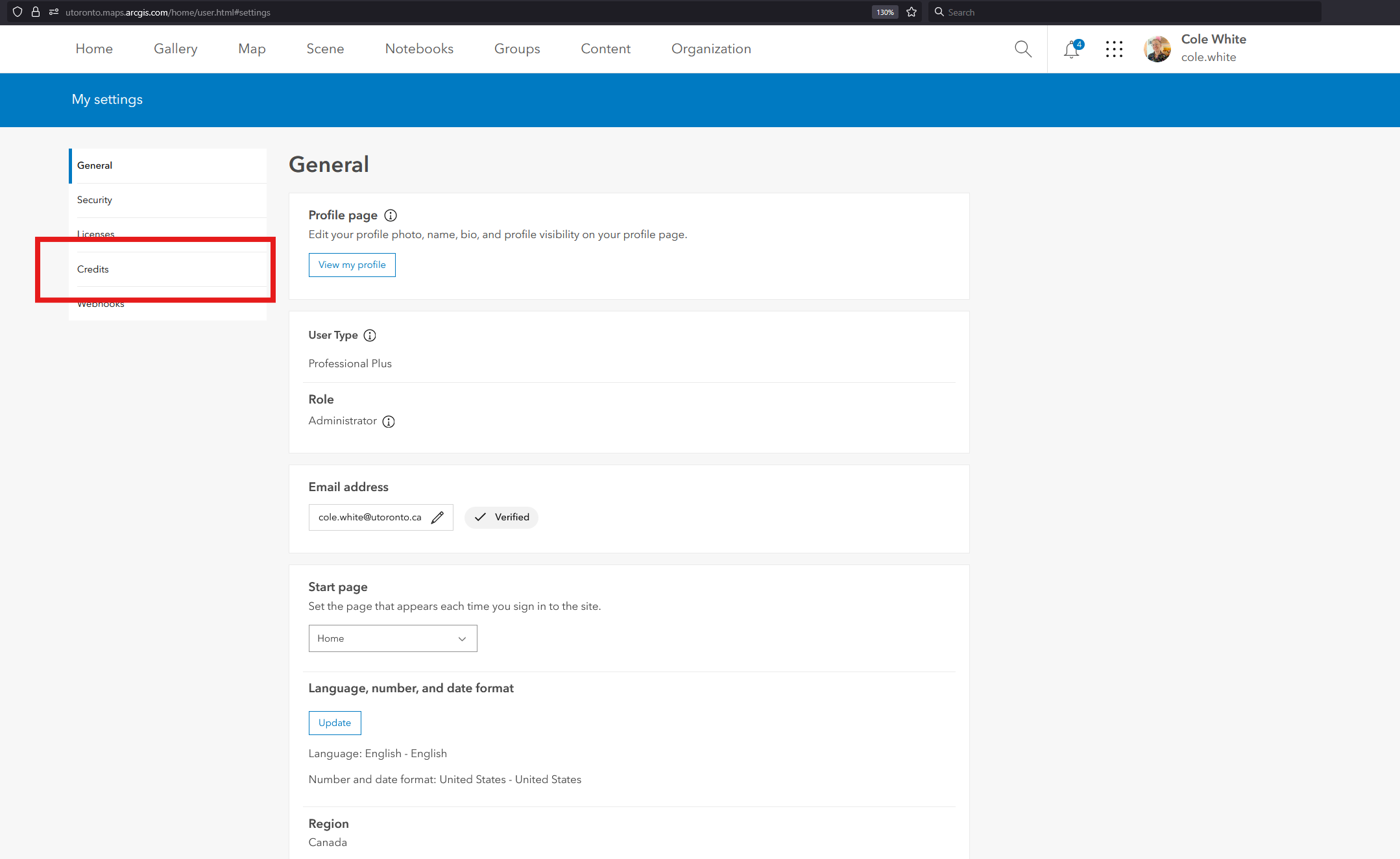
• Your accounts credits will be listed here.
Estimate credit usage
If you’d like to estimate how many credits an operation will consume, take a look at this table in Esri’s official documentation, which provides a breakdown of credit expenditure by activity. (Note: Storing files and feature layers won’t consume credits from your account - these are taken from the organization’s credit pool.)
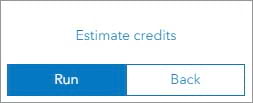
The analysis tools found in the ArcGIS Online Map Viewer also have an estimate credits feature. Click this option before executing a tool to get an idea of what you’re getting into.