Creating Scatter Plots
Sometimes you have to pull data from multiple sources instead of having it all in one file. Let’s add a couple more datasets, but this time we’re going to match them up or join them together to create one large dataset to work from.
Go to the top Data Menu and select New Data Source. Select Microsoft Excel and choose the AuthorDataCitationsGrants.xls file. This is the dataset that contains the names of authors, their institutions and countries, and amount of citations and grant money they have received over a few years.
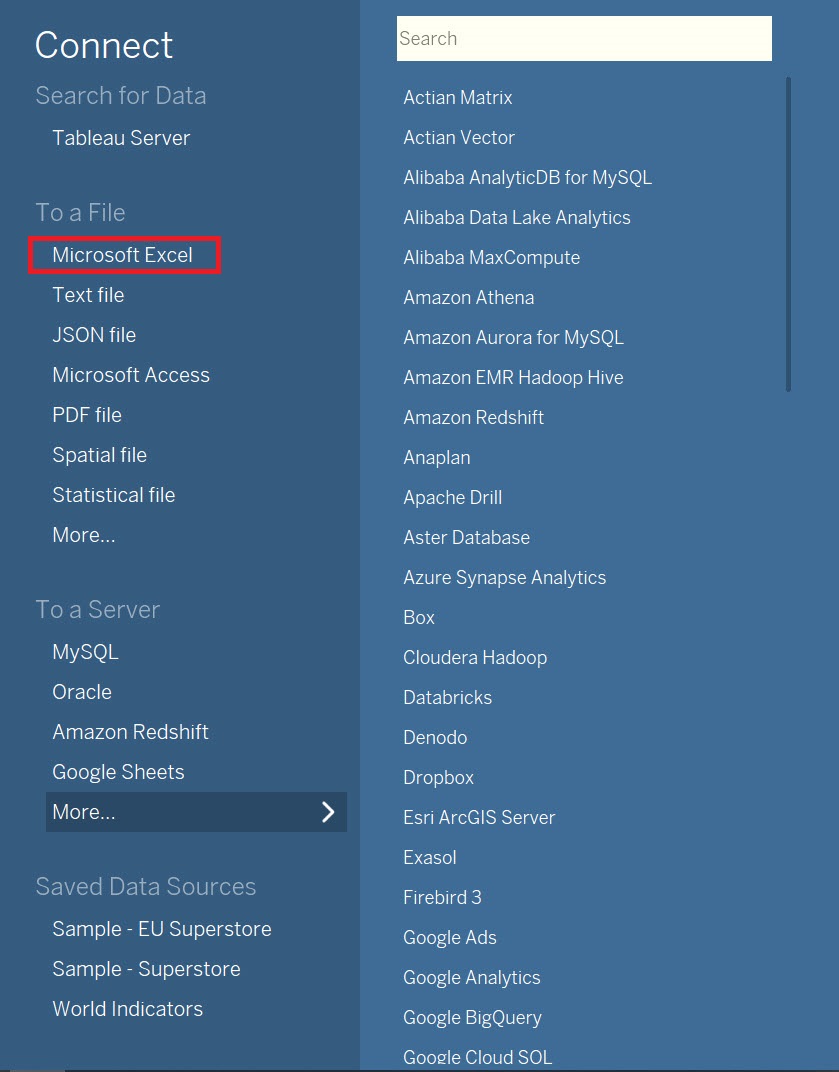
Now click on Add next to Connections on the top left to add a second dataset. Select Microsoft Excel and then pick the AuthorDataExperience.xls file. This dataset has just author names, along with how many years of experience they have as a researcher.
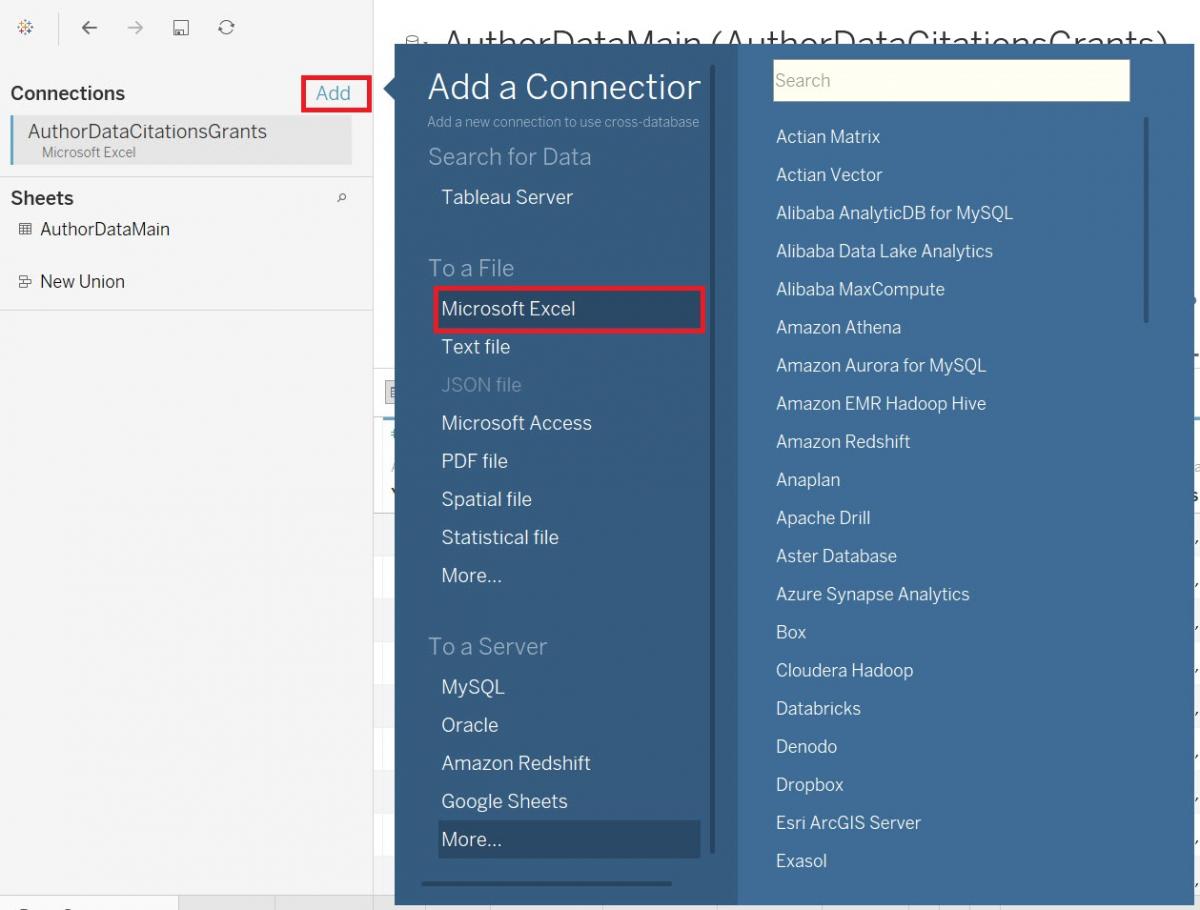
To relate or connect the two datasets, drag AuthorDataExperience under Sheets over to the section where it says, “Need more data?” (if you don’t see AuthorDataExperience under Sheets, make sure that AuthorDataExperience is selected under Connections).
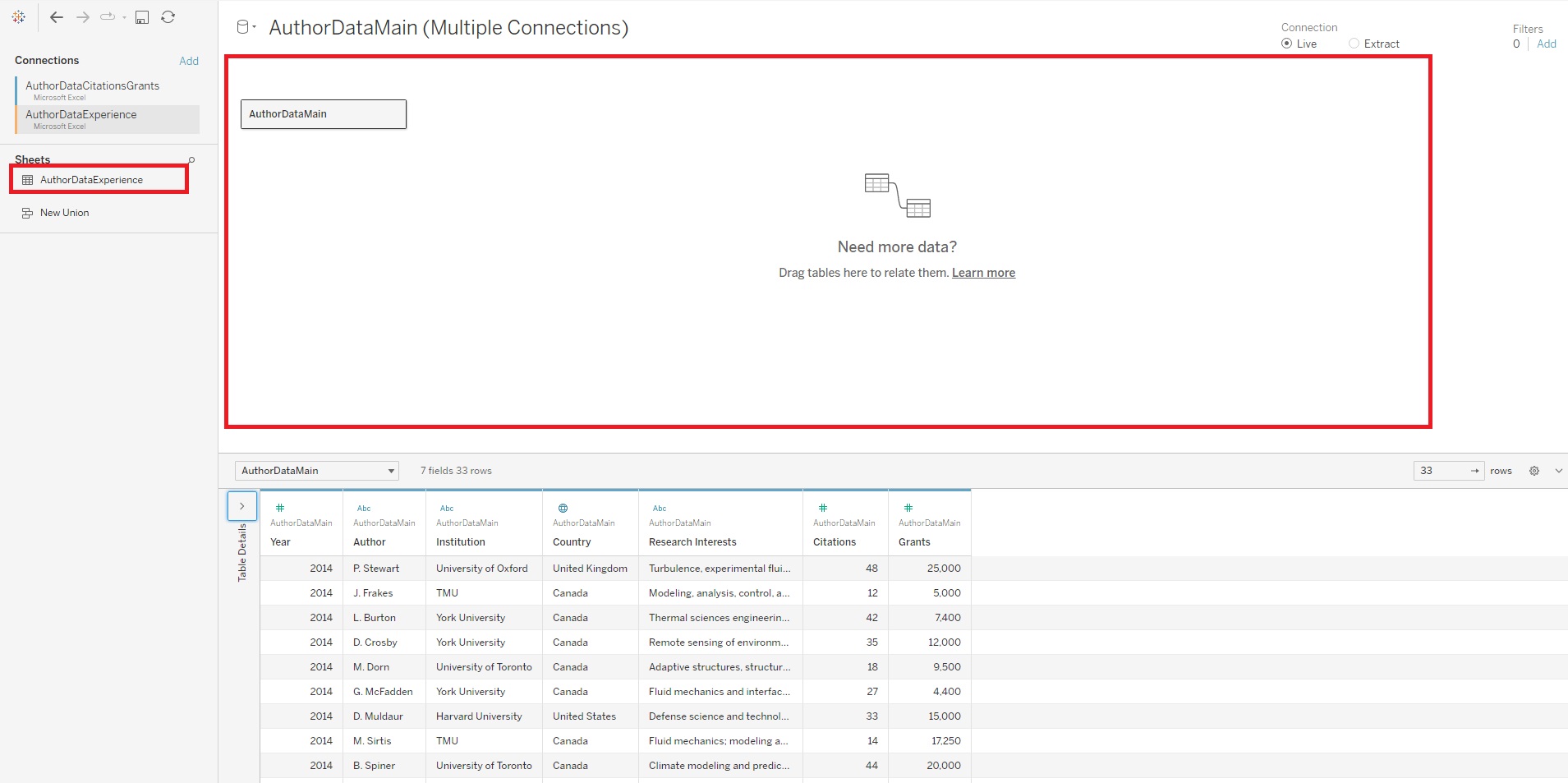
The pop up window shows us that the data has been related together based on a common column, Author. Now the years of experience data will also be associated with the appropriate authors additional data found in the first table. Tableau performs relates and joins on the fly, as needed. If these terms are new to you, see this article on relationships and joins in Tableau for more info). Click on the “x” to close the pop up window.
Next, we can click on a new worksheet icon at the bottom. Let’s rename this one to “Scatter Plot”.
Scatter Plots are great to use to identify if there is any relationship between numeric variables. Let’s see if there is a correlation between grants and years of experience.
Again, let’s create this scatterplot using the Show Me feature. This time, hold down the Ctrl key and select the Grants variable (Measures, under AuthorDataMain) and the Years of Experiencevariable (Measures, under AuthorDataExperience), and then click on Show Me to expand the tab. Select the scatter plots, one of the recommendations.
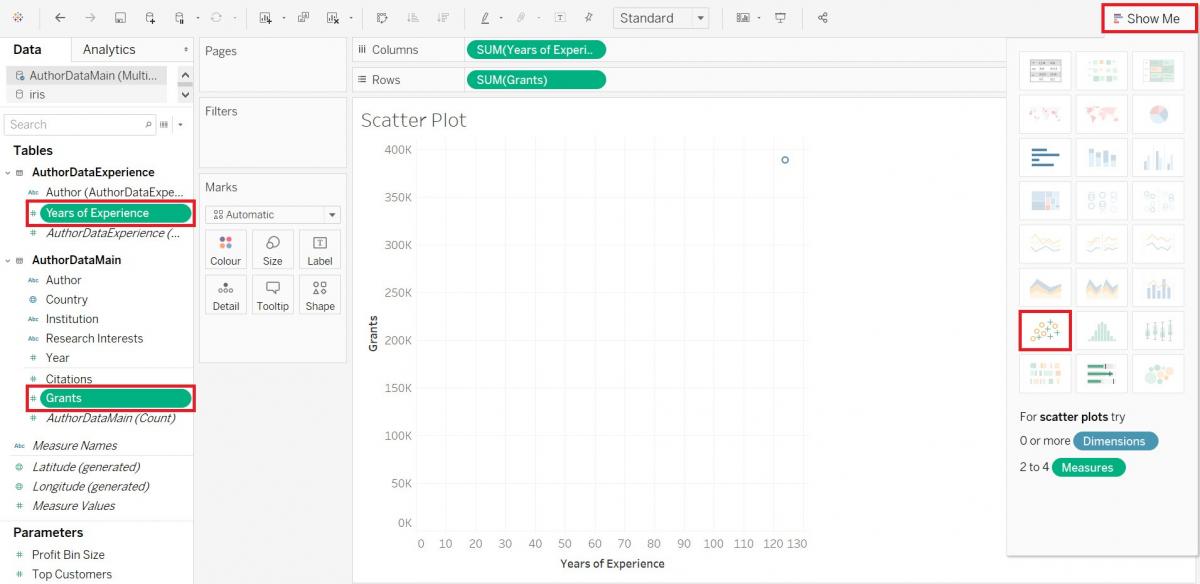
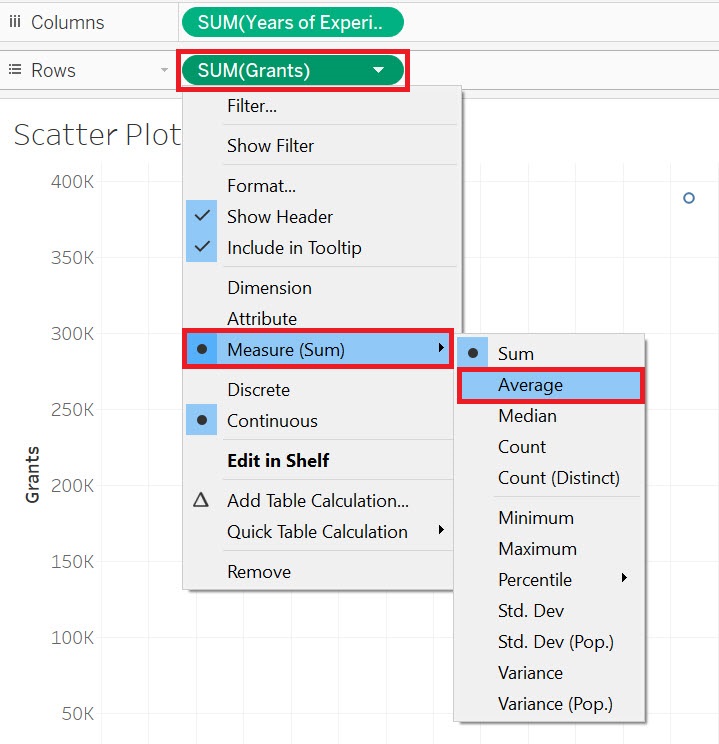
Does not look like much yet, but let’s make some adjustments. First, instead of summing these variables, let’s take the averages. So right click on the Grants pill, select Measures (Sum) and then change it to Average. Do the same for the Years of Experience pill.
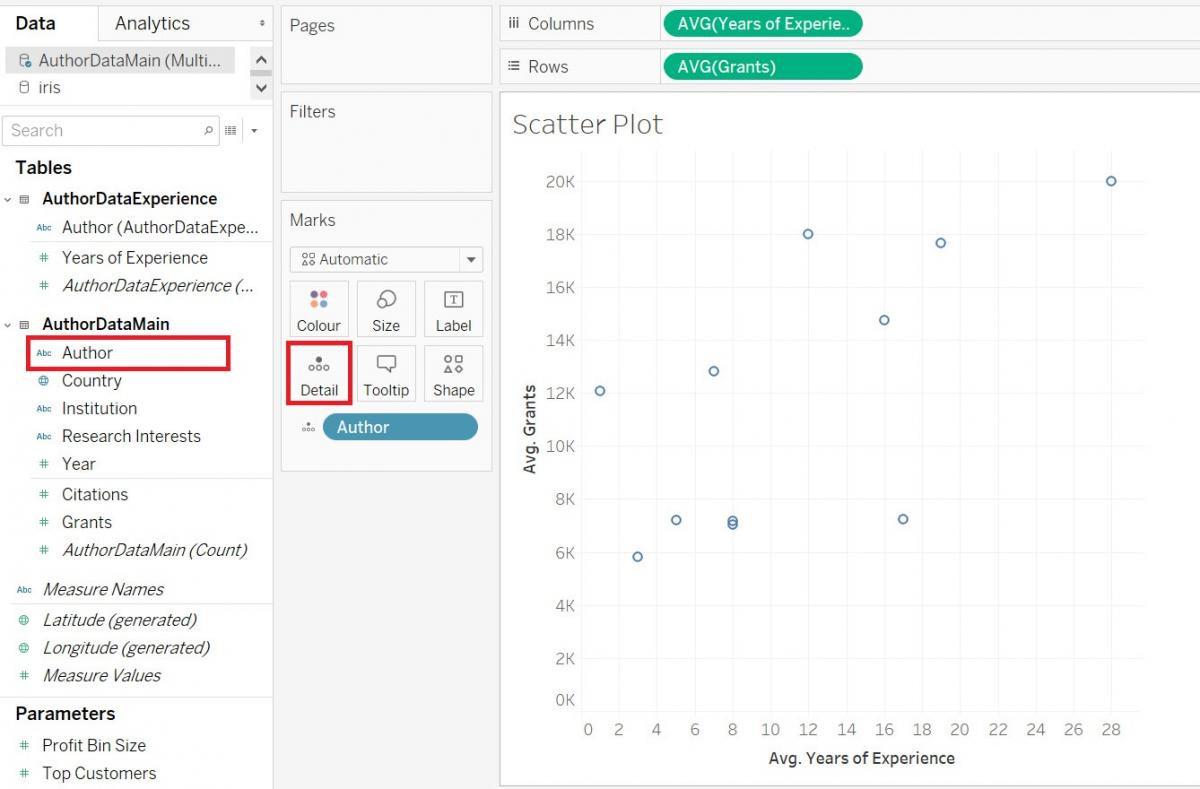
Our next problem is that it is plotting just one x/y pair – the averages of the whole dataset. We need to plot the points for each author, country, or institution. Let’s do it by author. This is where that details box comes up. If you drag the Author variable (Dimensions, under AuthorDataMain) over to the Details box on the Marks card, it explodes out the aggregation to plot it by author. When you hover over a point, you can see the details.
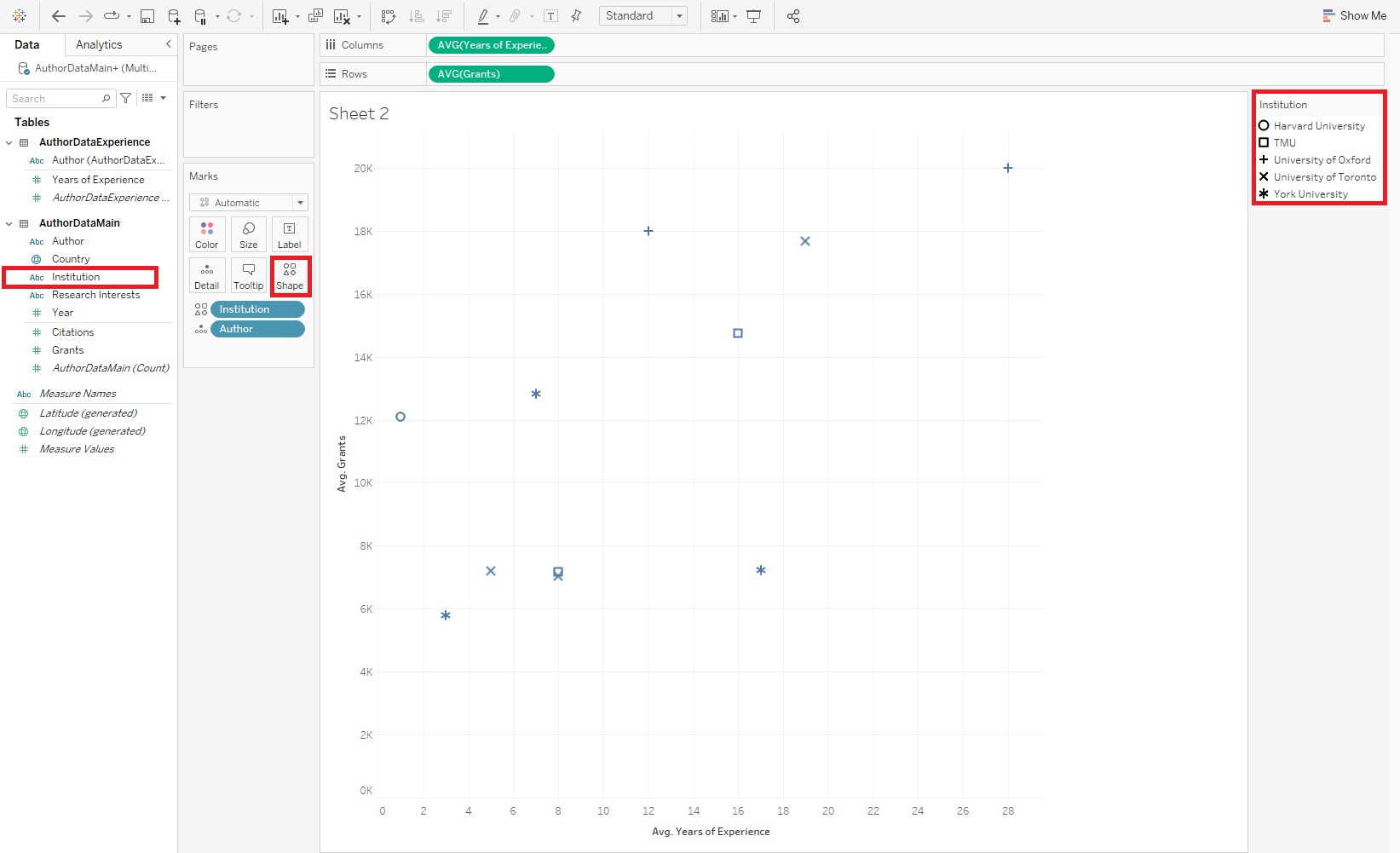
You may notice there is now also another box on the Marks card called Shapes. If you want to add another categorical variable to your scatterplot, you could do so by using different shape to represent different categories. Drag the Institution variable (Dimensions, under AuthorDataMain) on to the Shapes box on the Marks card. Now you should see that there is a legend on the right, using different shapes for different institutions.
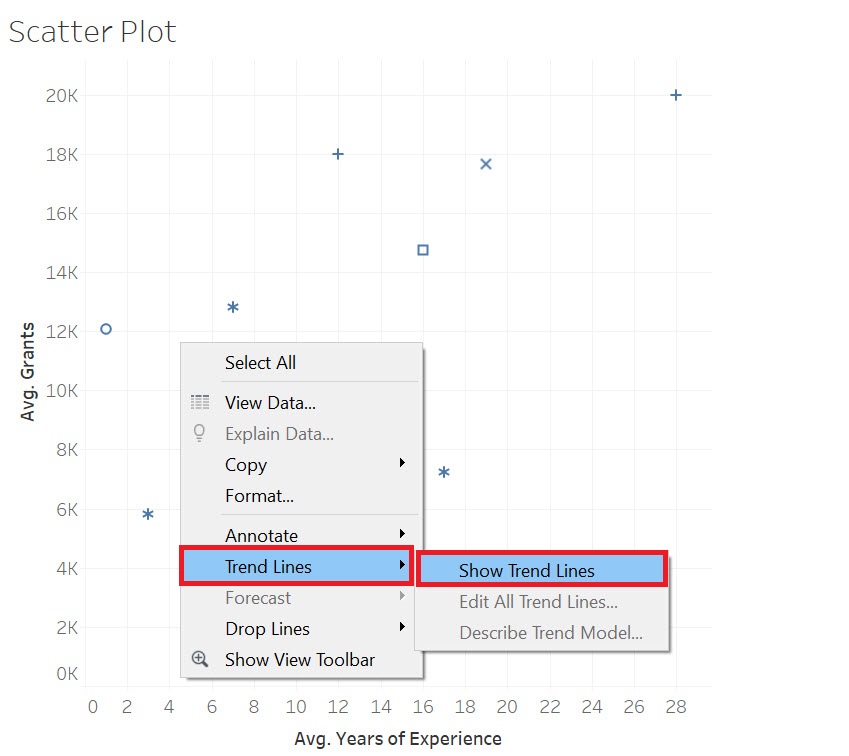
If you want to add trend lines in Tableau, right click in the centre of the graph and select Trend Lines, and then select Show Trend Lines. Hovering over the lines also gives you statistical information, such as p-values.
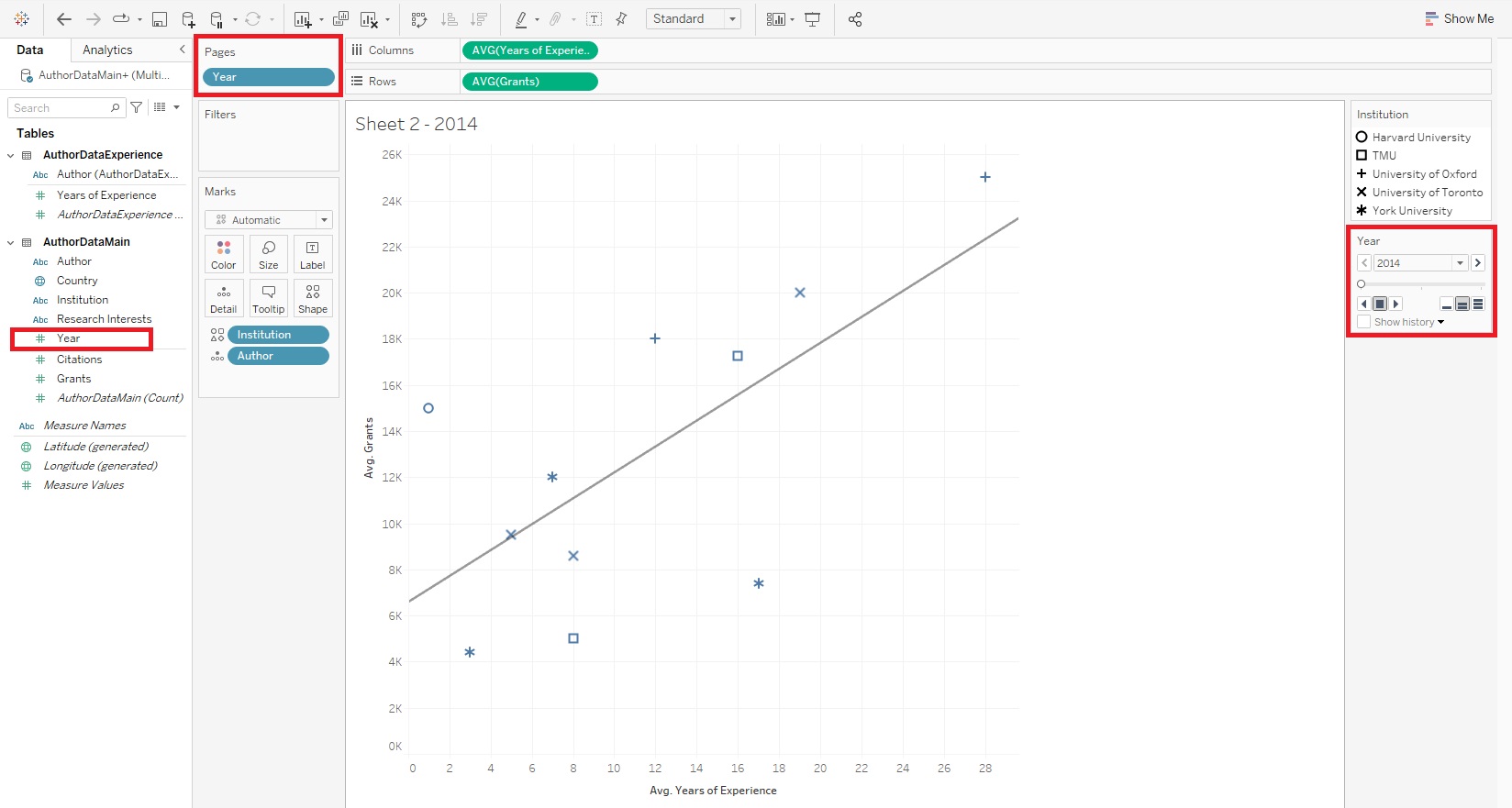
Finally, one interesting feature of Tableau is to create not just one visualization, but a series of them, using the Pages shelf. Drag the Year variable (Dimensions, under AuthorDataMain) on to the Pages shelf. Now you should see some controls on the right. The user can scroll through three different scatterplots, one for each year, or they can click on the play button to have it animate through the years.
Technique: Data Visualization | Tools: Tableau