Reports
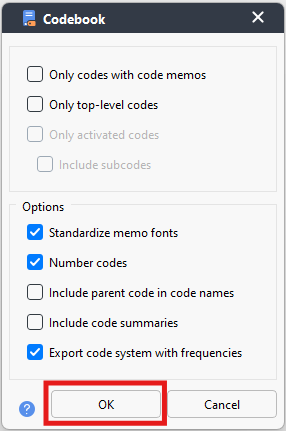
- Once you’ve done your work in MAXQDA, you might also want to export information out. You can export your codebook, which lists your codes and their memos to understand when a code is normally used. Go to the Reports menu at the top and select Codebook.

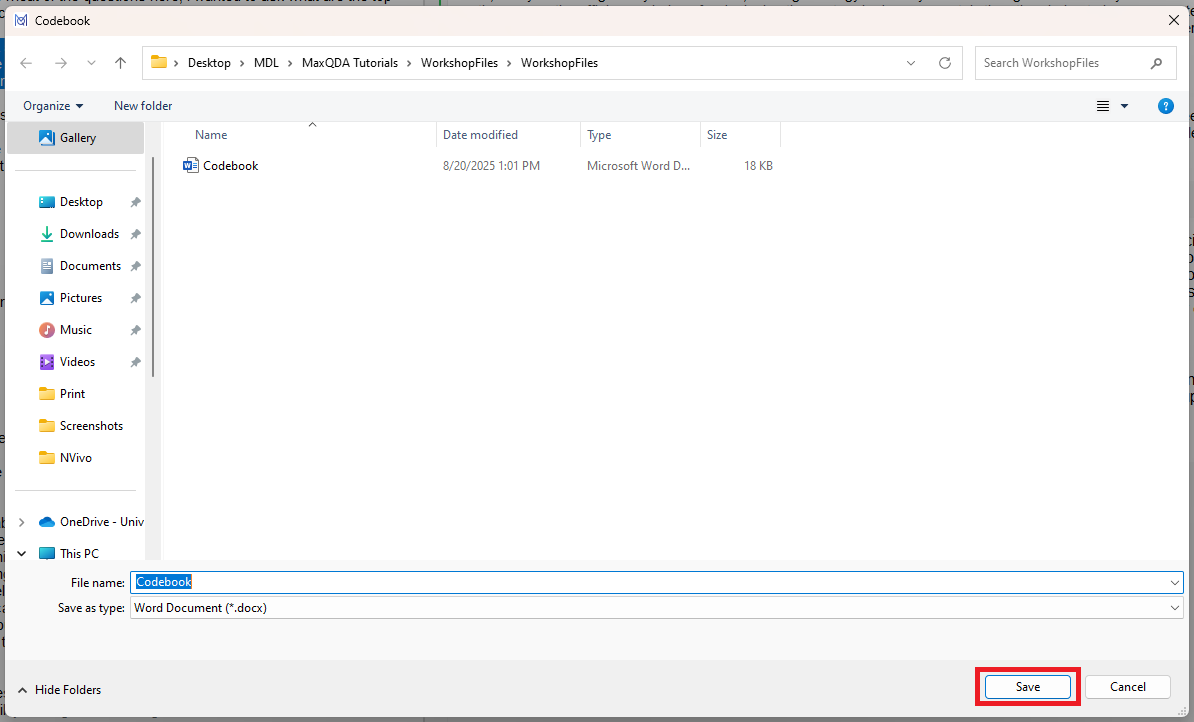
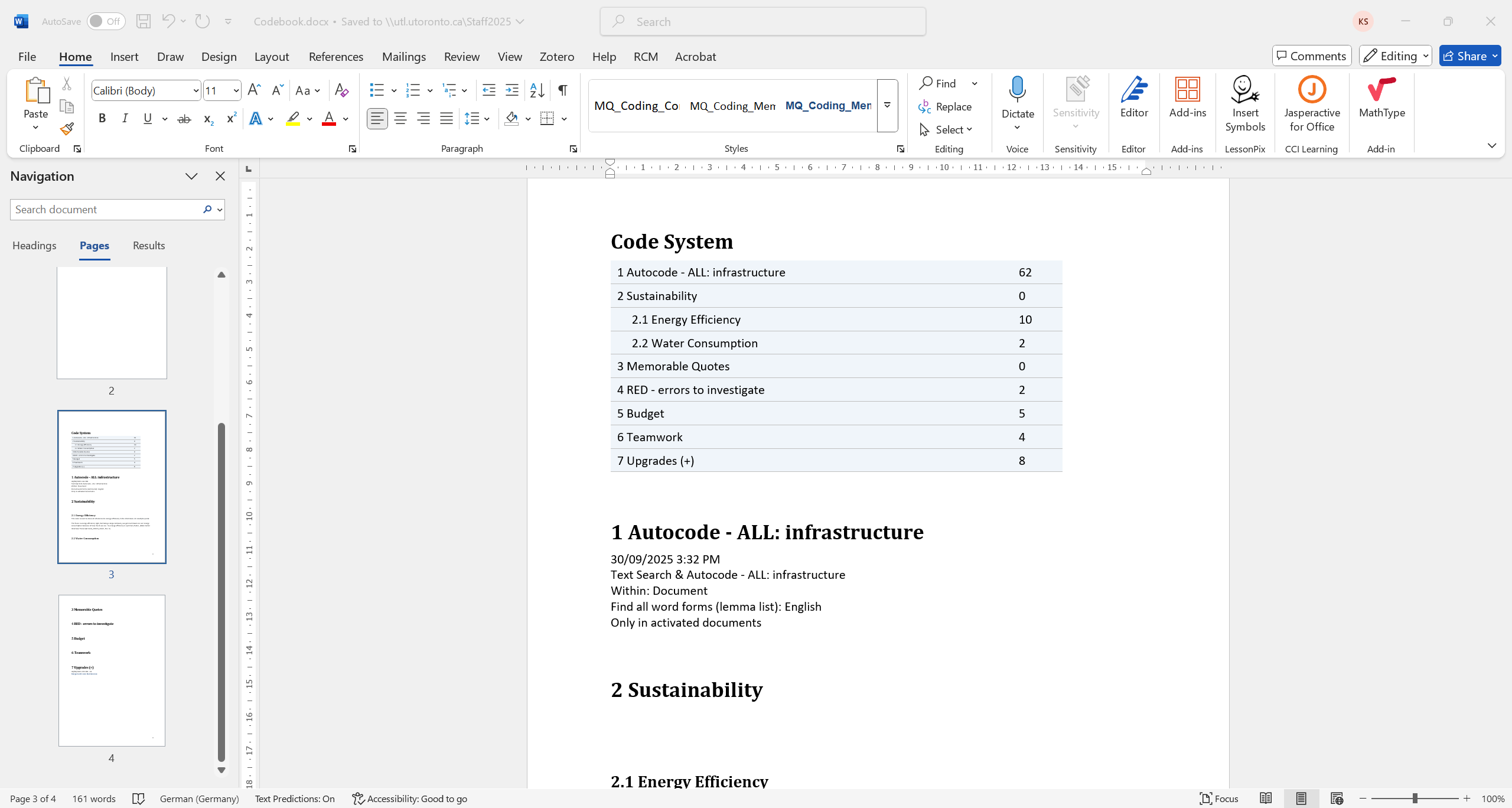
You can see there are a number of options to choose from. In this case, only have Standardize memo fonts, Number codes, and Export code system with frequencies selected. This creates a Word document with this information. Click on OK and choose where to save it. Save it where you can find it with your other workshop files. It should open automatically, and you’ll see it lists your codes in their hierarchy with their segment counts and then shows you each code with its memo.
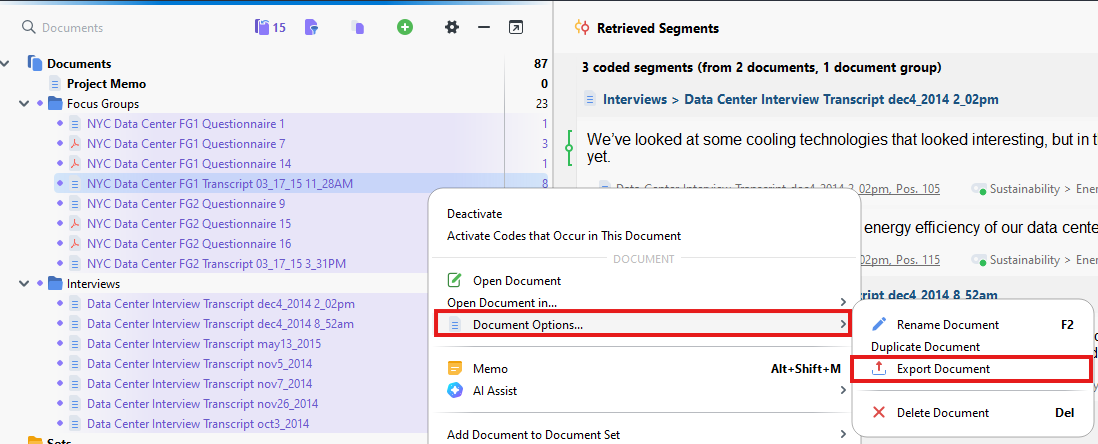
- You can also export a document with its coding. Right click on a document that has some coding done, then select Document Options -> Export Document.
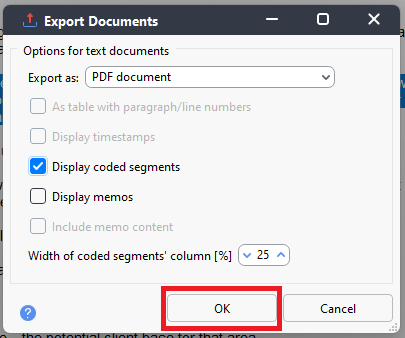
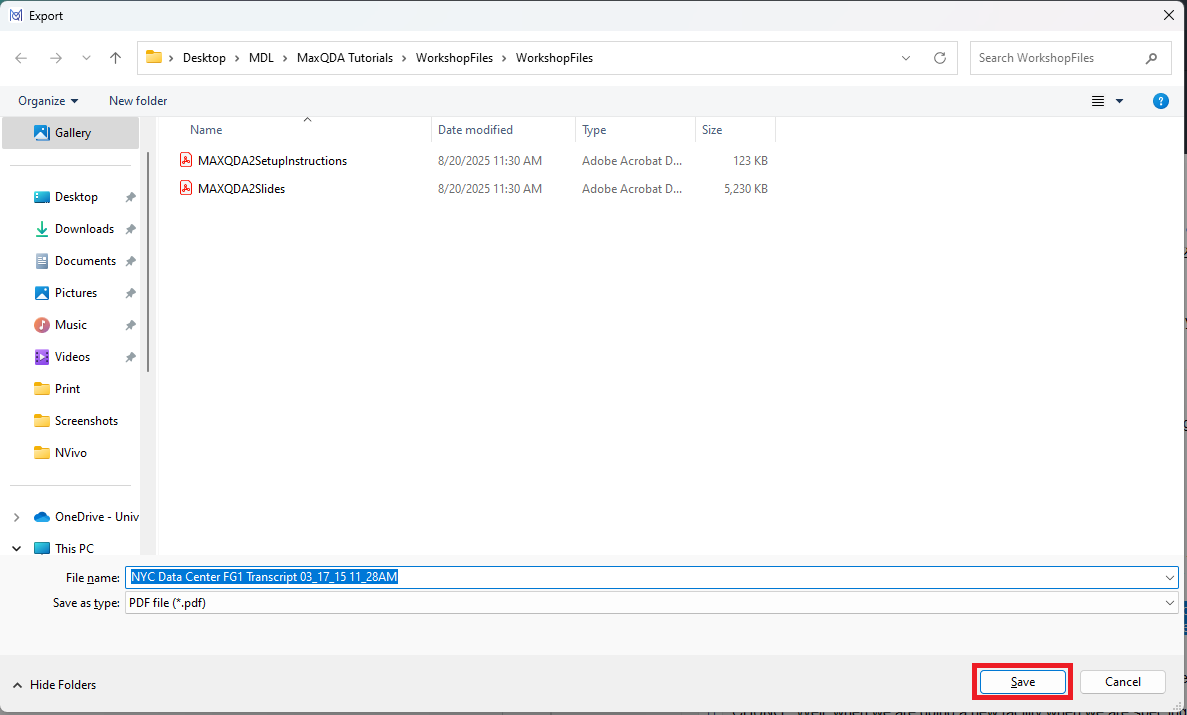
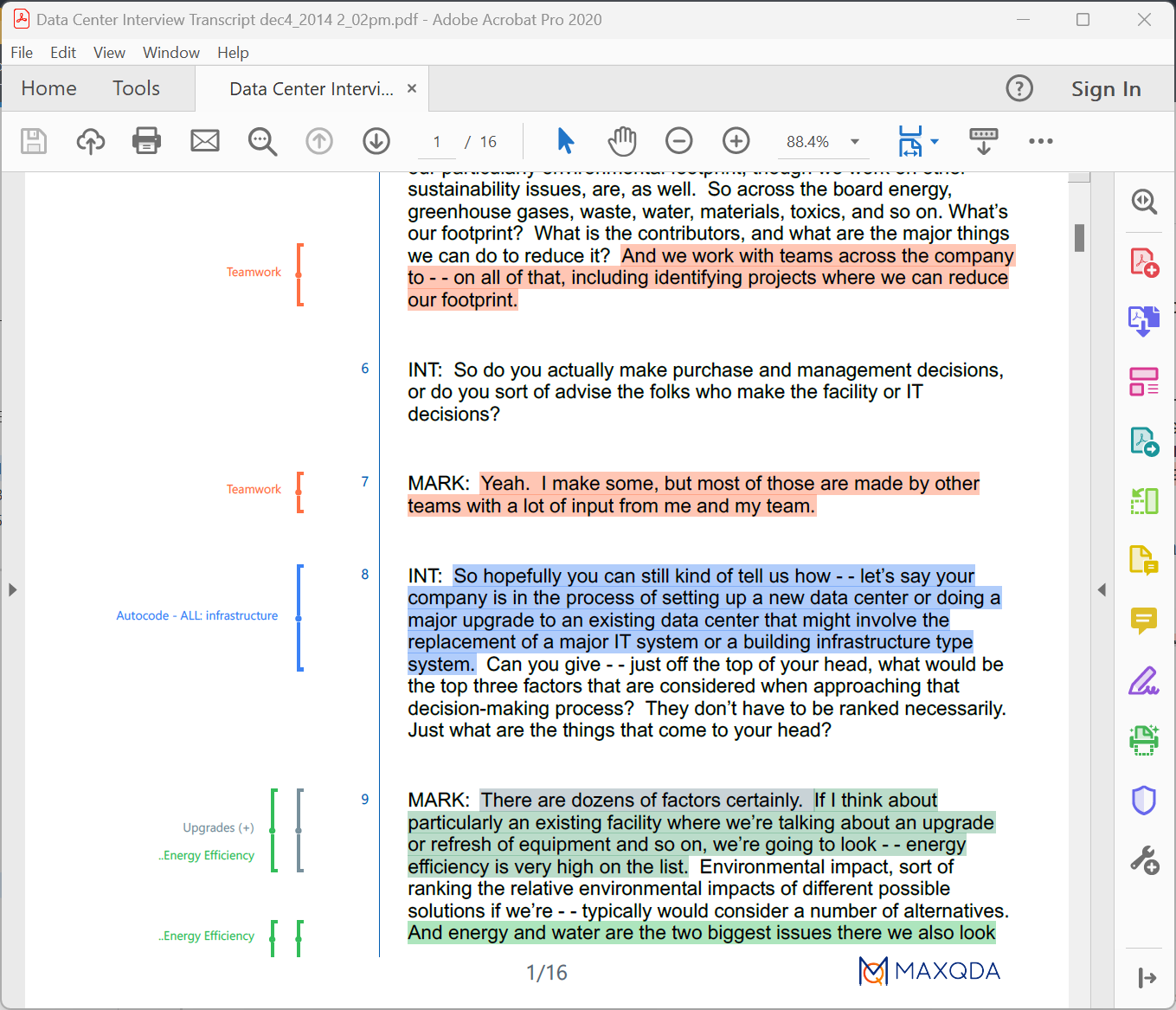
From the pop-up window, you can select what type of file you want, and if you want to see coded segments and/or memos included. For our example, let’s select a PDF format and Display coded segments. Click on OK and choose where to save it. Save it where you can find it with your other workshop files. It should open automatically, and you will clearly see all your coding in the document.
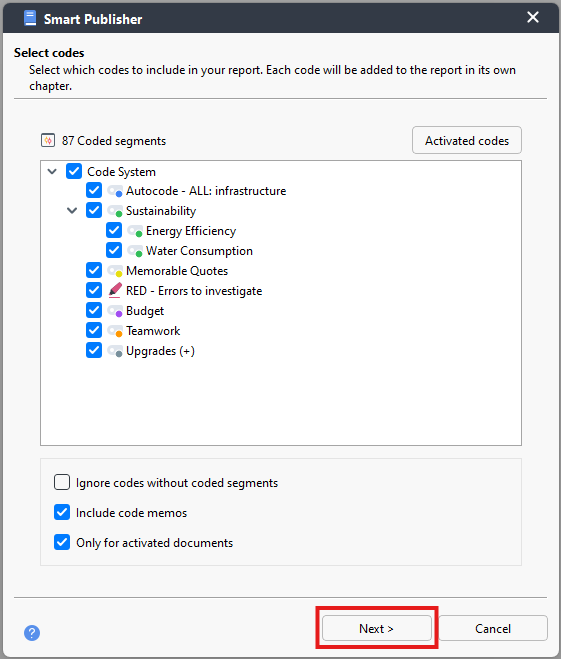
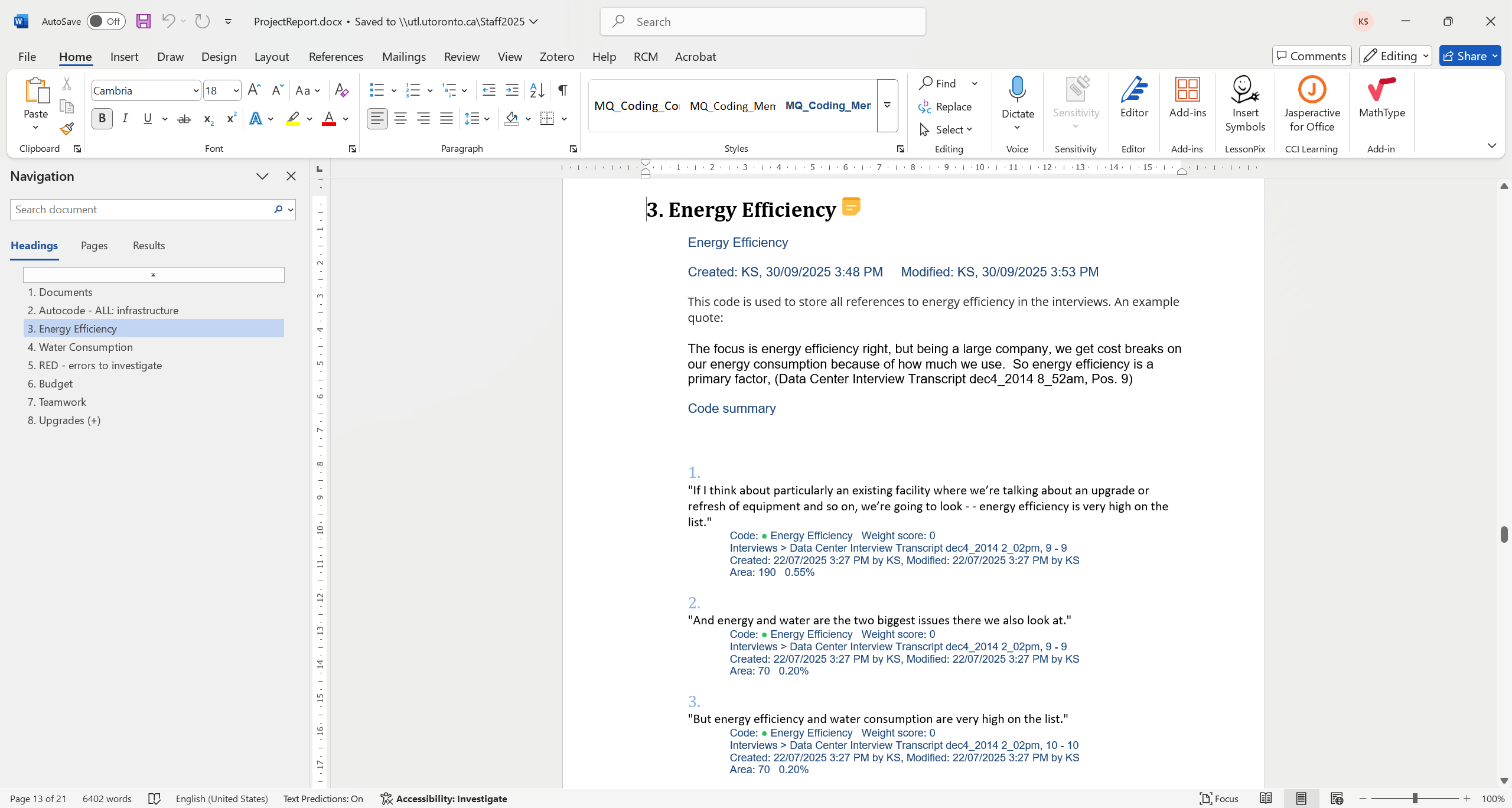
- You can also export a larger report about your project. From the Reports menu, select Smart Publisher. Next you select what you want to include in the report. Let’s select all of our codes and Include code memos, then click on Next.

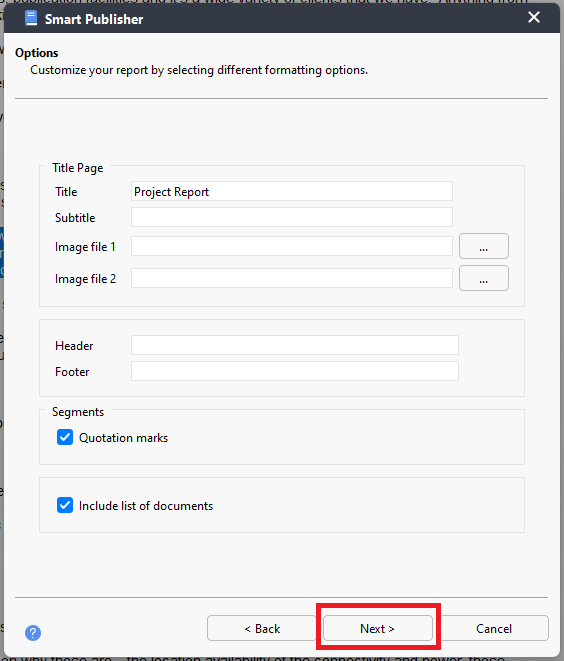
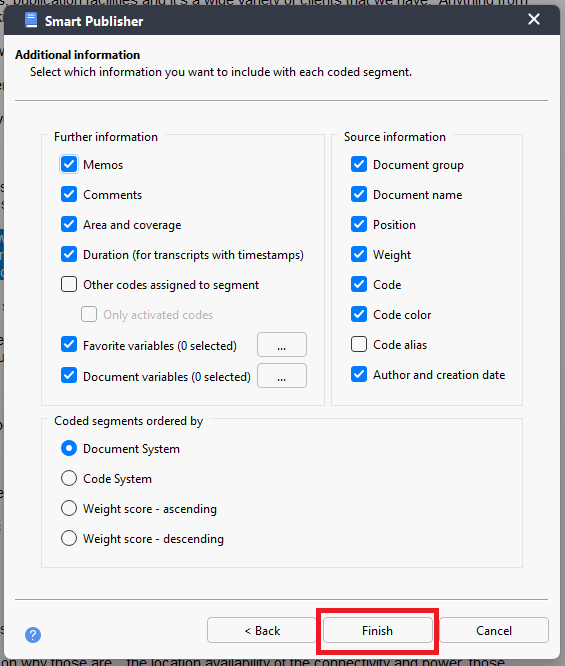
- Next, we give it a Title and Subtitle. We could add image files and headers and footers if we’d like. Let’s just give it a title, calling it “Project Report”. Let’s also select Quotation Marks and Include list of documents, then click on Next. Here are more options you can play with to include or not, but for now, let’s keep the defaults and click on Finish.
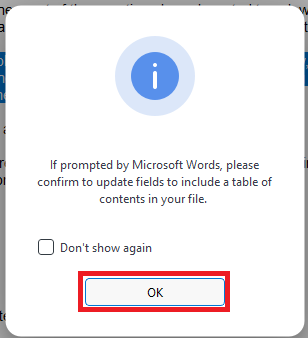
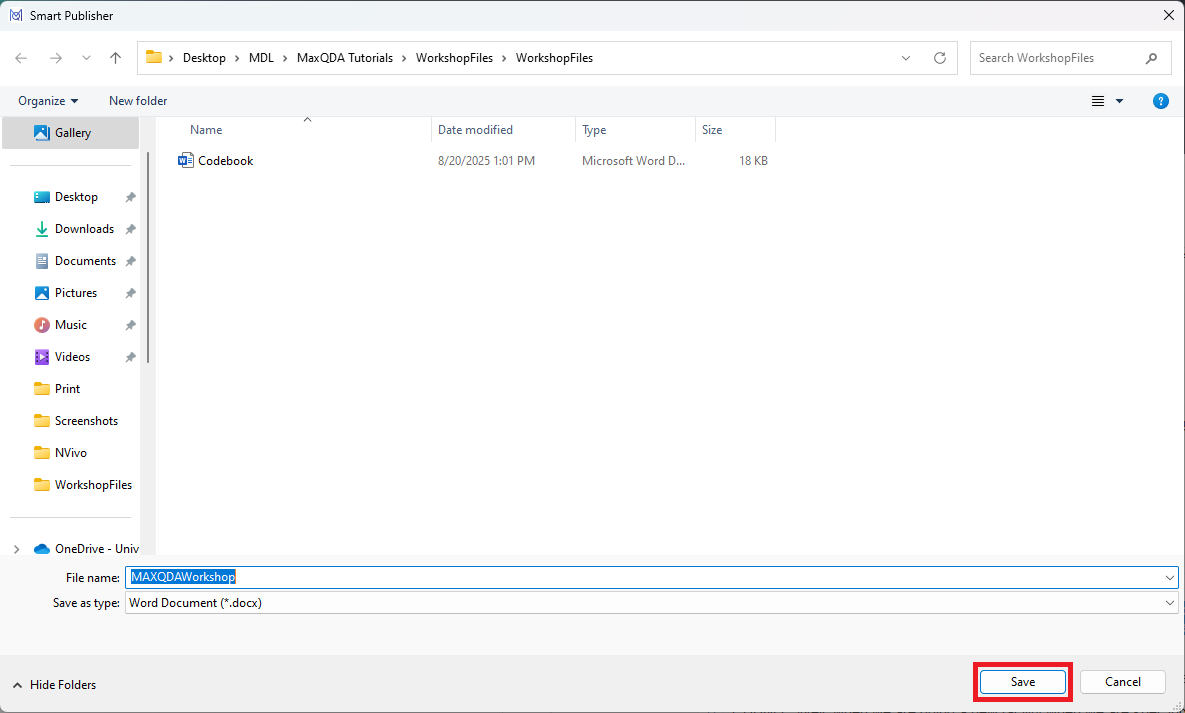
You may see a pop-up window just asking you to confirm something in Word. Click on OK and choose where to save it. Save it where you can find it with your other workshop files. If you see Word prompting you to update fields, just say “Yes”. It should then open automatically, so you can see the contents of the report.

These reports are all very helpful for writing up your research and for working in teams and sharing work. I encourage to explore the other options you have available to you to learn more.
Technique: Qualitative Data Analysis | Tools: MAXQDA