Working with Document Variables
- Once your document variables are added, there are a lot of options opened up to you in terms of viewing and working with your data.
- One thing you can use document variables for is to activate a document based on an attribute. For example, let’s say we want to retrieve all the segments where executives talked about energy efficiency. First, we need to activate the interview where the interviewee is an executive. Go to the Mixed Methods menu and select Activate Documents Based on Variables Values.

Double click on Role Level from the list on the left (or highlight it and click on the right arrow key) to put it in the Conditions column.
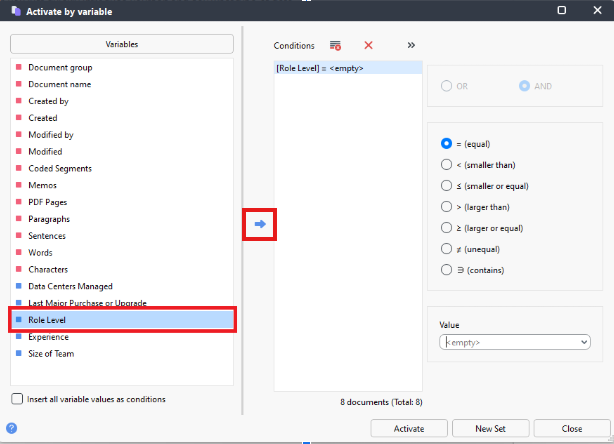
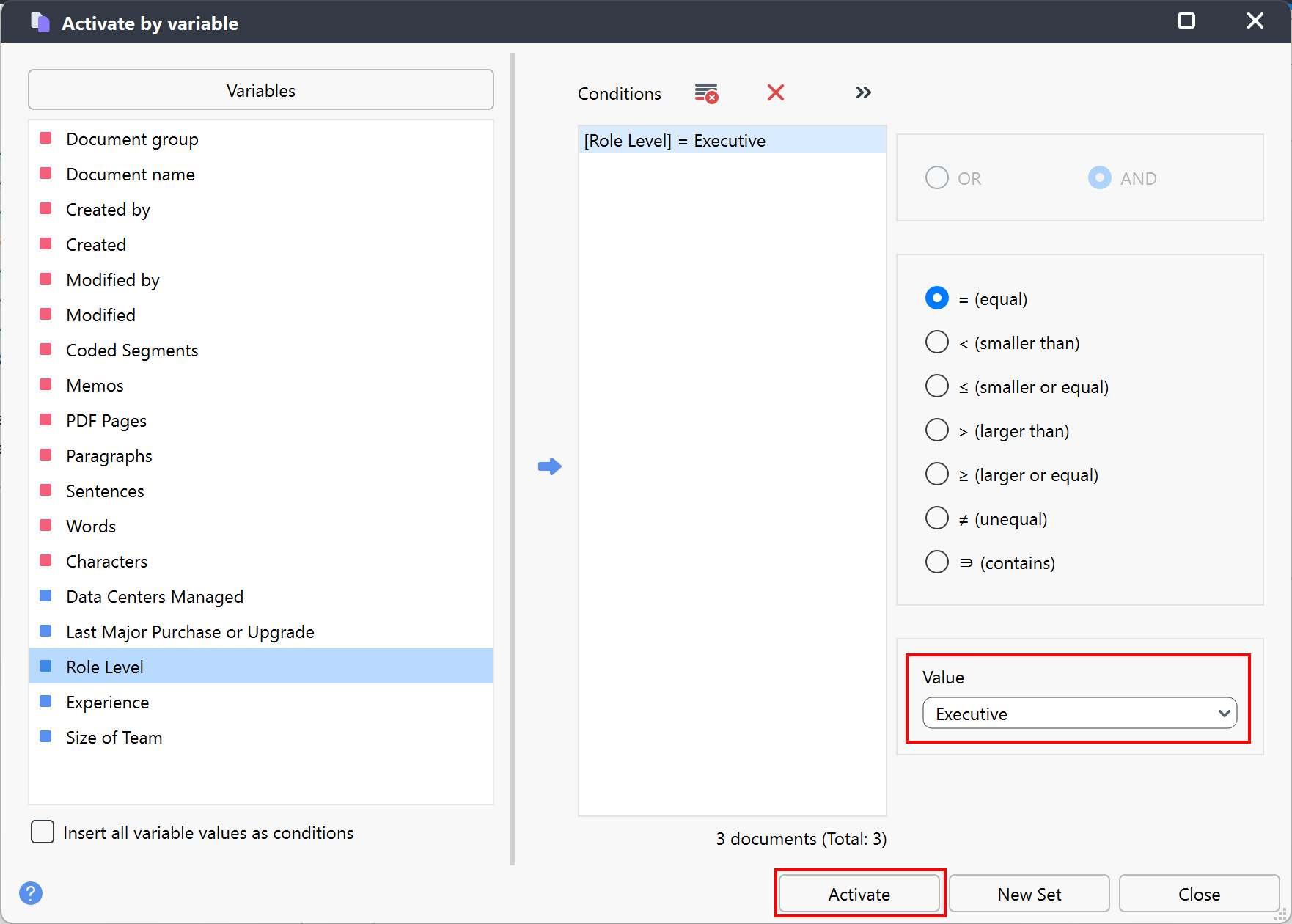
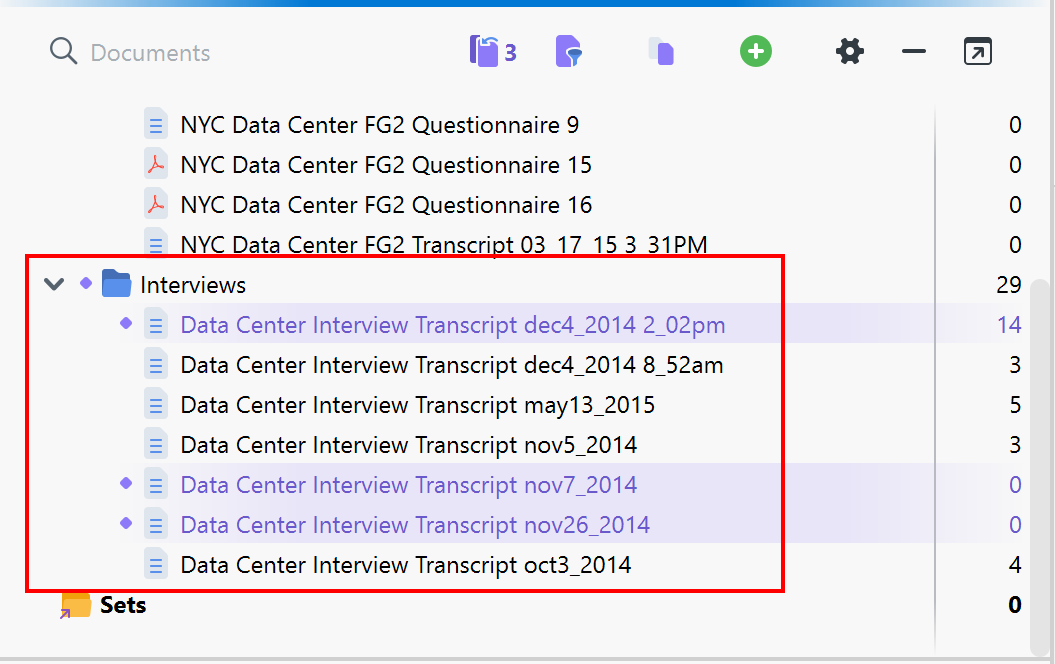
From the Value drop-down menu, select Executive. It tells you how many documents will be activated at the bottom - in this case 3. Click on Activate. You will now see the appropriate 3 documents activated that are associated with Executives.
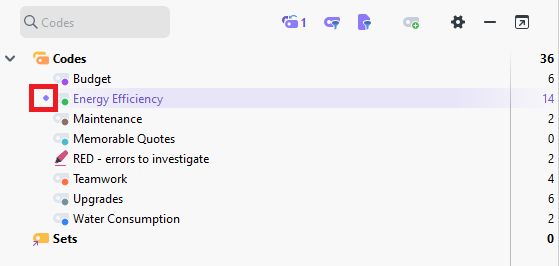
Then activate Energy Efficiency by clicking on the circle to the left of it in the Code System panel.
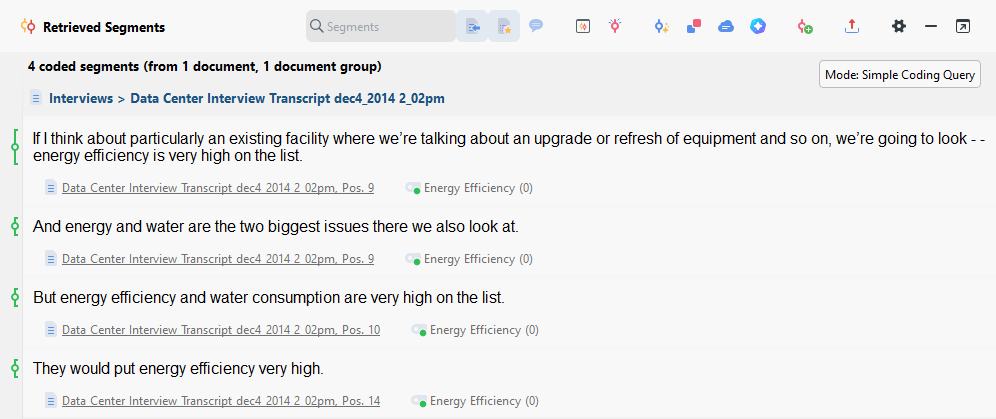
- If you bring up the Retrieved Segments window, you will now see all the segments that are coded energy efficiency, from executive interviews only.
Technique: Qualitative Data Analysis | Tools: MAXQDA