Word Cloud
- The third visual we will look at are word clouds, which shows the most common words in one or more documents, displaying the word larger if it is more frequent. It is often a good visualization to do early on in a project to get a sense of key topics in the data. Go to the Visual Tools menu and select Word Cloud.

First, we have to either drag documents that we want to build a word cloud from, or we can activate documents and then click on Insert activated elements. Let’s try the second way as we already have some documents activated from the last example. Click on Insert activated elements. Then click on OK.
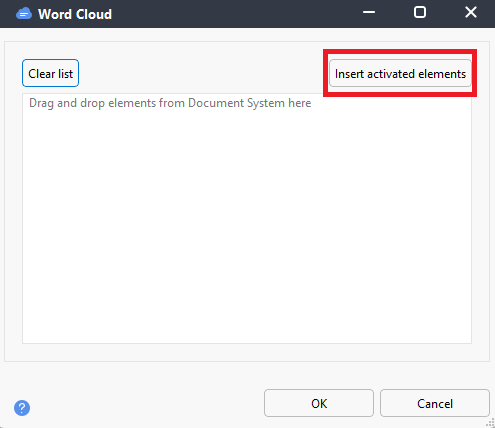
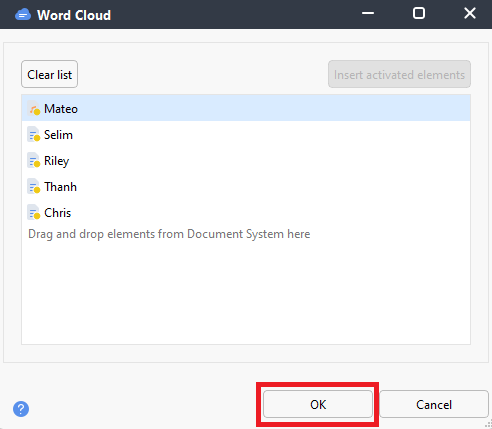
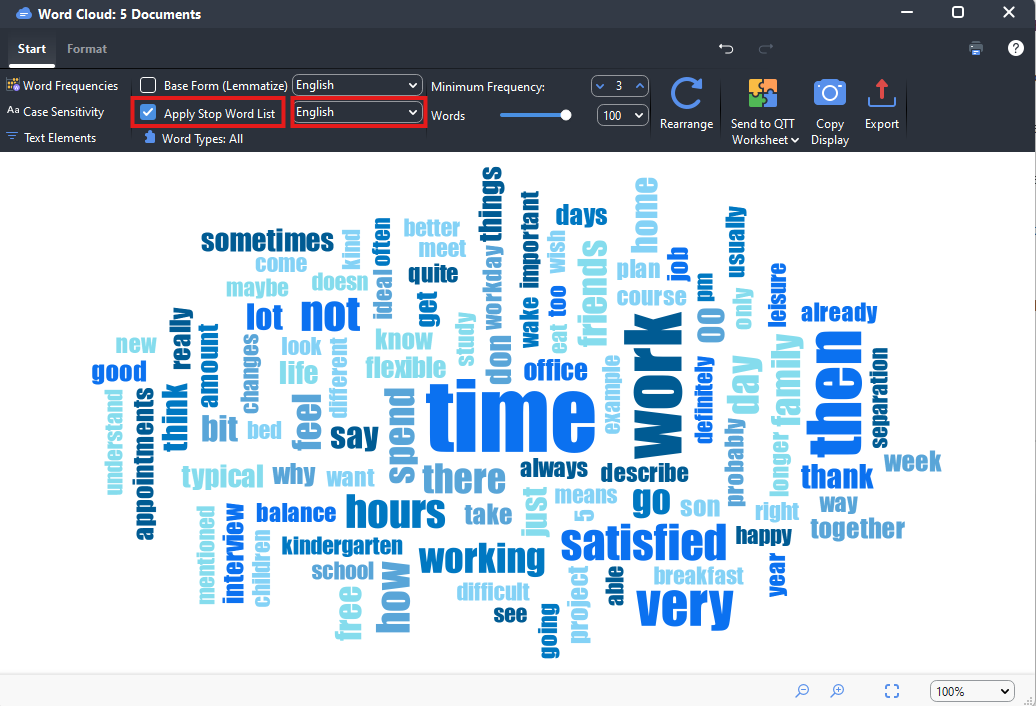
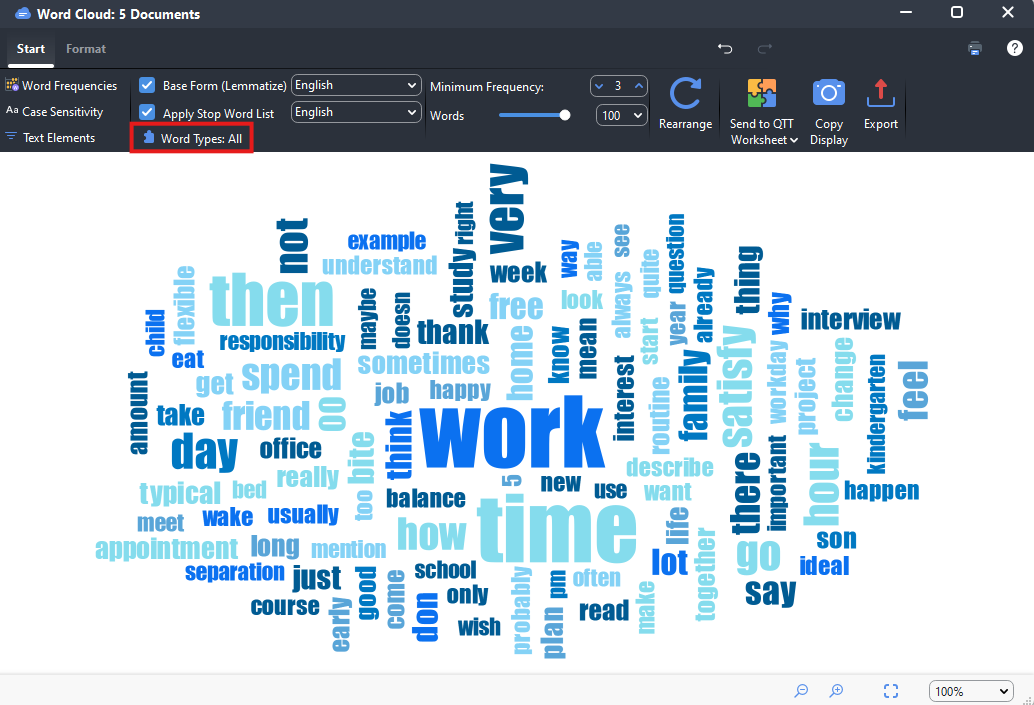
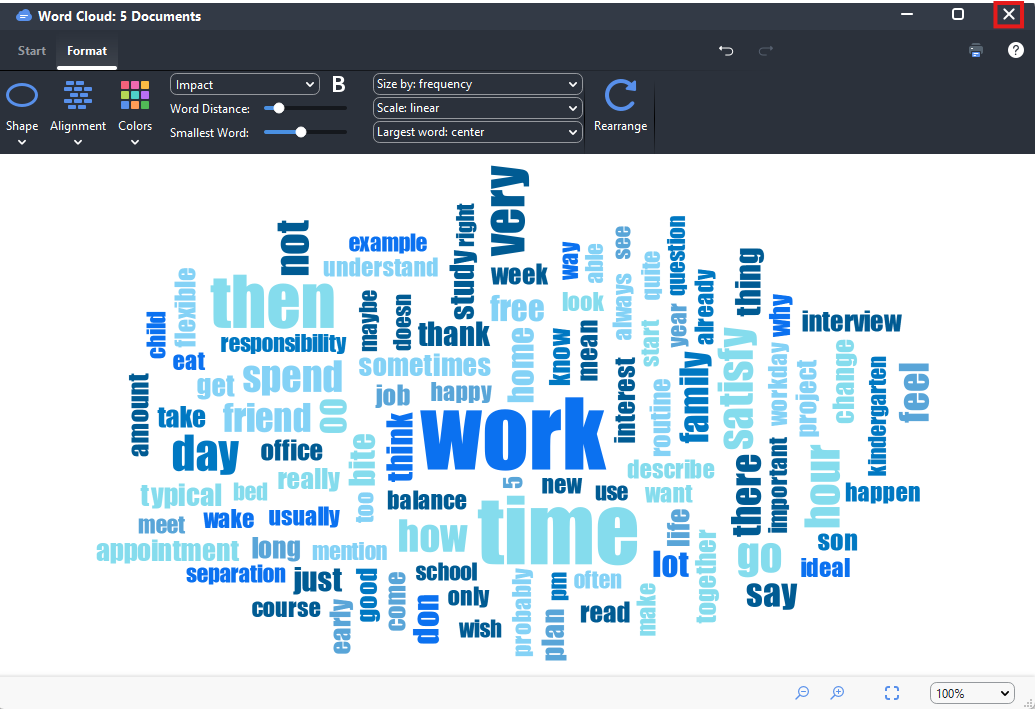
- Here is your word cloud showing you the most common words. For word clouds it is always best to apply a stop word list of words to ignore. A stop word list contains really common words that wouldn’t be useful to analysis. For English, that would be words like “a,” “the,” “and,” etc. To apply a stop word list here, click on Apply Stop Word List at the top. The first time you do this, you might have to pick English to get the English stop words.
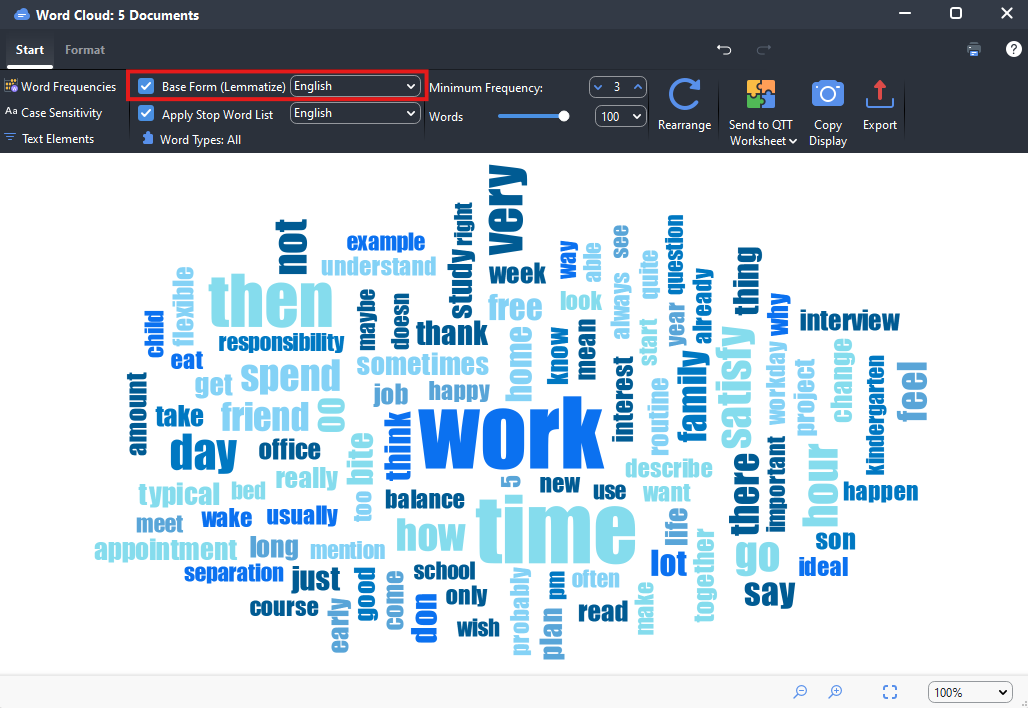
You will also want to select Base Form (Lemmatize) and select English as the language. This will group a base word together with all of its endings – such as run, runs, and running.
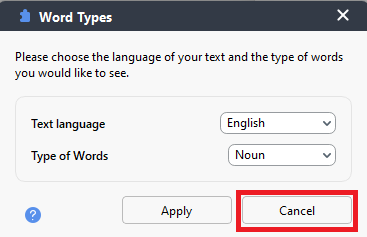
If you click on Word Types: All, you will see that you have options to select a certain type of word, like Noun, to further customize your word cloud in powerful ways. We’ll leave it for now by clicking on Cancel.
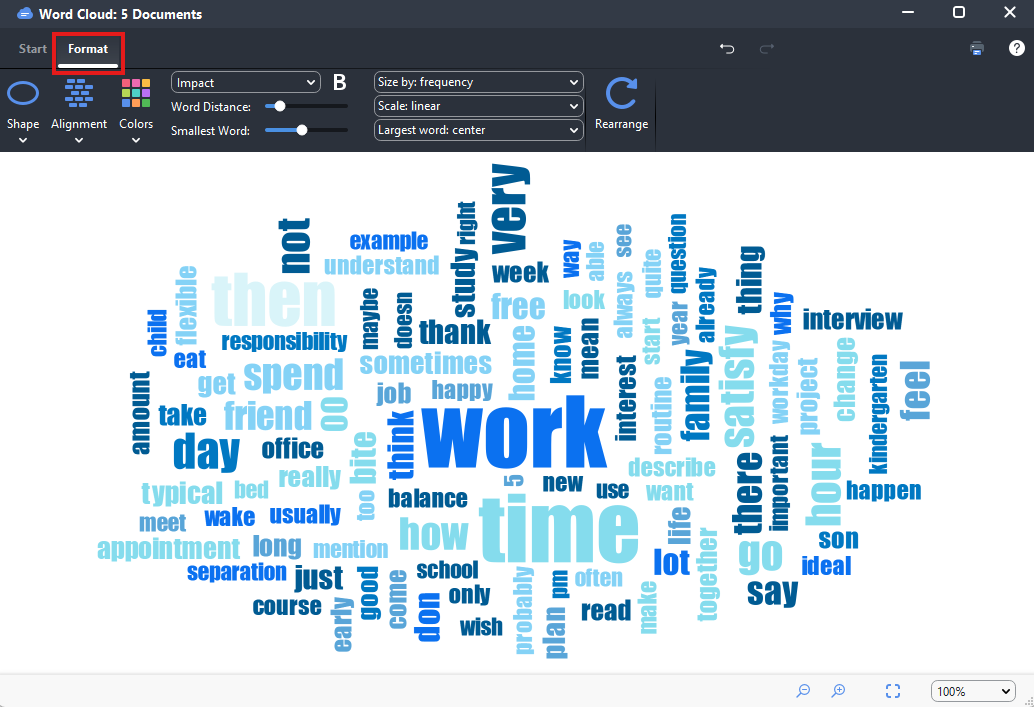
- The Format tab provides you with options to change the shape, colour, or alignment of words in your cloud.
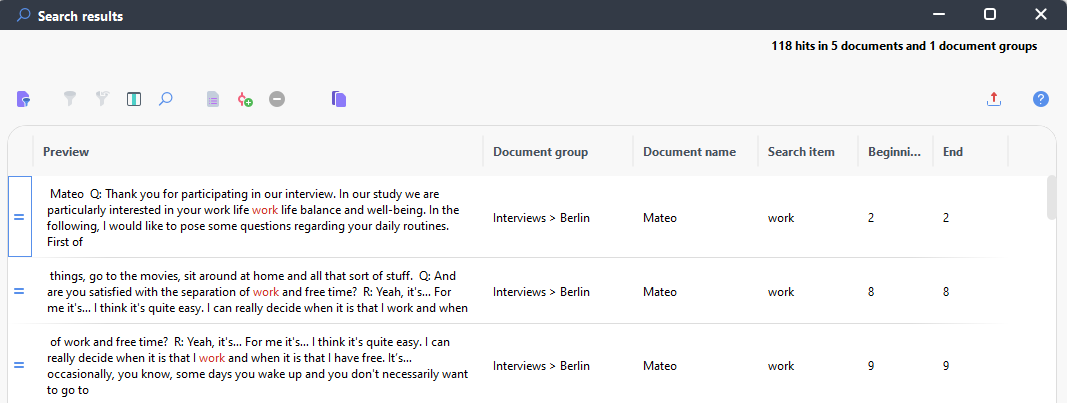
- If you double click on a word in the cloud, it’ll bring up a table with all the references to the word in context.
- And finally, again, we can export this, if we wanted. For now, let’s close the window.
Technique: Qualitative Data Analysis | Tools: MAXQDA